
- Who is this for
- Everyone
Released 13 November 2026. Follows 2.3.1 (4 November 2026).
What's new?
Admins can now set up automations, rules that make changes for you when something happens, and write a short process guide for each record type that people open from the table. Allocation has a reworked Customise panel with more chart choices, and you can filter any Staff field by Me so one saved tab shows each person their own rows.
Automations (Beta)
Set up rules that do things for you when something happens, such as setting a field when a record is updated or adding a comment on a date. It carries a Beta tag, which means it is still being built and may change between releases.


- Build a rule. A rule has a trigger (when), optional conditions (only if) and actions (then). You build it on a canvas, with Undo, Redo and a Review step before you save. See Automations.
- Choose when it runs. Start a rule on a date and time, on a schedule, when a record is created, updated or deleted, when an allocation or a Pulse changes, or by hand with Run automation on the Automations list. See Automations.
- Choose what it does. Set a field, create a child record, add or delete a record, add a comment, or add, edit or remove an allocation or a Pulse check-in. Actions marked Available soon, such as sending an email, do not work yet. See Automations.
- Find your rules. Open Automations in the left menu, use the Automations button above a table, or click the automation icon in a record's header. Each rule shows its last result, and the Audit log lists every run. See Automations.
- Automation branches. A second Beta switch adds Add branch, so a rule can act on a record's parent, children, siblings or linked records. See Automations.
- Set who can use it. Each record type's permissions grid has an Automations row. Admins make company-wide rules, and members with full access to the record types a rule names can make personal ones. See Automations.
Good to know
- Both switches are off by default. An admin turns them on under Administration → Features. See Turn features on or off.
- A rule runs with the access of the person who made it, and its own changes do not start other automations.
Process documentation
Admins can write a short guide to how work is done for each record type and for Allocation, and everyone reads it from the table.


- Read it from the table. An ⓘ button, the first of the tools on the right of the table toolbar, opens the document for that page. On RAIDD, OKRs and Skills the panel has one tab for each record type. See Process documentation.
- Write and edit it. Editors write the guide in a rich text editor with tables and images, from the Process documentation card on Entity & fields or from the ⋯ menu on the panel. See Process documentation.
- Choose who can edit. A new Edit process documentation row on the permissions grid lets a role write the guide. Admins can always edit. See Process documentation.
Good to know
- It is off by default. Turn it on under Administration → Features, with one switch for each record type. While a switch is off nobody sees that document, but what was written is kept.
- Custom record types do not have a process document.
Allocation
Customise has a clearer layout, and charts can show more.
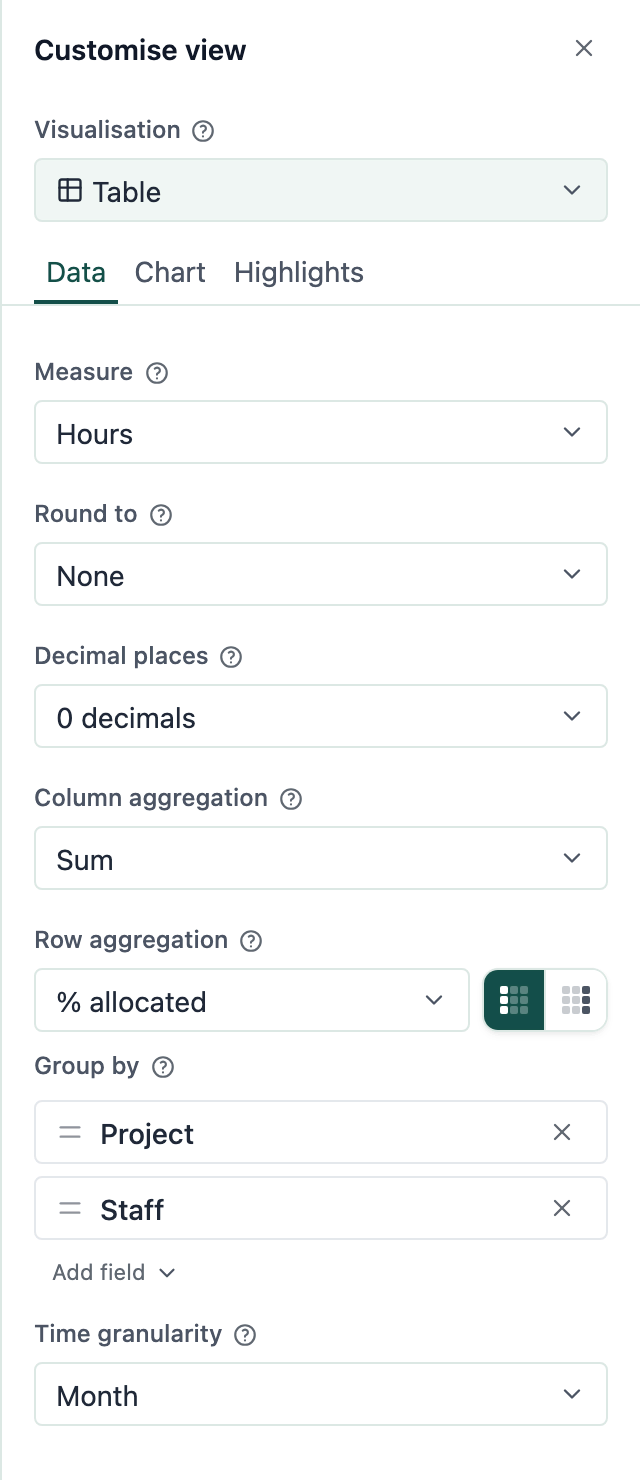
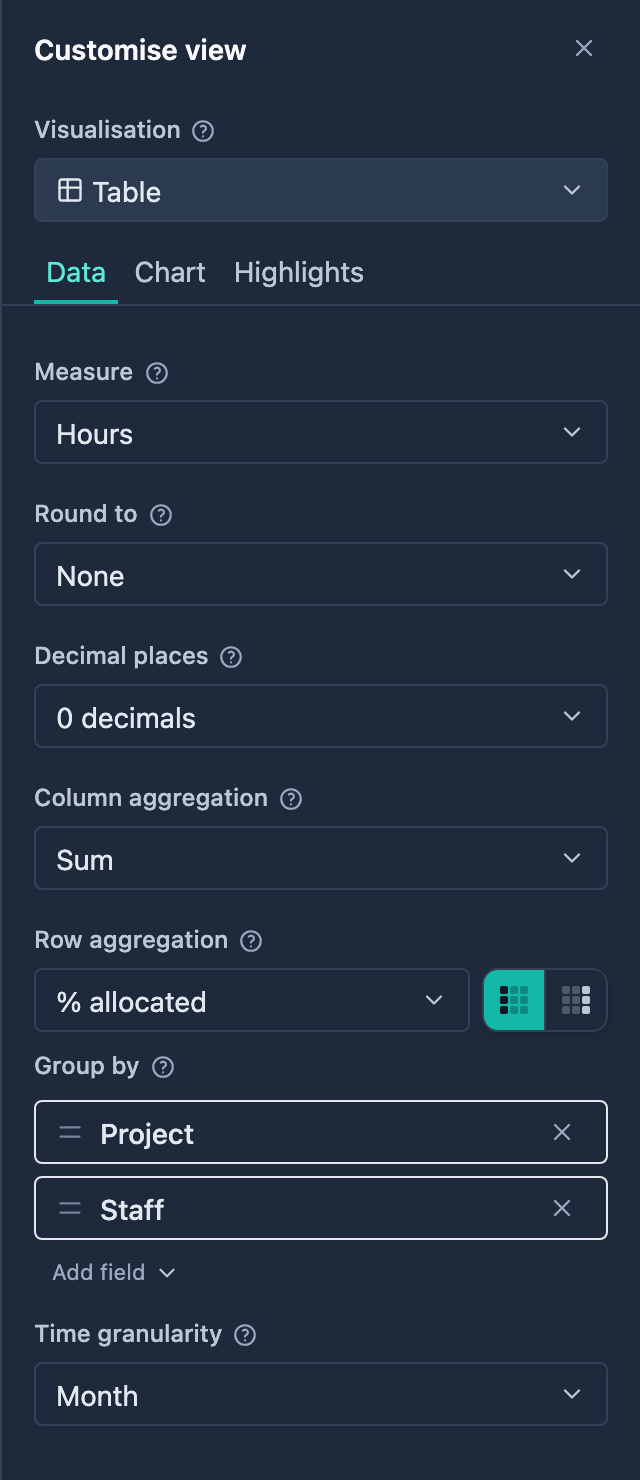
- New Customise layout. Visualisation now sits above the tabs Data, Chart and Highlights. The Table, Advanced table and List also get a Chart tab, where Show today marker, Show weekend marker and Show legend now live. See Allocation.
- More chart choices. Charts get options such as Show data labels, Show data total, Bar width, Show Y axis, Smooth curves and Show markers, plus a new Donut chart and Sankey diagram. All start off, so saved views look the same. See Allocation.
- Selection bar on the List. Selecting cells on the List shows the same actions as the Table, such as + Add allocation, Edit and Delete. See Allocation.
- Hidden people. People with Allocation switched off no longer appear on the Allocation page or in its totals. Their past entries are kept and come back if you switch it on again. See Allocation.
- Pivot table is now Advanced table. It no longer has Combine values sharing a unit or Suggested. See Allocation.
Good to know
- New Allocation tabs open on This year with every group collapsed. Existing tabs are unchanged.
Comments
Replies and mentions are easier to follow.
- Replies grouped. Replies sit together in one tinted panel under the comment they answer, and your own comments have their own colour. See Comment on a record.
- Mentions stand out. Another person shows in bold teal, and you show as a solid teal pill. Click a mention or a person's name to open their Staff record. See Comment on a record.
- @everyone. Choose Everyone from the @ list to address the whole conversation. It names nobody and notifies nobody. See Comment on a record.
- Comments on Skills. They are now on by default, and admins can still turn them off in Administration → Features. See Comment on a record.
Tables and views
Saved tabs and search work better for everyone.
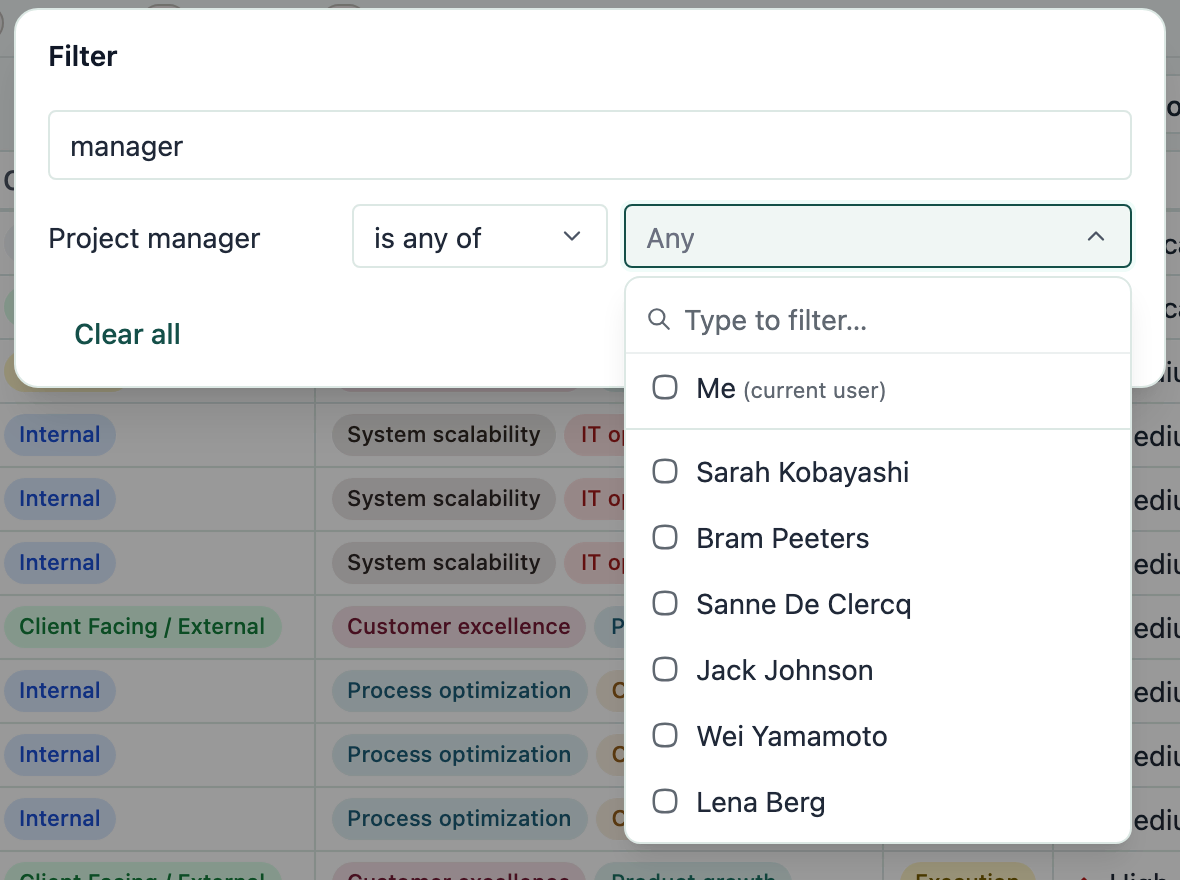
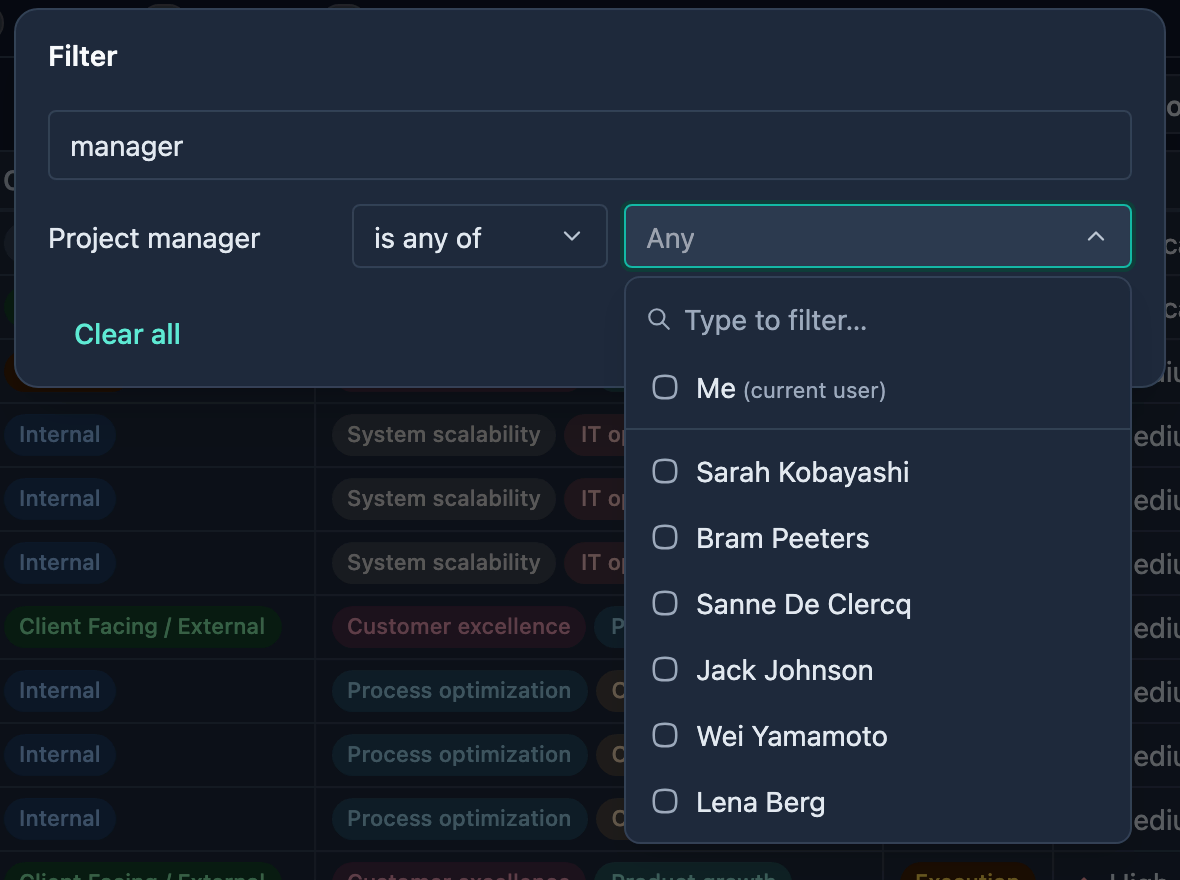
- Filter by Me. On a field that points to Staff, such as Project manager, the value list starts with Me. One saved tab then shows each person their own rows. See Filter, sort and group.
- Search ignores accents. Typing "helene" finds "Hélène" in search boxes, filters and the pickers for linked records and mentions. See Filter, sort and group.
- Lock on fixed tabs. Pinned and built-in tabs show a small lock after the name, with a hover hint on why you cannot rename or delete them. See Create and manage tabs.
- Update a preset. Admins can replace a preset's set-up with a tab they have changed, using Update an existing preset in Save as preset or Update preset in a tab's right-click menu. See Preset tabs.
Access control
Everything about who can do what on a record type is now in one place.
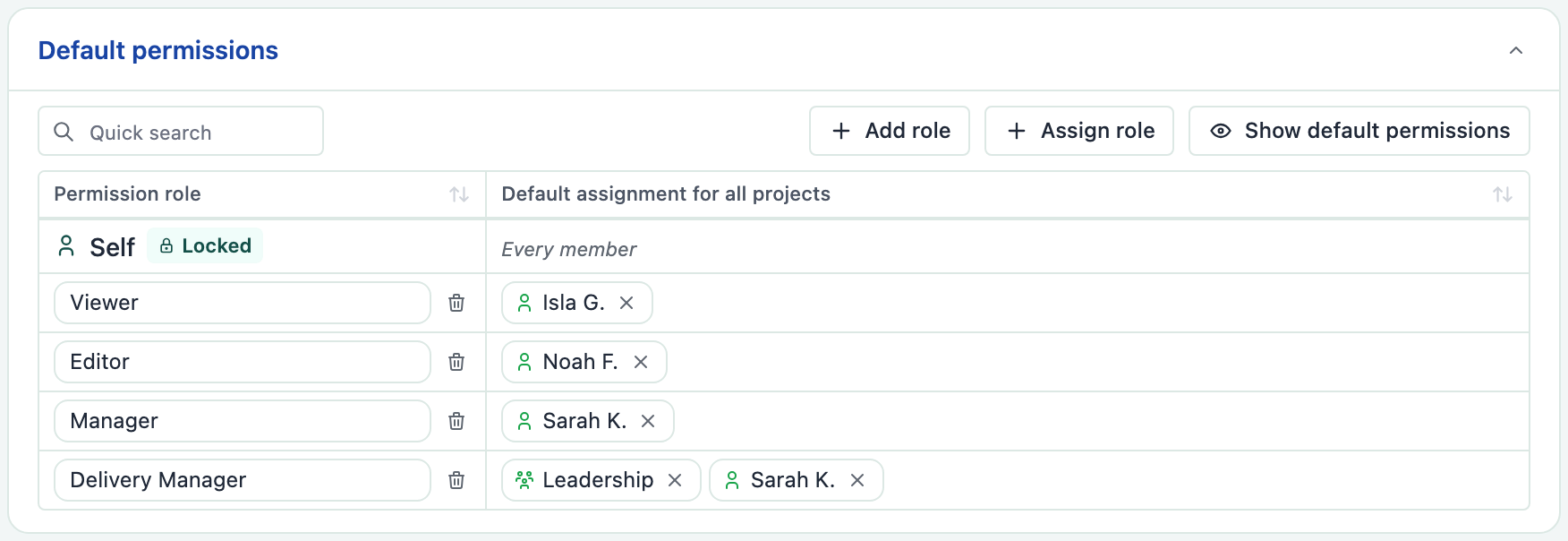
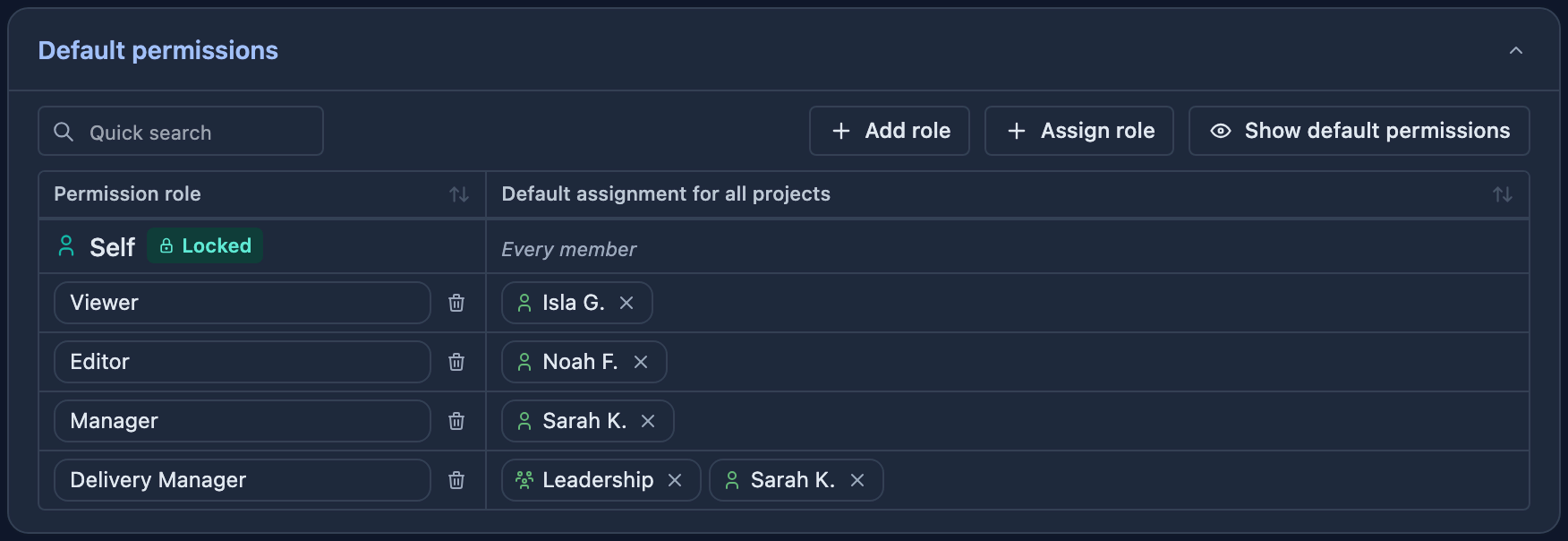
- One Default permissions card. On Entity & fields, the Roles, Role assignments and Permissions cards are now one card called Default permissions. See Access control.
- Removed: the separate Roles, Role assignments and Permissions cards. Their settings are all on the Default permissions card. See Access control.
- Roles save as you go. Adding, renaming, deleting and assigning a role save straight away, with no pencil or Save. See Access control.
- Permissions in a dialog. Show default permissions opens the grid in a wider dialog with Save permissions. See Access control.
Good to know
- The Self column shows on Staff only. Self levels already stored on other record types are unchanged.
Record types and fields
- Review during pulse entry. Fields whose value Gembaa calculates, such as Formula and Aggregate fields, can no longer be ticked for Review during pulse entry. The box is greyed out with the reason on hover. Required, Always show during creation and Review during pulse entry each have a (?) help. See Entities and custom fields.
RAIDD
- RAIDD on Demand. A Demand now has a RAIDD tab and a Relations tab, and a Risk, Assumption, Issue, Dependency or Decision can link to a Demand. See Demand.
Dashboard
- Copy a widget to another tab. Choose Copy to tab… in a widget's menu, tick the tabs and click Copy. You can copy only to your own tabs. See Dashboard.
Gantt
- Invalid dates. A record with a date outside 1 January 1900 to 31 December 2199 keeps its row without a bar and shows a warning icon, instead of stopping the chart. Every date field now refuses dates outside that range. See Gantt.
- Add a milestone from a row. Right-click a row and choose Add Milestone to start with the parent filled in. See Gantt.
Administration
- Colour picker. On Colors & themes, each colour has a text box with a HEX, RGB or HSL choice and a built-in colour picker. A colour that is not valid shows an error, and you cannot save until it is fixed. See Theme and colours.
Sign in and your account
- Signing out and back in. Sign out now ends your session for good, so an old sign-in cannot be reused. The Authentication required screen has a Sign in again button that takes you to the sign-in page. See Sign in and your account.
Across Gembaa
- Help link. A question-mark icon in the header opens the Gembaa release notes and documentation in a new tab. See Find your way around.
- Clearer activity history. Entries show only on the records they concern, link and Pulse request entries read as sentences, and the history has new filter options such as Link added. See Activity history.
Fixes
Fixes across Allocation, the Gantt, Dashboard charts, activity history, signing back in and theme colours, so charts, dates and entries show as they should.
We'd love your feedback
Have feedback or found a bug? Let us know. We are always improving Gembaa with your help.