
RAIDD
- Purpose
- Track Risks, Assumptions, Issues, Dependencies and Decisions in one place and link each one to the work it affects.
- Who is this for
- Project and program managers
- Prerequisites
- At least one Program, Project, Staff member or Team to link entries to.
- Permissions
- Access to a RAIDD entry comes from the records it is linked to. You need view access to the RAIDD sub-module on a linked record to see an entry, and manage access to change it.
RAIDD is the log of things that threaten, constrain or steer your delivery: Risks, Assumptions, Issues, Dependencies and Decisions. Keeping them in one place, each linked to the Programs, Projects, Staff and Teams it affects, means the people accountable can see them without hunting through emails and meeting notes.
Entry types
| Type | Plain meaning | Use it when |
|---|---|---|
| Risk | Something that might go wrong and hurt delivery. | You can see a possible problem and want to rate it, name an owner and plan a response before it happens. |
| Assumption | Something you are treating as true without proof. | Your plan depends on a fact you have not confirmed, such as "the vendor will deliver in March". |
| Issue | A problem that is happening now. | A risk has come true, or something has gone wrong, and it needs action. |
| Dependency | Something you need from someone else, or someone else needs from you. | Your work cannot finish until another team, supplier or project delivers. |
| Decision | A choice that has been made, or is waiting to be made. | You want the outcome and the reasoning on record, so nobody reopens it by accident. |
A few habits make a RAIDD log useful.
- Give every entry one owner and a due date. An entry nobody owns does not get dealt with.
- Review the log on a regular rhythm, such as weekly. Close what is resolved.
- Re-check assumptions. When one proves false, it usually becomes a risk or an issue.
- When a risk happens, raise an issue for it rather than editing the risk, so the history stays honest.
- Record decisions with their rationale. The "why" is what people forget.
How it works
Each type has its own fields. Every type also has a Description, a Status and an Assignee.
| Type | Statuses | Other fields |
|---|---|---|
| Risk | Analysis, Mitigation, Monitoring, Closed | Likelihood, Impact, Due date |
| Issue | In assessment, Mitigation, Monitoring, Review, Closed | Impact, Mitigation, Due date |
| Assumption | Open, Validated, Invalidated, Closed | Source, Confidence level, Last reviewed |
| Dependency | In assessment, Mitigation, Monitoring, Review, Closed | Impact, Due date |
| Decision | Proposed, Decided, Reversed | Decision date, Rationale |
Your admin can add or change fields on each type. See Entities and custom fields.
Gembaa does not calculate a risk score. Likelihood and Impact are ordinary select fields that you can sort, filter and colour like any other.
Each entry links to the Staff, Programs, Projects and Teams it affects. These links also decide who can see it (see Good to know).
Open the page
Click RAIDD in the left menu. The page has five fixed tabs, one per type, in the order Risk, Assumption, Issue, Dependency and Decision. Each tab shows a count of the entries it lists. The fixed tabs cannot be renamed or removed.
Each tab is a full table. You can search, filter, sort, resize columns, edit cells inline and export, exactly as on other pages. RAIDD tables cannot be grouped. See Customise your table view and Filter, sort and group.
Add an entry
- Open the tab for the type you want, for example Risk.
- Click Add in the toolbar and choose Risk. The Add Risk dialog opens.
- Fill in the fields. Name is required.
- In the Links field, pick at least one Program, Project, Staff member or Team.
- Click Add. The entry appears in the table.
Link to records
- In the table, double-click the Links cell of the entry.
- Search for a record and select it. It appears as a chip. To unlink a record, remove its chip.
- Click Update. The cell shows the new links. Clicking away discards your picks.
You can also change links from the record panel. See The record panel.
Use RAIDD on records
Open a Program, Project, Staff member or Team and go to its RAIDD tab. It shows five stacked lists: Open Risks, Open Assumptions, Open Issues, Open Dependencies and Open Decisions. Each lists only the entries linked to that record.
- Open the record and click the RAIDD tab.
- Click Add on the list you need. The link to this record is filled in and locked.
- Complete the form and click Add. The entry appears in the list.
Each list has search, sort, inline editing, Customise and a row count.
Open all of a type
- Open the record's RAIDD tab.
- Click View all on the list you want. The RAIDD page opens on that type's tab, already filtered to this record.
- Optional: click Filter to see the rule. It sits on that type's Links field.
The filter is temporary: it clears when you change tab or apply your own filters, and it does not change your saved tab.
If a record has nothing of a type, the list says No open followed by the type name. Your admin can change which columns each list shows by default.
Mix types in a tab
Tabs you add yourself can show more than one type in a single table.
- Click the plus button at the end of the tab row.
- In the Add tab dialog, choose Start from defaults. See Create and manage tabs.
- Click Customise.
- Under Entity types, choose two or more types. The tab now shows an unsaved change.
- Click Add column to build the shared columns. For each column, pick the matching field on each type, or None.
- Click Save changes. The choice of types is not stored until you do.
Rows are interleaved, and the icon on each row names its type when you hover it. A new mixed tab starts with an ID column and a Name column. Cells where a type has no mapped field show a dash and cannot be edited. The Add menu lists every type in the tab, so you pick which one to create.
Use sub-tasks
A Risk, Assumption, Issue, Dependency or Decision can have sub-tasks, for example the steps of a mitigation plan. Open an entry and its panel has three tabs: Overview, Knowledge and Links. The sub-tasks are listed under Sub-tasks on the Links tab, with their due date, status, assignee and priority. An entry has no Parent group there.
The Links tab does not create sub-tasks. To add one, create it with the Add Sub-task dialog:
- Open Tasks in the left menu.
- Open a Kanban tab.
- Click Customise and set Show level to Sub-task.
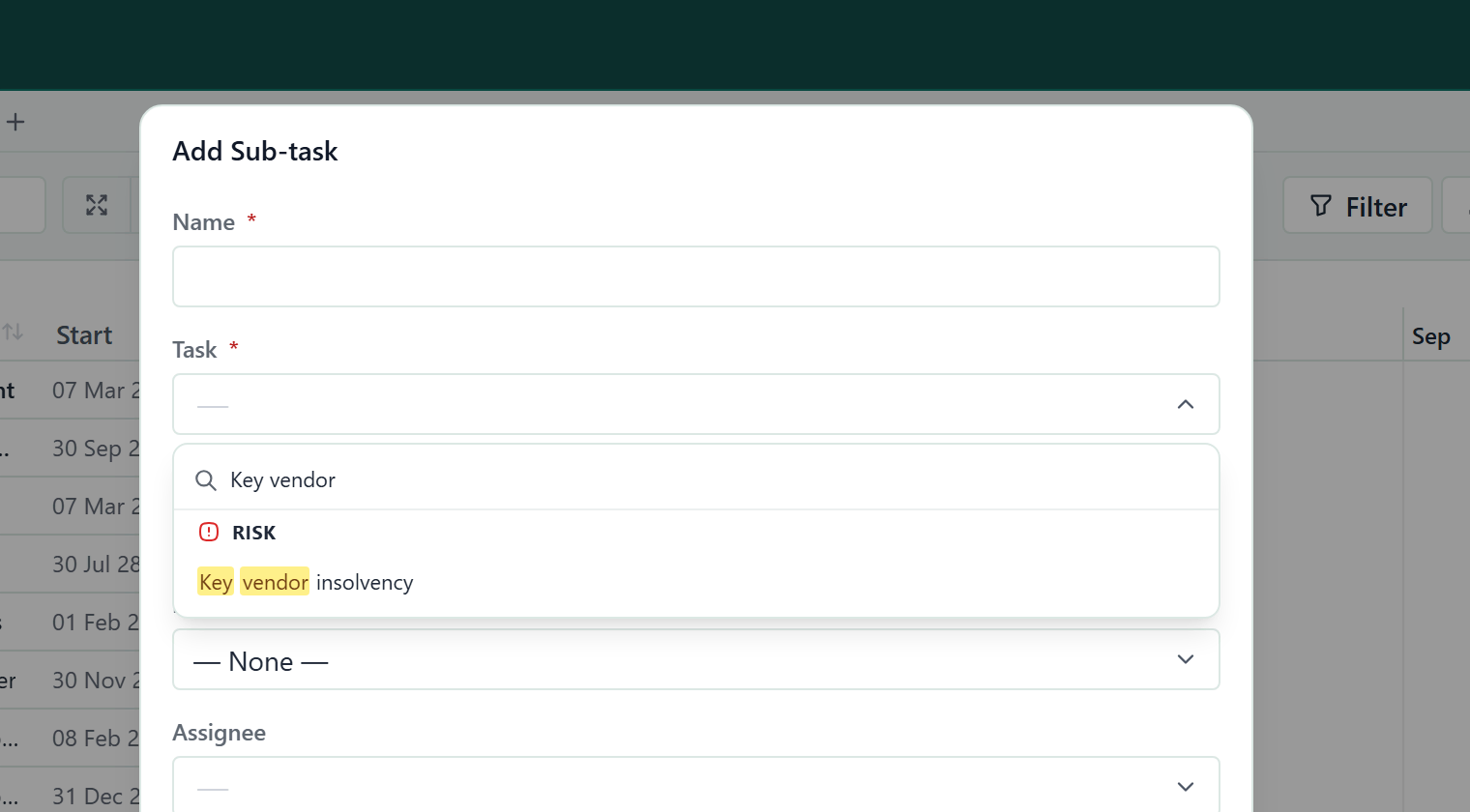
- Click Add Sub-task. The dialog opens.
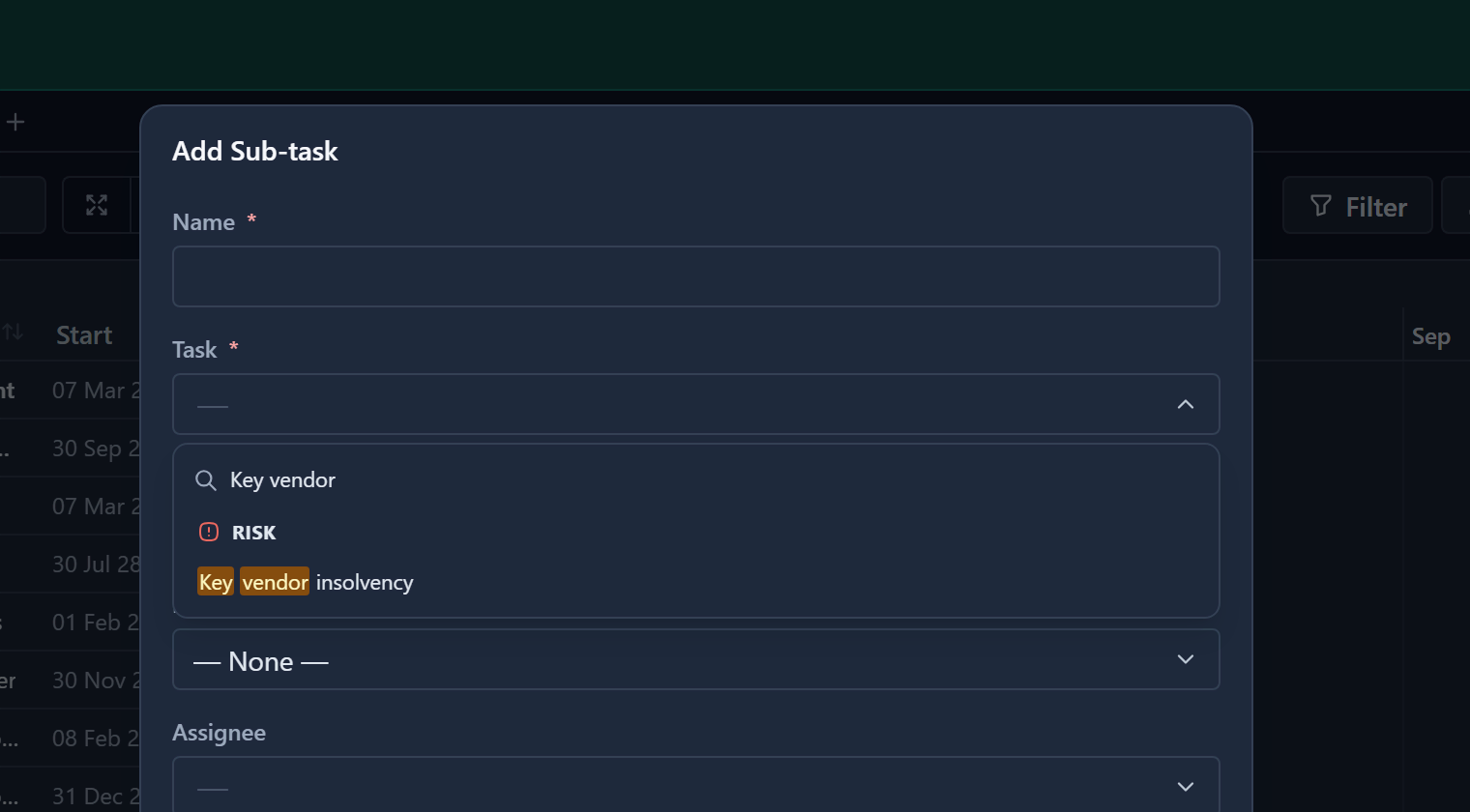
- In the required Task field, pick the Risk, Issue, Dependency, Assumption or Decision from its group.
- Enter a Name and click Add. The sub-task appears under Sub-tasks in the entry's Links tab.
On the Gantt, choose Add, then Sub-task, to open the same dialog.
To attach a sub-task that already exists, open the entry's Links tab, click Add link and choose Sub-tasks. See Link records.
A sub-task of an entry has no Task and no Project. It does not appear on the Tasks page, in its counts or in its exports, and it does not show on the Sub-task board. Whoever can see or edit the entry can see or edit its sub-tasks. See Tasks and sub-tasks.
Filter the page
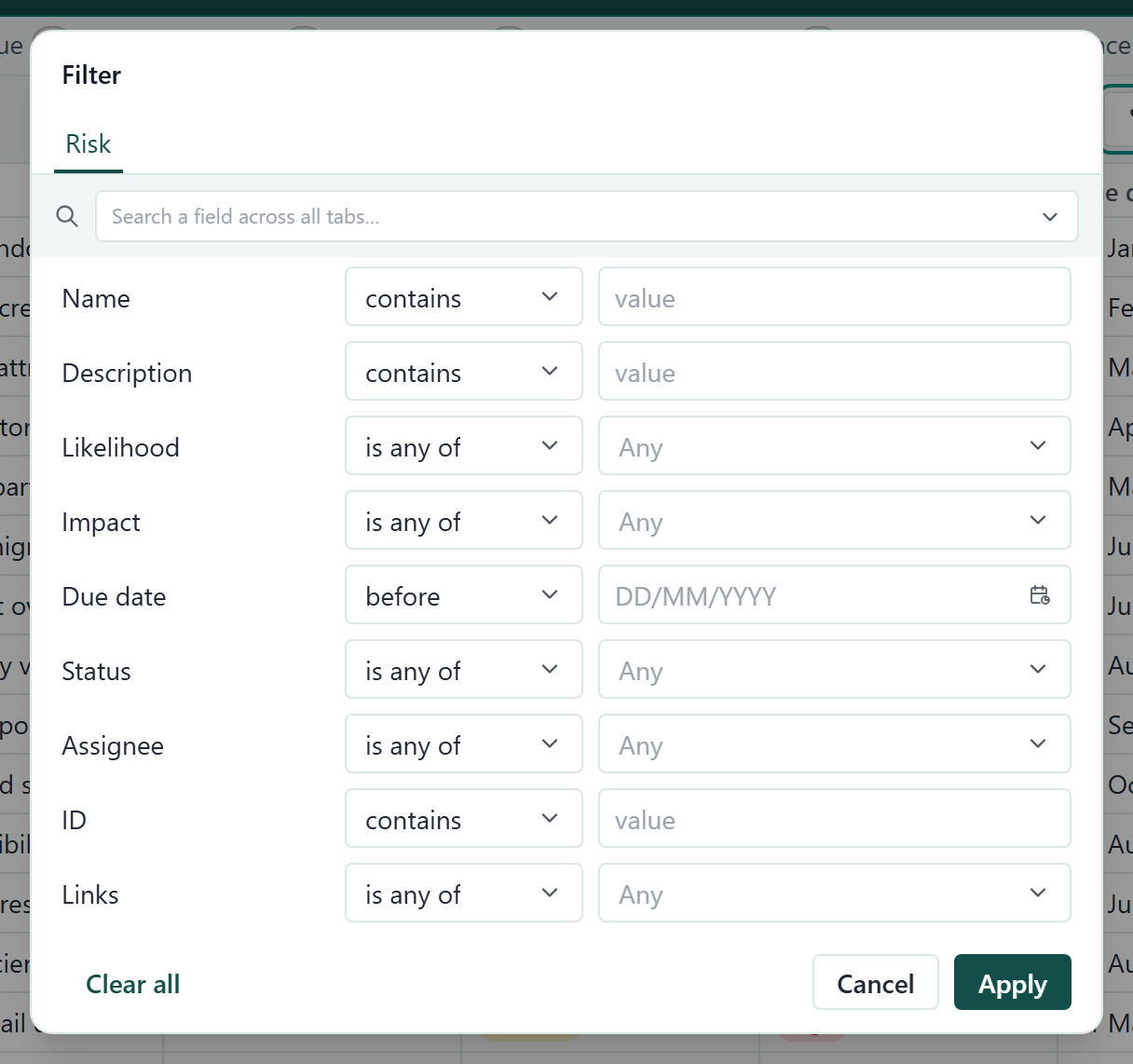
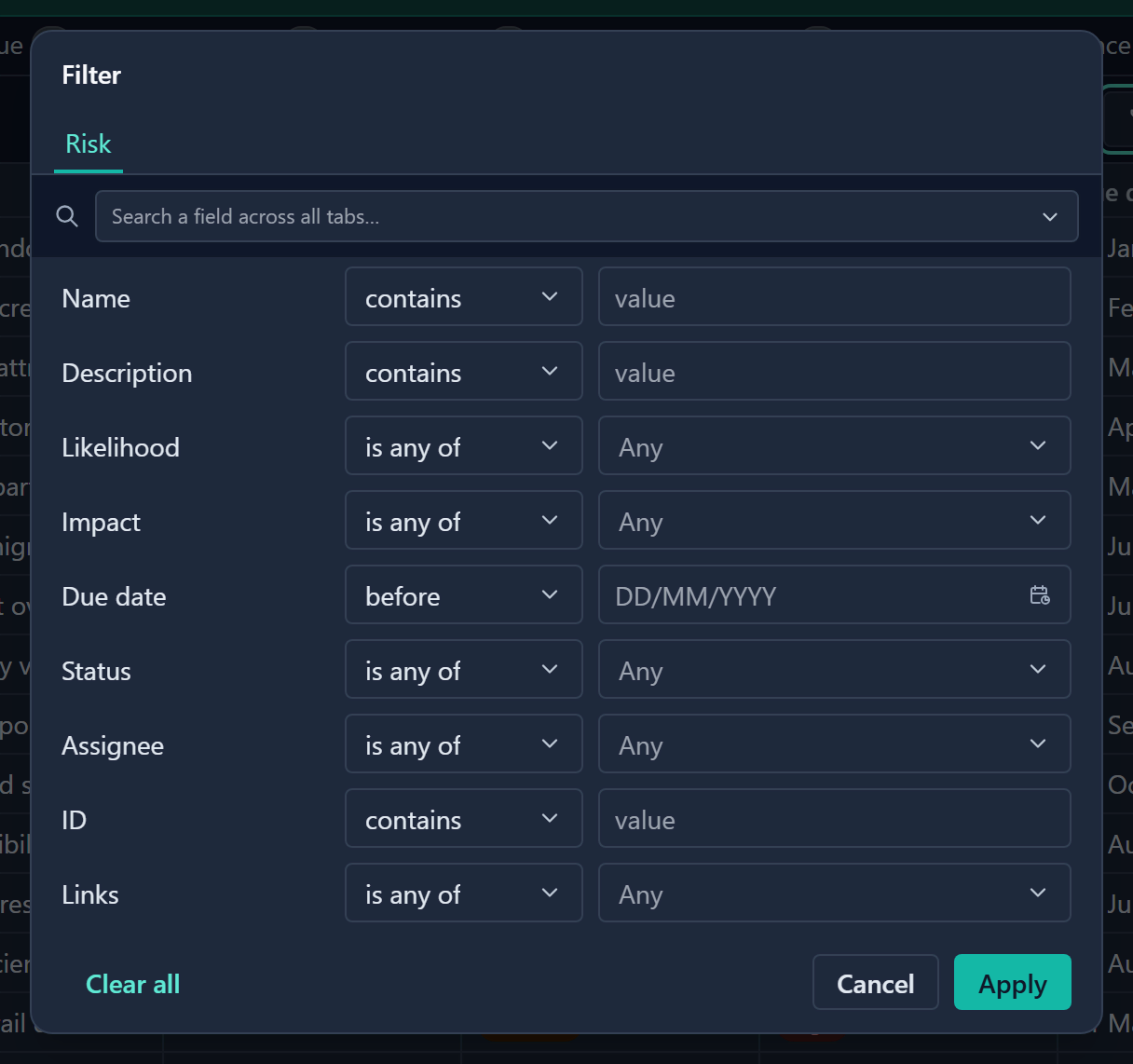
- Click Filter in the toolbar. The dialog is tabbed.
- Open the tab you want. To jump to a field, type in Search a field across all tabs… instead and pick the field.
- Set an operator and a value. Use Show all to list every field on the tab.
- Click Apply. The table shows only the matching entries.
Which tabs the dialog shows depends on the RAIDD tab you are on:
| RAIDD tab | Tabs in the Filter dialog |
|---|---|
| A fixed tab or a tab with one type | One tab named after the type, for example Risk. It lists every field of that type, not only the visible columns. |
| A tab that mixes types | Visible fields first, then one tab per type the tab lists, in RAIDD order. |
Each tab label shows how many rules it holds.
- Click Clear all to remove every rule, or Cancel to close without changes.
- A rule on a type's tab only narrows rows of that type, so a Risk rule never hides an Issue.
- All rules combine with AND.
Good to know
- To create an entry you need manage access on at least one of the records you link it to.
- The Links field on an entry says which Programs, Projects, Staff and Teams it affects. It is not the Links tab of the record panel.
- Who sees an entry depends on the records it links to. Anyone who can view RAIDD on any one linked record can see the entry. Being blocked on one link never removes access granted by another.
- Creators and Admins can always see an entry.
- Admins can restrict a single entry to selected roles from the entry's record panel.
- Entries with no links are visible only to their creator and Admins.
- The read-only ID column (for example
RISK-12) is the first column in a new tab. Older tabs hide it; show it in Customise. - Name is always visible and cannot be deleted on a mixed tab, but you can move it.
- On the five fixed tabs, Entity types is locked. Add a tab of your own to mix types.
- Status is what lets a RAIDD type show as a board. See Statuses.
- Opening an entry from a link or chip shows it in a narrow panel with the tabs Overview, Knowledge and Links.
- Deleting an entry also deletes its sub-tasks, and the confirmation counts them.
- Each entry has a Comments icon in its record panel for discussing it with your team. Who can read and post follows the Comments on rows of the linked records. See Comment on a record.
- An entry's Links tab can also hold typed links such as blocks and relates to, which Admins add and remove. A link shows only to someone who can read both records.
- An admin can switch RAIDD off for one type of record on Administration → Features. That record type loses its RAIDD tab, and an entry linked only to switched-off record types is hidden. See Turn features on or off.