
Tasks and sub-tasks
- Purpose
- Break a project into tasks and sub-tasks, assign them, and manage them from the Tasks page or from the project.
- Who is this for
- Everyone
- Prerequisites
- At least one project.
- Permissions
- Access to the project. Task access follows the project's tasks permission.
A task is a unit of work inside a project. A sub-task is a smaller piece of a task. Use them to assign work to people, set dates and track progress.
Your workspace may use different names, for example Epic for Task. Each can be renamed in Terminology, and the new name appears on every page, button and tab.
How it works
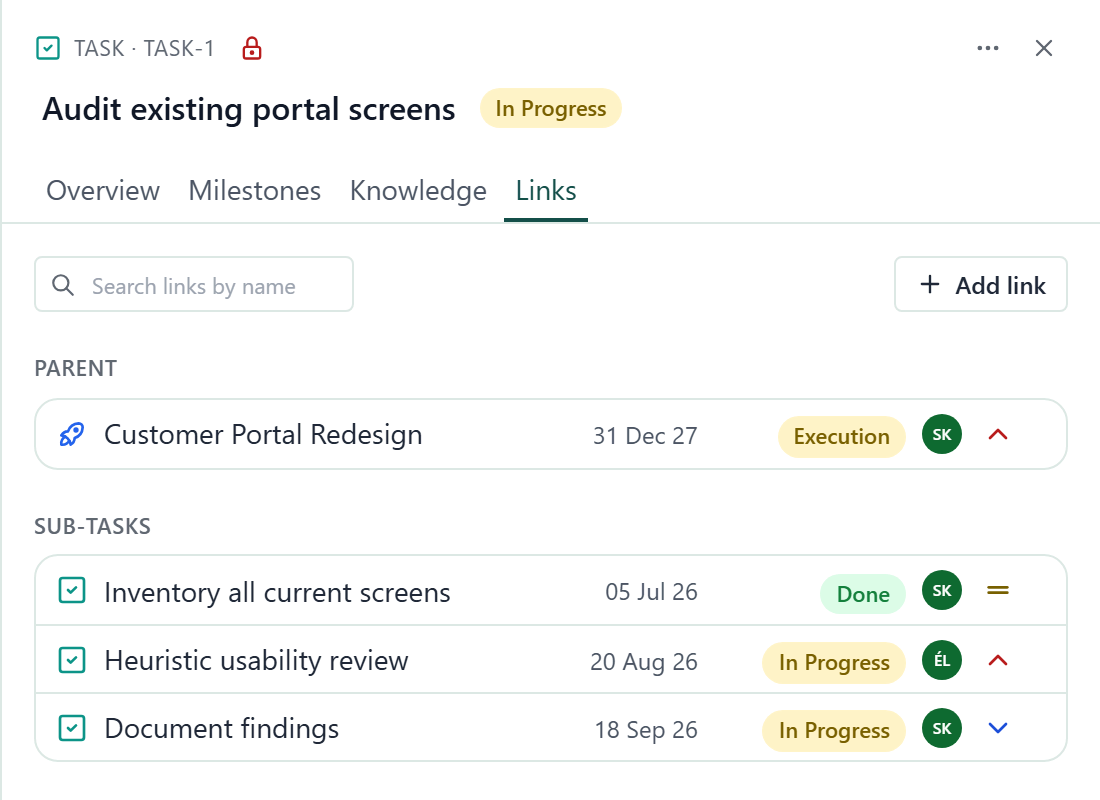
The hierarchy is Project → Task → Sub-task. A task belongs to exactly one project. A sub-task belongs to exactly one parent, which is a task or one RAIDD entry (a risk, assumption, issue, dependency or decision). You choose the parent when you create the record. To move it later, use Replace parent on the record's Links tab (see below).
The parent field in the panel itself stays locked.
Tasks and sub-tasks have the same default fields:
| Field | What it holds |
|---|---|
| Name | The work item. Required. |
| Project (tasks) or Task (sub-tasks) | The parent. Required. On a sub-task, the Task field can also hold a RAIDD entry. |
| Status | Not Started, In Progress, Done or Blocked. |
| Priority | Low, Medium, High or Urgent. |
| Assignee | The person responsible, from Staff. |
| Start date and Due date | The planned span. |
| Estimate | A plain number. Your workspace decides whether it means hours or points. |
| Progress | A percentage from 0 to 100. |
| Description | Any detail. |
Tasks and sub-tasks are separate entities. Each has its own fields and its own Status and Priority options, which an admin can change independently. See Entities and custom fields.
Your access to tasks comes from the project. If you can see a task's project and have the tasks permission on it, you can see the task. Anyone who can see a task can see its sub-tasks.
Work from Tasks page
Open Tasks in the left menu to see every task across all projects, with a Project column you can filter and sort. It has the usual table tools: tabs, filters, sorting and export. There is no Import data button and no row grouping on this table. See Filter, sort and group.
Create a task
- Click Add Task.
- Choose the Project. You can only pick projects where you are allowed to add tasks.
- Enter a Name.
- Optional: fill in the other fields.
- Click Add. The task appears in the table and a message reads "Added" followed by its name.
If the task cannot be saved, the dialog stays open and shows the reason, so you can correct it and try again.
See sub-tasks
Sub-tasks appear indented under their task. A task that has sub-tasks shows a chevron next to its name.
- Click the chevron to expand or collapse that task.
- Use the expand and collapse all control beside the search box to do every task at once.
- Lists start collapsed. A search that matches a sub-task opens its task so you can see the match.
Sub-task rows have the same row menu as task rows, and you can edit their cells in place.
Choose list contents
Click Customise to change the columns and the scope. The Data tab holds the scope and the column list:
- Task & Sub-task shows tasks with their sub-tasks. This is the default.
- Task only hides the sub-tasks.
- Sub-task only shows a flat list of all sub-tasks.
Each row in the column list has a pin button, an eye to show or hide the column, and a gear menu with Move up, Move down, Edit and Delete. Click Add column below the list to add a column of your own. The Highlights tab shades cells by rule, as in other tables.
Each column can read a different field for tasks and for sub-tasks. To choose which task field and which sub-task field it shows, choose Edit in the column's gear menu. A column mapped for only one of them is blank for the other.
These settings belong to the tab you are on. In a board, Customise shows the board settings instead and has no Highlights tab. See Customise your table view.
Use ID and Name columns
In a new tab, the read-only ID column (for example TASK-12) comes right after Name. Sort, filter and search work on it. Older tabs hide it; show it in Customise with its eye.
You can drag Name to another place or pin it like any other column. You cannot hide or delete it: its eye is greyed out with the hint Name is always visible. The chevron, indent and type icon of a task with sub-tasks move with Name.
Show a board
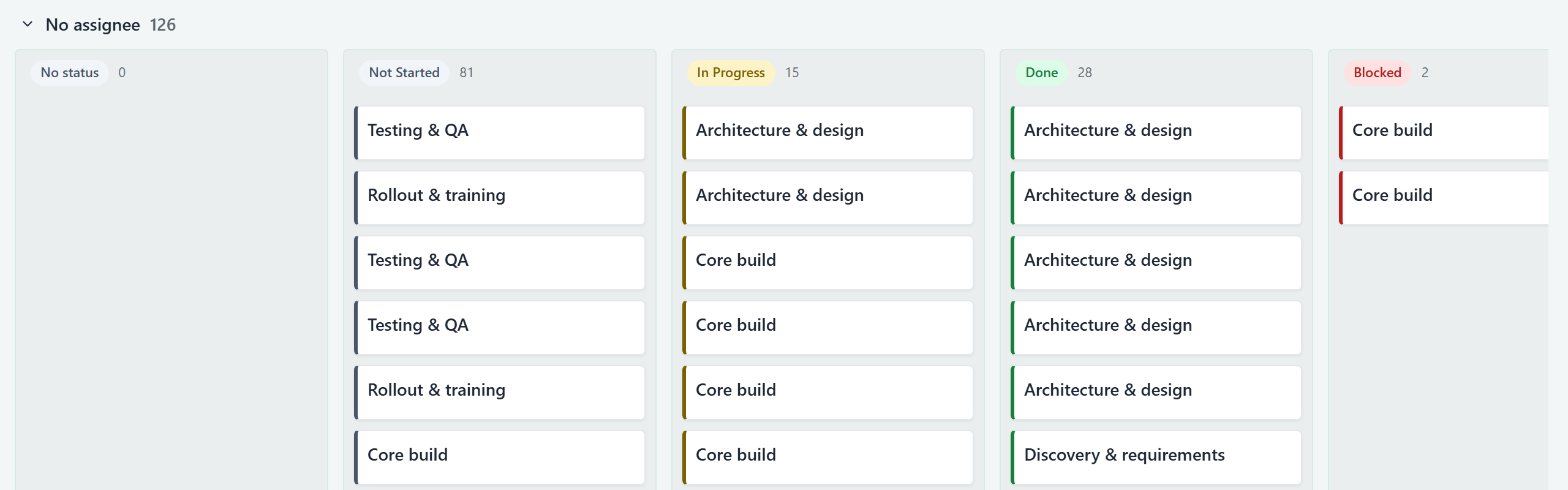
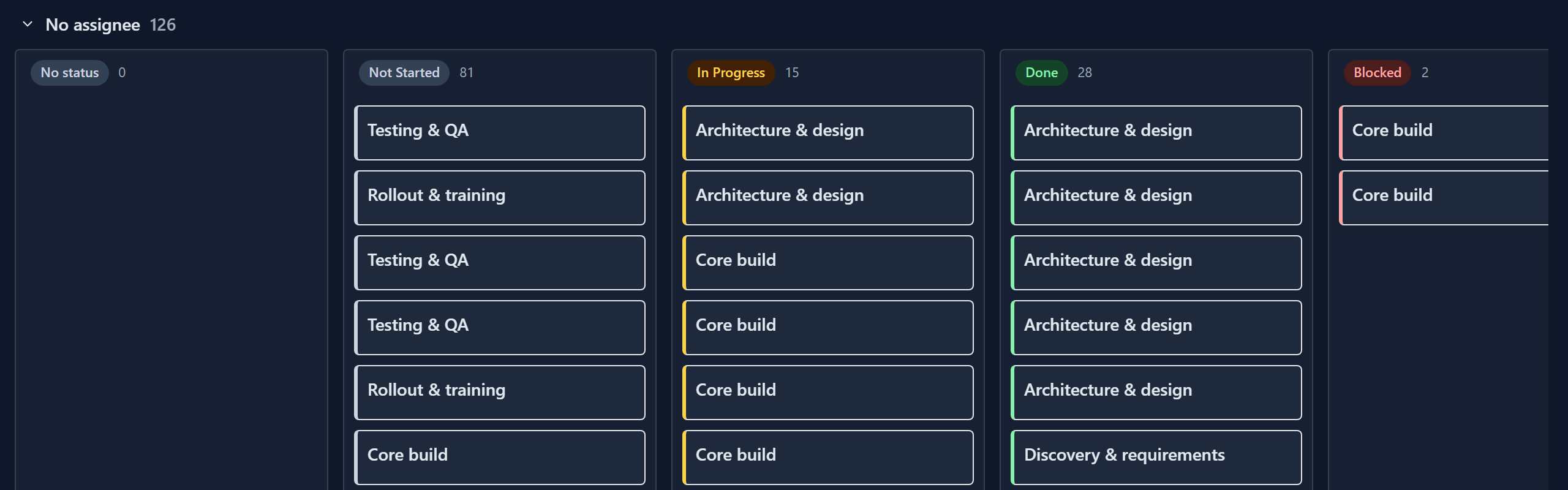
A board shows tasks as cards in one column per status. Drag a card to another column to change its status. If your workspace has a Kanban tab, open it. To make your own board, change Visualisation to Kanban board in Customise. Tasks and sub-tasks keep separate card fields. The steps are in Customise your table view.
Work from a project
Open a project and select its Links tab. Under Tasks it lists the project's tasks, each row showing the name, due date, status, assignee and priority. Click a row to open the task. You can change the status, assignee, priority and date in the row itself.
You cannot create a task from the project. Create it on the Tasks page and choose the project. To move an existing task into this project, click Add link, choose Tasks and pick the task. See Link records.
Move to another parent
- Open the task or sub-task.
- Select its Links tab.
- Click Add link.
- Choose Replace parent. The Set parent picker opens.
- Search by name or key and pick the new project (for a task) or task (for a sub-task). The parent changes at once, and a message offers Undo.
The parent field on the Overview tab stays locked, because it is set when the record is created. Replace parent is the way to change it.
Add and manage sub-tasks
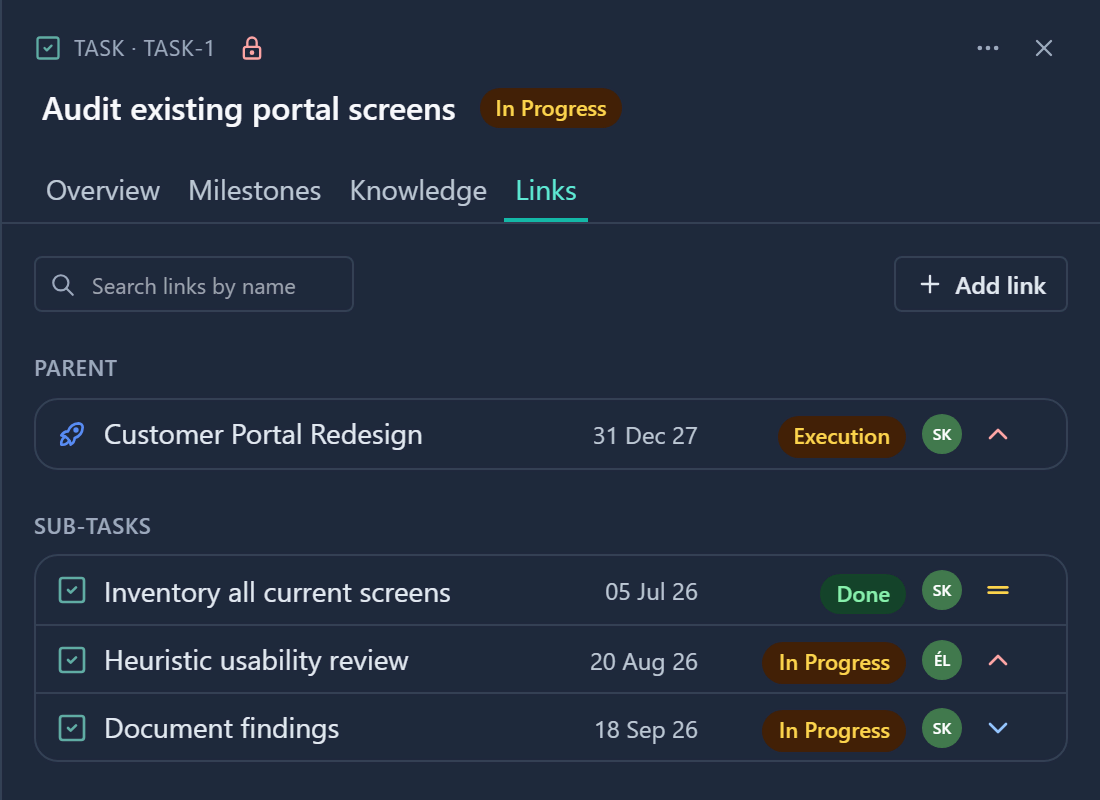
A sub-task is created where sub-tasks are listed, not from inside its task. A task's Links tab lists its sub-tasks under Sub-tasks, and Add link then Sub-tasks attaches an existing one. Each row shows the due date, status, assignee and priority, which you can change in the row.
To create a sub-task on the Tasks page:
- Open Tasks in the left menu.
- Open a Kanban tab. If there is none, click Customise and change Visualisation to Kanban board.
- In Customise, set Show level to Sub-task. The board lists sub-tasks and its button reads Add Sub-task.
- Click Add Sub-task. The Add Sub-task dialog opens.
- Choose the Task it belongs to and enter a Name.
- Click Add. The sub-task appears on the board and a message reads "Added" followed by its name.
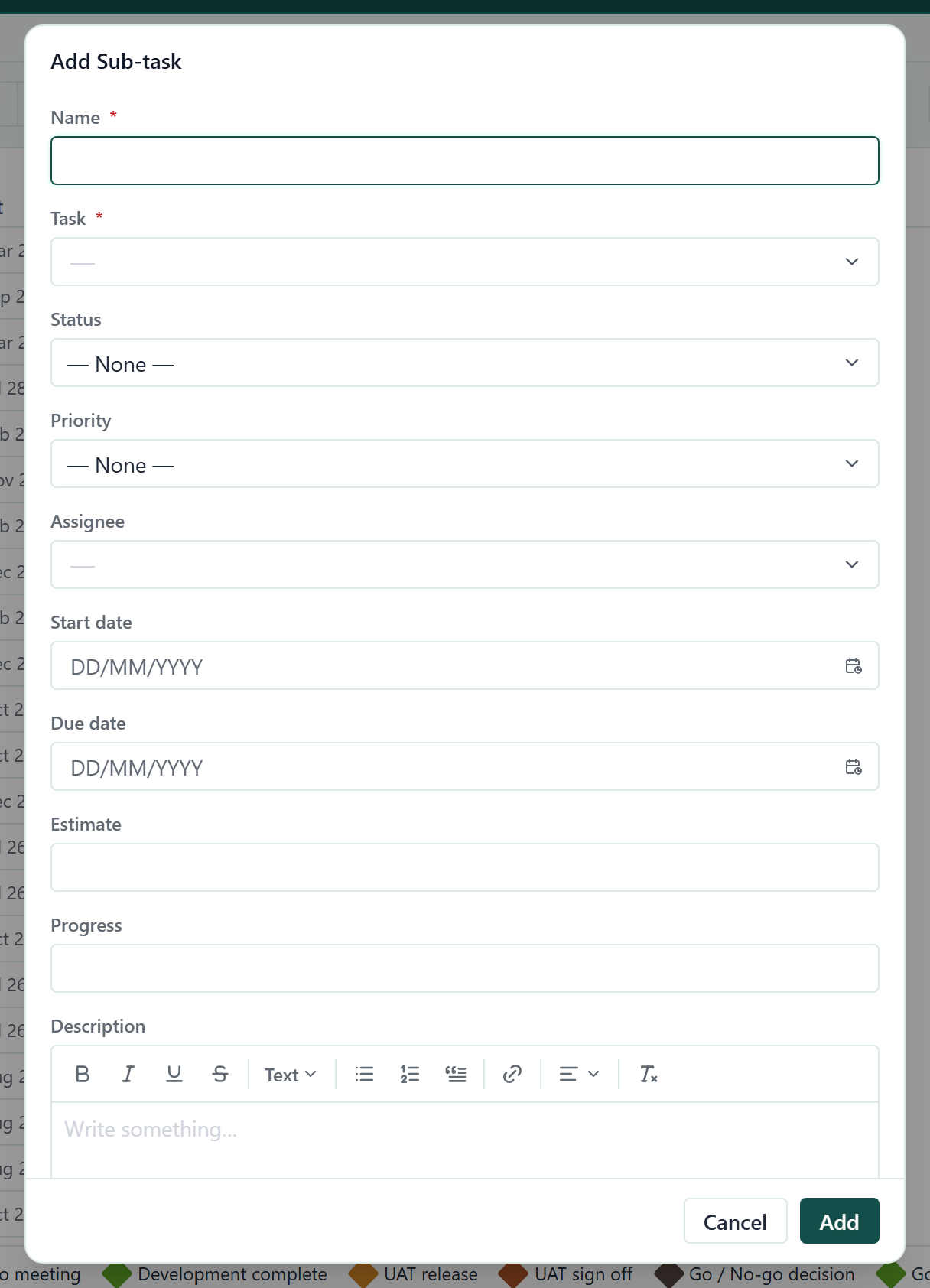
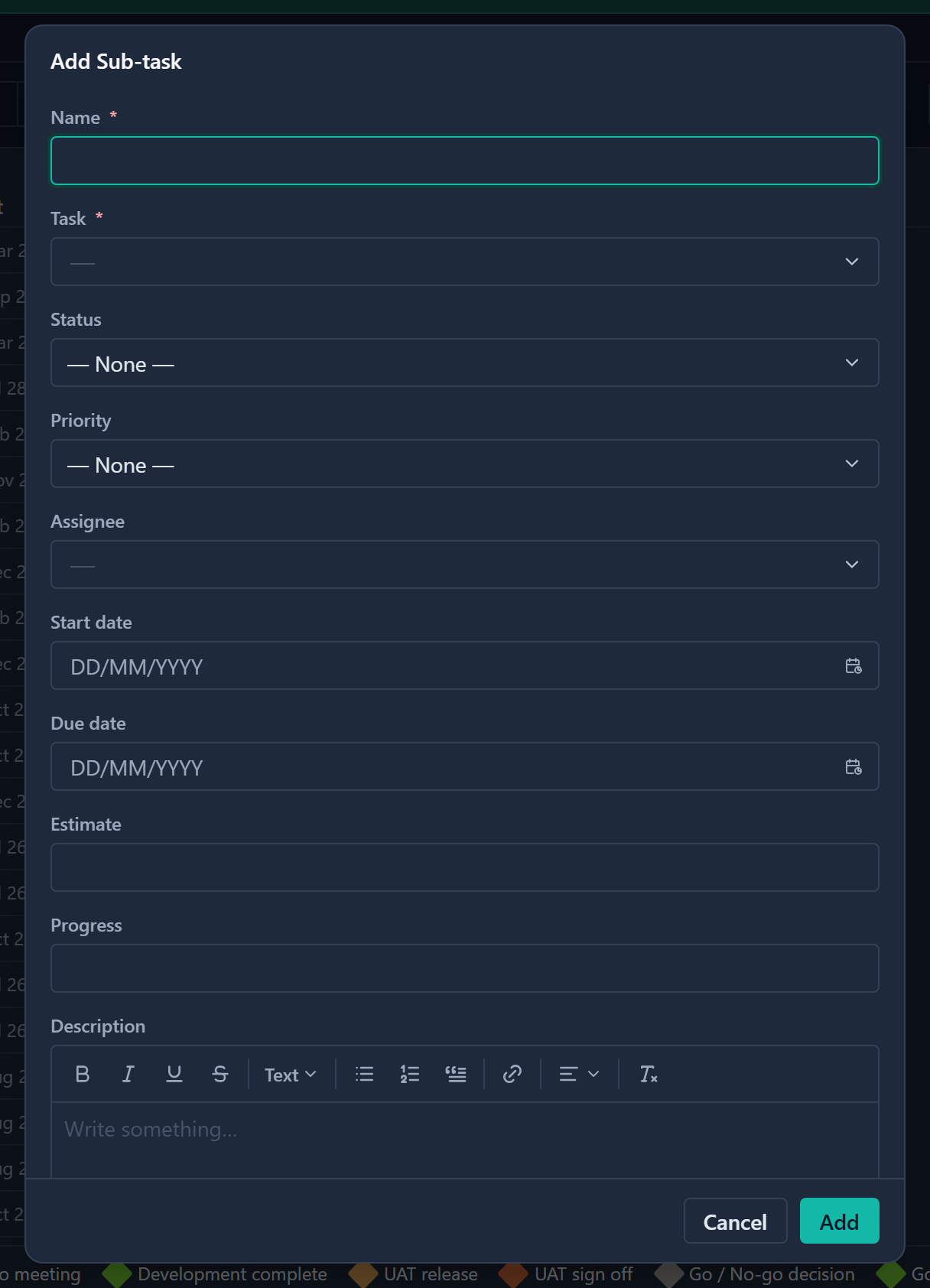
You can also create one on the Gantt: click Add and choose Sub-task, or right-click a task row and choose Add child Sub-task. Both open the same dialog.
After that, find the sub-task under Sub-tasks in its task's Links tab.
A sub-task can also sit under a RAIDD entry. In the same dialog, pick the Risk, Issue, Dependency, Assumption or Decision in the Task field.
These sub-tasks have no task and no project, so they never appear on the Tasks page. They show in the entry's Links tab, follow the access of the entry and are deleted with it. See RAIDD.
Edit, duplicate or delete
Edit a field in a table by double-clicking the cell, or in the record panel by clicking the field. See The record panel.
- To use the form instead, choose Edit from a row's Row actions menu, change the fields and click Edit. A message reads "Edited" followed by the name. If the save fails, the dialog stays open with the reason.
- Duplicate copies the record under the same parent. A duplicated task does not copy its sub-tasks.
- Delete asks you to confirm. Deleting a task also deletes its sub-tasks, and deleting a project deletes all its tasks and sub-tasks. The confirmation tells you how many, including any Knowledge entries on them.
- Tasks and sub-tasks also have milestones. See Milestones.
Restrict a task
Only admins can restrict a task. Everyone sees the lock, so you can tell when a task is restricted.
- Open the task.
- Click the lock icon in the panel header. The access dialog opens.
- Switch on Restrict this entry.
- Set Access for each role you want to allow, from among the roles on the task's project.
- Click Save changes. The dialog closes.
Sub-tasks have no control of their own and follow their task. A restricted task is hidden, with its sub-tasks and milestones, from people who do not have access. See Access control.
Good to know
- A project does not add up the progress of its tasks, and a task does not add up its sub-tasks. Progress is typed in on each record.
- Tasks and sub-tasks have Comments. Click the Comments icon in the panel header. Who can read and post comes from the project, through its Comments on Tasks permission, not from a permission on the task. See Comment on a record.
- Tasks and sub-tasks have their own record numbers, and each can have its own prefix.
- Start and due dates show on the Gantt.
- If an admin switches Tasks off in Turn features on or off, sub-tasks, their milestones and their Knowledge entries are hidden too, and the Gantt shows programs and projects only.
- A task's Links tab lists its project (Parent), its sub-tasks, and any typed links such as blocks or relates to. A link is visible only to someone who can read both records. See Link records.