
Create and manage tabs
- Purpose
- Save a table layout as a tab, rename, reorder and delete your tabs, and understand the tabs your admin provides.
- Who is this for
- Everyone
- Prerequisites
- A module with a table, such as Projects or Staff.
- Permissions
- View access to the module. Tabs are personal to you.
A tab (also called a view) is a saved layout of a table: its columns, filters, sort, grouping, totals and highlights. The tabs sit in a row above the table, so you can move from "All" to "Blocked" in one click. Your tabs belong to you, so changing one never changes anyone else's.
How it works
Three kinds of tab can appear in your row, always in this order:
| Kind | What it is | What you can do |
|---|---|---|
| Built-in | The All tab, and fixed tabs on some pages. | Change and save its layout (never its filters). You cannot rename, move or delete it. |
| Pinned | Added by an admin for everyone. | Use and duplicate it. You cannot rename, reorder or delete it. |
| Your own | Tabs you created, or ones copied from a preset when you first arrived. | Everything: rename, reorder, edit, delete. |
When you change a table (columns, filters, sort and so on) the tab is not saved yet. A Save changes button appears at the right of the tab row, and a blinking red dot appears on the tab. Hover over the dot to see what changed.
Right-click a tab to open its menu.
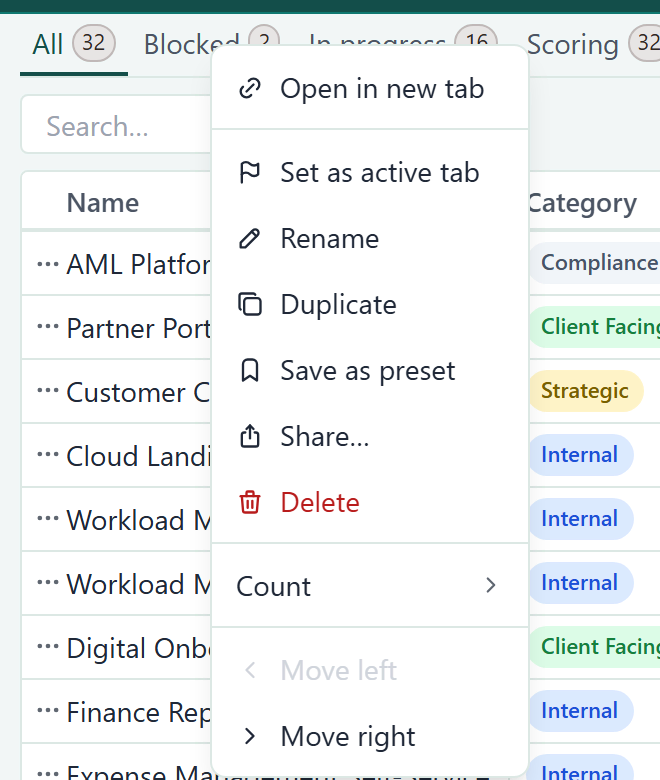
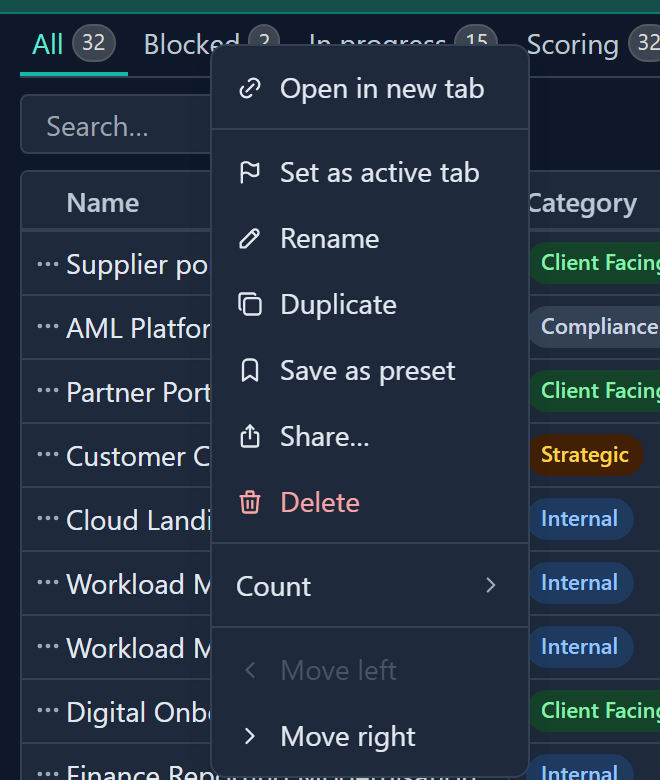
A tab with unsaved changes also lists Save changes and Revert changes at the top of this menu. Save as preset appears for admins only. Items you cannot use are greyed out with a reason.
Save a tab
- Change the table: hide columns, apply a filter, sort, and so on. Save changes appears at the right of the tab row.
- Click Save changes.
- Choose Save tab to overwrite the current tab with what you see now. The red dot and Save changes disappear.
If Gembaa cannot save, a toast reads Couldn't save the changes. Your changes are kept and the tab stays unsaved, so you can try again.
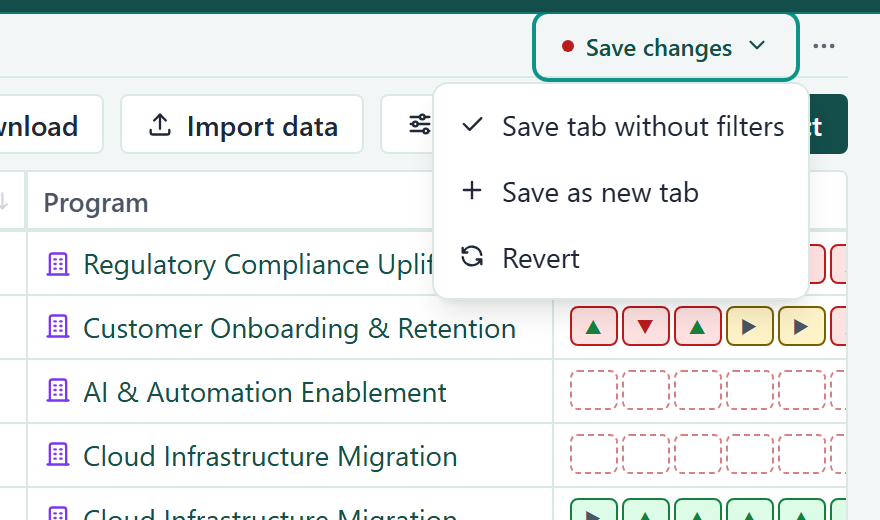
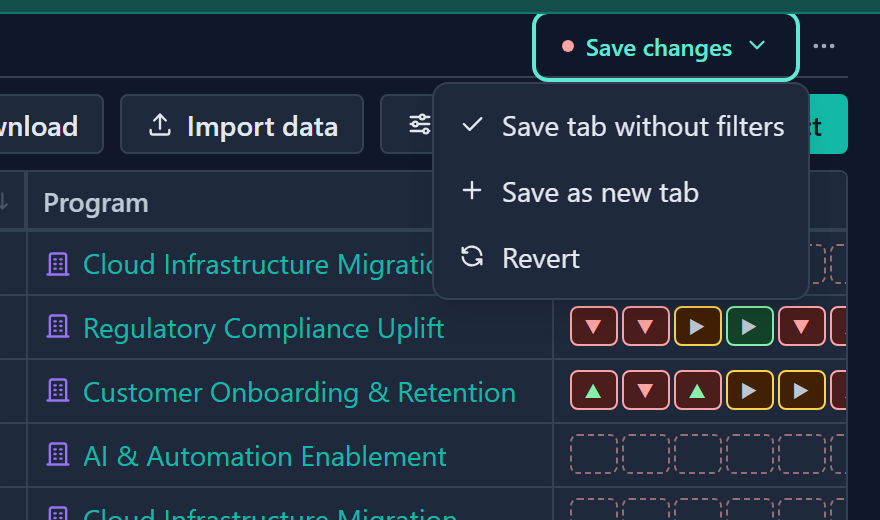
On the All tab the first option reads Save tab without filters, because All never keeps filters. A change to the filter alone does not make Save changes appear on All. To keep a filter, create a tab of your own with Add view and filter that.
The menu has two more actions:
- Save as new tab asks for a name, then creates a new tab from what you see and opens it. The tab you started from goes back to how it was last saved, so its unsaved changes move to the new tab.
- Revert throws away your unsaved changes and returns to the last saved layout. It is greyed out when there is nothing to revert.
A tab's colour and its Hide count or Show count setting count as unsaved changes too.
They show on screen at once, but only Save changes keeps them.
See what changed
Every tab with unsaved changes shows the red dot, including tabs you left earlier without saving. Hover over the tab, or over Save changes on the open tab, to read the list under Unsaved changes.
The list has a heading per area, such as Filters, Sort, Columns, Grouping, View, Number formatting, Highlights and Tab. Pages with extra settings add a heading for them, and anything else falls under Other settings.
Filter and highlight rules read Added:, Removed: or Changed:, and a changed rule also shows what it was before. A heading lists five changes at most, then "+N more".
Save or revert without opening
- Right-click the tab that shows the red dot. Or click the dot itself.
- Choose Save changes to keep its changes, or Revert changes to discard them. A message confirms "Saved changes" or "Reverted changes". The tab does not open.
On a pinned tab, Save changes is greyed out because an admin owns the tab. Use Save as new tab to keep your changes.
Create a tab
A new tab starts from your current changes, the standard view or a preset.
- To start from your changes, change a table and choose Save as new tab, as above.
- To start from the standard view or a preset, click Add view (the plus button at the end of the tab row). The Add tab picker opens.
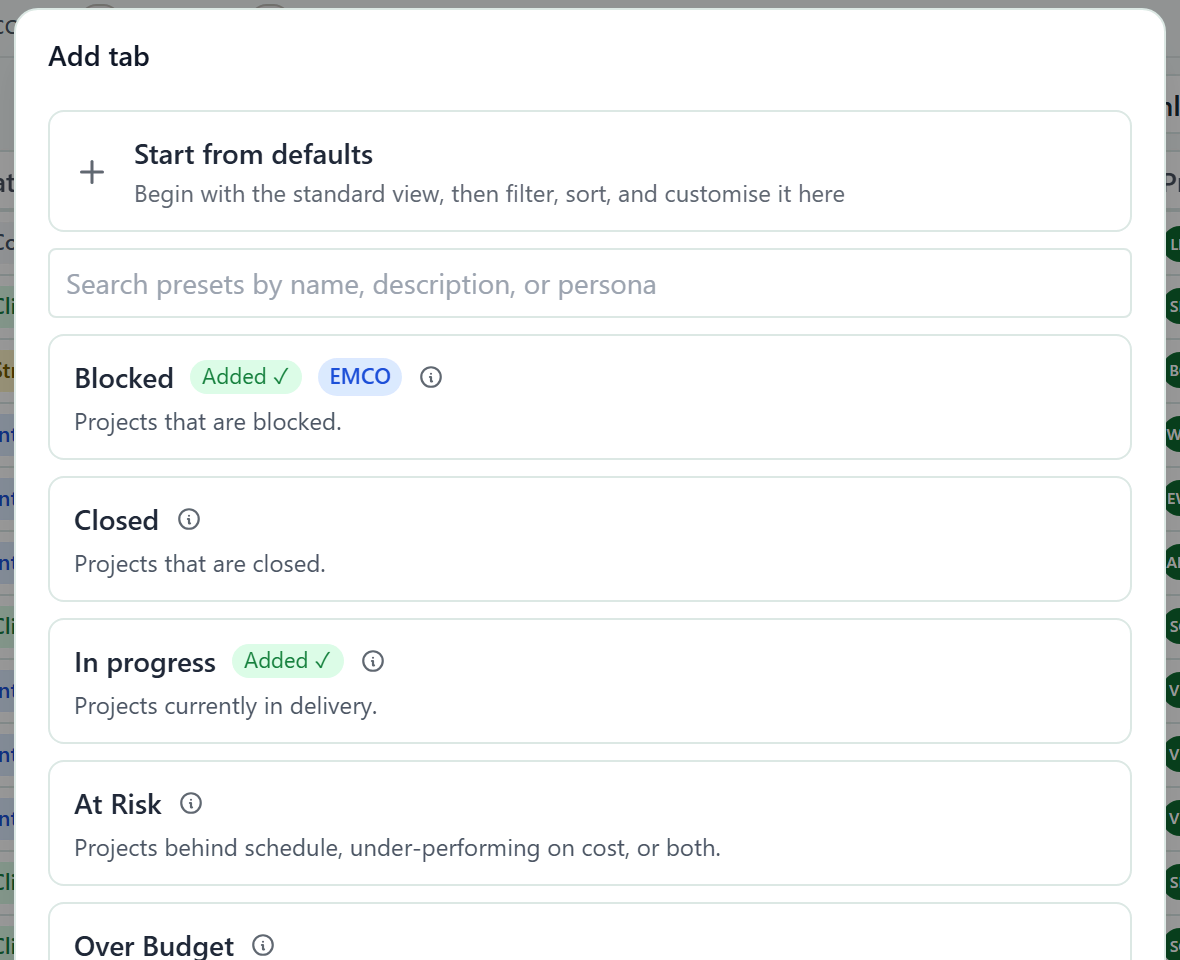
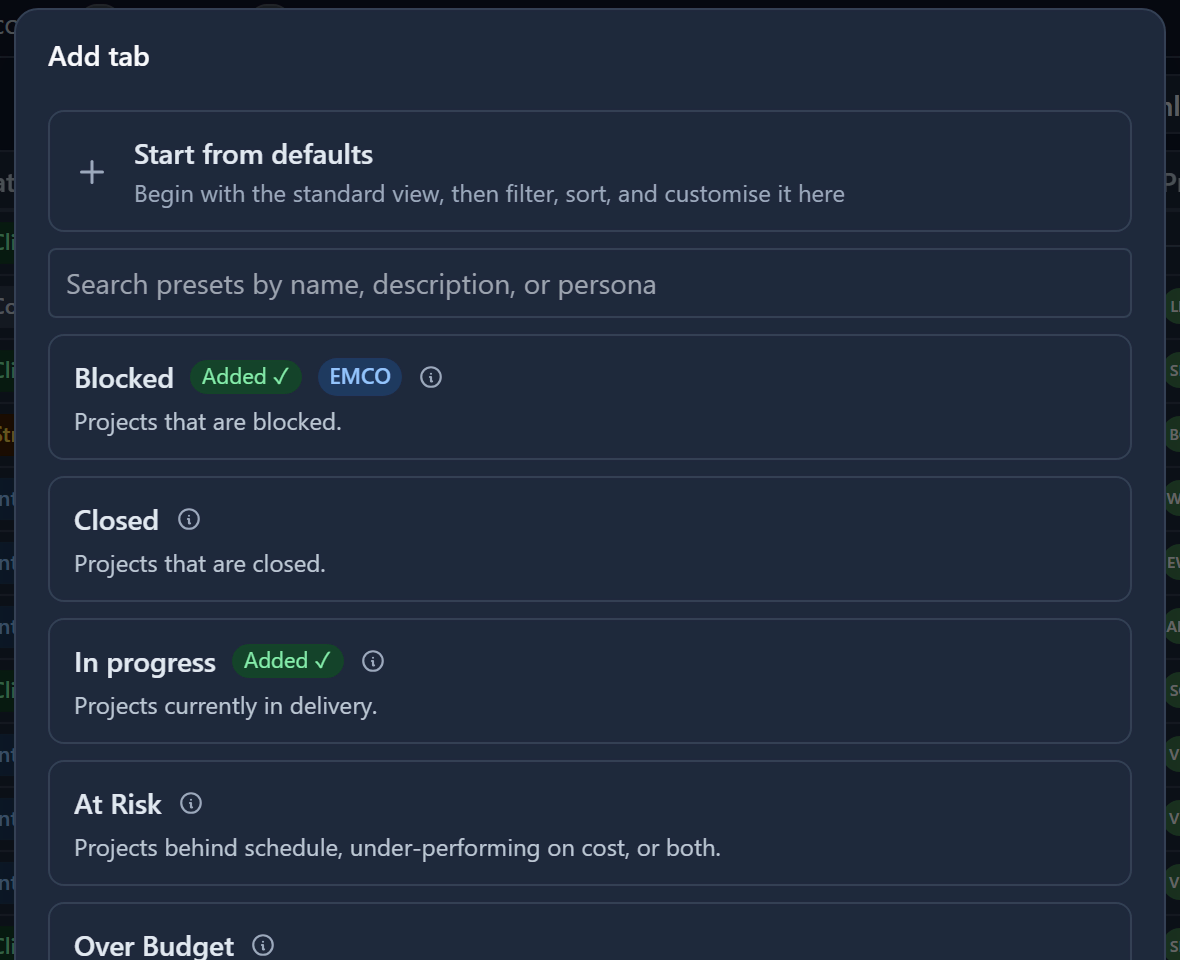
- Click Add view, the plus button at the end of the tab row. The Add tab picker opens.
- Choose Start from defaults to begin with the standard view. Or pick a preset your admin has made available to get your own copy, ready to edit.
- Optional: type in the search box to find a preset by name, description or persona. A preset you already have is marked Added.
- If you chose Start from defaults, the Add view dialog opens. Type a name in Tab name and click Add. The new tab opens.
A preset is added straight away under its own name; rename it later if you like.
Save as new tab and Duplicate open the same kind of dialog, with Save or Duplicate as the button. If Tab name is blank, Gembaa asks for a name. Click Cancel or press Esc and no tab is created. Names do not have to be unique, so two tabs can share a name.
Rename a tab
- Right-click the tab and choose Rename. The tab name becomes editable.
- Type the new name and press Enter. The tab shows the new name.
Double-clicking the tab starts the same edit. Press Esc to keep the old name.
Duplicate a tab
- Right-click the tab and choose Duplicate. The Duplicate tab dialog opens.
- Type a name in Tab name and click Duplicate. The copy joins your own tabs.
Duplicating is the way to build on a pinned tab you cannot edit.
Reorder tabs
- Drag a tab left or right. A dashed slot shows where it will land.
- Right-click the tab and choose Move left or Move right.
- Select the tab and press Ctrl + Shift + ← or → (Cmd on a Mac).
A tab can move only within its own group, so pinned tabs stay at the front. Reordering does not change which tab is open.
Delete a tab
Right-click the tab and choose Delete. The tab is deleted straight away, with no confirmation and no undo, and you return to the All tab. A "Deleted view" message confirms it.
You cannot delete the All tab, a pinned tab, a fixed built-in tab, or the last tab left on a page. Hover over the greyed menu item to see the reason.
Open a tab automatically
Right-click a tab and choose Set as active tab. Gembaa then opens that tab whenever you come to the page, on any device. A tick shows which tab is the active one. A link to a particular tab always wins over this setting.
Show or hide record count
Each tab shows a count of the records that match its own filters. To change it, right-click the tab and open Count:
- Hide count or Show count turns the badge off or on for that tab.
- Color sets the badge colour.
Both choices wait for Save changes, like any other change to the tab.
Some pages that mix several record types in one view, such as Allocation and Gantt, show no count.
Find a tab
Every tab stays in the row. When they do not all fit, the row scrolls and a More views button appears. It lists every tab, with a search box.
Reset tabs
If your tab row has got out of hand, you can start again from your admin's defaults.
- Click View options at the right end of the tab row.
- Choose Reset tabs to defaults.
After the reset, a message reads "Reset all views" and "Every tab is back to its default." Gembaa opens the All tab.
Use admin tabs
Admins can prepare tabs for everyone:
- Pinned tabs appear at the front of your row and cannot be changed or removed.
- Default tabs are copied into your row the first time you open a page. After that they are yours to edit or delete.
- Suggested tabs wait in the Add tab picker until you choose to add them.
Admins may aim presets at particular personas, so you may see tabs a colleague with another role does not. To learn how admins set these up, see Preset tabs.
Good to know
- Quick search is never saved with a tab. Column order, widths, visibility, totals, highlights, sort, filters and grouping all are.
- Right-click a tab and choose Open in new tab to open it in a new browser tab.
- Admins also see Save as preset on a tab's menu. See Preset tabs.
- Unsaved changes stay with their tab in this browser, even when you switch tabs or reload the page, until you save or revert them.
- You cannot save over a pinned tab. To keep changes you make to one, use Save as new tab.