
PowerPoint template
- Purpose
- Upload your company's PowerPoint master, map its layouts to Gembaa's slide kinds and make every deck export use it.
- Who is this for
- Admins
- Prerequisites
- A PowerPoint master (.potx or .pptx) in widescreen 16:9.
- Permissions
- Admin role.
By default, a PowerPoint export uses the Gembaa design. Upload your company's own PowerPoint master and every deck built from Gembaa uses your fonts, colours and slide layouts instead. The template is shared by the whole workspace and does not depend on which theme anyone has chosen.
How it works
A template has one of three states, shown as a badge on the PowerPoint template card.
| Status | Meaning |
|---|---|
| Not set | No template is uploaded. Exports use the Gembaa design. |
| Needs mapping | A file is uploaded but its layouts are not mapped yet. Exports still use the Gembaa design. |
| Active | The layouts are mapped and saved. Every PowerPoint export uses your template. |
Gembaa builds five kinds of slide. You tell it which layout in your file to use for each.
| Slide kind | Used for |
|---|---|
| Cover slides | The first slide of a deck. |
| Divider slides | Section breaks between slides. |
| Content slides (tables, Pulse, one-pagers) | Table, Pulse matrix and one-pager slides. |
| Q&A slides | A questions slide. |
| Closing slides | The last slide of a deck. |
File rules
| Rule | Limit |
|---|---|
| Format | .potx (template) or .pptx (presentation) |
| Shape | Widescreen 16:9 |
| Size | Up to 20 MB |
| Content | No macros, no embedded objects or controls and no links to external content |
Gembaa keeps only the masters, layouts, theme, images and fonts from your file. Any slides, notes and comments in it are dropped, and the file is never offered back for download.
Upload a template
If you cannot find the card, PPT export may be switched off. The section then shows Feature disabled and an Open Features link. Turn it on in Turn features on or off and the template you had is still there.
Open Administration → Colors & themes, open any theme's tab and select the Typography & Assets section. The PowerPoint template card is below the assets.
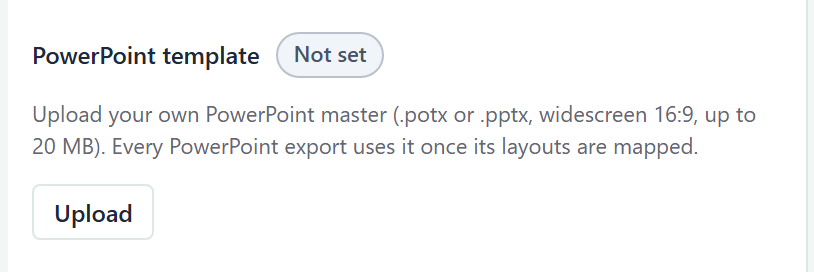
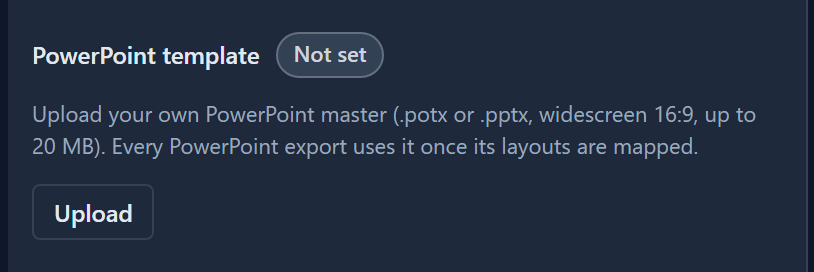
- On the PowerPoint template card, click Upload.
- Choose your
.potxor.pptxfile. The button reads Uploading… while the file is checked. - Wait for the message that the template is uploaded and its layouts need mapping. The status changes to Needs mapping and the file name and size appear.
If the file has several slide masters, the card says so and lists the layouts of all of them.
Map the layouts
Mapping appears once a file is uploaded. Until you save it, exports keep using the Gembaa design.
- On the PowerPoint template card, find a row, for example Cover slides.
- Open its list and choose a layout. The lists show Choose a layout… until you pick one.
- Repeat for the other four rows.
- Click Save mapping. A message says the layout mapping is saved and the template is active. The status changes to Active.
Every row needs a layout. Cover slides, Divider slides and Content slides (tables, Pulse, one-pagers) need a layout with a title placeholder. A layout without one shows No title placeholder in the list and is refused when you save. Q&A slides and Closing slides can use a fully designed layout with no placeholders.
The content layout also needs enough room below its title for a table. If it has too little, Save mapping refuses it.
Test with a sample
To see your mapping on real slides before anyone exports, click Download sample under the mapping rows. The button reads Building sample…, then PowerPoint template sample.pptx downloads. It is a small deck with one slide of each kind built on your layouts.
The sample uses the layouts currently chosen in the rows, even if you have not saved them. Change a layout, download again and compare.
Replace the template
- On the PowerPoint template card, click Replace and choose the new file.
- Wait for the upload message. The status returns to Needs mapping, even if the layouts have the same names.
- Choose a layout in each row and click Save mapping.
Until you save, exports use the Gembaa design.
Remove the template
- On the PowerPoint template card, click Remove.
- In the Remove the PowerPoint template? dialog, click Remove. The status returns to Not set.
PowerPoint exports use the Gembaa design again.
Build a deck
Nothing changes in how people export. Anyone who can view a table clicks Download, then PowerPoint, and the deck comes out on your template. See Export data for the deck builder.
Messages
An upload that fails shows its reason in a red notice under the buttons. Nothing is saved when an upload is refused, and any template already in place stays as it was.
| Message | What to do |
|---|---|
| The file exceeds the 20 MB limit. | Reduce the file size, for example by compressing or removing large images, and upload again. |
| This is not a valid PowerPoint file (.potx or .pptx). | Open the file in PowerPoint and save it again as .potx or .pptx. |
| Macro-enabled PowerPoint files (.potm, .pptm) are not accepted. | Save a copy without macros as .potx or .pptx. |
| Upload a PowerPoint template (.potx) or presentation (.pptx). | The file is another kind of PowerPoint file, such as a slide show. Save it as .potx or .pptx. |
| The file links to external content. Remove external links and try again. | Remove linked images, linked media and web links from the master and its layouts. |
| The file contains macros, which are not accepted. | Remove the macros and save again. |
| The file contains embedded objects or controls, which are not accepted. | Remove embedded objects and controls from the master and its layouts. |
| The template's slide size must be widescreen 16:9. | In PowerPoint, open Design → Slide Size and choose widescreen (16:9). |
| The template has no slide layouts. | Add at least one layout to the slide master. |
| The template has no theme colours. | Give the master a colour scheme in PowerPoint and save again. |
When you click Save mapping or Download sample, a row can also show one of these.
| Message | What to do |
|---|---|
| This field is required | Choose a layout in that row. |
| "Layout name" has no title placeholder. (The message names the layout.) | Choose a layout with a title, or add a title placeholder to it in your master. |
| "Layout name" leaves too little room below its title for tables. (The message names the layout.) | For Content slides, choose a layout with a shorter title area or more free space. |
| That layout is not in the template. | Another admin replaced the file. Reload the page and choose again. |
If the card cannot load, it shows Couldn't load the PowerPoint template with a Retry button.
Good to know
- Only admins see this card, and the server refuses anyone else.
- While PPT export is off, the card is hidden and PowerPoint downloads are not offered. Nothing is deleted.
- A new upload always needs its layouts mapped again.
- The template does not change the colours or font of the Gembaa app. Those belong to themes. See Theme and colours.