
Common formulas
- Purpose
- Copy-and-paste formulas for deadlines, budget and cost, progress and status, labels and scores, each with the result type to choose and a worked example.
- Who is this for
- Admins
- Prerequisites
- A formula field to paste into. See Formula basics.
- Permissions
- Admin role to create the formula field.
Copy a formula, then change the field names in braces to match your workspace. Worked examples show the results for 4 October 2026, so any formula that uses today gives different numbers on another day.
Add a formula
- Copy the formula from a code block below.
- Open Administration → Entity & fields.
- Click the tab of the entity that should hold the field.
- Click Add field.
- Enter a Field name.
- In the Type grid, click Formula.
- Click Add. Gembaa opens Field settings.
- Click the Formula tab.
- Under This formula produces a…, choose the result type the recipe names.
- Paste the formula into Expression.
- Replace each field name in braces with the exact name of your field.
- Click Evaluate. The result appears under the button as
= result. - Click Save and close. The new field shows in the table and the record panel.
For what each step does and how to refer to a field, see Formula basics. If a formula shows a warning, see Fix formula problems.
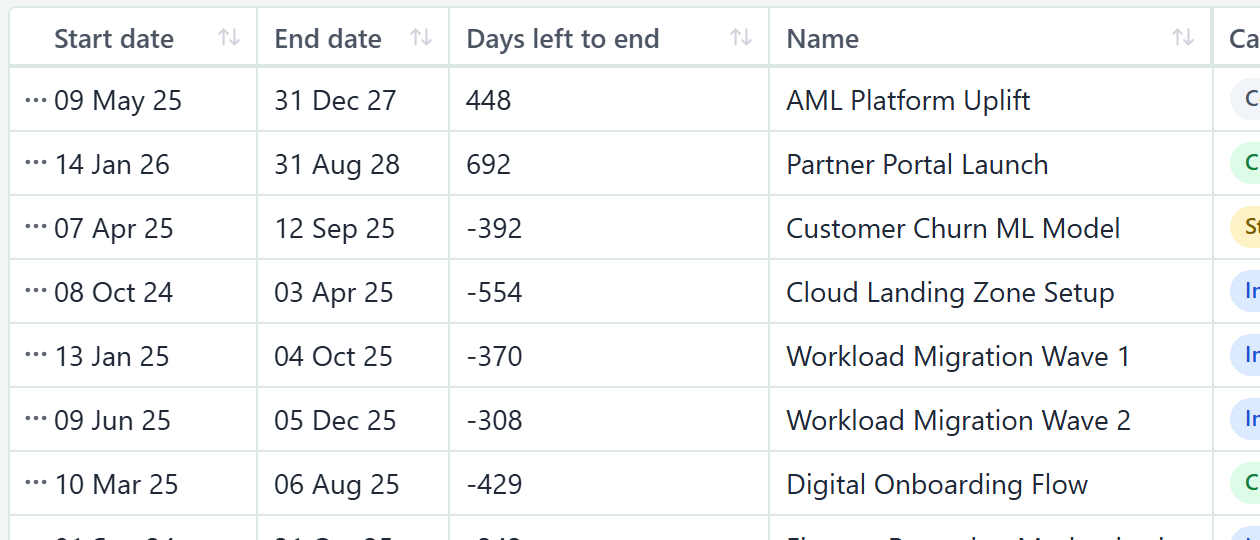
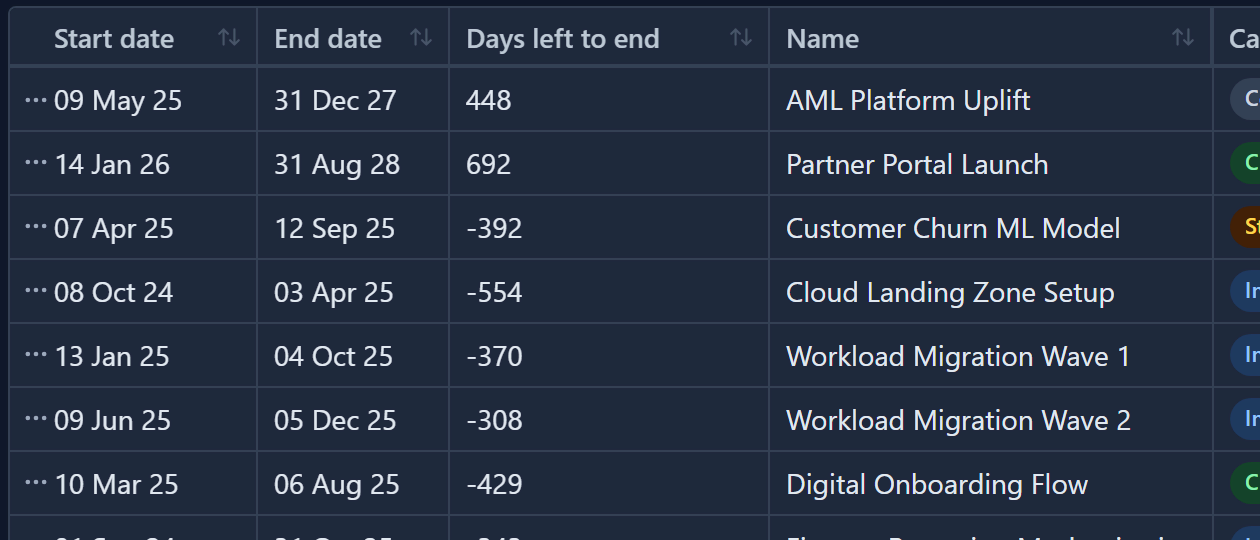
A fresh workspace has these fields:
- Project: Name, Status, Health, Priority, Program, Manager, Start date, End date, Progress and Budget.
- Task: Start date, Due date, Estimate, Status, Priority and Progress.
It has no field for actual cost or forecast, so recipes that need one say so. The formulas below use these names unless the recipe says otherwise.
Dates and deadlines
Days to end date
Gives the days left, and a negative number once the date has passed.
datediff({End date}, today)
- Result type: Number
- Fields: Project End date.
- Example: Customer Portal Redesign ends on 31 Dec 2027, so it shows 453. Customer Churn ML Model ended on 12 Sep 2025, so it shows -387.
Days overdue
Gives how many days late a date is, and 0 until then. max keeps the answer from going below 0.
max(0, datediff(today, {End date}))
- Result type: Number
- Fields: Project End date. For tasks use
max(0, datediff(today, {Due date}))with Task Due date. - Example: Customer Portal Redesign shows 0. Customer Churn ML Model shows 387. For tasks, Audit existing portal screens (due 20 Sep 2026) shows 14 and Build component library shows 0.
Duration in days
Gives the length of a project or task.
datediff({End date}, {Start date})
- Result type: Number
- Fields: Project Start date and End date.
- Example: Customer Portal Redesign shows 1054. Customer Churn ML Model shows 158.
Duration in weeks
Gives the length in whole weeks.
round(datediff({End date}, {Start date}) / 7)
- Result type: Number
- Fields: Project Start date and End date.
- Example: Customer Portal Redesign is 1054 days, or 150.6 weeks, so it shows 151. Customer Churn ML Model shows 23.
Days since start
Gives how long a project has been running. A negative number means it has not started.
datediff(today, {Start date})
- Result type: Number
- Fields: Project Start date.
- Example: Customer Portal Redesign shows 601. Legacy Portal Decommission starts in 2 days, so it shows -2.
Days to fixed date
Counts down to one date for every record, such as a go-live.
datediff(date("2026-12-31"), today)
- Result type: Number
- Fields: none.
- Example: every record shows 88.
Start plus 30 days
Adds days to a date.
{Start date} + 30
- Result type: Date
- Fields: Project Start date.
- Example: Customer Portal Redesign starts on 10 Feb 2025 and shows 12 Mar 25. Customer Churn ML Model shows 07 May 25.
Future-only end date
Gives the end date, or today if the end date has passed.
max({End date}, today)
- Result type: Date
- Fields: Project End date.
- Example: Customer Portal Redesign shows 31 Dec 27. Customer Churn ML Model shows 04 Oct 26, which is today.
Late task flag
Gives Yes for a task that is past its due date and not finished.
{Status} != "Done" and {Due date} < today
- Result type: Yes / No
- Fields: Task Status and Due date. A fresh workspace has a Done status.
- Example: Audit existing portal screens shows Yes. Build component library and Demand forecast model show No.
Late project flag
Gives Yes for a project past its end date that is not closed.
{End date} < today and {Status} != "Closed"
- Result type: Yes / No
- Fields: Project End date and Status. Replace
"Closed"with the status your workspace uses for finished projects. A fresh workspace uses"Done". - Example: with the status set to
"Closed", every sample project shows No. The two ended projects are Closed, and no open project is past its end date.
Due within 14 days
Gives Yes when a date is between today and 14 days away.
datediff({Due date}, today) >= 0 and datediff({Due date}, today) <= 14
- Result type: Yes / No
- Fields: Task Due date.
- Example: Demand forecast model is due tomorrow and shows Yes. Audit existing portal screens (past) and Build component library (months away) show No.
Planned time used
Gives how far through its dates a project is, from 0 to 100.
round(min(100, max(0, datediff(today, {Start date}) / datediff({End date}, {Start date}) * 100)))
- Result type: Number
- Fields: Project Start date and End date. Name this field
Time elapsed %if you want to use it in the behind schedule recipe below. - Example: Customer Portal Redesign shows 57. Customer Churn ML Model shows 100. Legacy Portal Decommission shows 0.
Budget and cost
Budget is a built-in Project field. Actual cost and forecast are not built in. The recipes use two custom Currency fields, Actual Cost (AC) and Forecast at completion. Add Currency fields for them first (see Entities and custom fields) and use their names in the braces.
Number results show without a currency symbol or thousands separator unless you set a Display format, for example 157500. To show money, enter #,##0 or $ #,##0.00 in Display format on the Formula tab. The worked examples below use no Display format.
Budget remaining
Gives the budget minus what has been spent. A negative number means overspent.
{Budget} - {Actual Cost (AC)}
- Result type: Number
- Fields: Project Budget and an actual cost field (typical custom field).
- Example: Customer Portal Redesign shows 157500. Cloud Landing Zone Setup shows -25600.
Forecast variance
Gives the forecast cost minus the budget. Positive means a forecast overspend.
{Forecast at completion} - {Budget}
- Result type: Number
- Fields: Project Budget and a forecast field (typical custom field).
- Example: Customer Portal Redesign shows 0. Customer Churn ML Model shows -10800. AML Platform Uplift shows 165000.
Absolute gap
Gives the distance between forecast and budget, whichever way it goes.
abs({Forecast at completion} - {Budget})
- Result type: Number
- Fields: as for forecast variance.
- Example: Customer Churn ML Model shows 10800, where the variance showed -10800.
Over-budget flag
Gives Yes when the forecast is above the budget.
{Forecast at completion} > {Budget}
- Result type: Yes / No
- Fields: as for forecast variance.
- Example: Cloud Landing Zone Setup and AML Platform Uplift show Yes. Customer Portal Redesign shows No.
Percentage of budget spent
Gives the share of the budget already spent, as a whole number.
round({Actual Cost (AC)} / {Budget} * 100)
- Result type: Number
- Fields: Project Budget and an actual cost field (typical custom field).
- Example: Customer Portal Redesign shows 55. Cloud Landing Zone Setup shows 108. Predictive Analytics Platform shows 17.
Round to decimal places
round rounds to whole numbers only. To keep decimals, multiply, round, then divide. For one decimal place use 1000 and 10. For two use 10000 and 100.
round({Actual Cost (AC)} / {Budget} * 10000) / 100
- Result type: Number
- Fields: as for percentage of budget spent.
- Example: Predictive Analytics Platform shows 16.5. Loyalty Programme Platform shows 44.65. A whole result such as 55 shows without trailing zeros. With
* 1000) / 10Loyalty Programme Platform shows 44.7.
Capped percentage spent
Keeps the figure between 0 and 100, for example to feed a highlight rule.
min(100, max(0, round({Actual Cost (AC)} / {Budget} * 100)))
- Result type: Number
- Fields: as for percentage of budget spent.
- Example: Cloud Landing Zone Setup shows 100, where the uncapped figure is 108. Customer Portal Redesign shows 55.
Guarded percentage spent
Dividing by 0 cannot be worked out. This tests the budget first and shows text instead. An empty Budget counts as 0, so it takes the guard branch.
if({Budget} == 0, "No budget set", round({Actual Cost (AC)} / {Budget} * 100) || "%")
- Result type: Text
- Fields: Project Budget and an actual cost field (typical custom field).
- Example: Customer Portal Redesign shows 55%. Cloud Landing Zone Setup shows 108%. Legacy Portal Decommission has nothing spent and shows 0%. A project with an empty Budget shows No budget set.
Progress and status
Behind schedule
Gives Yes when progress is lower than the share of planned time used. It uses the formula named Time elapsed % from the dates section.
{Progress} < {Time elapsed %}
- Result type: Yes / No
- Fields: Project Progress and a Number formula named
Time elapsed %. - Example: Customer Portal Redesign shows Yes (55 against 57). Customer Churn ML Model shows No (100). Predictive Analytics Platform shows Yes (11 against 44). A project with empty progress also shows Yes, because empty progress counts as behind.
Traffic light from percentage
Gives Green, Amber or Red from a percentage. The second test sits inside the first if.
if({Progress} >= 75, "Green", if({Progress} >= 40, "Amber", "Red"))
- Result type: Text
- Fields: Project Progress.
- Example: Customer Portal Redesign (55) shows Amber. Customer Churn ML Model (100) shows Green. Predictive Analytics Platform (11) shows Red. A project with empty progress shows Red.
The same result with ? : and no brackets:
{Progress} >= 75 ? "Green" : {Progress} >= 40 ? "Amber" : "Red"
Empty progress message
Gives the percentage with a % sign, or a message when nothing is entered.
if({Progress} == "", "No progress yet", {Progress} || "%")
- Result type: Text
- Fields: Project Progress.
- Example: Customer Portal Redesign shows 55%. Legacy Portal Decommission and AML Platform Uplift show No progress yet.
Hours left
Gives the estimate multiplied by the share of the work still to do.
round({Estimate} * (100 - {Progress}) / 100)
- Result type: Number
- Fields: Task Estimate and Progress.
- Example: Audit existing portal screens (24 hours, 85% done) shows 4. Demand forecast model (46 hours, 35%) shows 30. Testing & QA has no estimate and shows 0.
Open or finished label
Turns a status into a plain label.
{Status} == "Closed" ? "Finished" : "Open"
- Result type: Text
- Fields: Project Status. Replace
"Closed"with your finished status. A fresh workspace uses"Done". - Example: Customer Portal Redesign shows Open. Customer Churn ML Model shows Finished.
Project not closed
Gives Yes while a project is not in its finished status. not needs brackets around the test.
not ({Status} == "Closed")
- Result type: Yes / No
- Fields: Project Status. Use
"Done"in a fresh workspace. - Example: Customer Portal Redesign shows Yes. Customer Churn ML Model shows No.
Escalate high priority tasks
Gives Escalate for High or Urgent tasks, and Normal for everything else.
{Priority} == "Urgent" or {Priority} == "High" ? "Escalate" : "Normal"
- Result type: Text
- Fields: Task Priority. A fresh workspace has Low, Medium, High and Urgent.
- Example: Audit existing portal screens (High) shows Escalate. Testing & QA has no priority and shows Normal.
Attention from health
Gives Yes when health is poor. Compare against the labels your workspace uses.
{Health} == "At risk" or {Health} == "Off track"
- Result type: Yes / No
- Fields: Project Health. The example uses On track, At risk and Off track. A fresh workspace uses Green, Amber and Red, so change the quoted labels to match.
- Example: Customer Portal Redesign (At risk) and Customer Churn ML Model (Off track) show Yes. Cloud Landing Zone Setup (On track) shows No.
Labels and codes
Joined label
Joins text with ||. Numbers are turned into text.
{Category} || " - " || {Priority}
- Result type: Text
- Fields: Project Priority and a Select field called Category (typical custom field). In a fresh workspace use
{Status} || " - " || {Priority}. - Example: Customer Portal Redesign shows Client Facing / External - High. Customer Churn ML Model shows Strategic - Medium.
Sentence with a number
Builds a sentence from text and a calculated number.
"Ends in " || datediff({End date}, today) || " days"
- Result type: Text
- Fields: Project End date.
- Example: Customer Portal Redesign shows Ends in 453 days. Customer Churn ML Model shows Ends in -387 days.
Full name
Joins a first and last name with a space between.
{First name} || " " || {Last name}
- Result type: Text
- Fields: Staff First name and Last name.
- Example: Sarah Kobayashi shows Sarah Kobayashi. Bram Peeters shows Bram Peeters.
Checkbox to label
Turns a Checkbox field into words.
{Approved} ? "Approved" : "Pending"
- Result type: Text
- Fields: a Checkbox field called Approved (typical custom field). A fresh workspace has none.
- Example: a ticked Approved shows Approved. An empty Checkbox is read as No, so it shows Pending.
Linked records and counts
People count
Gives the number of values in a Multi-select, Relation or User field.
count({Members})
- Result type: Number
- Fields: a Multi-select, Relation or User field, such as a custom field called Members. A fresh workspace may not have one.
- Example: a record with three people chosen shows 3, and a record with none shows 0.
Label with nobody on it
Turns a count into a plain label.
if(count({Members}) == 0, "Nobody yet", "Staffed")
- Result type: Text
- Fields: as for the count recipe.
- Example: a record with an empty field shows Nobody yet. A record with one or more people shows Staffed.
Linked program end date
Gives a field from the one record a Relation field links to. This reads the Program's end date on a Project.
{Program}.{End date}
- Result type: Date
- Fields: Project Program (a Relation field that links one record) and the linked Program's End date. Use the exact names in your workspace.
- Example: a Project linked to a Program that ends on 31 Dec 2027 shows 31 Dec 27. A Project with no Program shows today's date, because an empty date reads as today.
Gap to program end
Combines a field on this record with a field on the linked record.
datediff({Program}.{End date}, {End date})
- Result type: Number
- Fields: Project End date and Program, and the Program's End date.
- Example: a Project ending on 30 Nov 2027 under a Program ending on 31 Dec 2027 shows 31. A positive number means the project ends before its program does.
Linked record type
Gives the entity type of the record a Relation field links to.
{Parent}.type
- Result type: Text
- Fields: a Relation field called Parent (typical custom field).
- Example: a Parent that links a Project shows Project, and an empty Parent shows nothing.
Percentage display format
Keep the formula as a ratio and set the look in Display format. For this ratio, enter 0% to show 55%, or 0.0% to show 55.0%.
{Actual Cost (AC)} / {Budget}
- Result type: Number, with Display format
0%. - Fields: Project Budget and an actual cost field (typical custom field).
- Example: a ratio of 0.55 shows 55%. Filters, sorting and totals still use 0.55.
Scores
Weighted score
Combines several 1 to 5 ratings into one score. Rounding the sum with round(... * 10) / 10 keeps it to one decimal place.
round(({Strategic} * 0.5 + {Value} * 0.3 + {Urgency} * 0.2) * 10) / 10
- Result type: Number
- Fields: three rating fields (typical custom fields). The recipe works with Select fields labelled 1 to 5, because multiplication reads a Select label as a number. In a fresh workspace, add your own Number fields.
- Example: Customer Portal Redesign (4, 4, 4) shows 4. Customer Churn ML Model (5, 2, 3) shows 3.7. Legacy Portal Decommission (1, 1, 3) shows 1.4. Without the rounding it would show 1.4000000000000001.
Good to know
- Results that use
todaychange each day. They are never stored, so there is nothing to refresh. - Number results show every decimal and no thousands separator unless you set a Display format. Set one, or wrap the calculation in the rounding pattern, to tidy it.
- Different field names and labels are the most common reason a pasted formula fails. See Fix formula problems.
- A formula cannot tell an empty date from today's date, so no recipe can count days to a date that was never entered. See Fix formula problems.