
Find your way around
- Purpose
- The header, the left menu, tabs and records, and how every view has a link you can share.
- Who is this for
- Everyone
Gembaa has three parts to learn: the header across the top, the left menu, and the page itself with its tabs. Once you know these, every module works the same way.
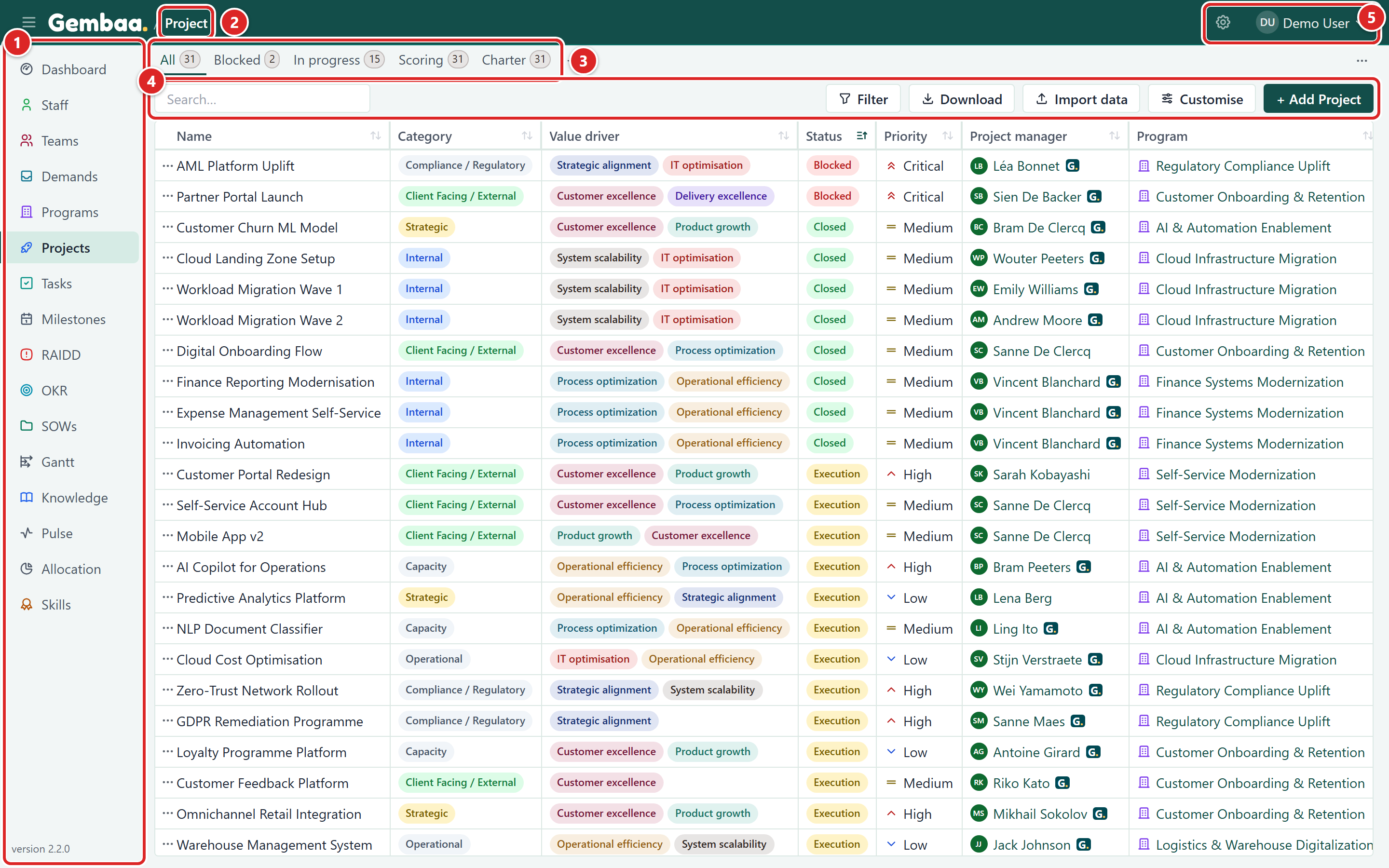
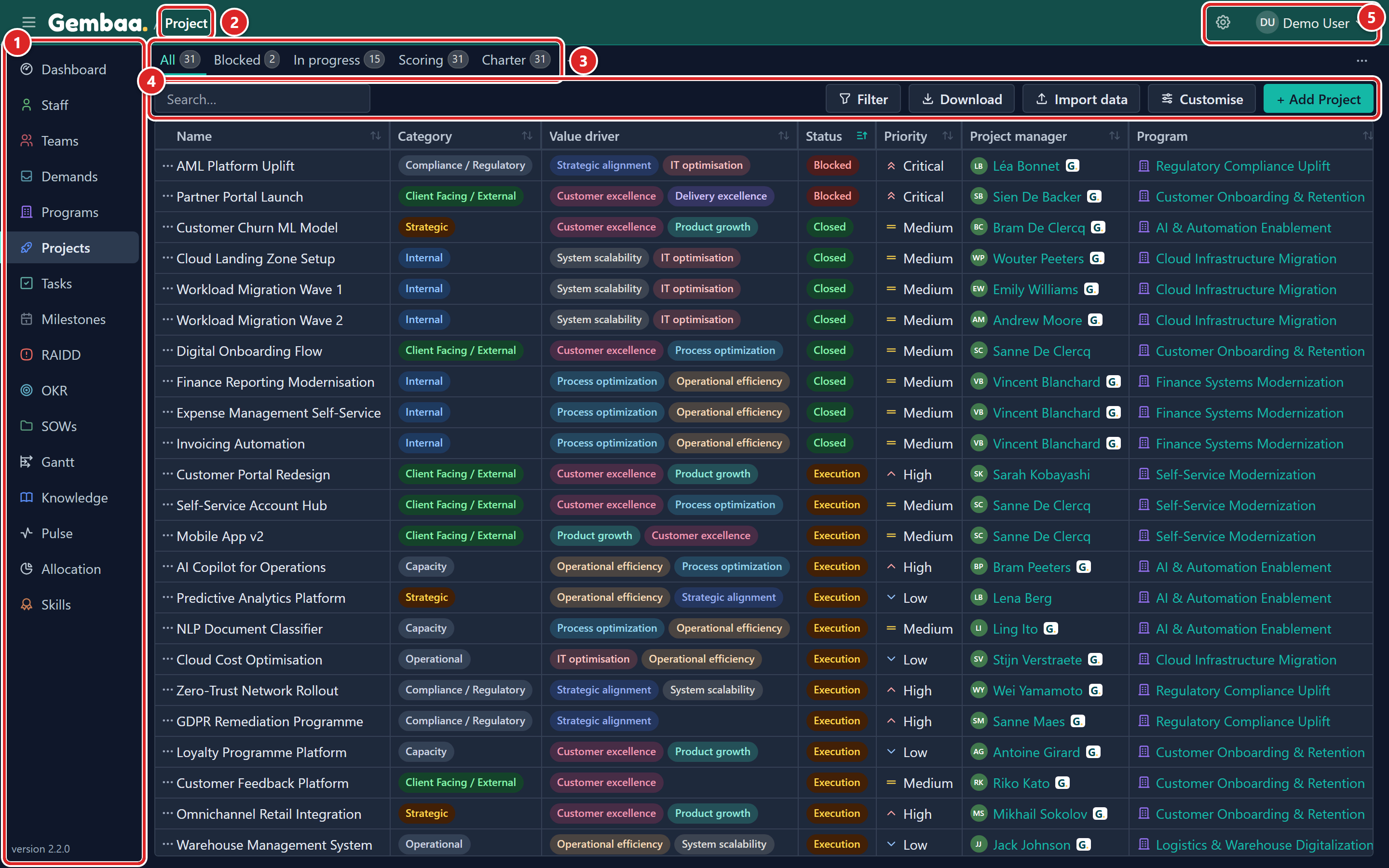
- The left menu: every page you can open.
- The breadcrumb: the page you are on.
- The tab row: saved views of this page.
- The table toolbar: search, Filter, Download, Import data, Customise and Add Project.
- The gear icon (Administration, admins only) and your name, which opens the user menu.
Header
Five controls sit in the header, in the same place on every page.
| Control | What it does |
|---|---|
| Menu button (Collapse menu or Expand menu) | Hides or shows the left menu to give the page more room. On a narrow screen the menu slides over the page as a drawer. |
| Gembaa logo | Takes you home. It is a real link, so you can open it in a new browser tab. |
| Breadcrumb | Names the page you are on, next to the logo. |
| Gear icon (Administration) | Opens Administration. Only admins see it. It is a link, so middle-click or Ctrl+click opens Administration in a new browser tab. |
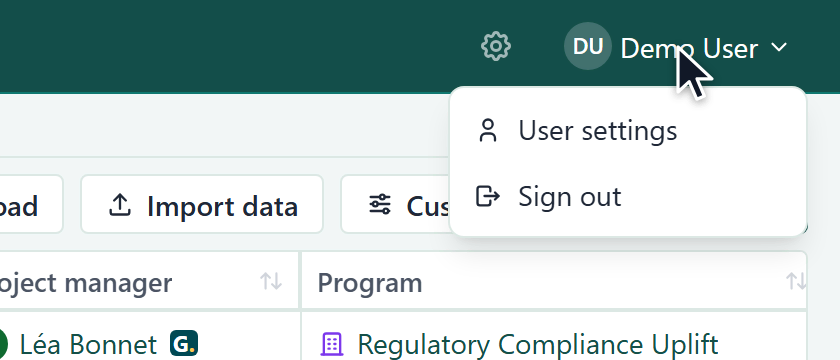
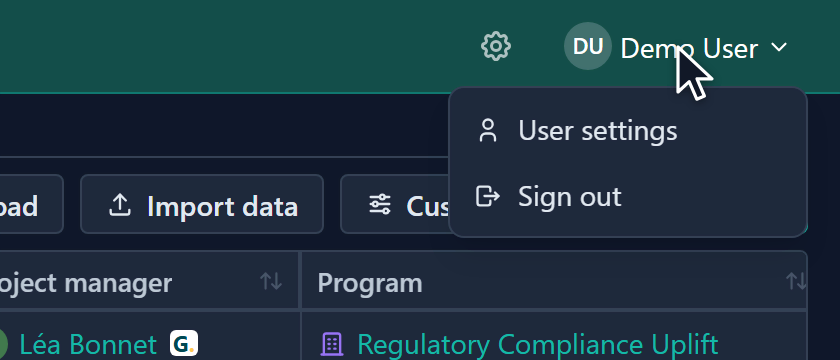
| Your name and photo | Opens the User menu with User settings and Sign out. |
Left menu
The left menu lists every place you can go: the Dashboard first, then your entities (Projects, Tasks, Staff and so on) and modules such as Gantt, Knowledge, Pulse, Allocation and Skills. Admins choose the order, so your menu may differ from a colleague's workspace.
At the bottom of the menu you see the Gembaa version number.
On a narrow screen the left menu opens as a drawer over the page. Focus moves into it and stays there while it is open. Tap the dimmed area or an item to close it.
See more and See less
Admins can tuck less-used items away. If they have, the menu ends with See more (N), where N is the number of items inside. Click it to show them. The row moves to the bottom and reads See less. Gembaa remembers your choice in this browser. If you open a page that lives under See more, the section opens by itself.
Hidden items
An admin can hide an item from the menu. The page still works, and links to it still work. Hiding an item does not remove anyone's access. A small no-access badge on a menu item means you do not have access to that page.
Admins arrange the menu in Arrange the left menu.
Items that disappear
An admin can switch a module off for the whole workspace, for example Gantt or Pulse. Its menu item then disappears for everyone, admins included, and a bookmarked link to it shows This feature is not enabled. Nothing is deleted. If a menu item you used is gone, ask an admin whether the feature was switched off. See Turn features on or off.
Tabs
Most pages show a row of tabs above the content. On a table page, each tab is a saved view with its own filters, sort and columns. Click a tab to switch. Pages such as the Dashboard, Gantt and Allocation use tabs the same way. Learn to make your own in Create and manage tabs.
Open a record
Click a row to open that record in the record panel, which slides over the list. Close it with the close button or by pressing Esc. The Comments icon in its header opens a thread for that record. Details are in The record panel and Comment on a record.
Top messages
After you add, edit or delete something, or when something fails, a small card called a toast appears at the top centre of the page. It closes by itself after about six seconds, or sooner if you click its dismiss button. Hover over it to hold it open. A toast about a record links to that record (middle-click opens it in a new browser tab). Some toasts, such as a link change, carry an Undo button. Toasts stay usable while a dialog is open.
Work in a dialog
While a dialog is open, Tab and Shift+Tab move only between its controls, and the page behind cannot be reached. Esc closes only the top dialog, so a confirmation over an Add dialog closes first. When a dialog closes, focus returns to the button that opened it. The exception is an Allocation Add dialog that you have docked or minimised: it leaves the page usable, so Esc stays with the page behind.
Tab links
Every tab and every open record has its own web address. That gives you:
- Middle-click, or Ctrl+click (Cmd+click on a Mac), to open a Gembaa tab in a new browser tab. Shift+click opens a new window.
- The Back button, which returns you to the previous Gembaa tab you chose.
- A link you can copy and send. It opens the same tab, and the same record if one is open.
Good to know
- Gembaa has no app-wide shortcuts. The one single-key shortcut is L on the Gantt. A few other keys work in tab rows, tables and dialogs, and Esc closes dialogs, menus and the record panel. See Keyboard shortcuts.
- Gembaa has no workspace-wide search. Use the search box and filters on each table. See Filter, sort and group.
- Gembaa has no notifications. Mentioning someone in a comment does not notify them.
- Below 640 pixels wide the user menu is hidden, so use a wider window to reach User settings and Sign out.
- A tooltip opens after a short pause (about 0.3 seconds) when you hover a control or move to it with the keyboard. Text that is cut off shows in full in a tooltip.