
Fix formula problems
- Purpose
- What each formula error message means and how to fix it, plus the surprises that give a wrong answer without an error.
- Who is this for
- Admins
- Prerequisites
- Admin role, to open the formula field and use Evaluate.
- Permissions
- Admin role to edit a formula field.
Each problem below starts with what you see, then the fix. Only admins see the cause of a problem, under Evaluate on the Formula tab.
Find the cause
Everyone else sees a warning icon in the cell, with the tooltip "This value can't be calculated. Please contact your administrator to correct the formula."
- Open Administration → Entity & fields.
- Click the tab of the entity that holds the formula field.
- Click the formula field's row. The Field settings panel opens.
- Click the Formula tab.
- Click Evaluate. The message appears under the button.
- Find the message in the tables below and follow the fix.
- Click Save and close. The warning icon goes away in tables and record panels.
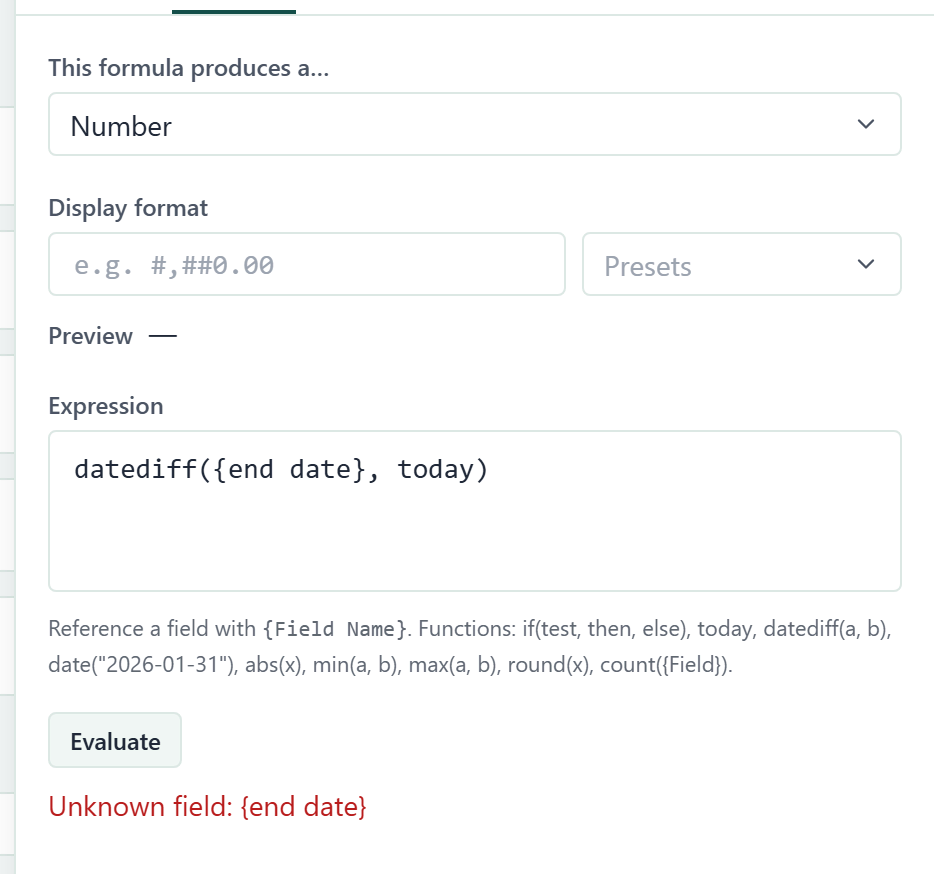
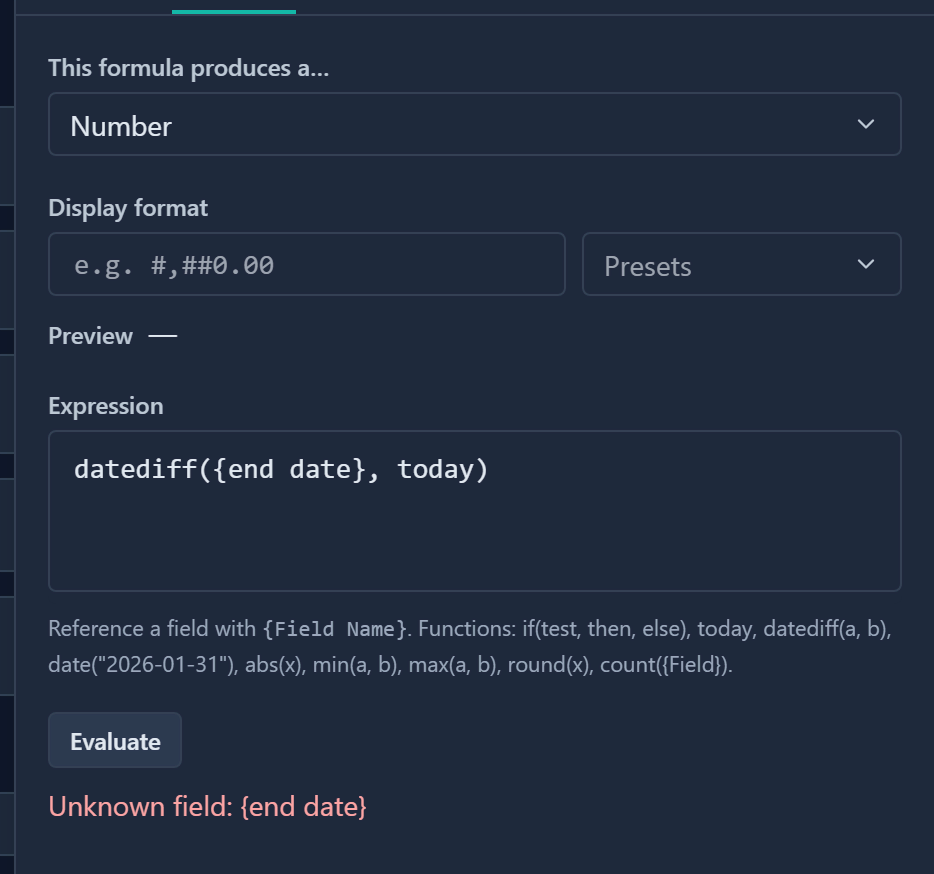
Evaluate always tests the first record in the table. A formula can work there and still fail on a record where a field is empty.
Error messages
| What you see | Cause | Fix |
|---|---|---|
Formula is empty | The Expression box is empty. | Type a formula. In a table cell an empty formula shows a dash. |
Unknown field: {end date} | The name in braces does not match a field. Common causes are the wrong capitals, a typo, or a field that was renamed or removed. | Use the field's exact current name, or type { and pick it from the list. |
Unknown field: {Created} | Created and Updated are not fields, so a formula cannot read them. | Use a different field, such as a date field you add. |
Field not supported in formulas: {Pulse} | The formula uses a Latest pulse, Allocation, Current Rate or Skills field. | Remove that reference. |
Circular reference: {Name} | Formulas use each other, or a formula uses itself. | Break the loop so that one formula does not depend on the other. In the editor this can show as Unknown field instead. |
{Other formula}: followed by another message | A formula you refer to is itself broken. | Open the formula named at the start and fix it first. |
unexpected TEOF: EOF | The formula stops too soon, for example {Budget} + or round(. | Finish the formula and close every bracket. |
parse error [1:9]: Expected EOF | There is an extra closing bracket, for example {Budget} * 2). | Remove the extra ). |
parse error [1:13]: Expected ) | A function got too many values, for example round(2.567, 2) or abs(-5, 2). | round and abs take one value. For decimals use round(x * 100) / 100. |
parse error [1:1]: Unknown character "{" | A field reference has no closing brace, for example {Budget. | Add the }. |
parse error [1:5]: Unknown character "=" | A single = was used to compare. | Use ==. |
parse error [1:15]: Unknown character "&" | && was used. | Use and. or is the word for either. The || symbol joins text, it does not mean or. |
unexpected TOP: > | <> was used for not equal. | Use !=. |
unexpected TOP: * | Two operators sit side by side, such as 2 + * 3. | Remove one. |
undefined variable: Green | Text was written without quotes. | Put text in quotes: "Green". |
undefined variable: sum | The function does not exist, or the name has the wrong capitals, such as IF( or Today. | Use only the nine functions in the help line, in lowercase. Add values with +. |
undefined variable: (field)(field) | Two field references sit side by side with nothing between them. | Add an operator, such as +, or || to join text. |
This result isn't a Number, change the output type above to match. | The result type is Number but the formula gave text, divided by zero or is missing a value, for example datediff({End date}). | Change This formula produces a… to match, or fix the maths. Test the divisor with if first. |
This result isn't a Date, change the output type above to match. | The result type is Date but the formula gave text, or date("31/12/2026") was used. | Return a date or a day count. Write fixed dates as date("2026-12-31"). |
count() needs a field: count({Field}) | count got something other than one field, such as count(1) or count({Score} + 1). | Put one field in braces and nothing else: count({Members}). |
count() accepts only a Multi-select, a Relation or a User field: and a field name | count was used on another field type. | Count a Multi-select, Relation or User field, or use a different formula. |
Linked fields are not available here | Gembaa could not load the linked record or its fields to work out the formula. | Try again. If it stays, check that the Relation field links a record. |
Could not load a sample record | Evaluate could not fetch a record to test on. | Click Evaluate again. |
The Number and Date messages are warnings in the app, shown in amber with a warning sign at the start. In the app they have a dash between the two sentences. Gembaa shows no warning for the Text and Yes / No result types, because they accept any result.
Linked field messages
When a formula reads a field of a linked record, Gembaa checks it when you click Save and close. If a reference is not allowed, the save is refused and the message appears under Expression. The same messages show as warnings under Evaluate. In the table, Rel stands for the Relation field's name, Type for an entity type and Field for a field name.
| What you see | Cause | Fix |
|---|---|---|
Only a single-link Relation field can be followed: and a field name | The field before the dot is not a Relation field, or it links several records. | Follow a Relation field that links one record. |
Rel links several entity types, name one: Rel:Type.Field | The Relation field can link more than one type of record. | Add the type: {Parent:Project}.{Name}. |
Rel cannot link a Type record | The type you named is not one the Relation field can link. | Name a type the Relation field allows. |
Unknown field on Type: and a field name | The linked record's type has no field with that name. | Use the field's exact name on the linked record. |
Field not supported in formulas: Type.Field | The linked field is a Latest pulse, Allocation, Current Rate, Skills or rollup-mode field. | Read another field. |
Type.Field reads another linked record, only one level is allowed | The linked field is itself a formula that reads a linked record. | Read a field that is not a linked formula. |
Only one level of linked fields is allowed | The formula follows two links, as in {A}.{B}.{C}. | Follow one link only. |
A linked value that reads empty, with no error, usually means the Relation field is empty, the linked record is a different type from the one you named, or you cannot see that field on the linked record.
Wrong answer, no error
Broken after rename or removal
If a formula shows a warning after someone renamed or removed a field, the formula still holds the old name. Evaluate shows Unknown field with the old name.
Edit the formula to use the new name, or add the field back with its old name. Remove field does not warn when another formula uses the field, so check your formulas before you remove one.
NaN result
If a Text formula shows NaN, you used + to join text with something else. + adds numbers only. Join text with ||, for example "Total: " || {Budget}.
Select number mismatch
If {Strategic} == 4 is always No while the field shows 4, the label is text. Compare with quotes: {Strategic} == "4". Multiplying, subtracting and dividing still read the label as a number.
Multi-select never matches
A Multi-select reads as all its labels joined with commas, so {Value driver} == "Product growth" is No when two labels are chosen. Use a Select field instead if you need to test one value.
Decimals or missing separators
Without a Display format, Number results show every decimal, for example 116666.66666666667 or 1.4000000000000001, and column number formats do not apply.
Enter a Display format such as #,##0.00 on the Formula tab to set the decimals and the thousands separator. You can also round the result: use round(x * 100) / 100 for two decimal places. See Format a Number result and Common formulas.
An empty date counts as today
If a date field is empty, a formula reads it as today's date, so datediff({End date}, today) shows 0 for a record with no end date.
Gembaa has no test for an empty date in a formula. To avoid wrong zeros, only use date formulas on fields that every record fills in, or tell people the zeros mean "not set".
Empty progress counts as behind
A Progress field that is empty reads as empty text, not 0. {Progress} == 0 is No for an empty Progress. Test for empty with {Progress} == "". In the sample recipes, an empty Progress makes Behind schedule show Yes and the traffic light show Red. See Common formulas.
Quoted today changes
Gembaa replaces the word today everywhere, even inside quotes, so "Due today" shows as Due today(). Avoid the word in text. Write "Due now" or "Due on the day" instead.
Results will not total
- A rollup cannot total a formula. In the rollup editor the formula field is shown disabled with "This field is calculated elsewhere, so it holds no value to total."
- A formula field cannot be switched to rollup mode. It has no Rollup tab.
- A dashboard chart cannot total a formula. A formula can group a chart, but the value picker lists Number and Progress fields only.
- A column total on a Text or Yes / No result offers only Count and Unique count. Choose the Number result type to get Sum and Average.
- In an Excel export, a formula column is text, not numbers, so a sum over it in Excel does not add up. Export the fields the formula reads and calculate in Excel.
Limits
Field will not add
If the Add custom field dialog says the entity "already has the maximum of 50 fields, remove one before adding another", the entity is full. Formula fields count. Remove a field you no longer use first. Gembaa stops showing a removed field's data, and this cannot be undone.
Column missing from table
When you add a field, Gembaa hides the new column in views that already exist. Open Customise on the table and switch the column on.
Display format will not save
If Save and close is refused with "Display format is not valid", the pattern has no 0 or #, more than one ., more than one %, or a , after the .. Fix the pattern or empty the box. Only the Number result type has a Display format.
Cannot type in field
A formula field is never editable. To change a value, change the fields the formula reads.
Other limits
- Evaluate uses the first record only.
- There is no function to count days to an end date that has not been entered. An empty date reads as today, so
datediff({End date}, today)shows 0 for every record without an end date. - Functions,
and,orandnotmust be lowercase. - Date text must be in the form year-month-day, as in
date("2026-12-31").