
The record panel
- Purpose
- Open a record beside your table to read and edit everything about it, move between its tabs and drill into related records.
- Who is this for
- Everyone
- Prerequisites
- At least one record in the module.
- Permissions
- View access to the record. Editing needs edit access.
The record panel slides in from the right when you open a record. Read and edit the record's fields in place, grouped into tabs, without leaving the table.
How it works
Your workspace may use different names for records such as Project or Staff. The panel works the same way for all of them. It has a header, a row of tabs and a body.
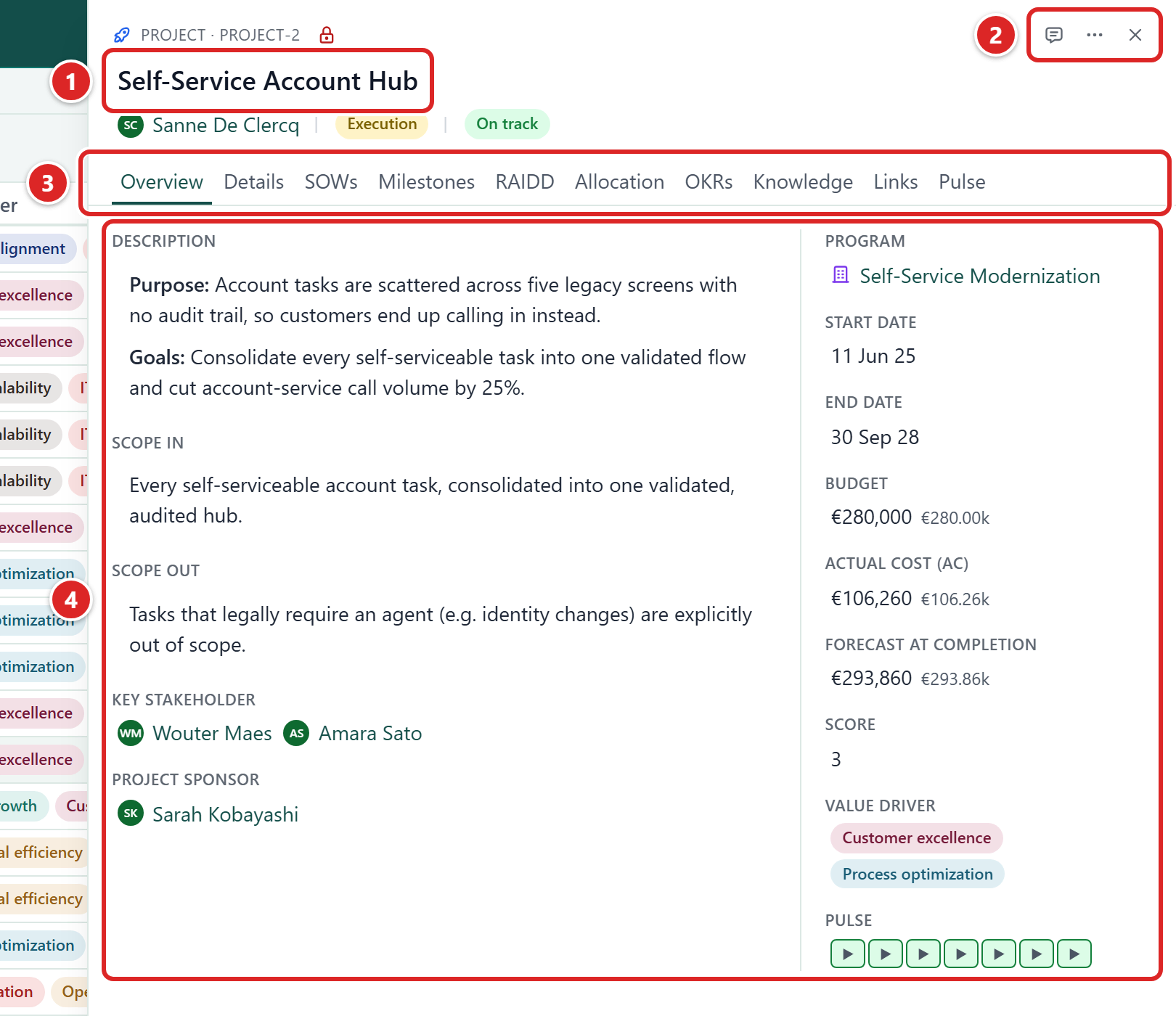
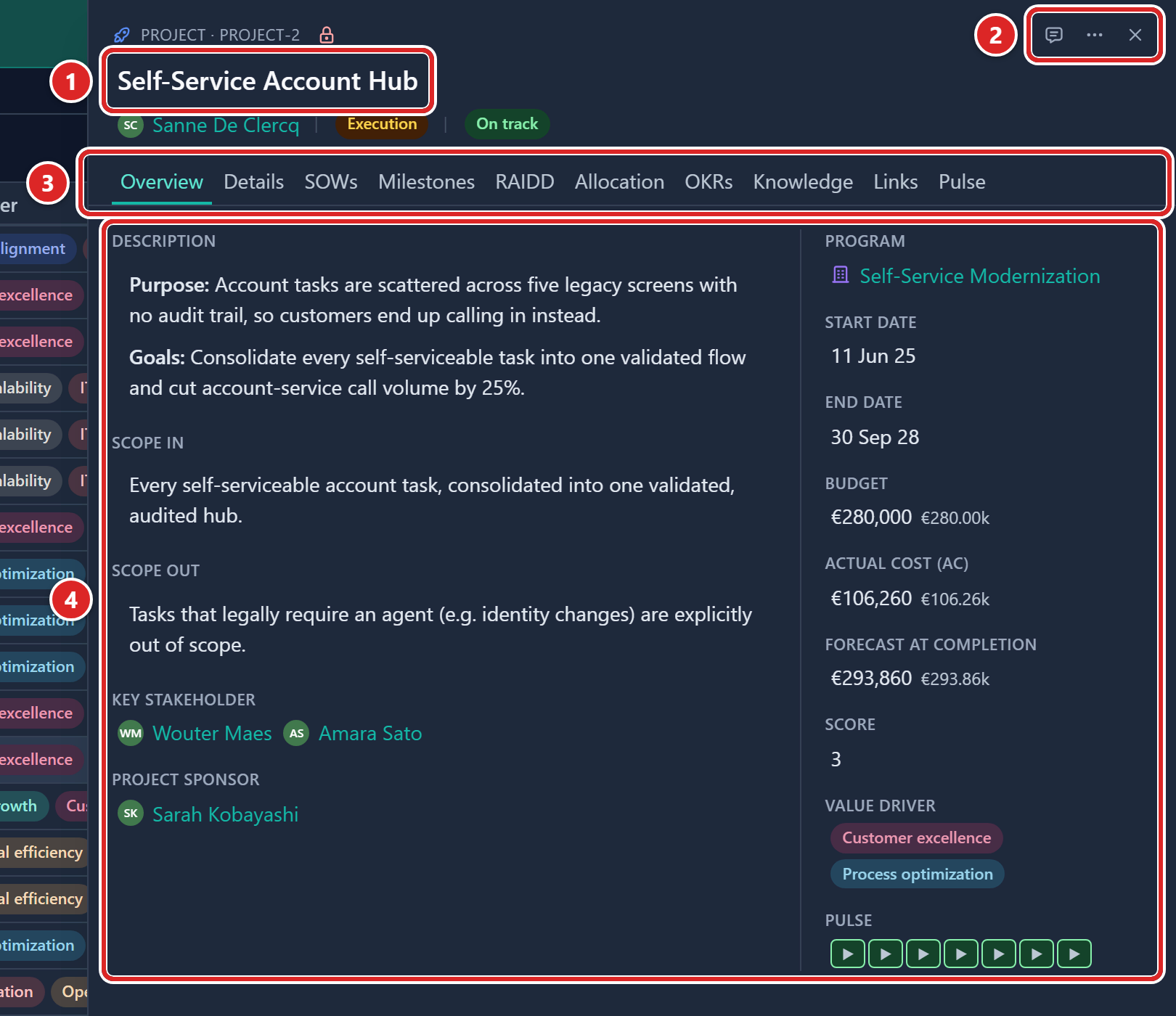
- The record's name in the header.
- The header buttons: Comments, the Record actions menu (the three-dot button) and Close.
- The tab row.
- The body of the selected tab.
The header holds the record's name, which you can edit, and any fields your admin placed there, such as status, owner or key dates. A small line shows the record type and its ID, for example Project · PRJ-12. At the right sit the Comments button, the Record actions menu and Close. A reset arrow joins them after you resize the panel.
The Comments button opens the record's comment thread beside the panel. When the record has comments, the button also shows how many. See Comment on a record. The button is hidden when an admin has switched Comments off for this record type, or when you have no access to its comments.
The tab row has one tab for each section your admin set up for that type of record, then the Links tab, then Pulse where it applies. A Related tab appears when you open the record from the Pulse or Allocation page. The body shows the fields (or the list) of the selected tab.
These are the default tabs for the records that have a Links tab:
| Record | Tabs |
|---|---|
| Program | Overview, Details, Milestones, RAIDD, Allocation, OKRs, Knowledge, Links, Pulse |
| Project | Overview, Details, SOWs, Milestones, RAIDD, Allocation, OKRs, Knowledge, Links, Pulse |
| Task | Overview, Milestones, Knowledge, Links |
| Sub-task | Overview, Milestones, Knowledge, Links |
| RAIDD entry (risk, issue, assumption, dependency or decision) | Overview, Knowledge, Links |
| Objective | Overview, Knowledge, Links |
Records that open in the narrower style, such as Task, Sub-task, Objective, Key Result, Milestone, RAIDD entry, Skill and Role, show their main and detail fields together on one Overview tab. A Role calls that tab Definition. A Milestone and a Skill also end with Links.
A Team has a Members tab that lists the team's people and offers Add member. Demand, Staff, Team, Key Result, Knowledge, SOW and Role records have no Links tab. There are no Projects, Tasks, Sub-tasks or Key Results tabs: those records are listed in Links. Your admin may have removed or reordered other tabs.
When a record has more tabs than fit, the extra ones sit under More sections. Every tab appears even if you cannot open its content. If you lack access to a section, the tab tells you so and suggests contacting an admin.
If an admin has switched off a feature, its tabs are not shown. A record of a switched-off feature, opened from a link, shows "This feature is not enabled". See Turn features on or off.
The panel does not dim the page behind it. You can keep using the table and menu while it is open.
Open a record
Click anywhere on a row, except on a name that links to another record. The row stays highlighted while its panel is open.
The panel opens once. It slides in at your saved width while the record loads, and the record fills in without the panel closing or reloading.
You can also open a record from a link someone shared, or from the toast that follows adding or editing a record. See Share a link to any view.
Move between records
With the panel open, click a different row. The current panel slides out and the new record slides in. Only one record is open at each level at a time.
Edit in the panel
- Click a field's value once. The editor opens in place.
- Change the value.
- Press Enter or Tab to save, or Esc to cancel.
A bubble above the value says "Saving…" and then "Saved". If the save fails, the value goes back and the bubble reads "Couldn't save · reverted".
Which gesture saves depends on the kind of field:
| Field | Saves when | Click away |
|---|---|---|
| Text, number, email or URL | You press Enter or Tab | Discards the edit and shows "Not saved" |
| Single choice (select, status, priority) | You pick an option | Discards the edit |
| Several choices, or several linked records | You click Update | Discards your picks and shows "Not saved" |
| Rich text | You click away | Saves |
| The record name in the header | You press Enter or click away | Saves |
Esc cancels any edit. A relation field (a link to other records) is a Tab stop. Press Enter, Space or ↓ to open its picker, ↑ or ↓ to move through it, and Tab to close it and move on. See Field types for the rich text toolbar.
The name of a milestone that mirrors a date field is read-only. Rename the date field to change it.
Each field saves on its own, so the panel has no Save button. Fields you cannot edit show a tooltip when you hover over them, with the reason (calculated value, read-only field or missing permission).
To edit several fields in one go, open the Record actions menu and click Edit. More on this in Create, edit and delete records.
Use the Record actions menu
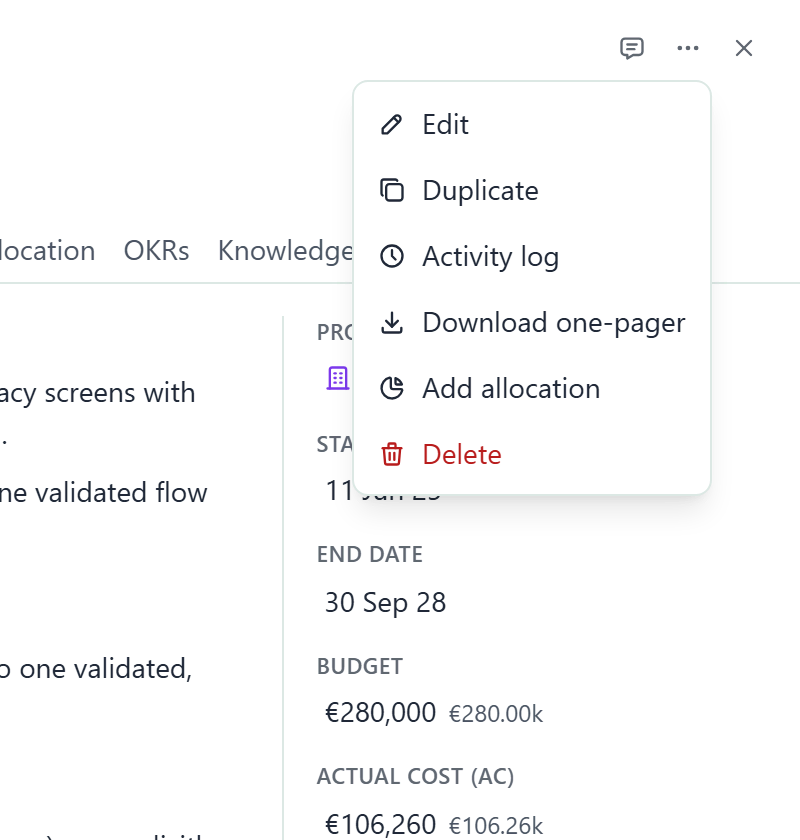
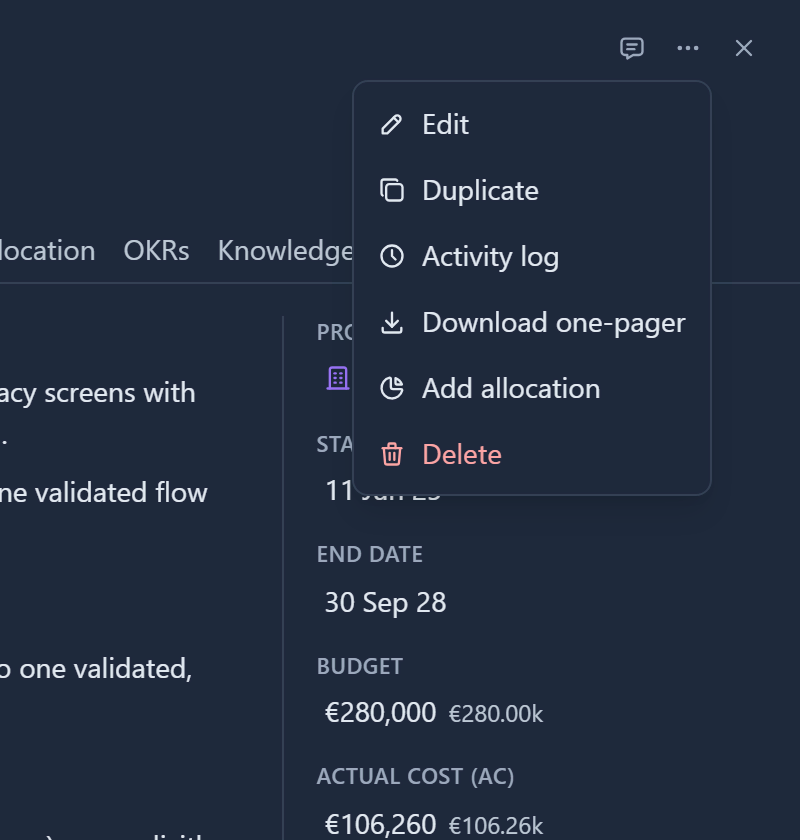
The Record actions menu in the header offers:
| Item | What it does |
|---|---|
| Edit | Opens the edit dialog |
| Duplicate | Copies the record. The panel stays on the original |
| Activity log | Opens the history of changes. See Activity history |
| Finance | Opens finance entries (Staff only) |
| Download one-pager | Downloads a one-page summary of the record. It shows only while PowerPoint export is switched on |
| Add allocation | Starts an allocation for the record (Staff and Project) |
| Deactivate / Activate | Staff records created in Gembaa only |
| Delete | Deletes the record after confirmation |
Items you cannot use are greyed out with a tooltip, or hidden.
A small lock icon on the line with the record type and ID, just after the ID, shows whether the record is public (open lock, green) or restricted (closed lock, red). Click it to open the record's permissions, if your role allows it. See Access control.
Open related record
Records are connected to each other. A project belongs to a program, a task to a project, and so on.
- Click a linked name in a field (a chip), or a name in a list inside a tab, to open that record on top of the current one. This is the second level, and it is narrower than the main panel.
- From the second level you can open one more panel on top, the third level.
- Beyond that, clicking a name in the third level replaces that panel rather than opening a fourth.
A link to a record you are not allowed to open reads Restricted instead of the record's name (admins see the name).
The panels behind stay open, so you keep your place. Close the top panel with Close, press Esc or click an empty area outside it. If a person picker is open inside the panel, a click outside closes only the picker. If the comments sheet is open, Esc works on the sheet first (see Comment on a record).
Each action closes only the top panel. Closing the main panel closes the ones above it.
Opening a record of a main type (a Project, Program, Staff member or Team, for example) from inside a panel does something different. The whole stack closes and that record opens as the only panel, with all its own tabs. The browser's Back button brings the previous panel back.
Use the Links tab
The Links tab lists the records connected to this one: its parent, its children (for example a project's tasks) and any typed links such as blocks or relates to. Click a row to open that record. Edit a row's status, assignee, priority or date in place if you can edit that record.
You attach existing records from Add link; the panel never creates a child record. Create a task, project or sub-task from its own page, then attach it. To move a record to another parent, use Add link then Replace parent. A link shows only to someone who can read both records. For the groups, the Add link menu, removing a link and date conflicts, see Link records.
Use the Related tab
A Related tab appears only on a record panel opened from the Pulse page or the Allocation page. It lists the records linked to this one so you can jump straight to any of them. On a Program it also shows roll-up figures for the program. Panels opened from a module table, such as Projects, have no Related tab.
Manage role assignments
This is an Admin task. The lock dialog lists who holds a role on this record, with their role and email. Use it to give someone a role on this one record only.
- Click the lock icon after the record's ID. The permissions dialog opens.
- Click the Role assignments tab. The Permissions tab is the other one.
- Click Assign role.
- Choose a Role and a Member or group.
- Click Assign. The row joins the list.
- Optional: to remove an assignment, open the row's menu and choose Remove role assignment.
Records whose access follows a parent record, such as Tasks or Risks, have no Role assignments tab. Their lock opens a restriction dialog instead.
Rows that come from the entity's settings or from a field show a lock icon and the tooltip "Managed in admin or in the field". Change those in Administration, not here. Roles and Skills records have the same lock and both tabs. See Access control.
Resize the panel
Drag the panel's left edge to make it wider or narrower. Gembaa remembers your width. When the panel is not at its default width, a reset arrow appears in the header, to the left of Comments. Click it to restore the default. On a phone the panel fills the screen and cannot be resized.
Share panel address
Opening a record adds it to the page address (for example ?record=...). That gives you three things.
- Copy the address to send someone a link that opens the page with the panel already showing the record. They need access to the record.
- The browser's Back button closes the panel, and Forward reopens it.
- If you open a link to a record you cannot see, or one that no longer exists, the panel says "You don't have permission to view this, or it may not exist." It does not say which.
Stacked panels are included in the address, so a shared link restores the whole stack.
Good to know
- Close the panel with Close, Esc or a click on empty space outside it. Clicking another row, a menu or a button does its own job and leaves the panel open.
- A tab with no fields shows "No fields have been added to this tab". An admin sets up the layout in Entities and custom fields.
- Changes made elsewhere, such as in the table, show up in an open panel.
- Deleting a record also deletes its comments. See Create, edit and delete records.