
First-time onboarding
- Purpose
- A short guided setup the first time you sign in: language, appearance, a profile photo and a welcome.
- Who is this for
- Everyone
The first time you sign in, a short setup opens over the app. It takes about a minute and helps you set Gembaa up the way you like it. Every step is optional.
How it works
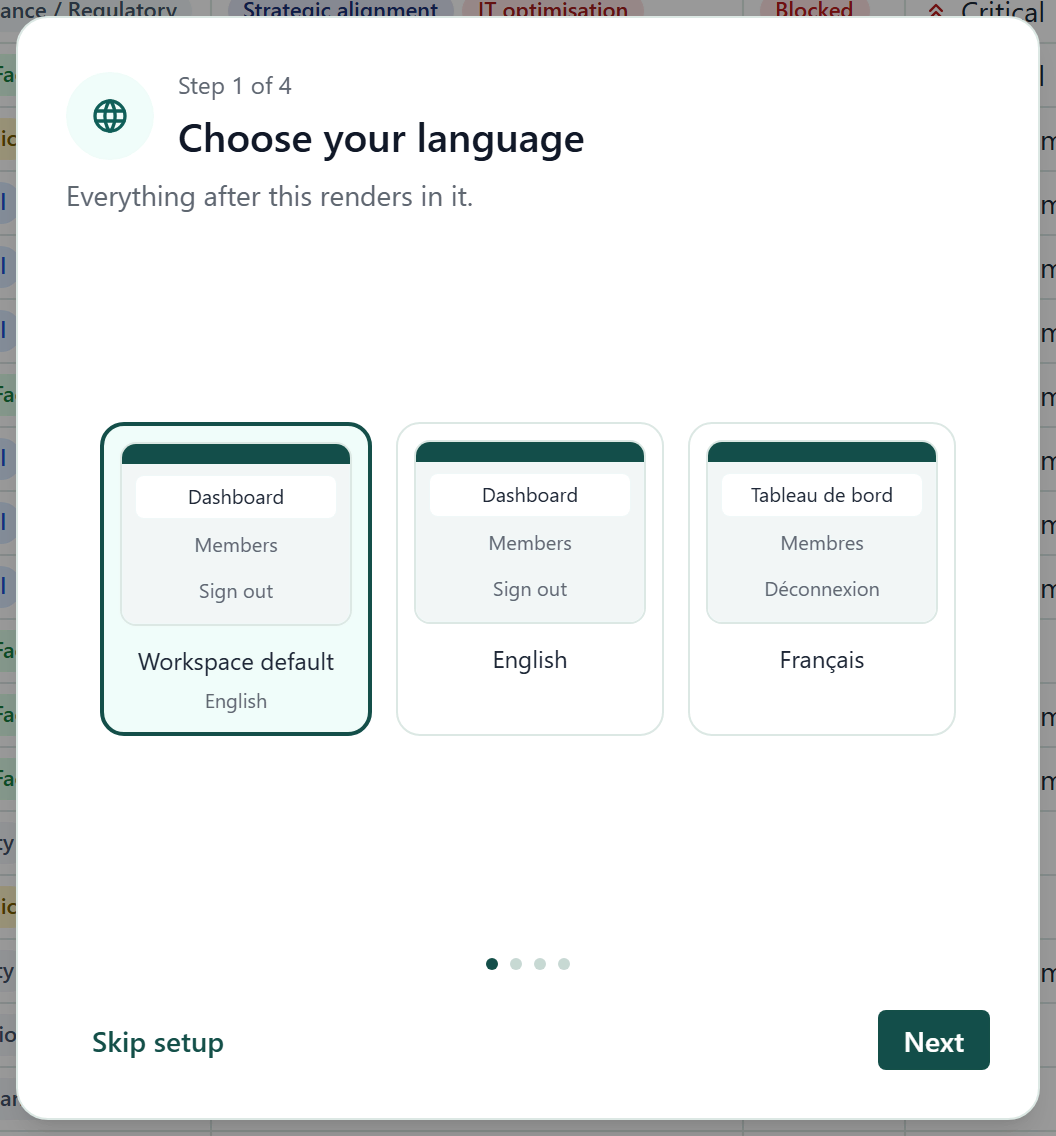
The setup has four steps, shown as Step 1 of 4 and so on. Each choice applies straight away and is saved as you make it, so the app behind the dialog changes while you choose. You do not need a final save.
| Step | What you choose |
|---|---|
| Choose your language | English or French, or Workspace default. Cards preview real menu words in each language. |
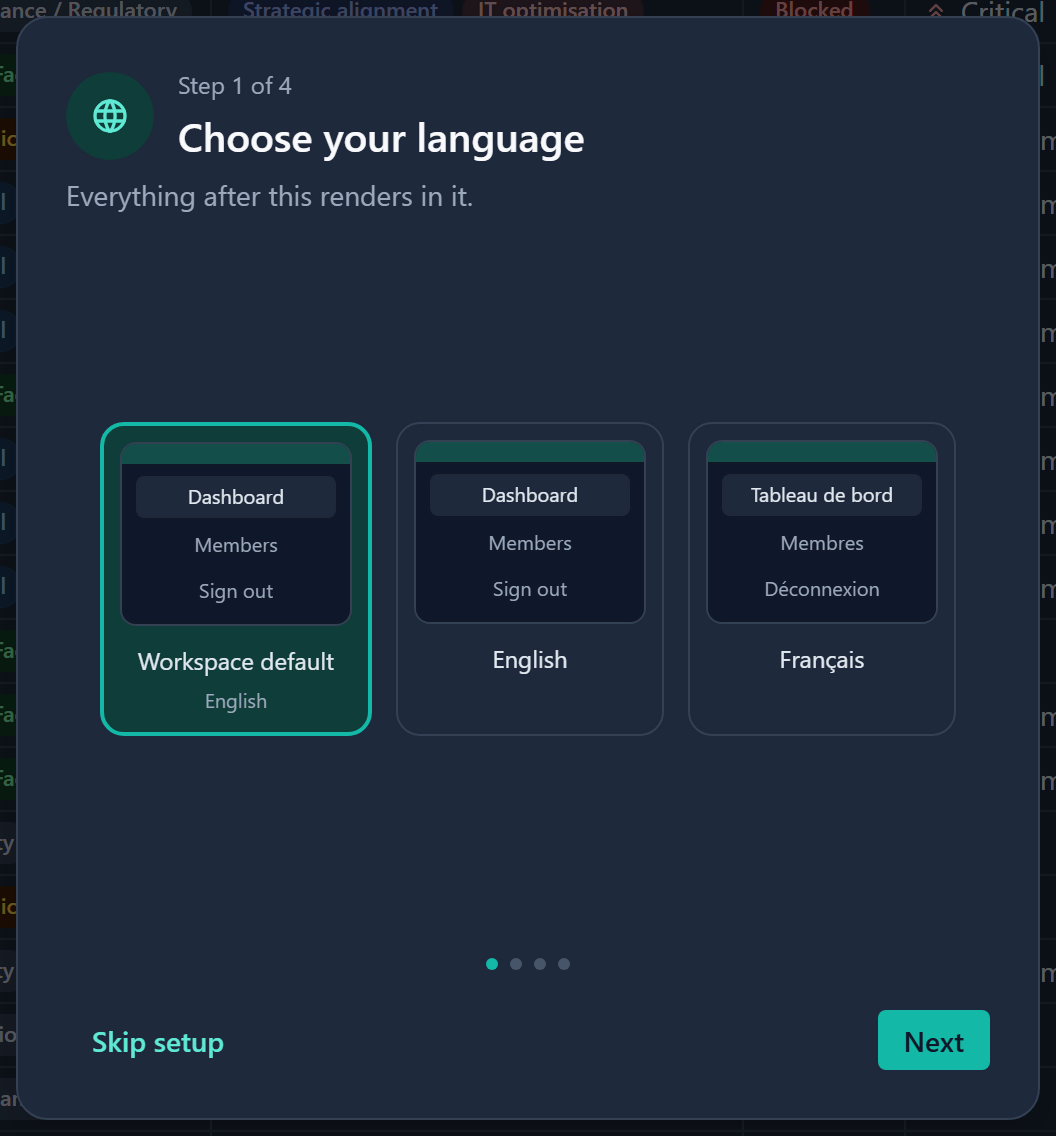
| Make it yours | A theme, and a mode: Browser default, Light or Dark. The theme previews repaint in the mode you pick. |
| Add a photo | A profile photo, so colleagues can recognise you. |
| Welcome | A greeting, a short description of your workspace and, if your admins added them, shortcuts to places to start. |
Complete the setup
- Pick your language. Everything after this step appears in it.
- Click Next. The theme step opens.
- Pick a theme and a mode.
- Optional: to follow the theme your admins set, leave the theme on Default.
- Click Next. The photo step opens.
- Optional: add a photo. Click the circle, drag an image onto it, or paste an image with Ctrl + V (Cmd + V on a Mac).
- Click Next to reach the welcome step.
- Click Finish. The setup closes and you stay where you are.
Instead of Finish, you can click one of the suggested places to start. The setup closes and takes you there. A suggested place is left out if an admin has switched that feature off.
Use Back to return to an earlier step and change an answer.
Skip the setup
Click Skip setup on any step except the last. Anything you already chose stays saved, and the setup does not open again on its own. Closing it with Esc or by clicking outside counts as a skip.
If you close the browser part-way through without skipping, the setup reopens at the first unanswered step next time you sign in.
Run it again
- Click your name in the upper right corner of the header and choose User settings.
- Under First-time setup, click Run first-time setup again. The setup starts from step 1 with your current choices selected.
Good to know
- A photo must be a PNG, JPEG or WebP image up to 5 MB. If an upload fails, the step tells you why and keeps your current photo.
- Focus starts on the setup dialog and stays inside it while it is open. When it closes, focus returns to where it was.
- Admins can turn the setup off for new users, edit the welcome text and shortcuts (the list offers no page of a switched-off feature), and reset it for everyone. This is in Administration → General. See Administration at a glance.
- Everything the setup asks is also in Your settings.