
Link types
- Purpose
- Define the kinds of link people can draw between two records, with their labels, colour and whether they flag schedule conflicts.
- Who is this for
- Admins
- Permissions
- Admin role.
A link type is a kind of connection between two records, such as "blocks" or "relates to". The types you define here are the ones people choose from when they add a link on a record's Links tab or on the Gantt. See Link records for how people use them.
How it works
Each type reads one way from the source record and the opposite way from the target. If A blocks B, A reads "blocks" and B reads "is blocked by". When both labels are the same, the type is symmetric: it reads the same from either record, and a pair can be linked only once.
Gembaa starts with three types.
| Type | Forward label | Inverse label | Affects schedule |
|---|---|---|---|
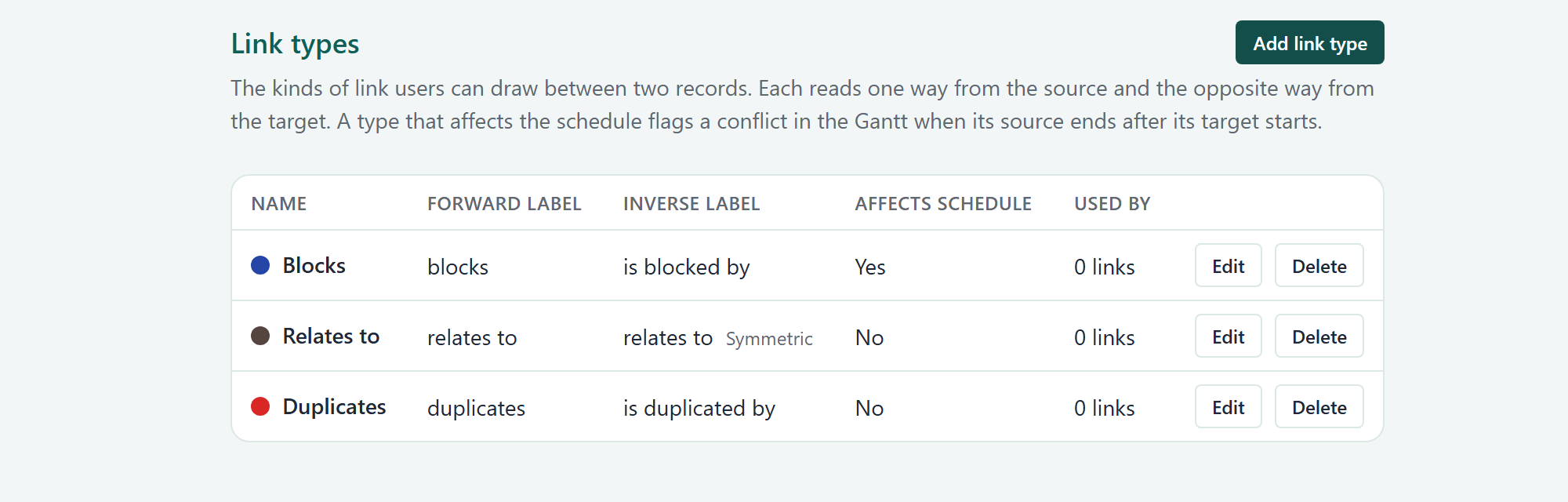
| Blocks | blocks | is blocked by | Yes |
| Relates to | relates to | relates to | No |
| Duplicates | duplicates | is duplicated by | No |
You can rename, recolour or delete these like any type you add. Only Admins can open this page, and in practice only Admins can add or remove typed links on records.
Read the Link types page
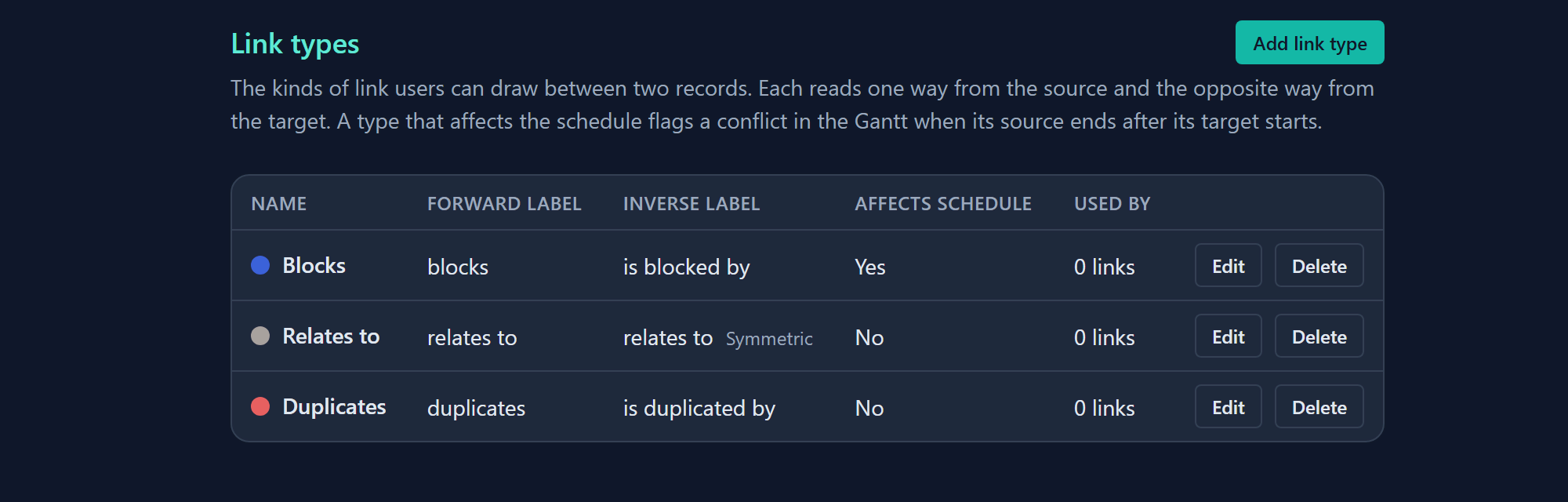
Open Administration → Link types. The table has these columns:
| Column | What it shows |
|---|---|
| Name | The type's name, with a dot in its colour. |
| Forward label | How the source record reads the link. |
| Inverse label | How the target record reads it. Symmetric appears beside it when both labels match. |
| Affects schedule | Yes or No. A Yes type flags a conflict when its source ends after its target starts. |
| Used by | How many links use the type, for example 0 links. |
Each row ends with Edit and Delete. Until you add a type, the page reads No link types yet. Add one so users can link records.
Add a link type
- Open Administration → Link types and click Add link type.
- Enter a Name, up to 60 characters.
- Enter a Forward label and an Inverse label, up to 40 characters each. If they match, a note says the type is symmetric.
- Choose a Colour. Blue is selected by default.
- Optional: turn on Affects schedule to flag a conflict when the source ends after the target starts.
- Click Save. A toast confirms Added link type with the name, and the type appears in the table.
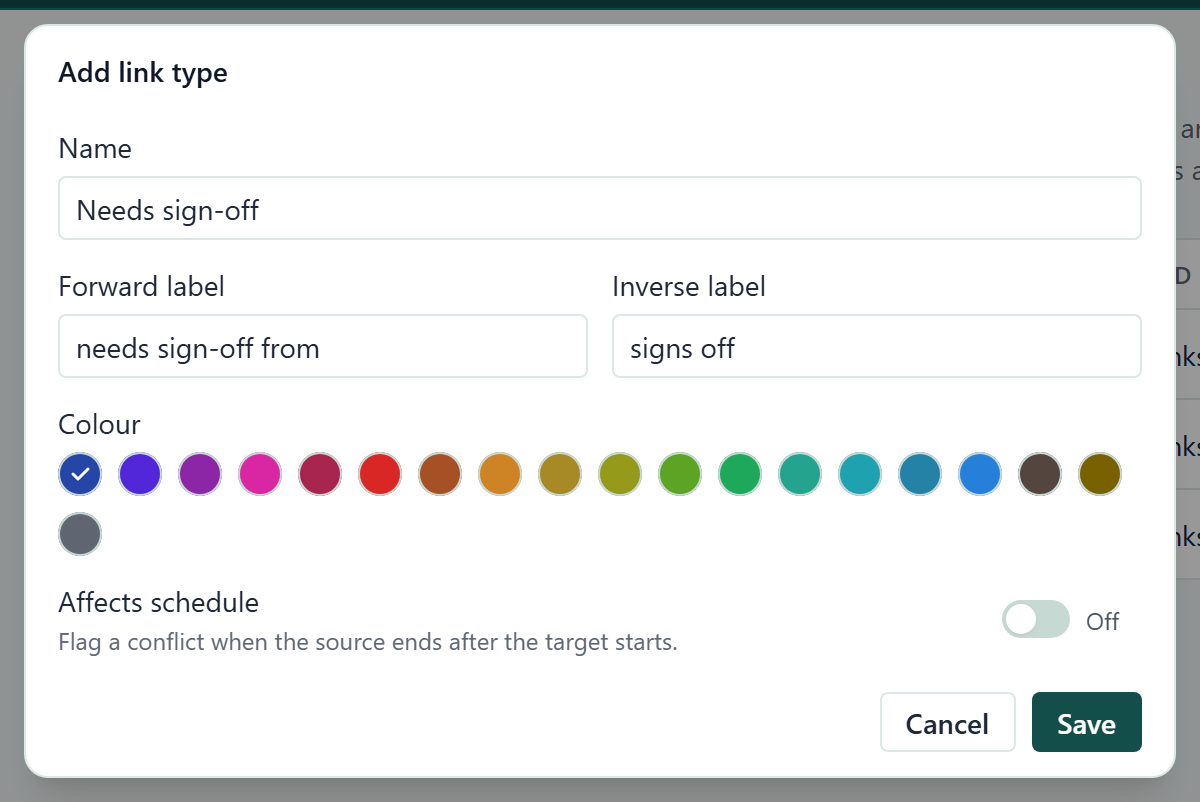
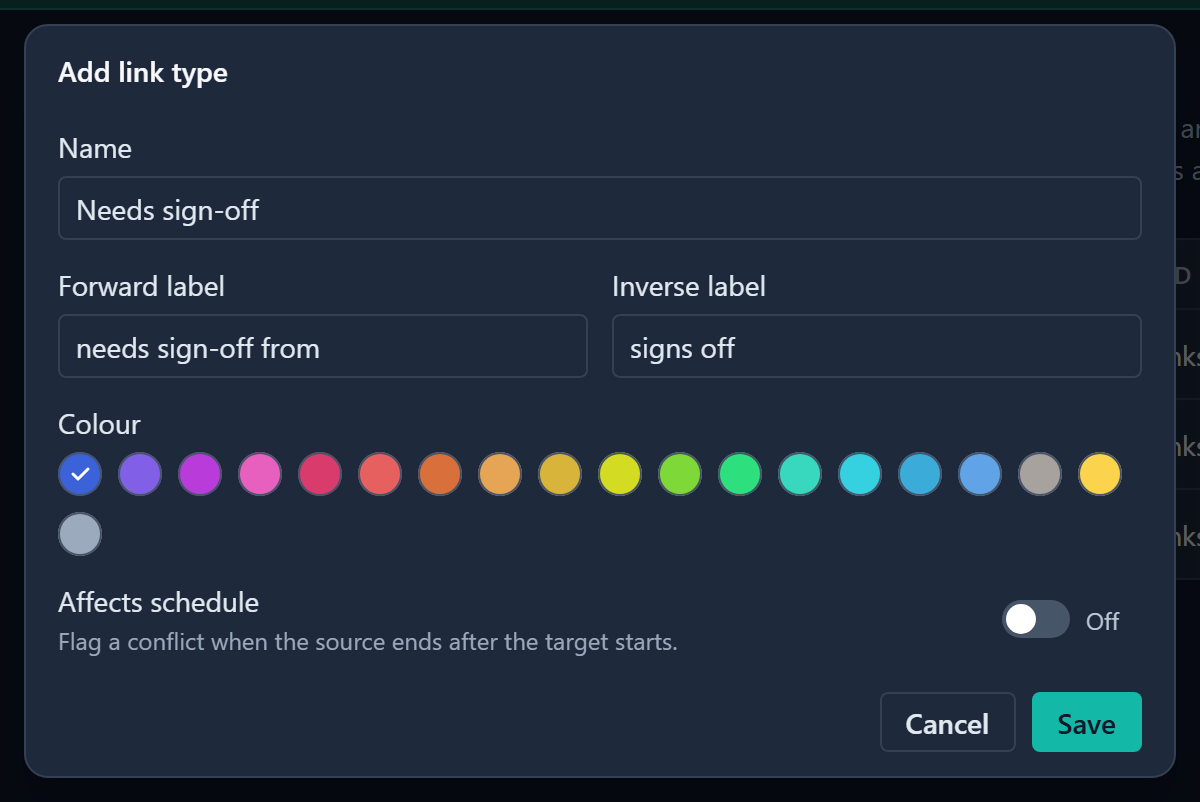
If you leave a field empty, Gembaa says Enter a name for the link type. or Enter both the forward and the inverse label. Names must be unique, whatever the case. Click Cancel to close the dialog without adding anything.
Edit a link type
- On the type's row, click Edit.
- Change the name, labels, colour or Affects schedule.
- Click Save. A toast confirms Updated link type with the name.
A link stores only its type, so a change to the name, labels, colour or Affects schedule applies to every existing link of that type straight away.
Delete a link type
To delete a type that no link uses, click Delete on its row. The type is removed at once, with no confirmation, and a toast confirms Deleted link type with the name.
A type that links use cannot simply disappear. Instead, Gembaa asks where its links go.
- On the type's row, click Delete. A dialog titled Delete with the type's name opens and says how many links use the type.
- Under Move links to, choose another type. The box starts on Choose a link type.
- Click Move and delete. The type is removed, and the toast says how many links moved.
If you click Move and delete without choosing a type, Gembaa says Choose the link type to move the links to. Links that would duplicate one that already exists on the new type are dropped. Click Cancel to keep the type.
Good to know
- New types go to the end of the list. The page has no way to reorder them.
- Only Admins can add or remove typed links on records. There is no screen to give another role that right.
- A link shows only to someone who can read both of its records. See Access control.
- Deleting a type never deletes its links outright: they move to the type you choose. Only a moved link that would duplicate an existing one is dropped.