
Activity history
- Purpose
- See who changed a record, what they changed and when, and search or filter the history.
- Who is this for
- Everyone
- Permissions
- View access to the record.
Every record keeps a history of what happened to it and to the records linked to it. Use it to answer "who changed this?" and "what was it before?".
How it works
The history is read-only. You cannot edit or remove entries. It lists the newest first, and anyone who can open a record can read its history.
A record's history also lists events on records linked to it. A Project shows when a Task, Milestone or Risk under it was added, edited or deleted, for example "Sam Lee added the Risk R-12". Events on linked records you cannot open are left out. Comment events are the exception: they show only on the record the comment was posted on. Allocation, Finance, Pulse and Skills events show only if you can view that part of the record.
To see changes across the whole workspace, such as new members or settings changes, an admin uses the Admin activity log. That log is separate from the one on each record.
Open activity
From a table, open the Row actions menu at the end of the row, or right-click the row, then click Activity log. From the panel, use these steps.
- Open the record in the record panel.
- In the panel header, open the Record actions menu.
- Click Activity log. A dialog titled "Activity" followed by the record name opens above the panel.
Click Close or press Esc to shut the dialog. The panel behind it is unchanged.
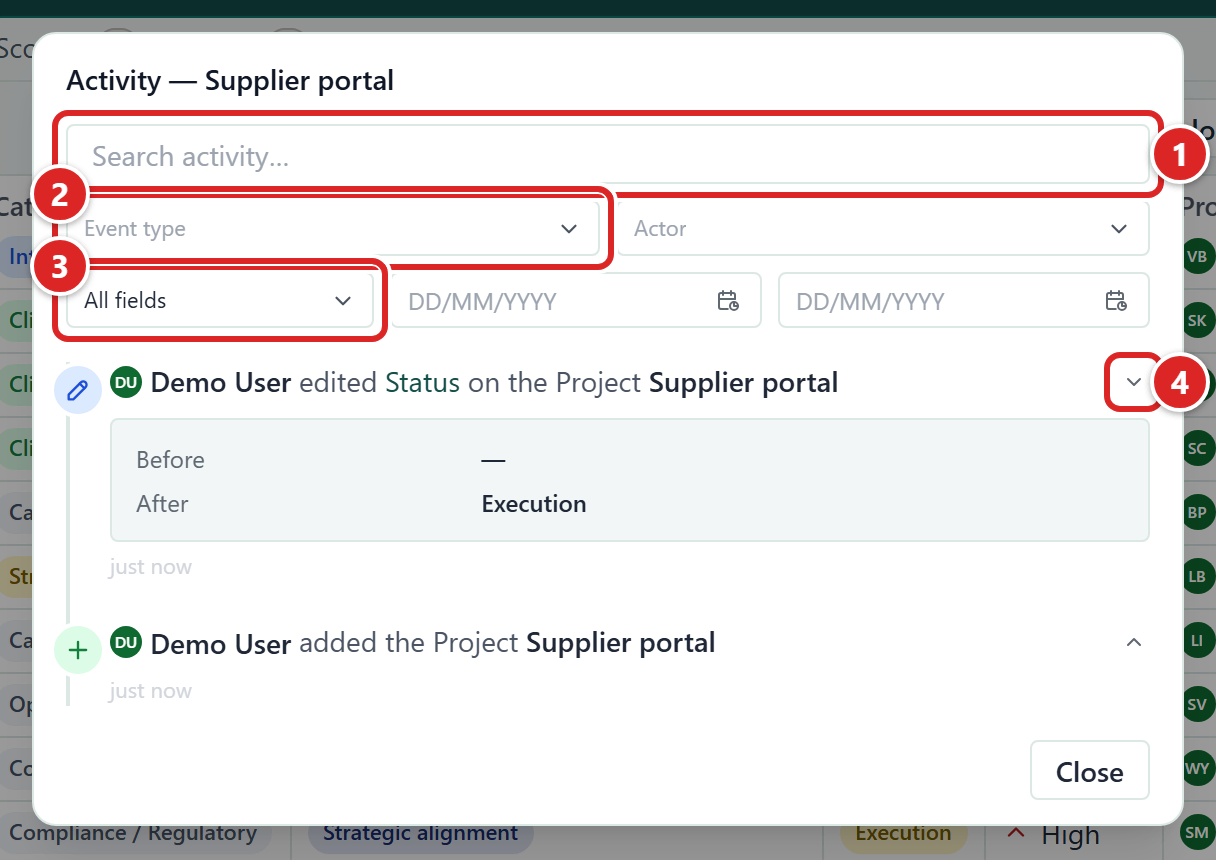
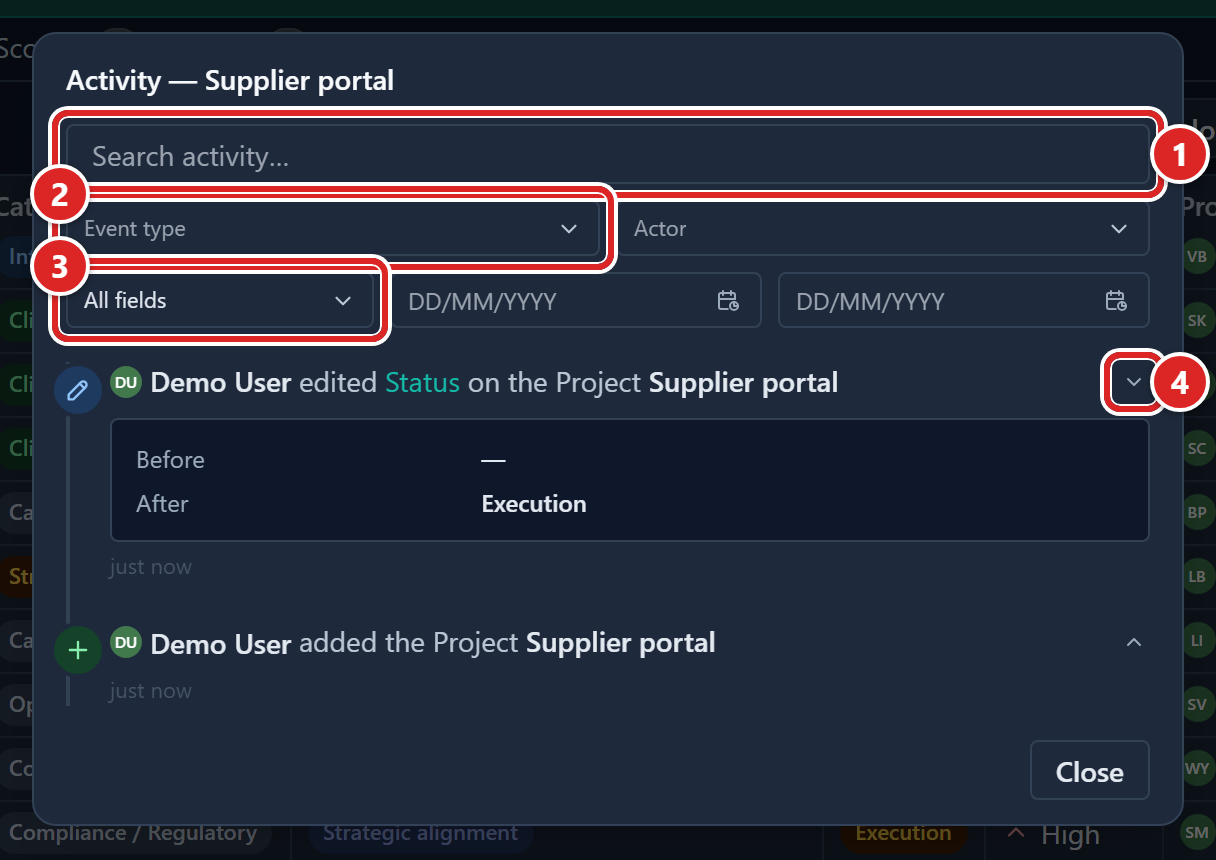
- Search activity…: searches the whole history.
- Event type and Actor: filter by what happened and by who did it.
- Field, From date and To date: narrow the list to one field or a date range.
- Show change / Hide change: opens or closes the Before and After values of an edit.
Read an entry
Each entry is a sentence, such as "Sam Lee edited Status on the Project Apollo". The person's name is in bold, and the field and record names are in colour. Under it you see when it happened.
- Events from the last seven days show as relative times: "just now", "5m ago", "3h ago", "2d ago".
- Older events show the date, for example "18 Jun '26". Hover over a time to see the exact timestamp.
- A person who has since been deleted shows as "Deleted user".
- A record or person that cannot be named shows as a badge: Deleted (it no longer exists), Restricted (you cannot open it) or Erased (the person's personal data was erased).
- A record removed together with its parent reads "(with the Project Apollo)" after its name.
- If an edit was to a field that has since been removed, the entry says "a deleted field".
- A change made by a Gembaa staff person carries a chip after their name, such as SRE mode · Full control. The word after the dot is the staff access level at the time. See Support and Gembaa staff access.
Every change is logged, including adding or removing a link on the Links tab. A link change is recorded on both records. Its entry shows the action's internal name instead of a sentence, and Show change lists the link type and the other record.
On a record, the most common events are Added, Edited, Deleted and Duplicated. Others cover allocations, Pulse check-ins, finance entries and skill levels, such as Allocation added, Check-in edited, Finance entry deleted and Skill level set.
Comments are logged too, in the Records group: Comment posted, Comment edited and Comment deleted. An entry reads "Sam Lee posted a comment on the Project Apollo". It never holds the comment text, so Search activity… cannot find what a comment says. See Comment on a record.
Each event has its own icon: green for additions, blue for edits, red for deletions and grey for neutral actions such as a copy. Changes made by your company directory or a data migration show that source as the person.
See what changed
An edit has a Show change button. Click it to see the Before and After values. Click Hide change to collapse it. Empty values show as a dash.
An added or duplicated record also has the button. It lists each field set at the start under a count such as "5 fields set". Entries with nothing more to show have no button.
One save is one entry. If you change three fields in the Edit dialog, the entry reads "Sam Lee edited Status, Owner and Due date on the Project Apollo". With four or more fields it reads "edited 4 fields". Show the change to see each field's Before and After.
Search history
The dialog loads the whole history once, so searching and filtering are instant.
| Control | What it does |
|---|---|
| Search activity… | Searches the person, the record and field names, and the before and after values, including values you have not expanded. |
| Event type | Limits the list to Added, Edited and so on. You can pick more than one. The list is grouped, for example Records, Allocation, Pulse, Skills and Finance. Pick SRE mode to keep only changes made by Gembaa staff. |
| Actor | Limits the list to one or more people. It lists only people who appear in this record's history. |
| Field | Limits edits to one field. It works only when the event type includes Edited. Otherwise it is disabled, with the tooltip "Only applies to 'Edited' events". |
| From date and To date | Limit the list to a range. Both days are included. |
All filters work together. An entry must match every one to appear. Click Clear filters to reset them. If nothing matches, the dialog says "No entries match your filters". Filters are not remembered when you close the dialog.
Good to know
- A record with no history yet shows "No activity yet". Records created before logging began may be empty.
- The dialog lists the whole history, however long it is. Nothing is cut off.
- If the dialog fails to load, you see "Failed to load activity log." with a Retry button.
- Comment entries show only in the history of the record that was commented on, not on its parent or linked records. They are hidden when Comments is switched off for that record type, or when your comment level is Hidden.
- Entries are kept indefinitely. There is no setting that removes old entries.