
Turn features on or off
- Purpose
- Switch product features such as Tasks, Pulse or Finance on or off for the whole workspace, and see what users and admins meet when one is off.
- Who is this for
- Admins
- Permissions
- Admin role.
A feature switch hides a part of Gembaa for the whole workspace. A feature that is off is hidden for every user, Admins included, and no data is deleted. Use it to keep the product to what your organisation actually uses, for example to switch off Finance until you are ready for it.
Open Administration → Features. If your workspace renames Project, Task or Staff, the rows use your names.
How it works
The page has two groups.
| Group | What it holds |
|---|---|
| Core features | Staff, Teams, Projects and Programs. Each shows Core feature with a lock and has no switch, because the rest of Gembaa depends on them. |
| Features | One switch per feature: Tasks, Sub-tasks, Milestones, Demands, SOWs, RAIDD, Pulse, OKR, Knowledge, Comments, Allocation, Finance, Skills, Gantt, PPT export and CSV import. |
Each switch has an On or Off label beside it, and a short line under the name saying what it covers.
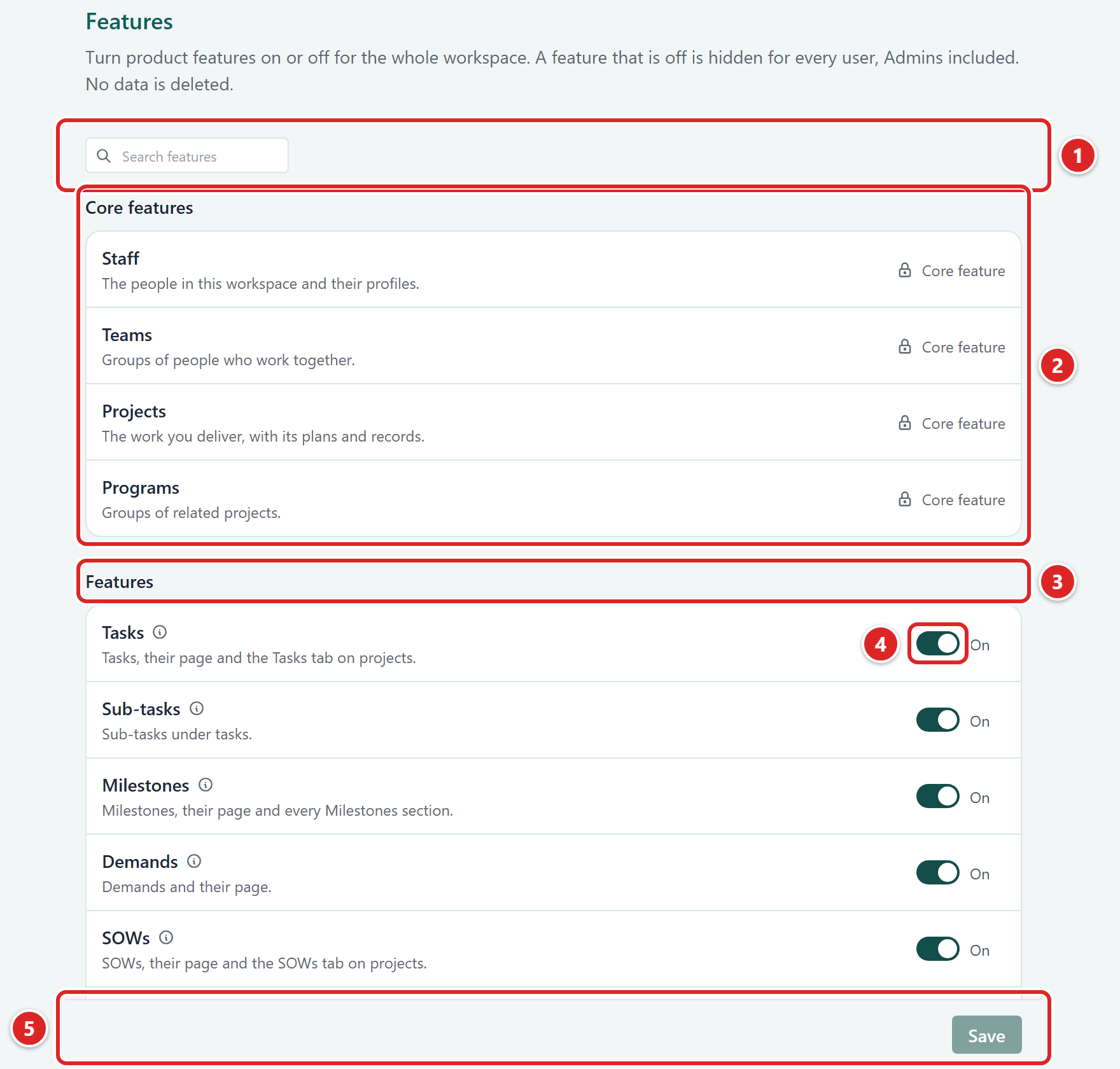
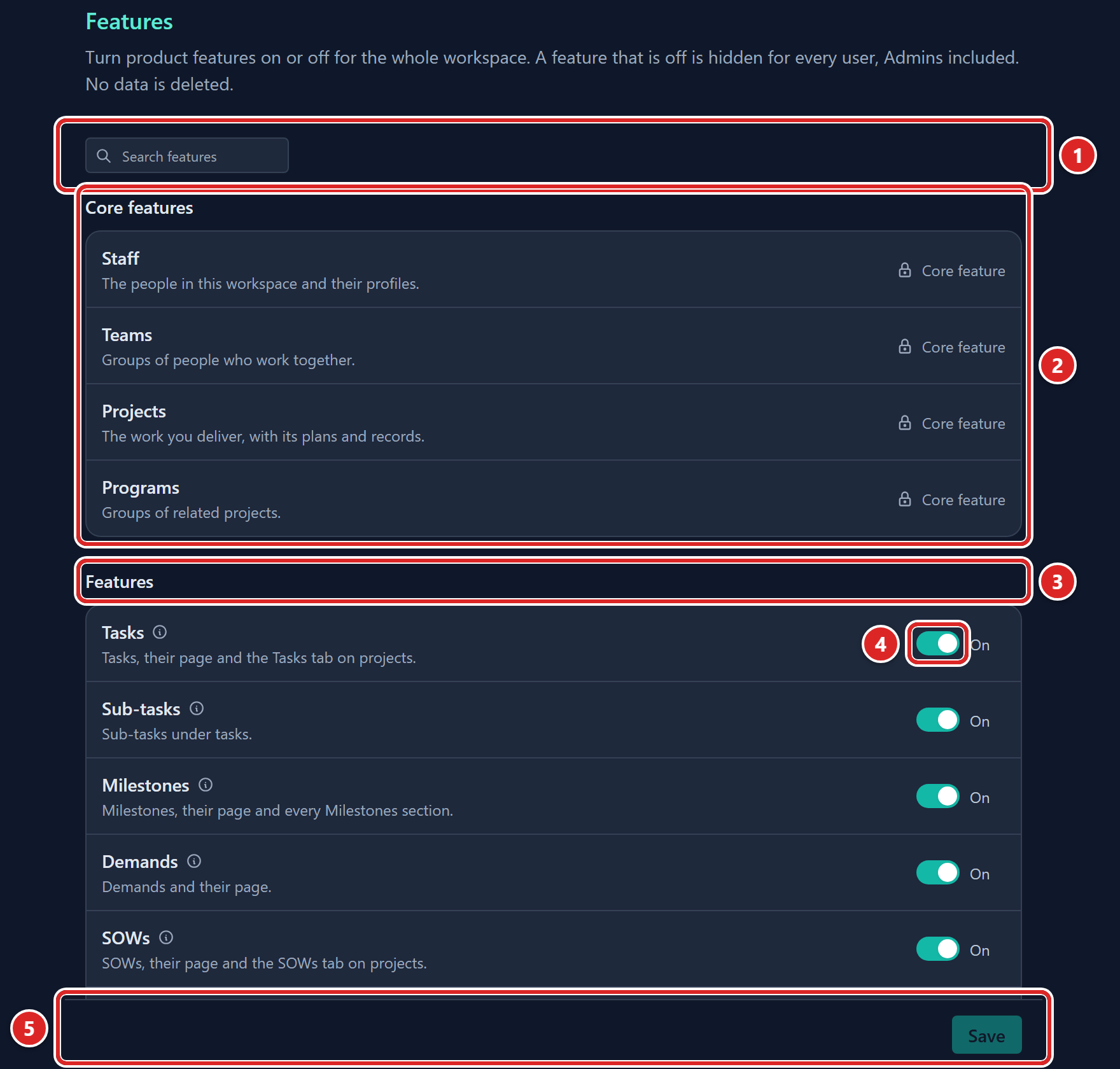
- Search features: filters the list.
- Core features: locked, no switch.
- Features: the switchable features.
- A switch, with its On or Off label.
- Save: stays greyed, with the hint Nothing to save., until you change a switch.
Per-host switches
RAIDD, Pulse, OKR, Knowledge and Comments each have a child switch for every place they appear, indented under them and named by that place (for example Staff, Teams, Projects, Programs). Turn a child off to remove the feature from that one place only. A child named in the activity log reads like RAIDD on Teams.
Comments has one child for every built-in entity, described as "Comments on" that entity. The Skills child is off by default, so Skill records start without comments. An entity you created yourself follows the Comments switch alone. Turn the main switch off to hide the comment icon and the thread on every record. See Comment on a record.
The Requires lock
Some switches depend on another. Sub-tasks needs Tasks, and a child switch needs its parent feature. While the feature it needs is off, the row stays where it is, shows a lock and Requires Task (or Requires RAIDD, and so on), and its switch cannot be changed. Its own setting is kept and takes effect again when the parent is back on.


Turn a feature off
- Open Administration → Features.
- Optional: type in Search features to find a row.
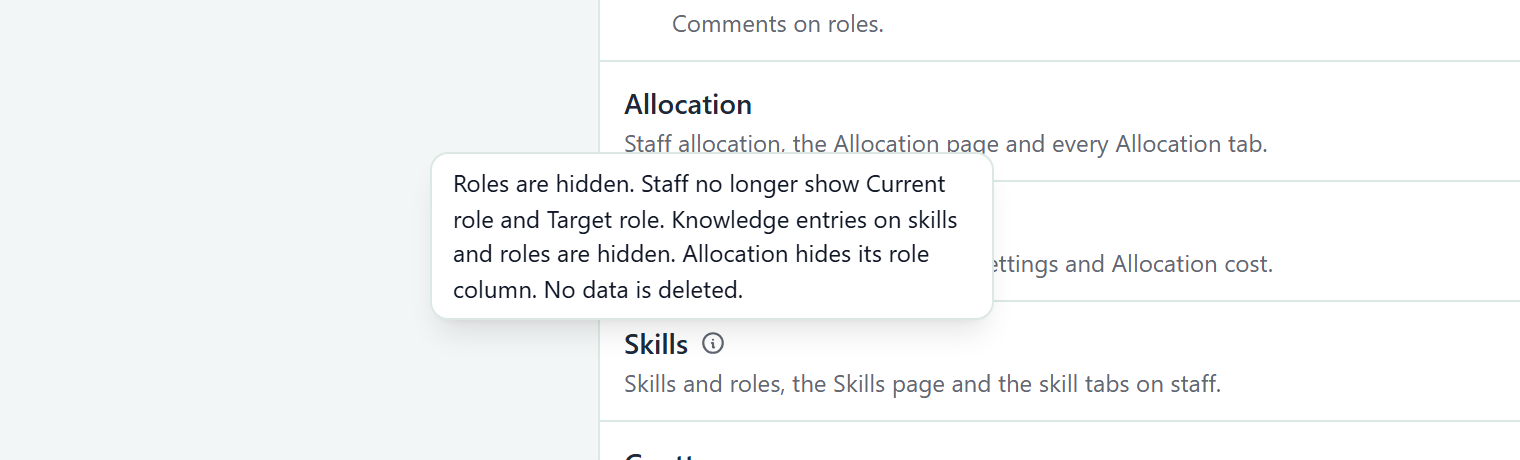
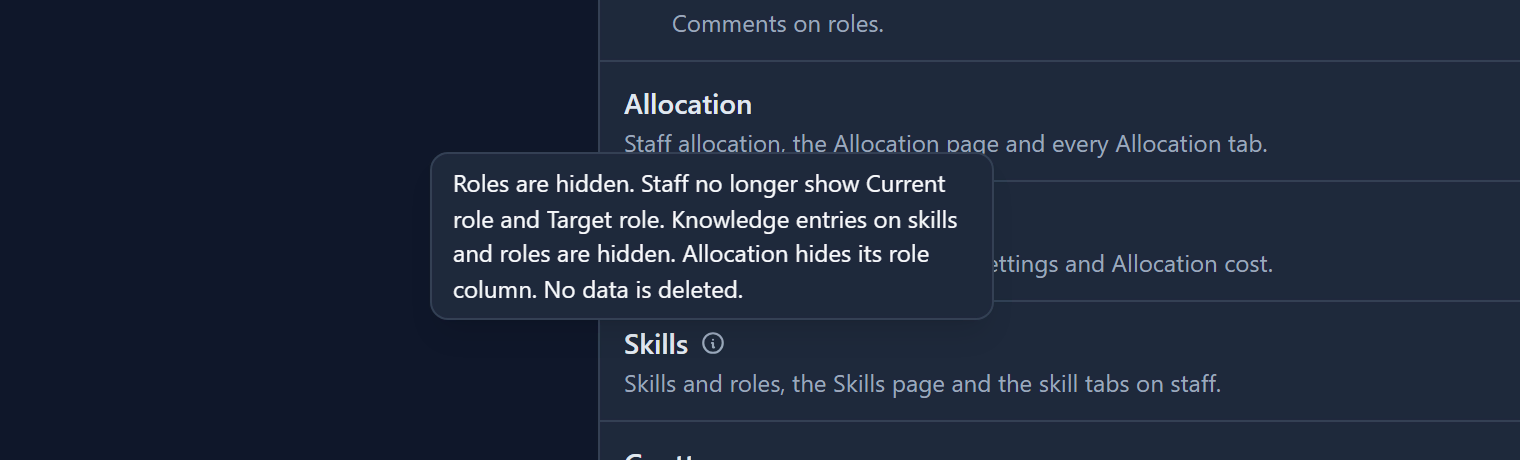
- If a feature has an info icon beside its name, point at it to read what turning it off hides.
- Click the switch. It changes to Off. Nothing is saved yet.
- Repeat for any other feature.
- Click Save. Gembaa asks Turn off features for everyone? and lists each feature you are turning off with its warning.
- Click Save in the dialog, or Cancel to go back to your staged changes.
The page confirms with Updated features.
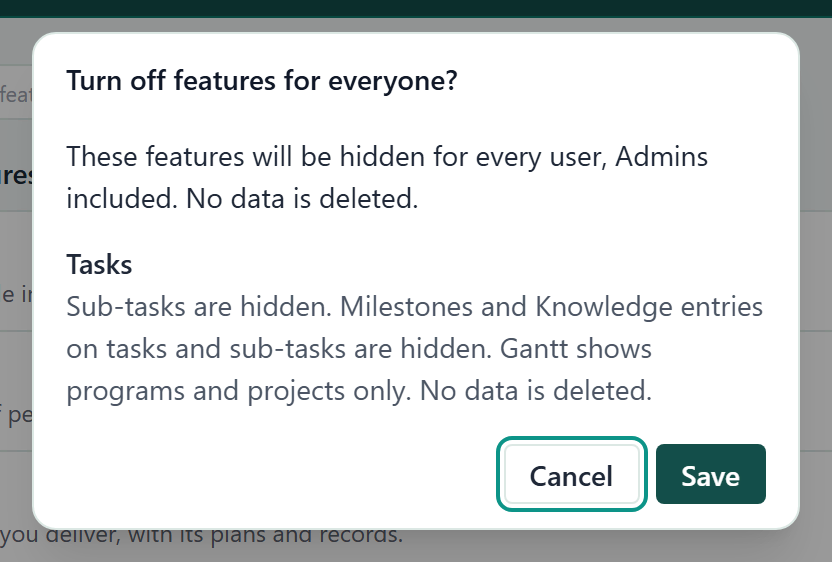
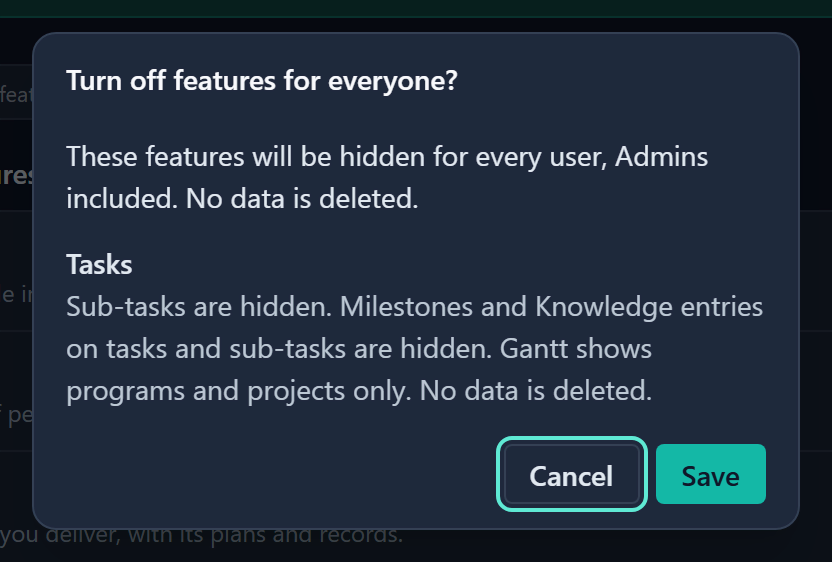
The info icon appears only on rows that have a warning, and gives the consequences. For example, Skills lists the hidden roles, the Current role and Target role fields, Knowledge entries on skills and roles, and the Allocation role column.
Turn a feature on
- Click the switch so it reads On. Nothing is saved yet.
- Click Save. The page confirms with Updated features.
Turning features only on saves straight away, with no confirmation dialog.
Stage changes
Switches change on the page only. Nothing is stored until you click Save, and Save is greyed while nothing is staged. If you leave the page without saving, the staged changes are discarded. Staged changes survive a search: a row the search hides keeps its staged state, and the dialog still lists it.
What people see
| Who | What they see |
|---|---|
| Any user | The menu item is gone. A bookmarked page or a record panel shows This feature is not enabled with the line "An administrator turned it off for this workspace." |
| An admin, in Administration | The tab, card, navigation row, preset tab, colour row or permission row stays listed, greyed, with Feature disabled. Opening it says "Turn it on in Administration → Features to see its settings." and offers Open Features. |
Records and links that depend on a switched-off feature hide too. A RAIDD entry or objective linked only to switched-off places is hidden, and a record that belongs to one parent (a Knowledge entry, a Sub-task, a Key Result) hides with its parent's feature. Everything returns when you switch the feature on.
After you save, your own menu updates at once. Other users see the change within about a minute, or when they reload.
Check who changed it
Each save adds one Features updated entry to the activity log, worded "(name) updated features". Expand it to see the Turned off and Turned on lists. See Admin activity log.
Good to know
- To see every row again after a search, click Clear search or press Esc in the box. If nothing matches, the page says No features match your text.
- Switches override the Admin role: an admin cannot see a switched-off feature either. See Access control.
- Platform areas have no switch: Dashboard, tabs and presets, the activity log, access control, Members, Entity & fields, General, Colors & themes, Data, Link types and Support.
- A switched-off destination keeps its place in the Navigation card, greyed, but leaves the left menu. See Arrange the left menu.
- Turning a feature off never deletes anything. Stored settings and data come back when it is on again.