
Teams
- Purpose
- Group staff into teams, name a team lead and move people between teams.
- Who is this for
- Everyone
- Prerequisites
- View access to the Teams module. At least one staff record to add as a member.
- Permissions
- Edit access to Teams to create teams and change members.
A team is a named group of staff, with an optional team lead. Use teams to group people for planning: you can group and filter Allocation by team, and a team's record panel shows the allocation of everyone in it. Your workspace may use a different name for Team.
How it works
The team owns its membership. On a team record:
| Field | What it holds |
|---|---|
| Name | The team's name. Required. |
| Description | What the team does. |
| Lead | One staff member, optional. Any staff member can lead. |
| Members | The other staff in the team. |
On the staff record, Team is read from these two fields. It is not typed in separately.
One rule matters most: a person belongs to at most one team. Being the lead counts as being on the team, so a lead cannot also be a member of another team. If you add someone who is already in a team, Gembaa tells you before it commits, and moving them takes them out of their current team.
The Teams page is a standard table: tabs, quick search, Filter, Customise and Download work as everywhere else. See Customise your table view.
Create a team
- Click Teams in the left menu.
- Click Add Team in the upper right corner. The Add dialog opens.
- Enter a Name.
- Optional: fill in Description, Lead and Members.
- Click Add. The team appears in the table.
The pickers list your current staff, so new people appear straight away. Each candidate shows the team they are already in.
Read the Members tab
Open a team by clicking its name, then open the Members tab. The tab name stays Members even if your workspace renames Staff. It lists the team's people as a small table, with a count beside the search box. The team lead is not listed here.
- Type in the search box to narrow the rows. The count still shows everyone on the team.
- Click a column heading to sort. Drag a heading's edge to resize it.
- Click Customise to choose which Staff fields show as columns. The default columns are Full Name and Job title. Your choice is remembered for you only, and Reset to default brings back the standard columns.
- Click a row to open that person's own Staff panel.
With nobody on the team, the tab reads "Nobody is on this team yet".
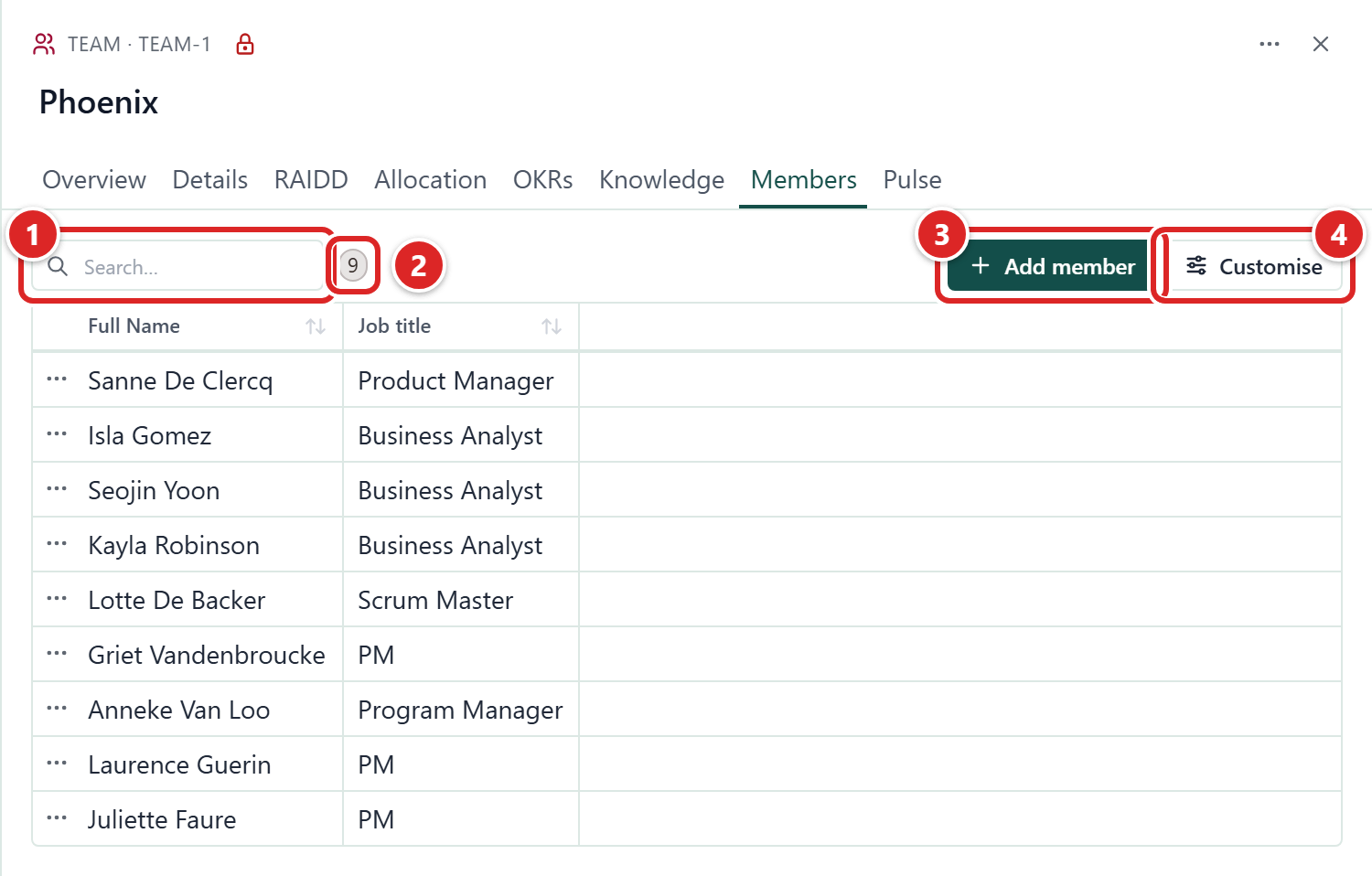
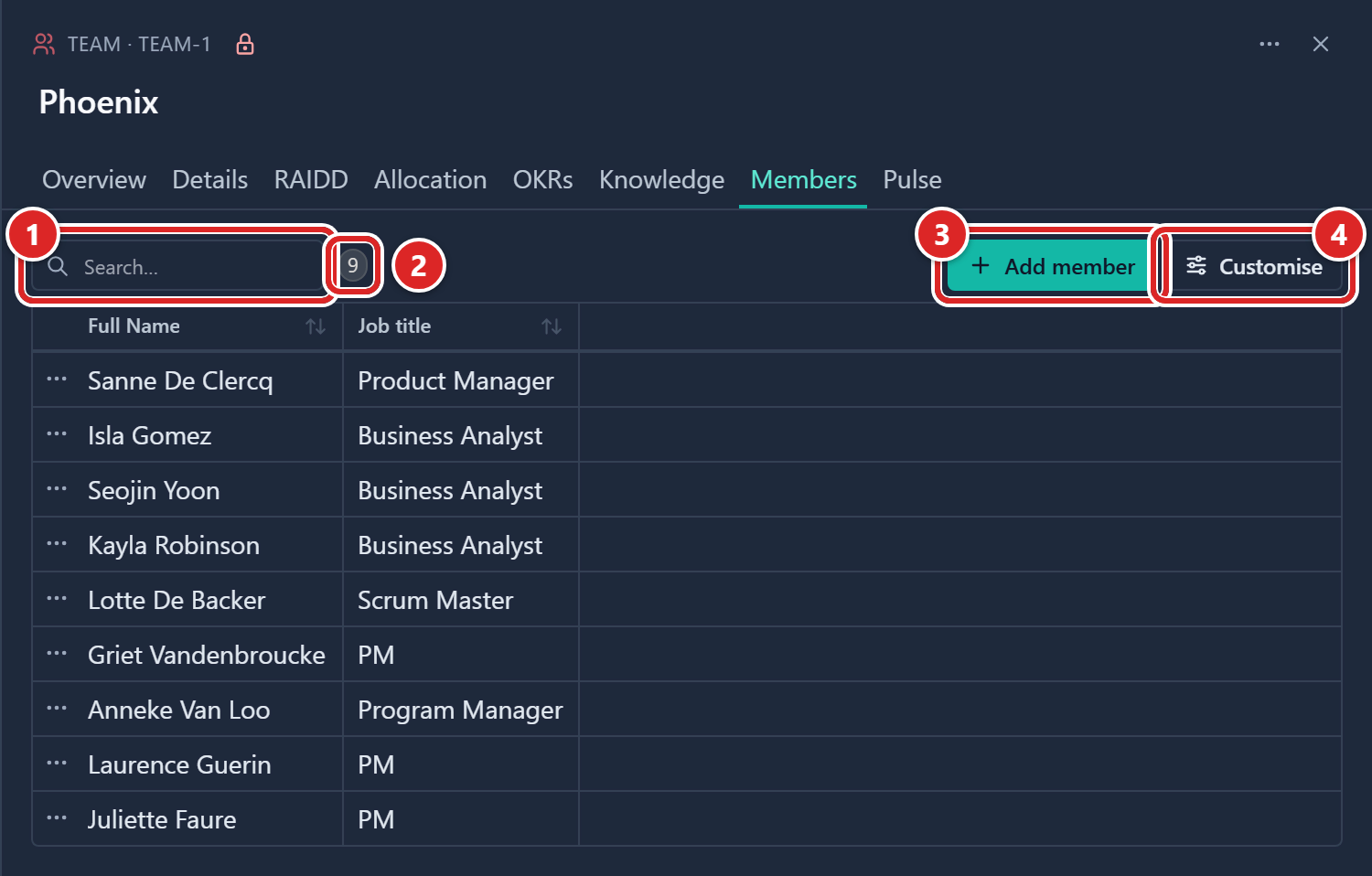
- The search box.
- The count of everyone on the team.
- Add member.
- Customise.
Add a member
You need edit access to the team to see Add member. If the person you choose is on another team, a Move them to this team? message appears before they join. Click Move to take them off their current team and add them here.
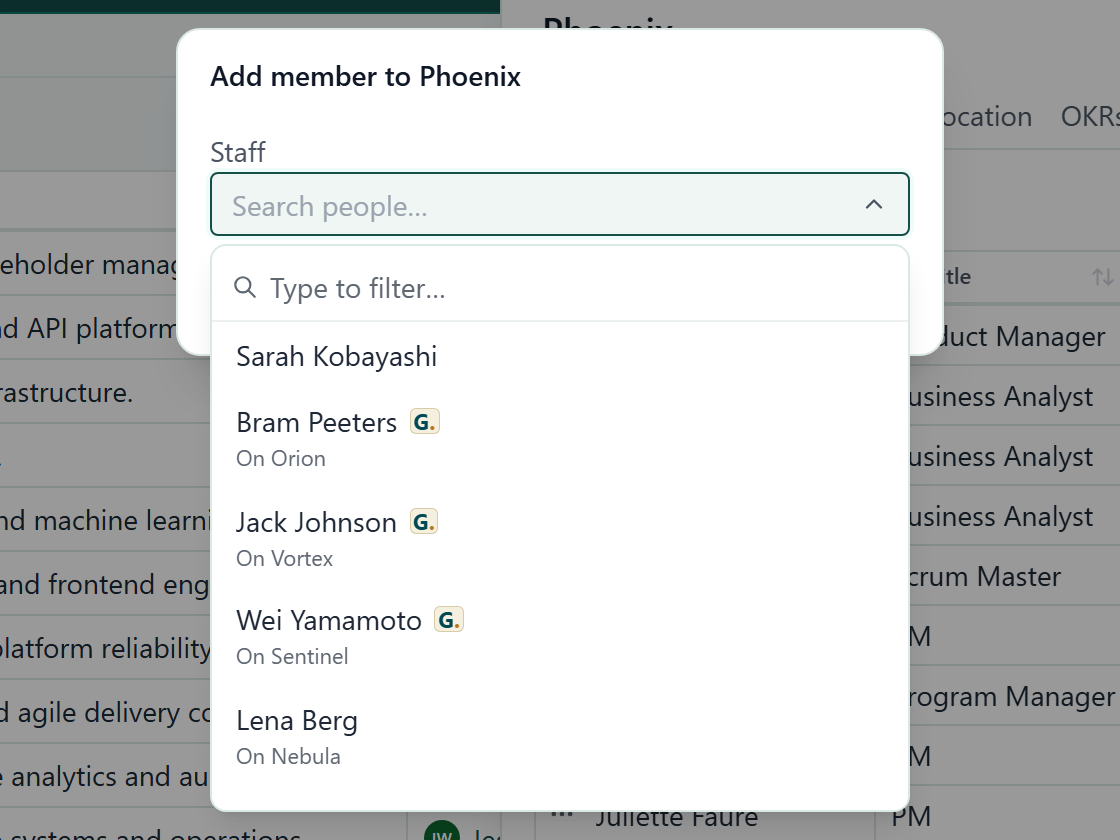
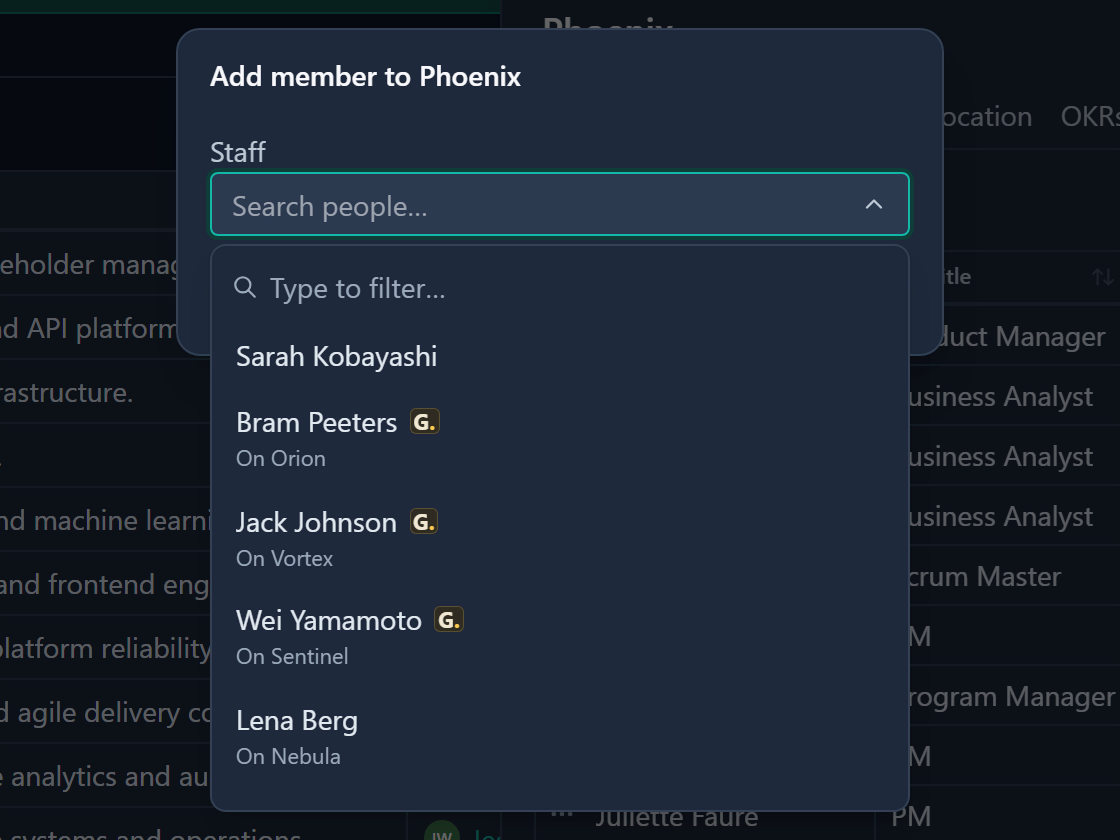
- On the team's Members tab, click Add member. The Add member to dialog opens, with the team's name in the title.
- In Staff, click Search people… and type a name. People already on this team are not offered.
- Choose the person. Each person shows the team they are on, as "On (team)".
- Click Add member. The person joins the team and a message reads "(name) added."
Remove a member
- On the team's Members tab, open Row actions on the person's row.
- Click Remove. There is no confirmation. The person leaves the team and a message reads "(name) removed."
You can also pick or clear people in the Members field on the team's Overview tab. The two always match. If the person you pick is already in another team, a message asks you to confirm the move. Click Move to transfer them.
Move someone from staff
- Open the person's staff record and find Team.
- Choose the new team. A message reads "This record is in (team). Moving it to (new team) will transfer it out of its current team."
- Click Move. The person is now on the new team.
To take someone out of a team altogether, clear their Team and click Remove.
Change the team lead
Open the team and pick a different person in Lead, or clear the field for no lead. If the new lead is in another team, you are asked to confirm the move first.
Edit a team
Double-click a field in the table, or click a field in the team's record panel, and change it. Press Enter or Tab to save. Clicking away discards the edit.
The panel also has an Allocation tab showing the combined allocation of the team's members, grouped by staff by default. See Allocation.
Delete a team
- Click Row actions on the team's row, or Record actions in the panel header, and choose Delete.
- In the dialog, click Delete. The team is removed.
The team's links to its members are removed. The people stay in your Staff list, and their Team becomes empty. See Create, edit and delete records.
Good to know
- Team membership never gives anyone access to data. Access comes from roles and access groups. See Access control.
- A relation field an admin adds to Team that points at Staff is a plain reference. It does not add people to the team.
- Allocation can group by Team and filter by Team. A person with no team falls under an empty group.
- Your admin may add custom fields to Team, such as Department or Budget.
- Team records have a Comments icon in the panel header, on by default. See Comment on a record.