
Your settings
- Purpose
- Change your profile photo, theme, light or dark mode and language, or run the first-time setup again.
- Who is this for
- Everyone
Your settings hold the choices that belong to you: your photo, how Gembaa looks and which language it uses. They follow your account, so they apply on any device you sign in from.
Open settings
- Click your name in the upper right corner of the header.
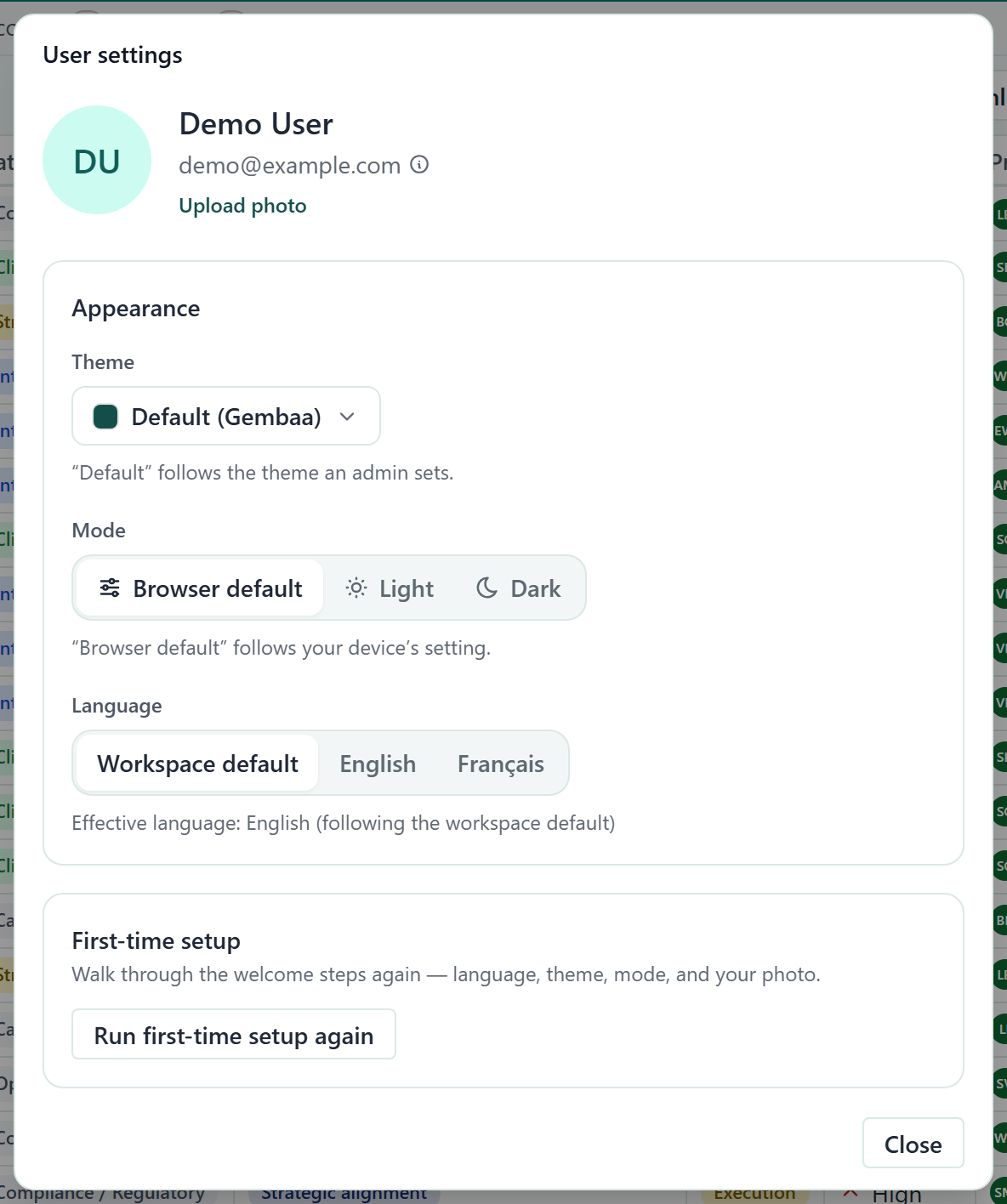
- Choose User settings. A dialog with that title opens.
- Click Close when you are done. Every control saves as you use it, so there is nothing else to submit.
If you cannot see your name in the header, the window is narrower than 640 pixels and the user menu is hidden. Use a wider window.
Read name and email
The top of the dialog shows your photo, name and email. Your name and email come from your organisation's directory and cannot be edited here. Hover the information icon beside your email to see "Contact an admin to change your email."
Change photo
- Click your photo, or click Upload photo (Change photo if you already have one).
- Pick a PNG, JPEG or WebP image up to 5 MB. Your photo updates in the header straight away.
- Optional: to go back to your initials, click Remove.
Choose theme and mode
Theme
Choose a theme from the list. Workspace default follows the theme your admins set for the workspace, and the closed control then reads "Default" with that theme's name in brackets. Pick any other theme to use it instead. Admins manage the themes in Theme and colours.
Mode
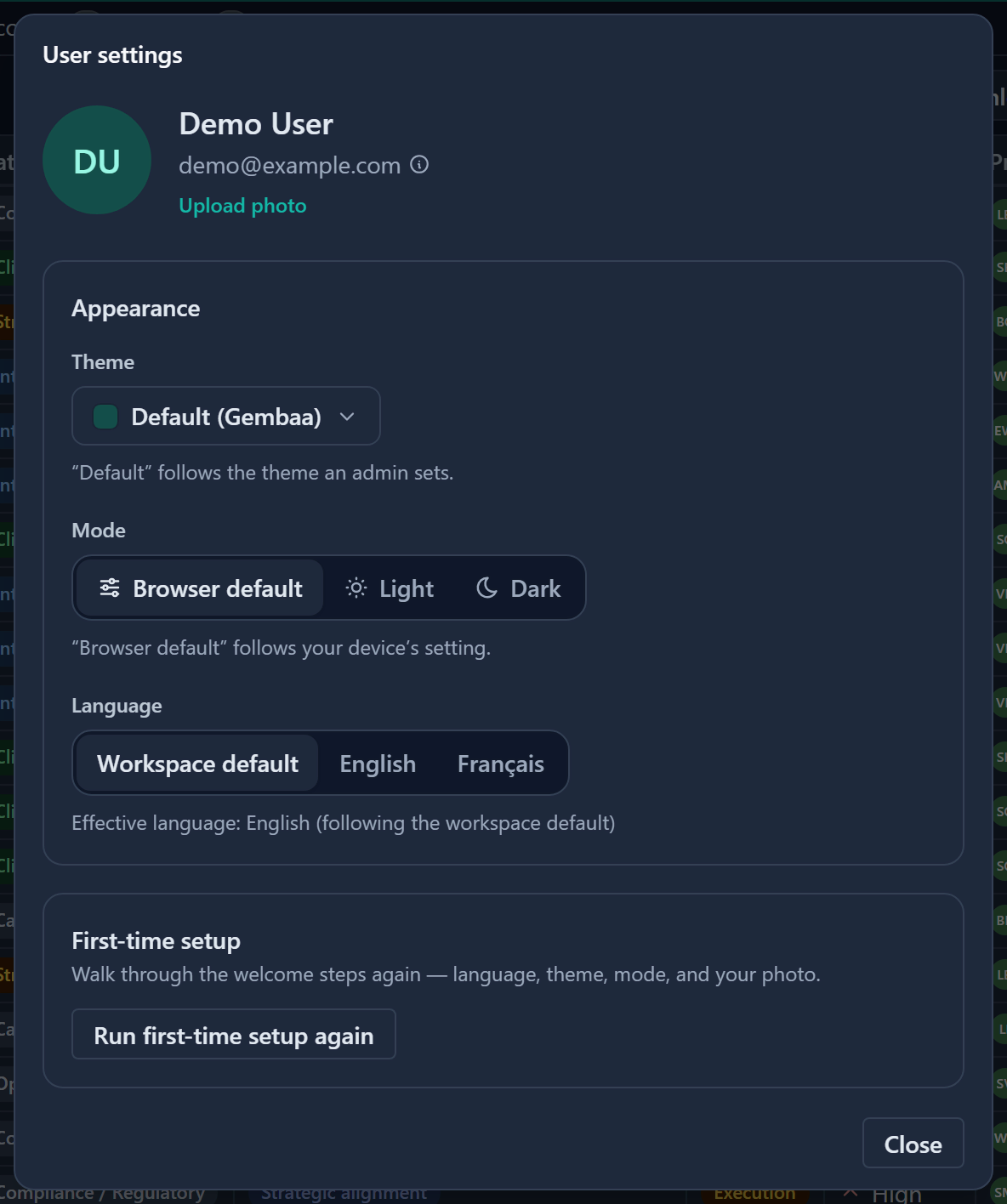
Choose Browser default, Light or Dark. Browser default follows your device's setting. The page changes at once.
Choose a language
Choose Workspace default, English or Français. A line below shows the language in effect, for example "Effective language: English (following the workspace default)". Your choice overrides the workspace default for you only.
The language changes Gembaa's own words: menus, buttons, messages and dialogs. These stay as they are:
- Names your admins set in Terminology.
- Status and choice values, and the data in your records.
- The contents of exported files (CSV, Excel and images).
- Month and weekday names in dates and the date picker.
The date picker's week starts on Monday with the European date format and on Sunday with the US format. Your admins set that format, not your language.
Run setup again
Click Run first-time setup again to walk through language, theme, mode and photo again. See First-time onboarding.
Good to know
- There is no password to change. You sign in through your organisation. See Sign in and your account.
- Your settings affect only what you see. Entity names, menu order and workspace colours are set by admins.
- If a photo fails to upload, a message says so and your current photo stays. Gembaa shrinks large photos to fit.