
Link records
- Purpose
- Use the Links tab to see how a record connects to others: its parent, its children and typed links such as blocks and relates to.
- Who is this for
- Everyone
- Prerequisites
- A record with a Links tab, such as a Program, Project, Task or Milestone.
- Permissions
- Read access to both records to see a link. Parent and child changes need edit access to the record. Typed links are added and removed by Admins.
A link connects two records. Use the Links tab of a record panel to see everything a record is connected to, and to add, change or remove those connections without leaving the panel.
How it works
There are three kinds of connection, and the Links tab shows all of them.
| Kind | What it is |
|---|---|
| Parent | The one record this record sits under, such as a Task's Project. |
| Children | Records that sit under this one, such as a Project's Tasks. |
| Typed links | A named connection between any two records, such as "blocks" or "relates to". |
A typed link has a type. A type reads one way from each side: if Task A blocks Task B, then Task B reads is blocked by from its own panel. A symmetric type reads the same from both sides, such as relates to. Gembaa starts with three types:
| Type | Reads from the source | Reads from the target | Affects the schedule |
|---|---|---|---|
| Blocks | blocks | is blocked by | Yes |
| Relates to | relates to | relates to | No |
| Duplicates | duplicates | is duplicated by | No |
Admins can rename these or add more. See Link types. Your workspace may also use different names for records such as Project or Task.
Records with links
Programs, Projects, Tasks, Sub-tasks, Milestones, RAIDD entries (Risks, Issues, Dependencies, Assumptions and Decisions), Skills and Objectives have a Links tab. Staff, Teams, Demands, Key Results, Knowledge entries, SOWs and Roles do not.
Links is the last of a record's own tabs, after Knowledge. Only Pulse, where Pulse is on for that record type, and Related, on a panel opened from the Pulse or Allocation page, come after it. The Milestones tab stays where it was. The Projects, Tasks, Sub-tasks and Key Results tabs no longer exist: those records now list under Links.
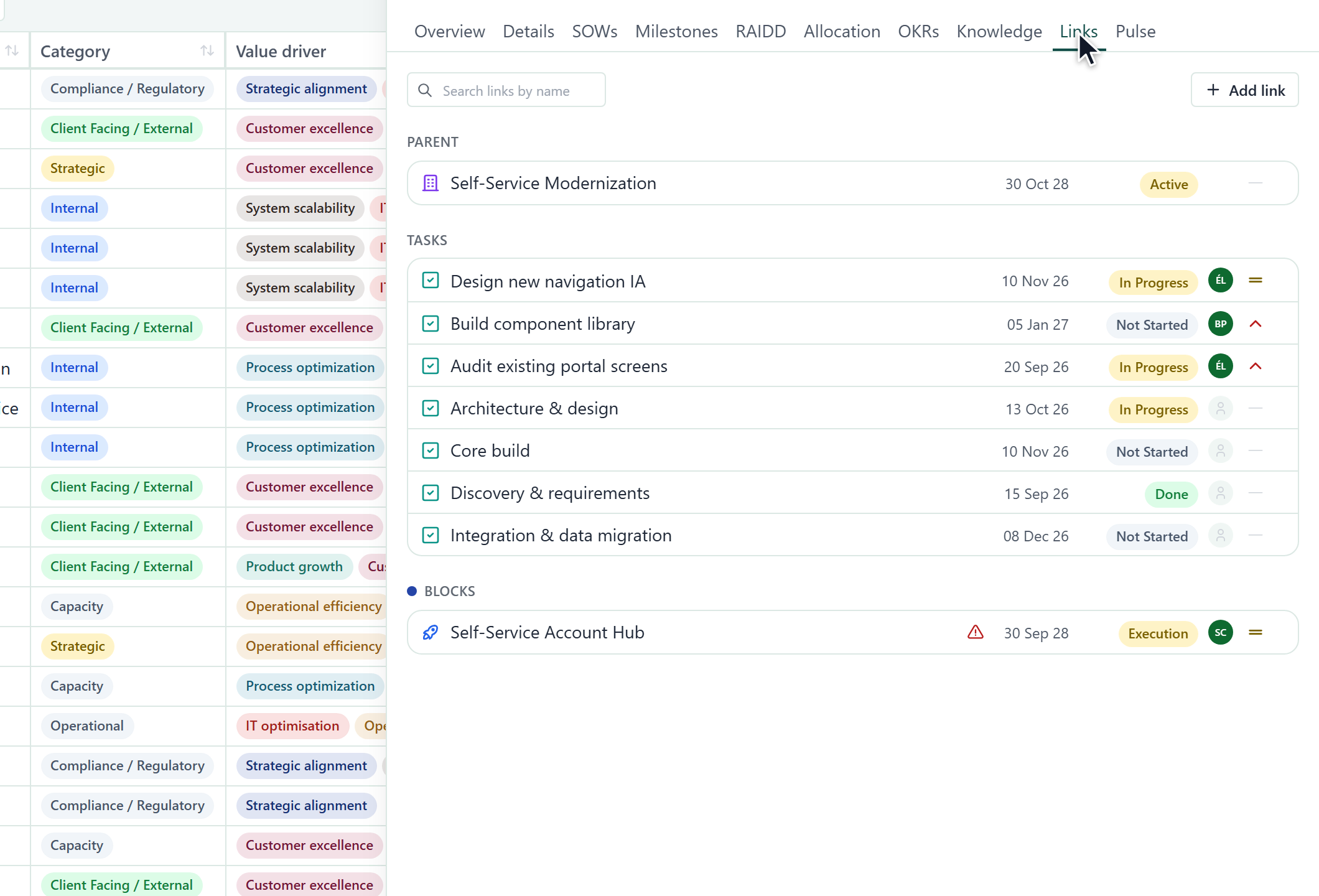
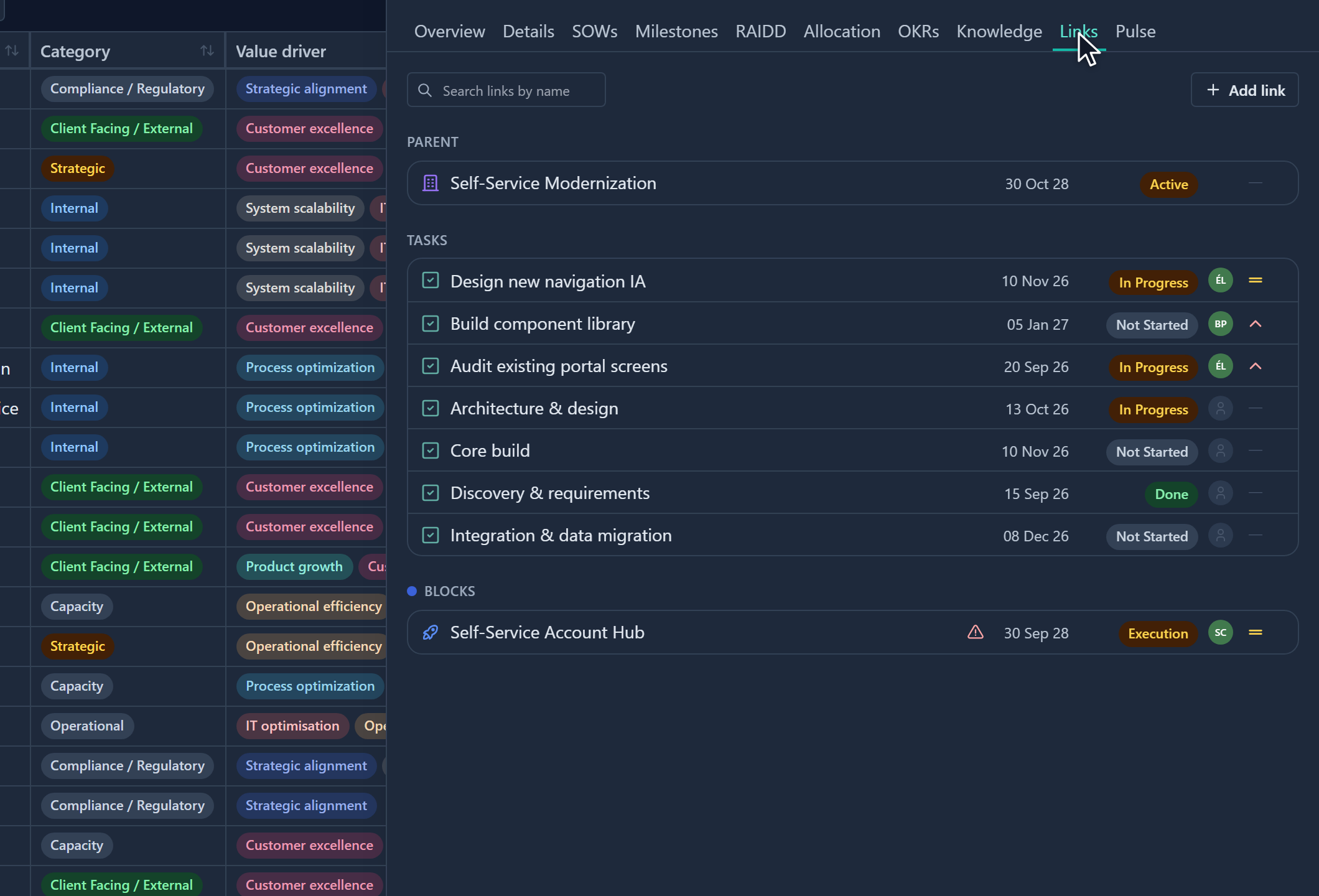
Read the Links tab
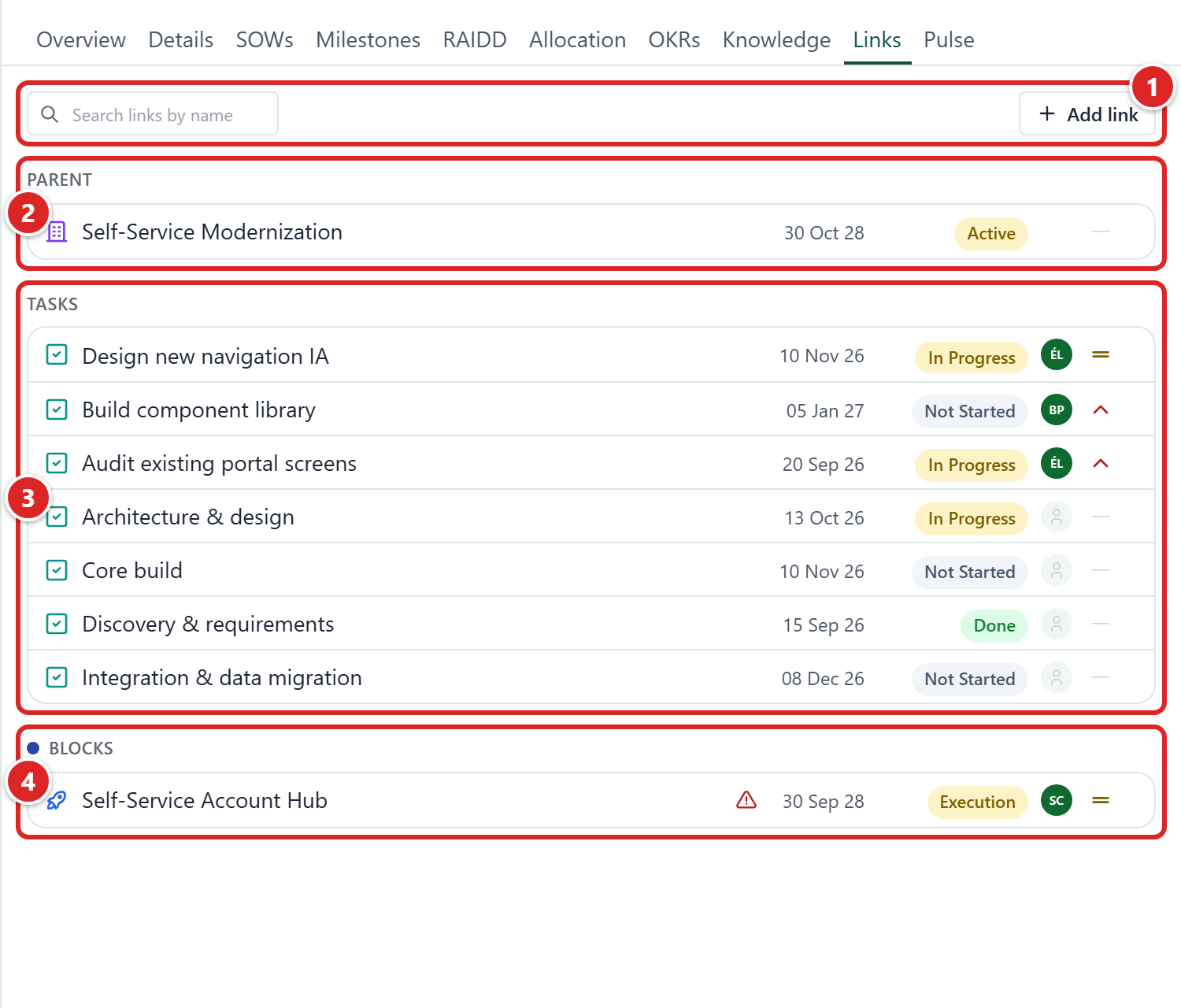
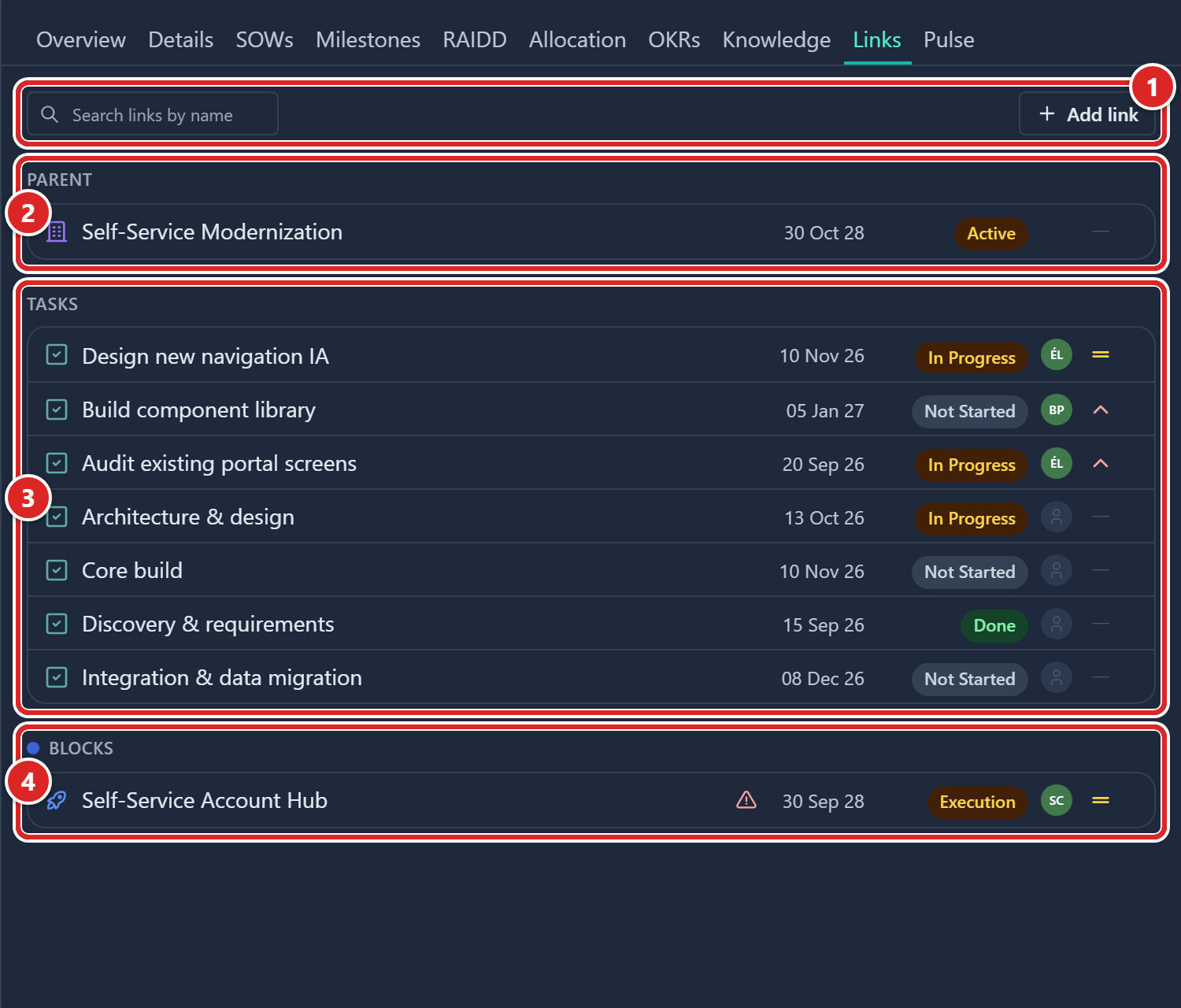
- The search box and the Add link button.
- Parent: the record this one sits under.
- A children group, here Tasks, headed with the plural name of the child records.
- A typed group, here headed by the link label as this record reads it, with a dot in the type's colour. The red warning icon on its row marks a date conflict.
The search box, Search links by name, matches record names only. A group with no match reads No matches.
- Parent holds at most one row. It appears on Projects, Tasks, Sub-tasks, Milestones and Objectives. A Program, a RAIDD entry and a Skill have no parent group. With no parent, the group reads No parent.
- Children groups depend on the record. A Program lists Projects, a Project lists Tasks, a Task lists Sub-tasks, a RAIDD entry lists Sub-tasks and an Objective lists Key Results. A group with no rows is hidden.
- Typed groups appear for each link type the record uses, in the order the admin set. There is no count.
Every row shows the record's icon and name, then four fixed slots: a date, a status, an assignee and a priority. The date is the end date, else the due date, else the start date (a Milestone shows its date). A slot stays empty when the record has no such field.
Edit a row in place
If you can edit the linked record, click a slot to change it: pick a status, an assignee or a priority, or set a date. The change saves at once on the linked record, and a toast confirms it.
Open a record
Click a row, or focus it and press Enter or Space, to open the linked record on top of the panel. See The record panel.
Rest the pointer on a row for a moment to see a hover card with the name, status, assignee, date and the first line of the description. It shows only values you are allowed to read.
Show more links
Typed links load 25 at a time. If there are more, click Show more at the bottom of the tab. If the links fail to load, click Retry.
Add a typed link
Only Admins can add typed links.
- Open the record and select its Links tab.
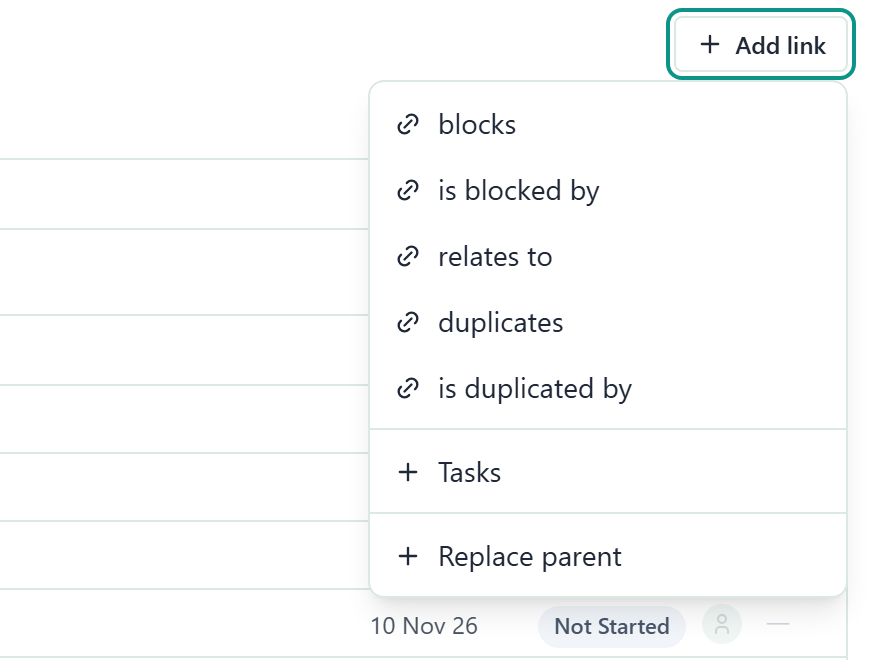
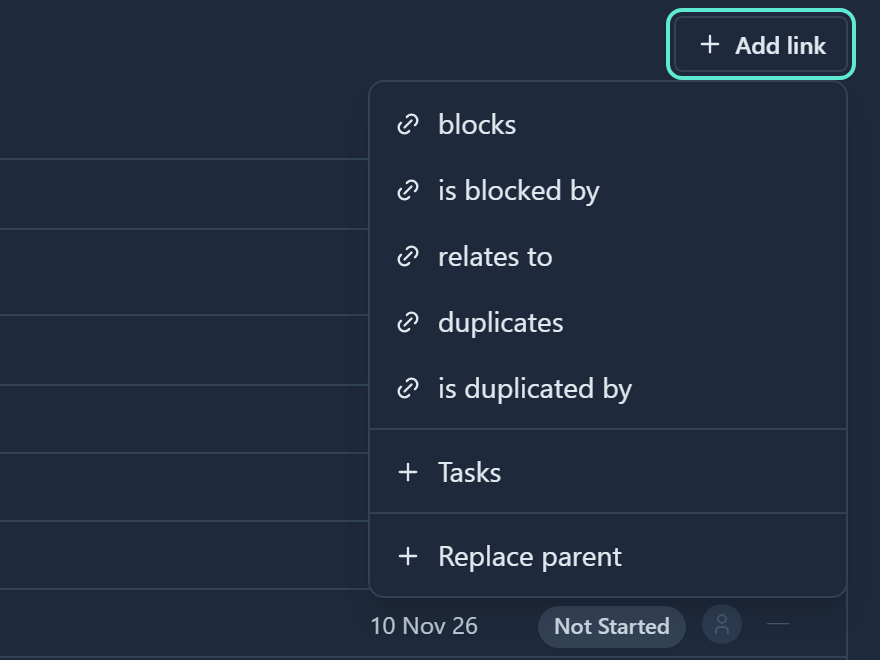
- Click Add link. The menu lists each type with the label as this record reads it, such as blocks and is blocked by.
- Choose the label. A picker titled Add link: blocks opens.
- Type in Search by name or key, then click the record to link. The picker lists records of every entity, and never offers the record itself.
The link appears in a group under its label, and a toast reads Added link with Undo. The other record shows the same link, read from its side.
Attach a child
Children are attached here, never created. Attaching moves an existing record under this one and replaces the parent it had.
- On the Links tab, click Add link.
- Choose the plural name of the children, such as Tasks on a Project. A picker titled Add Task opens.
- Click the record to attach. A toast reads Added followed by the record name, with Undo.
Undo puts the child back under its previous parent.
To create a child record, use one of these instead:
- The module page, such as the Projects page for a Project.
- The Tasks page, for a sub-task. See Tasks and sub-tasks.
- The Gantt: use Add in the toolbar, or the row menu Add child. See Gantt.
Set or replace a parent
- On the Links tab, click Add link.
- Choose Set parent, or Replace parent if the record already has a parent. A picker titled Set parent opens.
- Click the new parent. A toast reads Parent set to followed by the name, with Undo.
The menu omits this entry on records with no parent, such as a Program. The picker offers only records that can be that record's parent.
Remove a link
Point at a row and click the cross at its right. On a touch screen the cross is always visible. The link goes at once, with no confirmation, and a toast offers Undo. The cross is named Remove parent, Remove or Remove link, depending on the row.
A cross can be dimmed. Point at it to see why:
| Tooltip | Meaning |
|---|---|
| A parent is required here, so it cannot be removed. Move it to another parent instead. | The parent field is required. Replace the parent instead. |
| You cannot edit this record | You lack edit access. |
| You need the Manage links permission to remove this link | Only Admins can remove typed links. |
Almost every parent is required, so the cross on a Parent row and on children rows is dimmed.
An Objective's parent is optional, so you can remove it. Removing a child's link otherwise means moving it to another parent.
Spot date conflicts
A typed link of a type that Affects schedule is in conflict when the source record ends after the target record starts. The same day is not a conflict. Records without dates, and types that do not affect the schedule, never conflict.
A conflicting row shows a red warning icon with the tooltip Conflict: the source ends after the target starts. On the Gantt, the link's arrow turns red and the target bar carries a red badge. See Gantt. A conflict is a warning only and blocks nothing.
Who can do what
| Action | Who |
|---|---|
| See a link | Anyone who can read both records. If you cannot read one end, the link does not appear for you. |
| Add or remove a typed link | Admins. |
| Attach or remove a child, set or replace a parent | Anyone who can edit the record. |
| Change a status, assignee, priority or date in a row | Anyone who can edit the linked record. |
A Member sees Add link with the children entry and Replace parent only, with no link types. Typed rows are read-only for them.
Good to know
- Deleting a record deletes every link that touches it.
- A record cannot link to itself, and a pair cannot hold the same link twice.
- Gembaa does not check for cycles. A blocks B and B blocks A are both allowed.
- Adding or removing a link is recorded in the Activity log of both records. See Activity history.
- Renaming a link type changes the label on every existing link.