
Formula basics
- Purpose
- What a formula field is, how an admin creates and edits one, how to refer to other fields, and where the results can and cannot be used.
- Who is this for
- Admins to build formulas; everyone sees the results
- Prerequisites
- Know which fields on the record the formula should read.
- Permissions
- Admin role to create or edit a formula field. Anyone who can see the record sees the result.
A formula field works out a value from other fields on the same record, such as the days left until an end date or the budget still unspent. Use one when a number, date, label or Yes / No answer can be calculated and you do not want people to type it by hand.
How it works
A formula is a short expression, such as {Budget} * 1.2. Gembaa works it out for every record each time you view it. Nothing is stored, so the result always matches the current values.
- Only an admin can create, edit, duplicate or remove a formula field. Everyone who can see the record sees the result.
- Nobody types into a formula field: not in the table, the record panel, Add record or a CSV import.
- A formula reads the fields of its own record. It can also read one field of the single record that a Relation field links to. It cannot read another table in any other way. See Read a field from a linked record.
- Your workspace may rename entities and fields. The examples use the default names (Project, Task, Staff), so use your own names in your formulas.
- The field type cannot be changed after you create it. The result type can be changed at any time.
Create a formula field
- Open Administration → Entity & fields.
- Click the tab of the entity that should hold the field, for example Project.
- Click Add field beside the section where the result should appear. The Add custom field dialog opens.
- Enter a Field name.
- In the Type grid, click Formula.
- Click Add. Gembaa shows "Added field" and opens Field settings on the General tab.
- Click the Formula tab.
- Under This formula produces a…, choose Number, Text, Yes / No or Date.
- Optional: If you chose Number, enter a Display format. See Format a Number result.
- In Expression, type the formula.
- Click Evaluate. Gembaa works out the formula for the first record in the table and shows
= result, then one line for each field the formula used. - Click Save and close. Gembaa shows "Updated field".
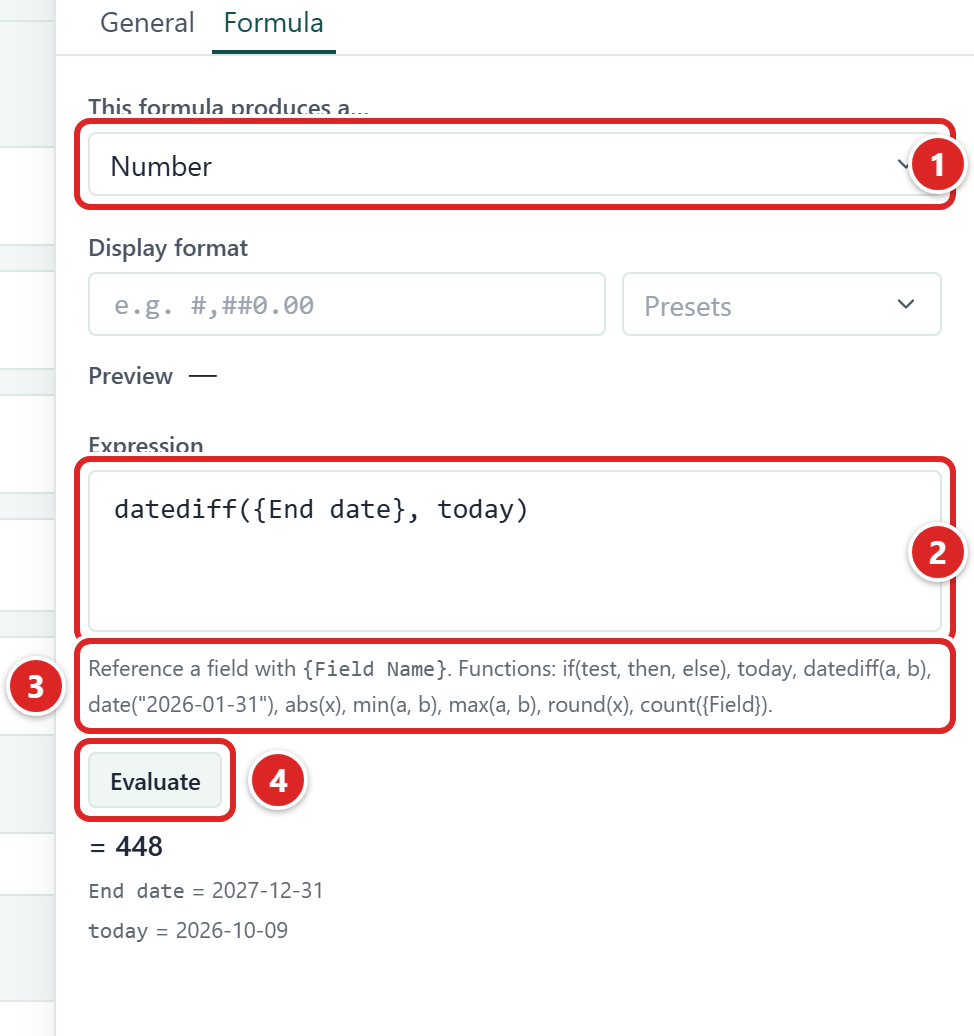
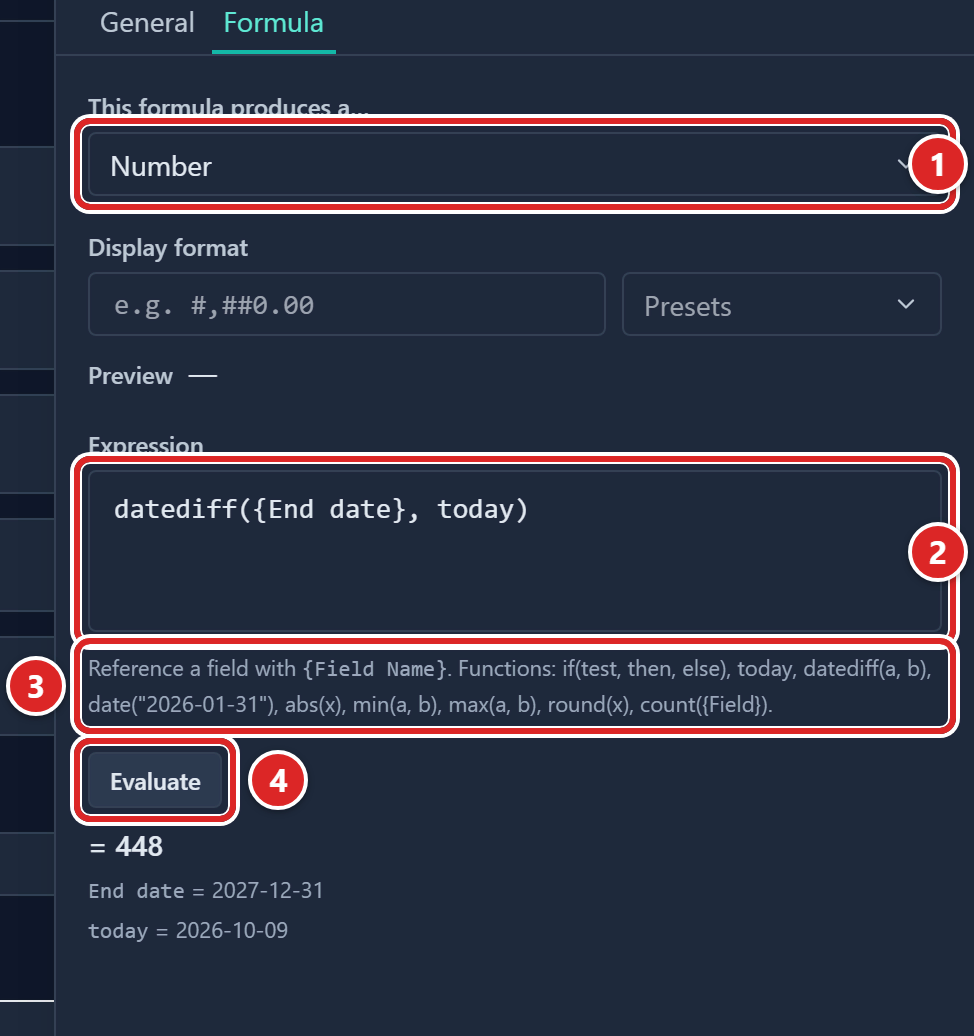
- This formula produces a…: the result type.
- Expression: where you type the formula.
- The help line that lists the functions.
- Evaluate: runs the formula on a sample record and shows the result.
The sample is always the first record in the table, not one you choose. Empty fields show as (empty) in the result.
New columns can be hidden in existing table views. If you do not see the column, open Customise on the table and switch the column on in the Data tab. See Customise your table view.
Edit a formula field
- Open Administration → Entity & fields.
- Click the tab of the entity that holds the formula field.
- Click the formula field's row. The Field settings panel opens.
- Click the Formula tab.
- Change the result type, the Display format or the Expression.
- Click Save and close. The new result shows in every table and record panel straight away.
To copy a formula, open the field's Field actions menu and choose Duplicate. The copy keeps the expression and is named with "(copy)" after it. To delete a formula field, choose Remove field in the same menu and click Remove. Gembaa does not warn you if other formulas use the field.
Refer to a field
Put the field's name in braces: {Budget}, {End date}. The name must match the field's name exactly, including capital letters and spaces. {end date} does not match a field called End date. Spaces just inside the braces are ignored, so { Budget } works.
To avoid typing mistakes, type { in Expression and pick the field from the list. Each entry shows its type on the right, and picking one inserts the name with its braces. See Functions and operators for how each field type reads inside a formula.
You can refer to another formula field. Gembaa works out that formula first and uses its result. Two formulas that refer to each other (or one that refers to itself) cannot be calculated.
If you rename or remove a field, every formula that uses it breaks. See Fix formula problems.
Read a linked field
A Relation field links a record to another record, such as a Project to its Program. A formula can read one field of the linked record. Write the Relation field's name, a dot and the field's name, each in braces: {Program}.{End date}.
{Program:Type}.{Field}names the entity type to read, for example{Parent:Project}.{Name}. Add the type when the Relation field can link more than one type of record.{Program}.typegives the name of the linked record's entity type, such asProject. Use it to test which type is linked:{Parent}.type == "Project".
In Expression, type }.{ after a Relation field's name and Gembaa suggests the fields of the linked record. Type }. and it suggests type.
Rules for linked fields:
- The Relation field must link one record only. A Relation field that links several records cannot be followed.
- Gembaa follows one link.
{Program}.{Owner}.{Name}does not work, and neither does reading a linked formula that itself reads another linked record. - You cannot read a Latest pulse, Allocation, Current Rate or Skills field, or a field in rollup mode, from a linked record.
- A formula field on the linked record works, because Gembaa works it out with that record's values.
- If the Relation field is empty, the linked record is a different type from the one you named, or you cannot see the field, the value reads as an empty field would. That is
0for a number, empty text for text and today for a date. - The Evaluate list shows a linked field as
Program.End date. countcannot count a linked field. See Functions and operators.
If a linked reference is not allowed, Gembaa refuses to save and shows the reason under Expression. See Fix formula problems.
Format a Number result
When the result type is Number, a Display format box appears under This formula produces a…. It changes how the number looks. The stored value does not change, so filters, sorting and other formulas still use the plain number.
With no Display format, the number shows as it comes, with every decimal. To use a pattern:
- On the Formula tab, with Number chosen, enter a pattern in Display format, for example
#,##0.00. - Optional: To start from a ready-made pattern, choose one from Presets.
- Check Preview, which shows 1234.5 in your pattern.
- Click Save and close. Cells, the record panel, search, exports and column totals show the formatted number.
The presets are #,##0, #,##0.00, 0%, 0.0%, $ #,##0.00 and € #,##0.00. These characters have a meaning in a pattern:
| Character | Meaning |
|---|---|
0 | A digit that always shows, so 0000 shows 7 as 0007. |
# | A digit that shows only when needed. |
, | A thousands separator. |
. | The decimal point. |
% | Multiplies the number by 100 and adds a percent sign. |
Any other character is shown as it is, before or after the number: € #,##0.00 shows € 1,234.50 and #,##0 days shows 12 days. The separators are always a comma and a full stop. Gembaa rounds halves away from zero, so 2.5 with the pattern 0 shows 3 and -2.5 shows -3.
If the pattern is not valid, Gembaa refuses to save and shows "Display format is not valid" with a reason:
| Reason | What to change |
|---|---|
| it needs at least one 0 or # | Add a 0 or #. |
| it has more than one decimal point | Keep one . in the number part. |
| it has more than one % | Keep one %. |
| a thousands comma cannot follow the decimal point | Move the , before the .. |
- The Sum, Average, Min and Max in the column footer use the same pattern. Count and Unique count stay plain counts.
- If another formula reads a formatted formula, the Evaluate list shows the formatted text, but the maths uses the plain number.
- Display format is only for the Number result type. Other result types ignore it.
Choose a result type
The result type tells Gembaa how to show the answer. Choose the one that matches what the formula returns.
| Result type | How it shows | Notes |
|---|---|---|
| Number | A plain number, such as 157500 or 44.65. | With no Display format, there is no thousands separator or currency symbol and every decimal is shown. The column's number format does not apply. If the result is not a number, a warning icon shows instead. |
| Text | The value as text, such as Amber. | A number that cannot be worked out shows as NaN or Infinity. |
| Yes / No | Yes or No. | Any non-empty value other than 0 counts as Yes. |
| Date | A date in your workspace's date format, such as 12 Mar 25. | The result must be a date or a day count. Text gives a warning icon. A plain number such as 55 is read as a number of days after 1 January 1970. |
See when results update
Each person's browser works out the result every time a cell or record panel shows. When someone edits a field the formula uses, the result changes at once.
A formula that uses today recalculates in every view, so a "days left" figure is correct each day without anyone saving anything. The date is the current day in UTC, so near midnight outside the UK the day can differ from your local date.
Use results elsewhere
| Place | Works? |
|---|---|
| Table cells and the record panel | Yes. The panel shows the field in the tab of the section you added it to. |
| Search box above the table | Yes, it matches the text shown, so a formatted number is searched as formatted. |
| Sort | Yes, by the computed value. |
| Filter | Yes. The operators follow the result type (number, date, text or Yes / No). |
| Highlight rules | Yes. |
| Column totals | Number results: Count, Unique count, Sum, Average, Min and Max, with the Display format applied to the last four. Date: Earliest and Latest. Text and Yes / No: Count and Unique count only. |
| Other formulas | Yes. |
| Gantt custom columns | Yes. |
| Dashboard charts | A formula can group a chart. It cannot be the value a chart totals, because that list shows Number and Progress fields only. |
| Allocation pivot | A Number formula can be a measure. |
| Rollups | No. A rollup cannot total a formula, and a formula cannot be a rollup. A formula can read a field that is in rollup mode. |
| Export | Yes, as the text shown on screen, including any Display format. In Excel the column holds text, not numbers, so a sum over it in Excel does not add up. |
| Add record and CSV import | No. Nobody types into a formula field. |
Good to know
- A broken formula shows a warning icon to viewers. Only admins see the cause, under Evaluate.
- The Required checkbox on a formula field has no effect.
- Formula fields count towards the limit of 50 fields on an entity.
- A filter on a broken formula matches no rule, not even "is empty".
- Functions and words such as
andmust be lowercase.