
Finance
- Purpose
- Record what each staff member costs and how many hours they work, over time, and set the defaults that fill any gaps.
- Who is this for
- Admins and managers who look after staff cost data
- Prerequisites
- Staff records.
- Permissions
- View access to the Finance sub-module on the Staff record to read entries. Adding, editing and deleting entries needs more than view access: with view-only access those buttons are disabled. Admins set the workspace defaults.
Finance stores each staff member's hourly cost and working hours for a period of time, so Gembaa always knows what a person costs and how much they can work on any date. It applies to Staff only. There is no Finance page in the left menu: you open it from a Staff record, and admins set the defaults on the Staff entity page.
Cost data is sensitive. Check who has Finance access in your workspace before you roll this out. See Access control.
How it works
A finance entry (one cost rate and set of working hours for a period) belongs to one staff member and holds:
- A Start date and an optional End date. With no end date the entry is ongoing.
- An Hourly cost.
- Working hours, either for each weekday (Mon to Sun) or as a single weekly figure, depending on how your workspace captures allocation hours.
For any date, Gembaa picks the single entry that covers it and takes both the rate and the hours from it. If no entry covers the date, it uses the workspace defaults for both. Cost and hours never come from different places on the same day.
Entries for one person cannot overlap. Hourly cost is shown with your workspace currency symbol. It is a label only and nothing is converted.
Set defaults
The defaults are what everyone gets on dates no entry covers. Only admins can change them.
- Open Administration → Entity & fields.
- Open the Staff entity.
- Find the Finance card and click the pencil (Edit).
- Enter the Currency symbol (for example £, $ or €), the Default hourly rate and the Default working hours.
- Click Save settings. The card shows the new defaults.
The rate must be zero or more, each weekday must be between 0 and 24 hours, and the currency symbol cannot be blank. The defaults are one set for all staff, not per person. Changing them changes the fallback for every date that has no entry.
Open staff Finance
- Open the Staff record.
- Click Record actions in the record panel and choose Finance.
If you do not have Finance access, the item is greyed out and a tooltip says you do not have access.
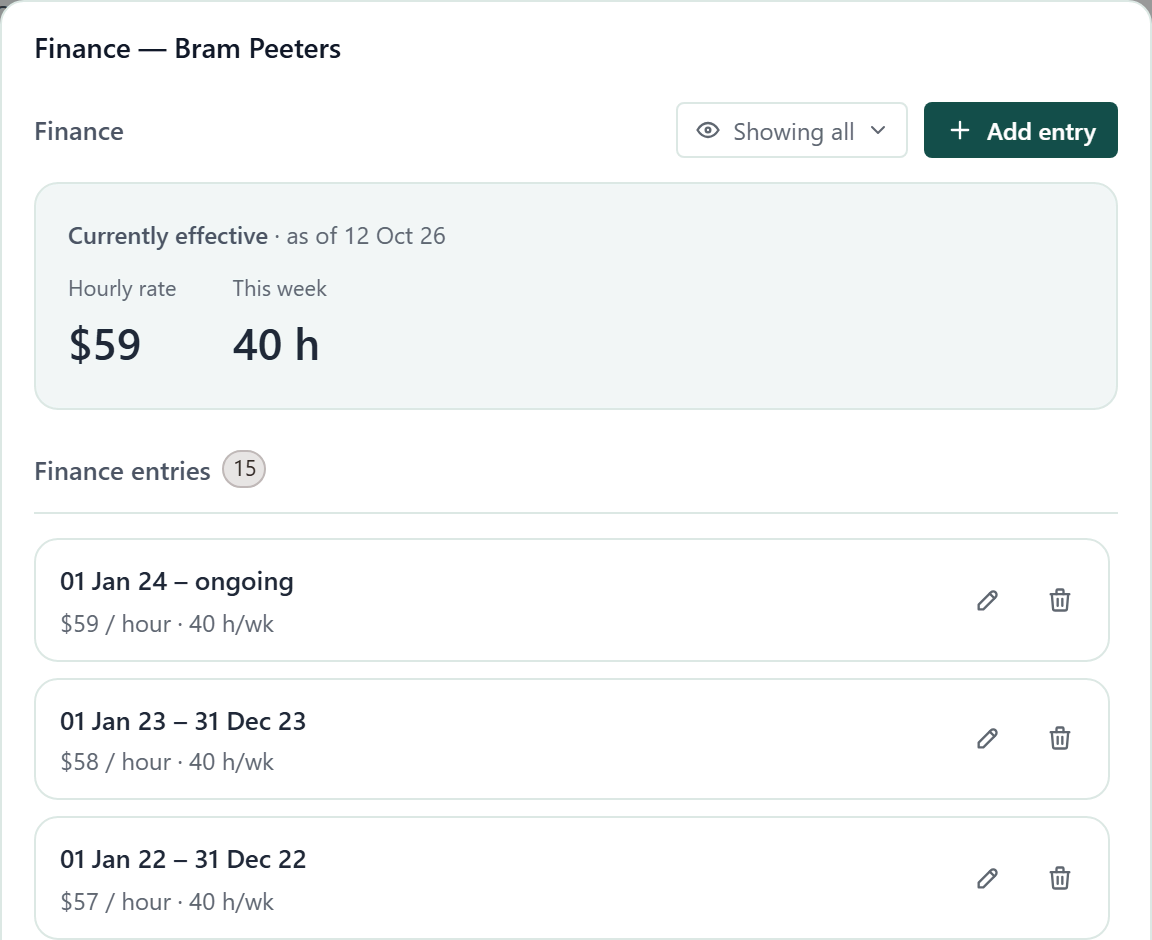
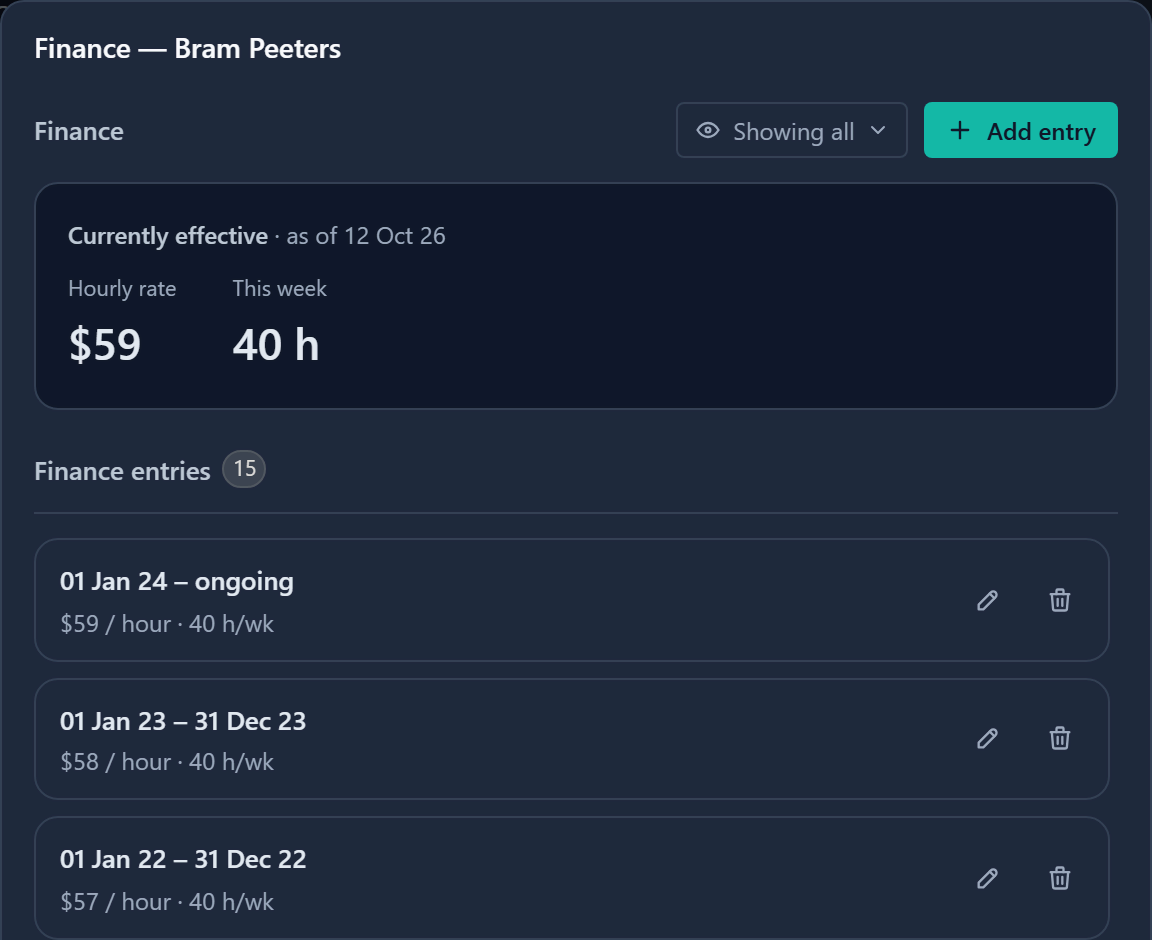
The top of the window shows Currently effective: the Hourly rate and This week working hours that apply today, with a weekly total. When no entry covers today it says Using defaults. Below it, Finance entries lists every entry with its period (ongoing if open), hourly cost and hours, latest first.
Add an entry
- In the Finance window, click Add entry.
- Enter a Start date. Add an End date only if the rate stops on a known day.
- Enter the Hourly cost.
- Enter the working hours. The fields start with the current defaults.
- Click Add. The entry appears in the Finance entries list.
An end date cannot be before the start date.
If the new entry overlaps an existing one, it is not saved, and a message names the entry in the way.
There is one exception. If you start a new entry after an ongoing entry began, the older entry is ended automatically on the day before the new one starts.
That is how you record "from today this person costs X" without editing the old entry. The editor tells you when this happens.
Edit or delete an entry
- In the Finance entries list, find the entry to change.
- To edit it, click Edit entry on its row.
- Change the values in the Edit finance entry dialog and click Edit. The same overlap checks apply.
To delete an entry instead, click Delete entry on its row and confirm in the dialog. The dates it covered then fall back to a neighbouring entry or the defaults.
With view-only access, Add entry, Edit entry and Delete entry are disabled, with a tooltip saying you have view-only access.
If you open an entry and save without changing anything, nothing is written.
Hide figures
The Finance window has a control that changes what is on screen: Show all, Hide financials (masks the rate and costs) and Hide all (masks costs and hours too). It only changes your view. It is remembered in your browser and is not a permission.
Show rate on Staff table
Admins can add a Current Rate field to Staff. It shows each person's rate for today, taken from the same entry or default as the Finance window, so the two always agree.
| Setting | Options |
|---|---|
| Show | Hourly rate shows the hourly cost. Daily rate multiplies the hourly cost by that person's own hours per working day. |
| Decimal places | 0, 1 or 2. |
| Rounding | Half up (default), Always up or Always down. |
The field is read-only. To change a figure, edit the finance entry. People without Finance access see Restricted instead of a number. It cannot be used in filters, sorting or formulas.
Good to know
- Finance records capture and display only. Gembaa does not total costs by project or team from them.
- An admin can switch Finance off on Administration → Features. Allocation then hides cost, and capacity uses the working week in Allocation settings for every person. Nothing is deleted. See Turn features on or off.
- A daily Current Rate shows a dash when the effective entry has no working days.
- Admins can load finance entries in bulk. On the Finance card, click Import finance data. See Import from CSV.