
Support and Gembaa staff access
- Purpose
- Give Gembaa staff time-limited access to your workspace, end it early, and review the trail they leave in Support History and the activity log.
- Who is this for
- Admins
- Permissions
- Admin role. Gembaa staff cannot change this setting, even at Full control.
Administration → Support sets how far a Gembaa representative can go in your workspace when they help you. By default they cannot sign in at all. You grant access for a set time when you want help, and it ends by itself.
How it works
One level applies to every Gembaa staff person at once. There is no setting per person.
- The default is Unauthorized. A workspace that has never granted access reads as Unauthorized.
- Every raised level has an expiry, from 1 minute to 30 days. When the time passes, the level returns to Unauthorized on the staff person's next request.
- Only an Admin of your workspace can grant or end access. Gembaa staff are refused, even when their level is Full control.
- A change applies from the staff person's next request. Ending access early works the same way.
- A raised level saved without an expiry, for example before expiries existed, reads as Unauthorized.
The four levels
| Level | What Gembaa staff can do |
|---|---|
| Unauthorized | Nothing. Gembaa staff cannot sign in. |
| Masked | Read only. They see layout and structure, not data. Custom fields, names, emails, photos, text values and record names are hidden. Built-in dates, numbers and choices stay visible. Some pages are refused outright, including Allocation, Finance and Pulse, imports and PowerPoint export. |
| Unmasked | Read only, with every value visible. They cannot change your data. They can still save their own preferences and start a PowerPoint export. |
| Full control | Read and write with Admin rights. Every change is logged under the staff person's name. |
Each level has a (?) beside its name that explains it in short form.
Read the Gembaa staff access card
Open Administration → Support and find the Gembaa staff access card.
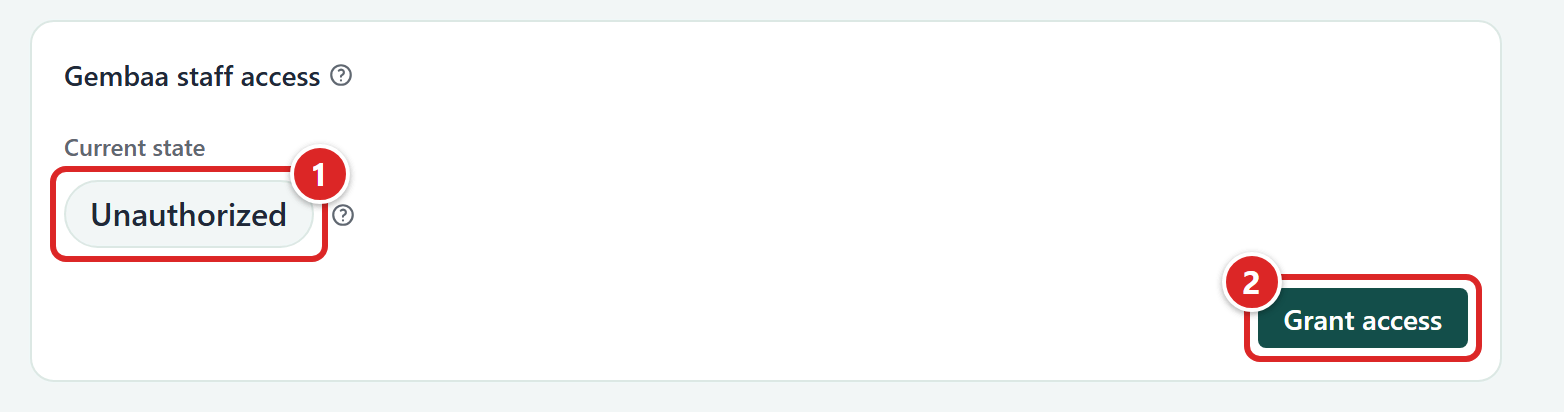
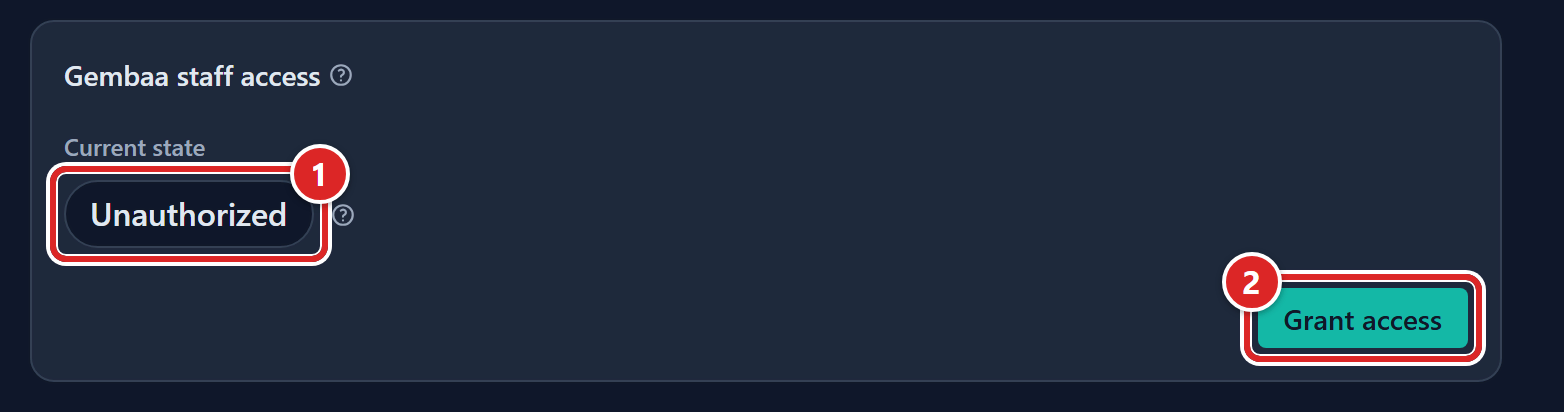
- Current state: the saved level. The chip turns to warning colours when the level is above Unauthorized. Hover the (?) beside it for the meaning.
- Grant access: opens the Grant Gembaa staff access dialog.
While access is granted, the card also shows:
- A line reading "until" with the end date and time in your time zone.
- Expires in with the time left, such as Expires in 3 h 20 min. It refreshes every 30 seconds.
- End session, a red button beside Grant access.
Once access has been granted or changed, a line reads Last changed by a name and a time.
Grant access
- Open Administration → Support and click Grant access. The Grant Gembaa staff access dialog opens.
- Turn on the switch for the level you want. Only one switch can be on, so turning one on turns the others off.
- Under Expires in, click 15m, 1h, 4h, 1d or 1w, or type your own time in the Duration box. The default is 4h.
- Check the line under the controls. It reads, for example, "4 hours, until Fri, Oct 16, 2026, 10:17 AM GMT+1".
- Click Save. The message Updated staff access appears and the card shows the new level, end time and countdown.
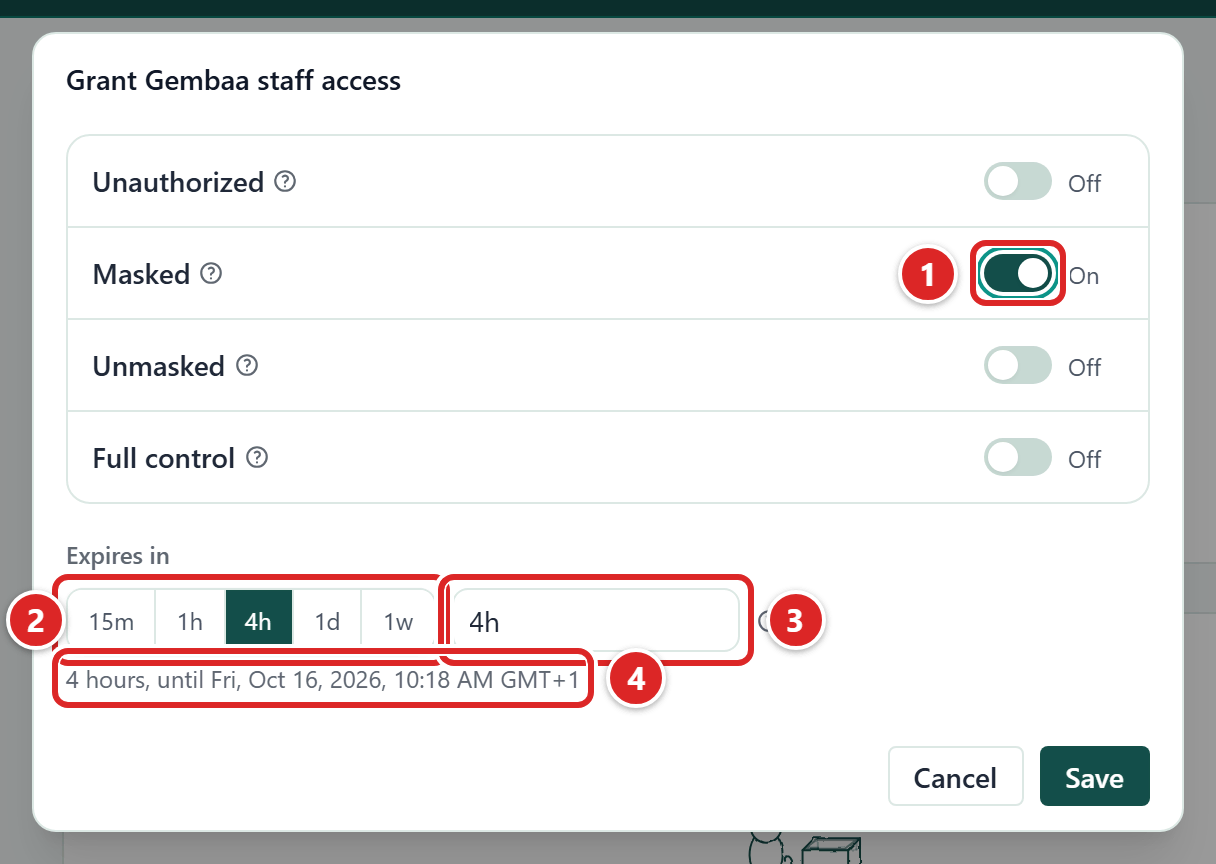
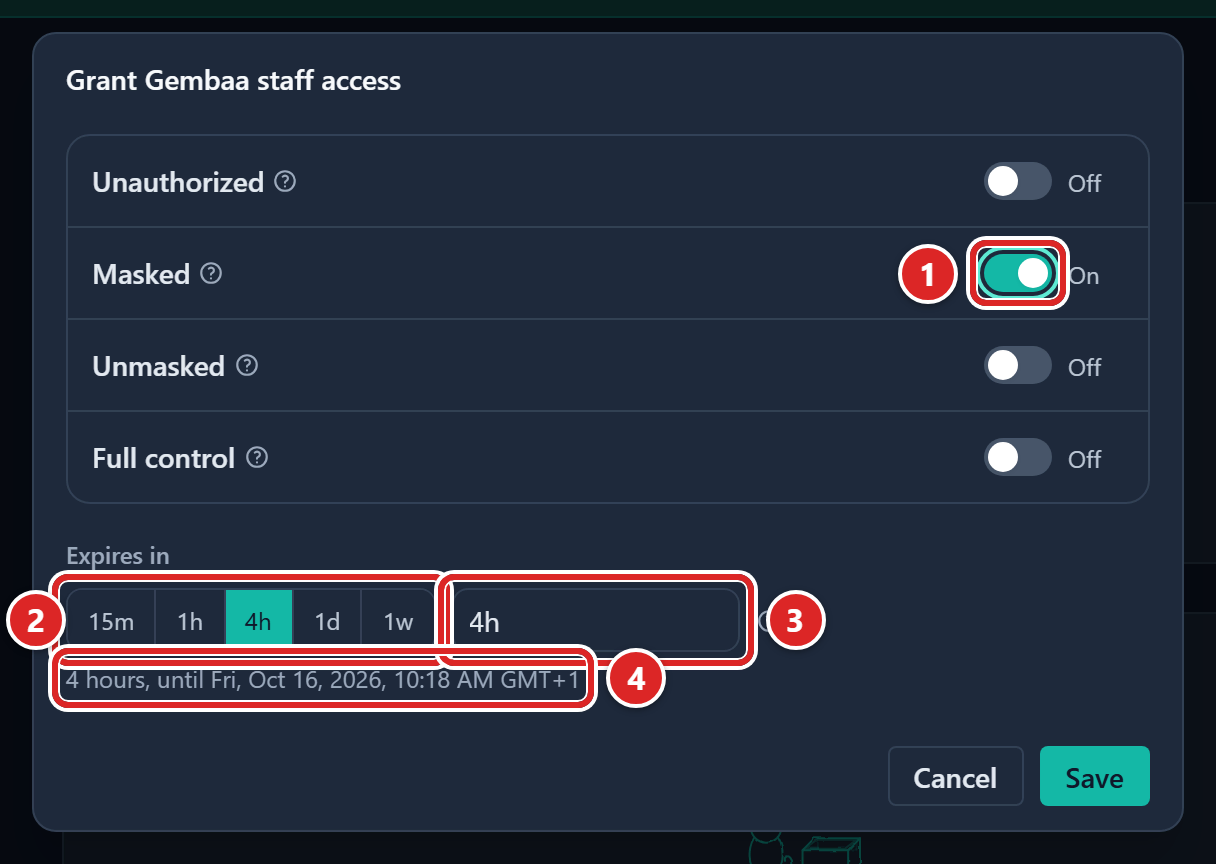
- Masked: one switch per level. Only one can be on.
- Quick picks for Expires in: 15m, 1h, 4h, 1d and 1w.
- Duration: type a time in weeks (w), days (d), hours (h) and minutes (m), for example 1w 2d or 2h 30m. The range is 1 minute to 30 days.
- A live line giving the length in words and the end time in your time zone.
If the duration cannot be read, the line says "Type a duration such as 30m, 4h, 2d or 1w 2d." If it is outside the range, it says "The expiry must be from 1 minute to 30 days." Save then moves you to the Duration box instead of saving. If saving fails, the message Couldn't save the staff access level appears and nothing changes.
Granting a level again, with a new expiry, replaces the earlier grant. Support History shows it as an extension.
End a session early
- Click End session on the Gembaa staff access card. The dialog End the Gembaa staff session? says the level returns to Unauthorized now.
- Click End session in the dialog. The message Ended the staff session appears and the chip reads Unauthorized.
A Gembaa representative loses access on their next request. End session shows only while access is granted.
Review Support History
The Support History card below the access card lists every grant of Gembaa staff access, its changes and its end, and every staff sign-in and sign-out, newest first.
- The card shows the newest 20 rows and scrolls inside itself. Each row has its date and time.
- Staff names show in the warning colour.
- Click Show the full Support History to open a dialog with every row, 50 at a time. Click Show more for the next 50, and Close when done.
- Click View all in Activity log to open the Admin activity log already filtered to these events.
- Before anyone has been granted access, the card reads No grant yet.
A row reads like these:
| Row | What happened |
|---|---|
| "(name) raised the level from Unauthorized to Masked, until (end)" | An Admin granted access. A lowered level reads "lowered the level from ... to ...". |
| "(name) terminated access with (time) before the expiry" | An Admin ended a session early. |
| "(name) extended Masked until (end)" | An Admin granted the same level again with a new expiry. |
| "The access granted by (name) ended at its expiry, (end)" | The time ran out. |
| "(name) signed in as Gembaa staff, Masked" | A staff person signed in. |
| "(name) signed out" or "(name) was signed out after inactivity" | A staff person signed out, or their session timed out. |
What you see in the activity log
Gembaa staff leave a visible trail. Everyone who can read the activity log sees these entries, filed under the Access group in the Admin activity log.
| Entry | When it appears |
|---|---|
| Staff access changed | An Admin saved a level. The entry shows who changed it and expands to From, To and Until. |
| Staff access ended | A grant reached its expiry. The entry expands to Level and Ended at. |
| Staff signed in | A Gembaa staff person signed in. One entry is written for each sign-in session, at every level. A refused attempt at Unauthorized is recorded too. |
| Staff signed out | A staff person signed out of the app, or was signed out after inactivity. |
| SRE mode | A chip after the name of any entry made by a Gembaa staff person, reading SRE mode and the level, for example SRE mode · Full control. |
Set the Event type filter to SRE mode to list every entry made by Gembaa staff. The record Activity dialog has the same filter and chip.
Good to know
- Gembaa staff never appear in Members, in SCIM or as Staff records, and signing in creates none. You cannot block one person, so end the session instead. See Members, SSO and provisioning.
- Your members see no sign that staff are present beyond the activity log. Gembaa staff see a banner, with a countdown to when their access ends.
- At Unauthorized, a staff person who tries to open your workspace sees a message that staff access is not enabled and that you can enable it.
- If you are not an Admin, you do not see Support in Administration.