
Access control
- Purpose
- Decide who can see and edit what, using roles per entity, access groups, restricted fields and per-record permissions.
- Who is this for
- Admins
- Prerequisites
- The Admin role. Members and, optionally, access groups to grant roles to.
- Permissions
- Admin role.
Access control decides who can see, add, edit and delete records, and which fields they can see. You set it up per entity (for example Project, Staff or Program): create roles, then assign them to members or to groups. For a lookup of what each action needs, see Permissions at a glance.
How it works
Your workspace may use different names for entities. Access in Gembaa is deny by default. A member with no roles can see almost nothing. You grant reach by giving them roles. Nothing is ever taken away by another role.
| Idea | What it means |
|---|---|
| Base role | Every account is either Admin or Member. Admins can see and do everything that is switched on, and manage access. Members get only what roles give them. Base roles come from your identity provider. See Members, SSO and provisioning. |
| Role | A named set of permissions on one entity, such as "Deal Editor". Each entity has its own roles. |
| Role assignment | One member or group holding one role. You assign a role on every record of an entity, or on a single record. |
| Full Access | A built-in role on every entity: all actions, all fields, all records. Every Admin holds it. It cannot be renamed or deleted. |
| Self | A built-in role on every entity that applies to records linked to the person themselves, such as their own Staff record. Every member holds it automatically. You can change what it grants but not rename or delete it. It is the only role whose reach is limited to related records. |
| Staff field | A relation field that points to Staff, such as "Owner". Each one gets its own column in the permissions grid, so the person named in the field gets access to that record. |
| Access group | A set of members. Give a role to the group and everyone in it gets it. Groups are about access only, and are separate from Teams. Being in a team never grants access. |
Permissions add up. If a member holds two roles, they get everything either role grants. For the scope of what a member can see, the widest one wins.
What a role can grant
For each entity, a role has a level for each row of the permissions grid:
| Level | Meaning |
|---|---|
| Hidden | No access. |
| Read only | Can view. |
| Read / Write | Can view and edit. |
| Full Access | Everything Read / Write allows, plus delete. On a sub-module row it means adding, editing and deleting its entries. |
| Delete | Offered on Comments rows only. Everything Full Access allows on comments, plus deleting other people's comments. |
The rows are the record itself (Record), Add (create new records), a Role assignments row for managing who holds each role on a record, each sub-module (such as Pulse, Allocation or Finance), a Comments row and each field. The grid shows the Role assignments row with the word "manage" after its name. On Staff there is also an Inactive Records row, which decides who can see deactivated staff records. Not every row offers every level:
| Row | Levels you can choose |
|---|---|
| Record | Hidden, Read only, Read / Write, Full Access |
| Add and Role assignments | Hidden or Full Access |
| A sub-module | Hidden, Read only or Full Access |
| Comments and Comments on rows | Hidden, Read only, Read / Write, Full Access or Delete |
| A field | Hidden, Read only or Read / Write |
| Inactive Records | Hidden or Read only |
Deleting a record needs Full Access on the Record row. Deactivating or activating a staff record needs the same.
The Self role limits reach to records related to the person. A record counts as related to a member if any of these is true:
- They created it.
- It is linked to their Staff record.
- It belongs to a Team, Project or Program they are part of or manage.
The grid cannot limit any other role to related records. Records outside someone's reach do not appear in lists at all, so people cannot tell that those records exist.
What the Comments rows grant
Every entity with its own grid has a Comments row. It decides what people can do with comments on a record.
| Level | What people can do |
|---|---|
| Hidden | The Comments icon is not shown. |
| Read only | Read comments and replies. |
| Read / Write | Also post comments and reply. This is the Public default. |
| Full Access | Also edit and delete their own comments. |
| Delete | Also delete other people's comments. Admins always have this. |
Any of the five levels can be set for Public. The Self column defaults to Full Access, which applies to the person's own comments only. Nobody can edit another person's comment, not even an Admin.
Some entities have no grid of their own, so their comments take their access from a parent record. The grid of the parent shows a Comments on row for each, for example Comments on Risks, Comments on Tasks or Comments on Knowledge. These rows read Feature disabled when their module, or Comments itself, is switched off in Turn features on or off.
If none of a record's parents has such a row, only Admins see its comments. If it has several parents, the widest level wins.
Features override roles
The Admin role does not override a feature switch. If a module is switched off in Turn features on or off, it is hidden for everyone, Admins included. Its rows in the permissions grid stay listed, greyed and marked Feature disabled, and the settings you saved come back when the module is turned on. A feature switch is not a permission, and nothing is deleted.
Hiding is not access control
You can hide items from the left menu (see Arrange the left menu). That only removes the menu row. The person can still open the page by direct link if their roles allow it, and a person without access is not given access by showing the item. Use roles and groups to decide who can see what. Use the menu to decide what is easy to find.
Open access settings
- Open Administration → Entity & fields.
- Pick the entity from the tab bar.
- Scroll to the cards at the top of the entity's tab. Access uses three of them: Roles, Role assignments and Permissions.
Some entities have no cards of their own because their access follows a parent record. Risks, Assumptions, Issues, Dependencies, Decisions, Tasks, Sub-tasks, Milestones, Objectives, Key Results and SOWs follow the record they belong to. Knowledge works the same way.
For example, who can see a Task depends on who can see its Project, through the Tasks row in the Project's permissions grid.
Records linked to each other keep their own access: a link between two records shows only to someone who can read both. Typed links, such as Blocks, are added and removed by Admins.
Create a role
The Roles card holds role names only. You give a role to people on the Role assignments card.
- On the entity's Roles card, click the pencil.
- Click Add role and type a name, for example "Deal Editor".
- Click Save roles. The new role appears on the card.
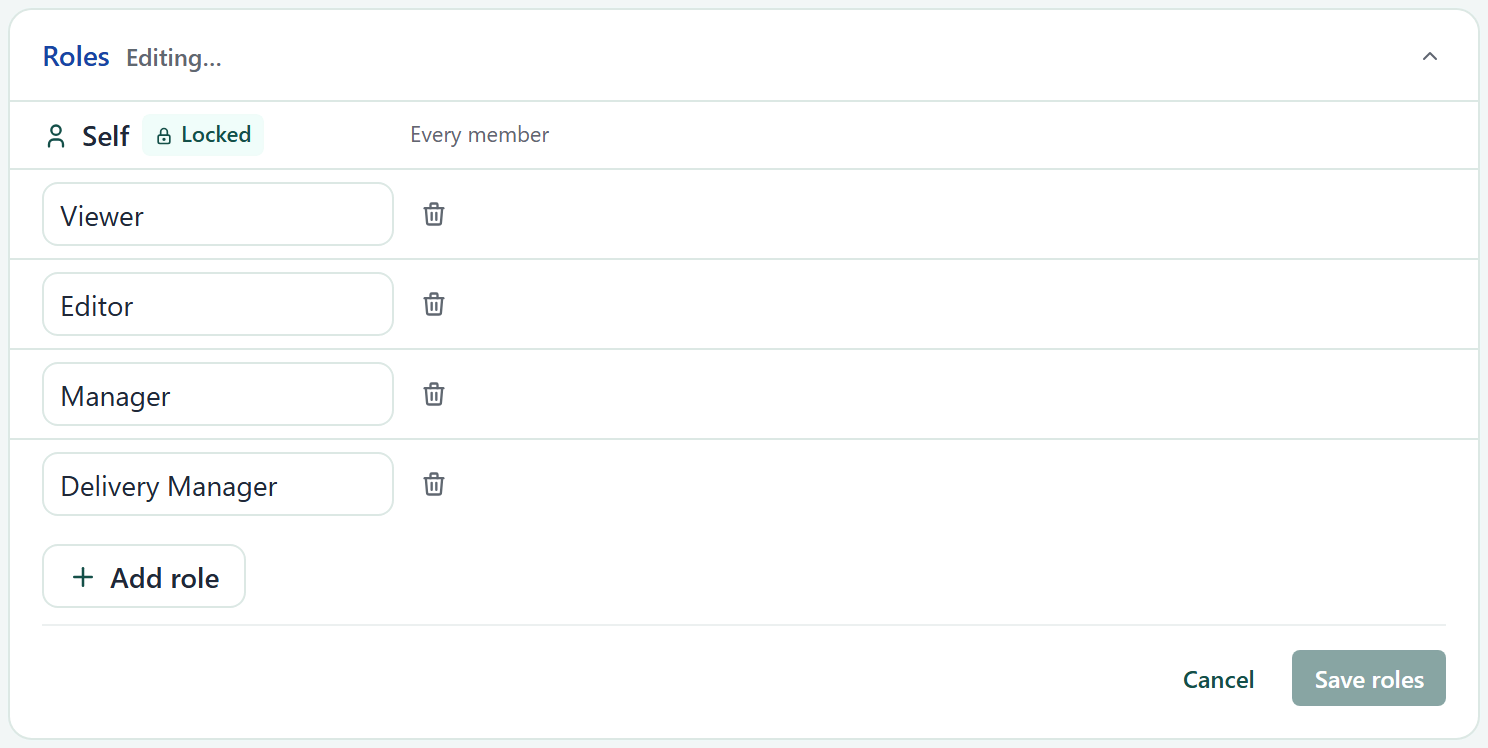
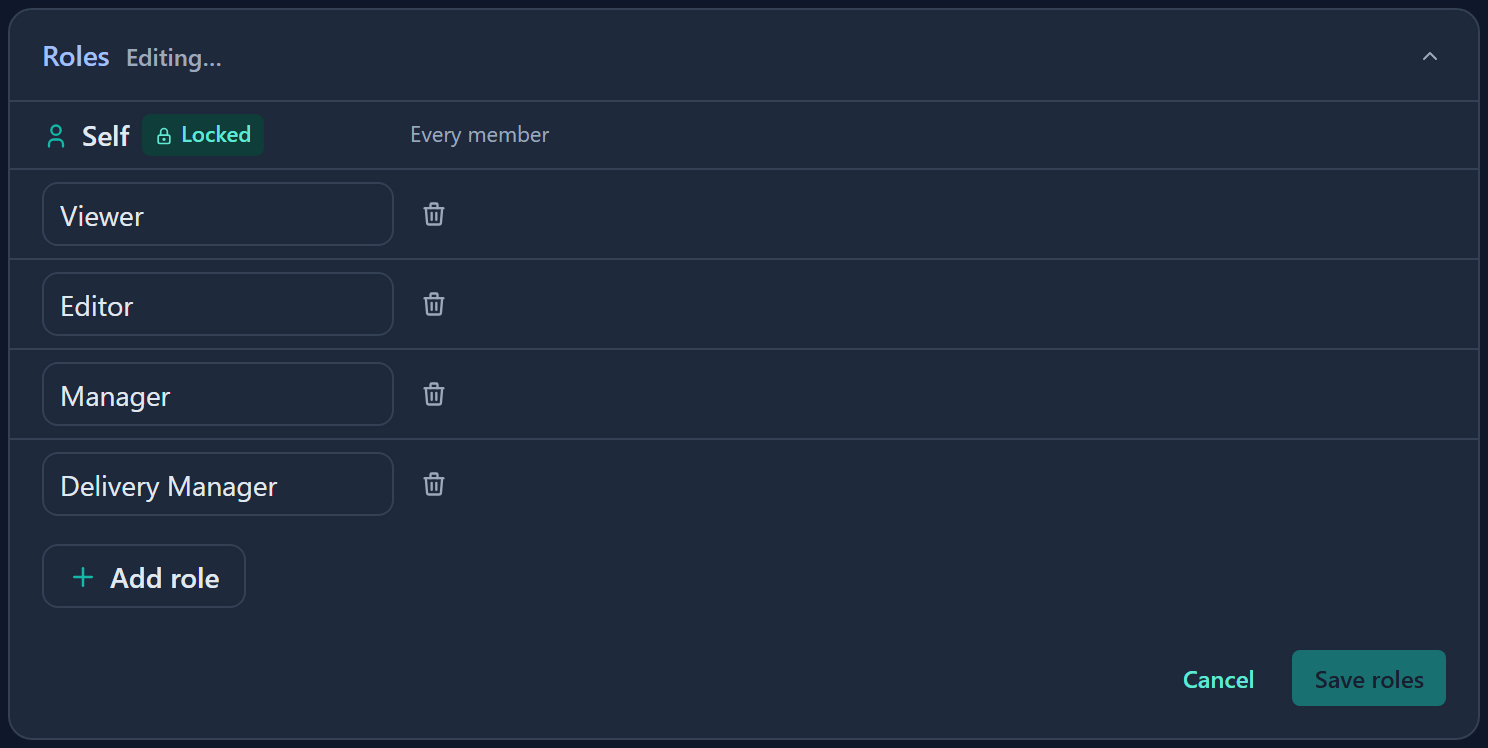
Saving applies the whole set of changes at once. Click Cancel to discard them.
Rename or delete a role
- On the Roles card, click the pencil.
- To rename a role, edit its name. To remove it, click Delete role next to it.
- Click Save roles. Anyone who held a deleted role loses the reach it gave them, immediately.
The locked Full Access role is shown with a Locked badge and the note Every Admin. The built-in Self role shows Every member.
Assign a role
The Role assignments card lists who holds each role across the whole entity. Assigning or removing a role here does it on every record of the entity. Each change saves as you make it, with no Save button.
- On the Role assignments card, click Assign role.
- In the Assign role dialog, choose a Role.
- Choose a Member or group.
- Click Assign. A toast confirms Assigned role and the person appears in the list.
The list has the columns Role, Name and Email. Use Quick search to find a row. To remove an assignment, open the row's menu and choose Remove role assignment. Until you assign a role, the card reads No role assignments yet.
Only Admins assign roles. The Role list does not offer Full Access or Self: Admins hold the first and every member holds the second.
Set role permissions
The Permissions card is a grid. Rows are what can be accessed, and columns are who has it: Public, Self, one column per role, and one column per Staff field on the entity.
- On the Permissions card, click the pencil.
- Find the row you want. Use Search permissions to filter the rows by name.
- Click the cell where the row meets a role and choose a level. The cell offers only the levels that row allows.
- Click Save permissions.
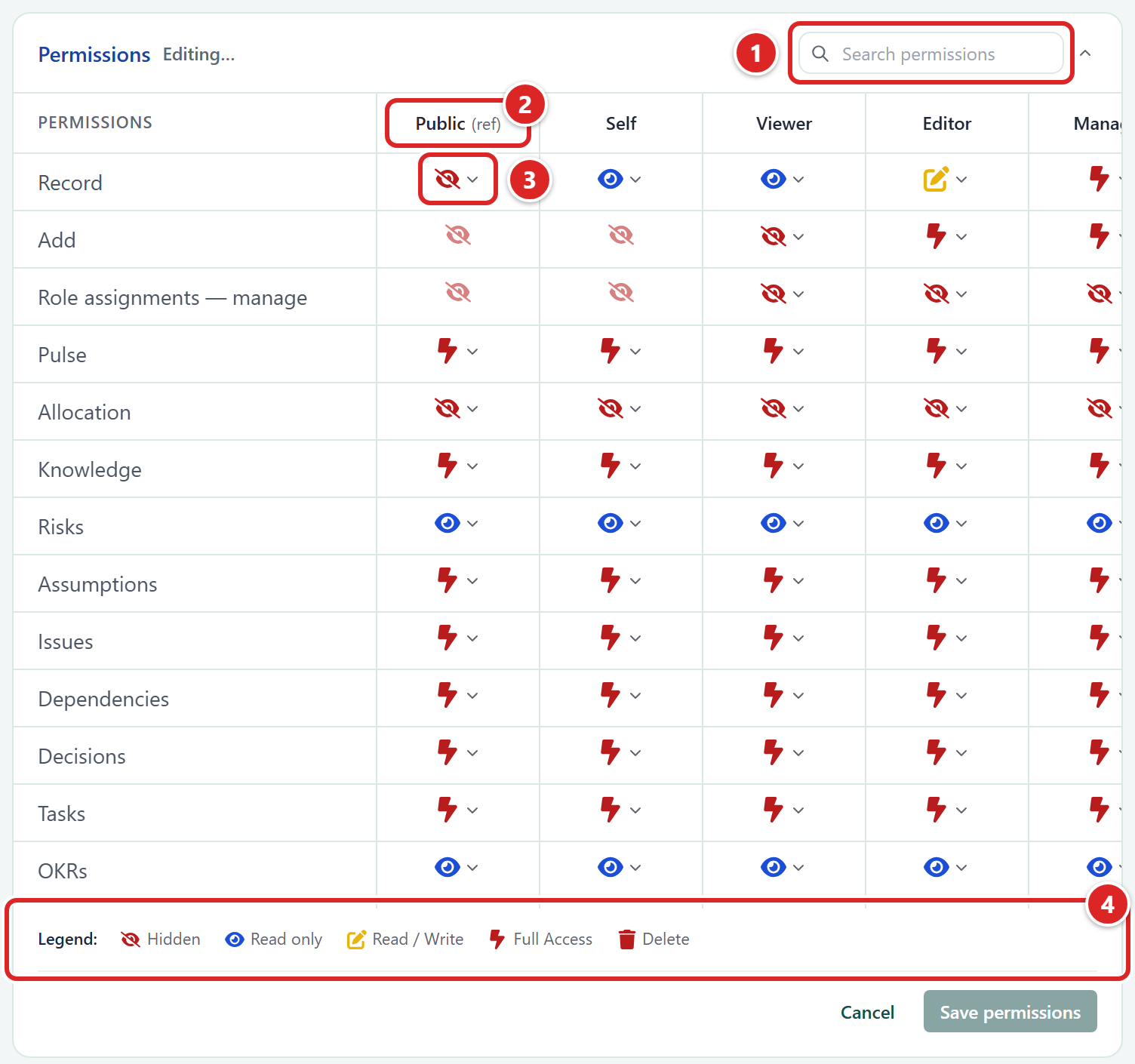
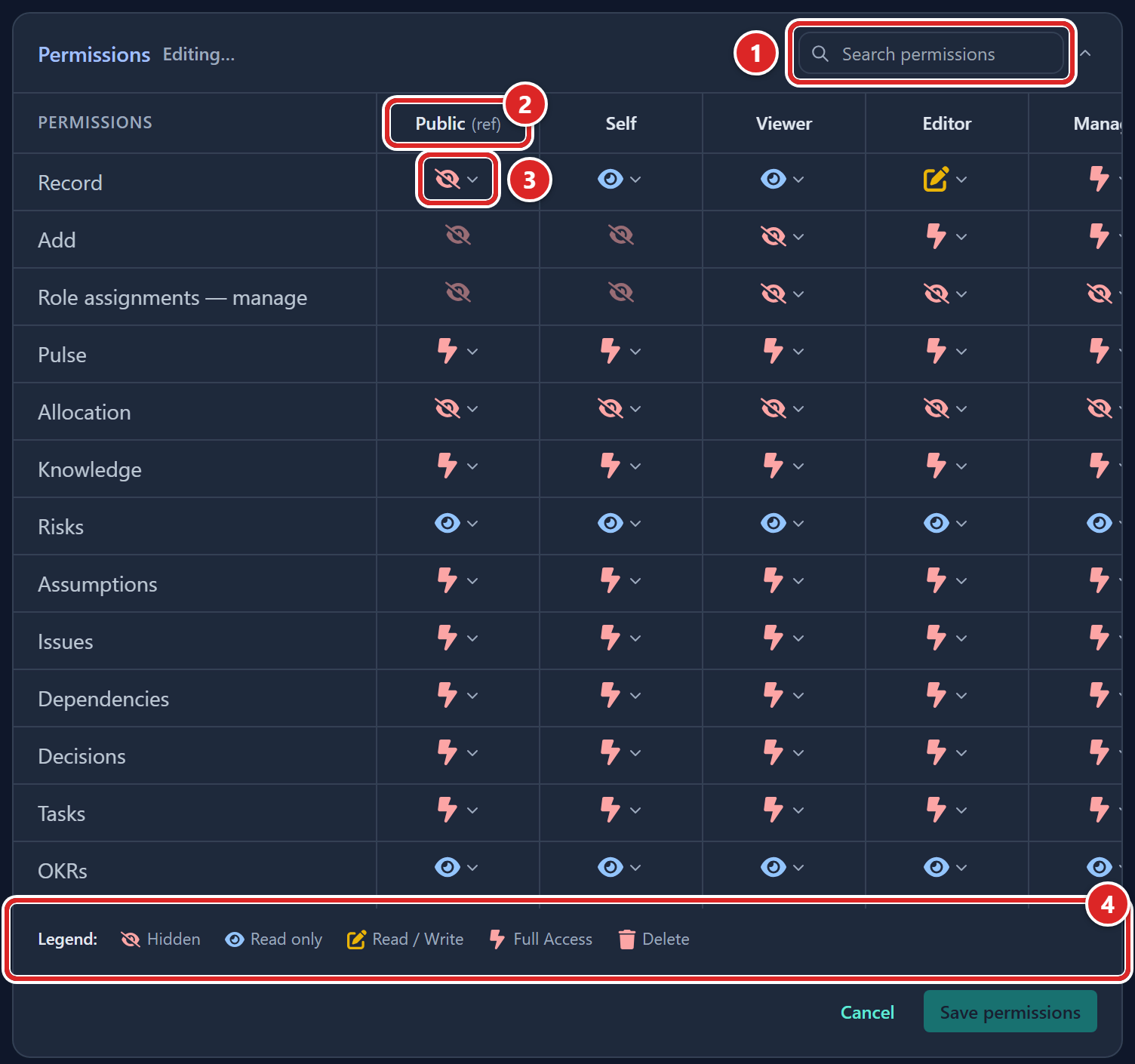
- Search permissions, which filters the rows by name.
- The Public column, the floor for the entity. Self, each role and each Staff field have their own column to the right.
- A cell: click it to choose a level for that row and column.
- The legend: Hidden, Read only, Read / Write, Full Access and Delete, each with its own icon.
Public is the floor for the entity: what everyone gets, including members with no roles. For the record row, Public can only be Hidden or Read only. Setting it to Read only lets every member view every record of that entity, but never edit it.
A role can only raise access above Public, never lower it. If Public already allows a level, options below it in a role's cell are greyed out with a hint. To grant a field to some roles only, set Public to Hidden for that field first.
Restrict a field
Fields are open to anyone who can see the record, unless you restrict them. A restricted field is hidden from everyone except the roles you lift it for.
- In the field's row, set Public to Hidden.
- Set the cell for each role that should see it to Read only or higher.
- Click Save permissions.
You can also make a field visible but not editable: set Public to Read only and give Read / Write to the roles that may edit it. A person who cannot see a field sees a Restricted label with a lock in its place, and the value itself is never sent to them.
Grant access by Staff field
If the entity has a relation field that points to Staff, the grid shows a column named after that field. The person named in the field on a record gets the levels you set in that column, on that record only. Use it for rules such as "the Owner of a project can edit it".
- On the Permissions card, click the pencil.
- In the column named after the field, set the Record row and any field or sub-module rows.
- Click Save permissions. The levels apply to whoever the field names on each record.
A Staff field column has no Add or Role assignments cell, because those are not tied to one record.
Change the Self role
To choose what members can do with records linked to them, edit the Self column. Then click Save permissions. The Add and Role assignments cells of Self cannot be changed.
On most rows Self starts at Read only. Set it to Read / Write to let people edit their own records, or to Hidden if members should not see even their own record in that entity. On the Comments row it starts at Full Access, so people can edit and delete their own comments.
Personal settings (photo, theme, mode and language) are not affected. Everyone can always change those. Fields that your corporate directory provides are read-only in Gembaa regardless of permissions, and show a lock.
Manage access groups
Groups live on the Members page.
- Open Administration → Members.
- Click the Access groups tab.
- Click Add group.
- Type a name such as "Sales team" and click Add. The group appears in the list.
- Open the group's actions menu and choose Manage members.
- On the Members tab, click Add member and choose a person. Repeat for each person.
- Give the group a role on any entity, from that entity's Role assignments card.
The Roles held tab of the same panel lists the roles the group holds. No group can be renamed once it exists.
Delete a group
- On the Access groups tab, open the group's actions menu and choose Delete group.
- Confirm. Members lose any reach they held only through that group.
Groups that come from your corporate directory show a Directory label. They are read-only: you cannot delete them, change their members or assign them roles in Gembaa. Change them in your directory instead.
Change record access
You can override the entity's permissions for a single record. Everyone can open the lock to see the record's permissions, but only Admins can change them. Members see "This is who can reach this record and how. Only an admin can change it."
- Open the record. In the record panel header, click the lock icon.
- In the Permissions for dialog, stay on the Permissions tab. The badge reads Everyone will be able to view this record (open lock) or Only certain roles can view this record (closed lock).
- Change cells as you would in the entity grid. A cell that differs from the entity default is marked as overridden.
- Optional: click Revert to admin default to remove all overrides on the record.
- Click Save changes.
To undo one override, click the revert icon on that row ("Revert this row to the admin default"). Revert to admin default removes them all.
In the Permissions for dialog, the Comments row offers the same five levels as the entity grid.
For records that follow a parent, such as Tasks or Risks, the lock opens Access to the record. An Admin can switch on Restrict this entry to limit it to the roles you choose below the toggle, plus its creator and Admins. With it off, anyone who can reach a linked parent can see the entry.
The state shows as Inherits parent, Inherits linked records or Restricted. For each role you grant below the toggle, Read can view the entry and Read / Write can also edit and delete it.
Assign a record role
Use this to give someone a role on a single record instead of the whole entity. Record-only assignments sit on the lock dialog, beside the permissions.
- Open the record. In the record panel header, click the lock icon.
- In the Permissions for dialog, click the Role assignments tab. It lists everyone who holds a role on this record.
- Click Assign role.
- Choose a Role and a Member or group.
- Click Assign. The person appears in the list.
To remove a record-only assignment, open the row's menu and choose Remove role assignment. Rows that come from the whole entity, or from a field such as a Staff link, show a lock with the tooltip "Managed in admin or in the field". Change those on the Role assignments card or in the field.
Only Admins assign and remove roles on a record. The Role list does not offer Full Access or Self. Role and Skill records have the lock icon too, with both tabs.
Check someone's access
- Open Administration → Members.
- Click Explain access.
- Choose a Member and an Entity.
- Optional: choose a Record and a Field.
- Click Explain.
The result shows Allowed or Denied for each action, the member's base role, the effective scope (all or mine), and the roles that contribute, labelled Direct or via a group name. If a person is an Admin, the result says so, because Admins bypass every restriction.
What people see without access
| Situation | What the person sees |
|---|---|
| An entity in the menu they cannot reach | A lock next to the item, with the tooltip "You don't have permission to access this. Contact your admin to request access." |
| A restricted field | A Restricted label with a lock, with the tooltip "This field is restricted. Contact your admin for access." |
| A record or page they cannot open | "You don't have permission to view this, or it may not exist." The message is the same whether or not the record exists. |
| A required link field to an entity they cannot view | A lock and a message that names the entity they cannot view, so they know why they cannot save |
| A link to a record they cannot open | Restricted in place of the record's name |
| Records outside their reach | Nothing. They are left out of lists. |
Good to know
- Every change to roles, groups and grants is recorded in the Admin activity log.
- Comments can be switched off for a record type in Turn features on or off. The Comments row then reads Feature disabled.
- A new role grants nothing until you set its levels on the Permissions card and assign it to someone.
- A link to a record the person cannot open shows Restricted in place of the record's name, wherever records are linked. Admins see the name.
- A link between two records, on the Links tab or the Gantt, appears only to someone who can read both. For anyone else it does not exist: there is no placeholder and it is not counted. Typed links are managed by Admins, and the kinds of link are set on Link types.
- Admins cannot be locked out. They hold Full Access on every entity that is switched on.
- Roles only matter for people who can sign in. See Members, SSO and provisioning for blocked and removed accounts.