
Comment on a record
- Purpose
- Discuss a record in a thread beside its panel: post, reply, mention a colleague, edit, delete and search comments.
- Who is this for
- Everyone
- Prerequisites
- A record panel open on a record type that has Comments switched on.
- Permissions
- View access to the record. Posting needs Read / Write on its Comments permission.
Comments let you discuss a record where the work is. Each record has its own thread, which opens as a side sheet next to its panel. A comment belongs to that one record. A parent never shows the comments of its children.
How it works
The Comments icon sits in the header of the record panel, just left of the Record actions menu. It is on the main panel and on the stacked panels opened above it. When the record has comments, the icon reads Comments followed by a number, which counts comments and replies together. At zero it shows no number.
- Click the icon to open the sheet over the panel. Click it again, or press Esc, to close it.
- One sheet is open at a time. Opening comments on another record replaces the sheet, and closing a panel closes its sheet.
- The record's name shows under the sheet title when the sheet might be mistaken for another panel's.
- Below 768 px wide the sheet fills the screen.
- The thread refreshes every 30 seconds while the sheet is open.
- Gembaa sends no notifications. A mention shows a name in the text and tells nobody, and it gives that person no access to the record.
The icon is hidden when Comments is off for that type of record, or when your comment level is Hidden.
Comment levels
Your level for a record's comments comes from its Comments permission. Each level includes the ones above it.
| Level | What you can do |
|---|---|
| Hidden | Nothing. The icon does not show. |
| Read only | Read the thread. |
| Read / Write | Also post comments and replies. |
| Full Access | Also edit and delete your own comments. |
| Delete | Also delete other people's comments. |
By default everyone has Read / Write, the author of a comment has Full Access on their own comments, and Admins have Delete. An Admin can change the levels. See Access control.
Admins can also switch Comments off for a type of record in Features. Comments on Skills are off by default.
Read the comments
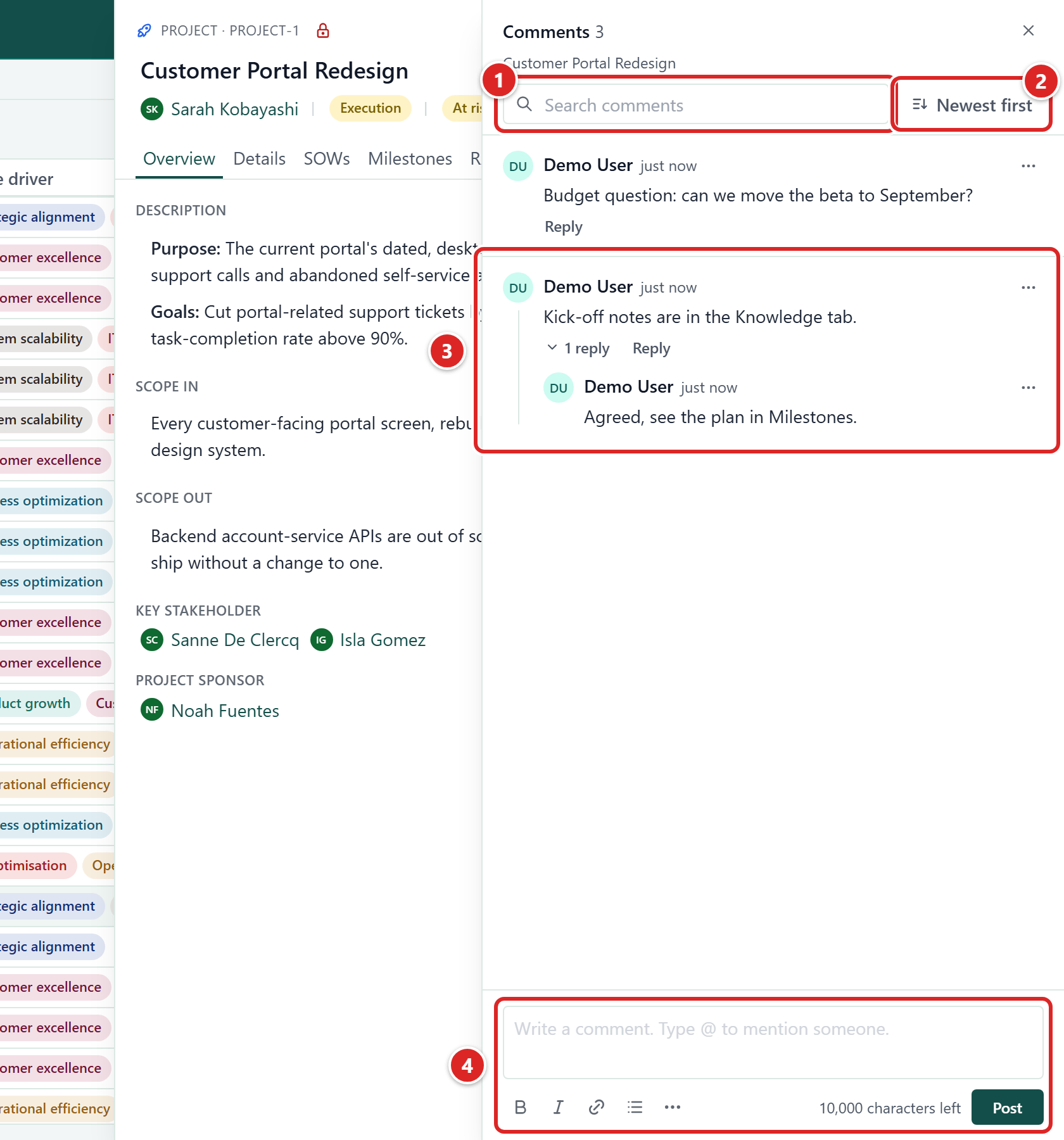
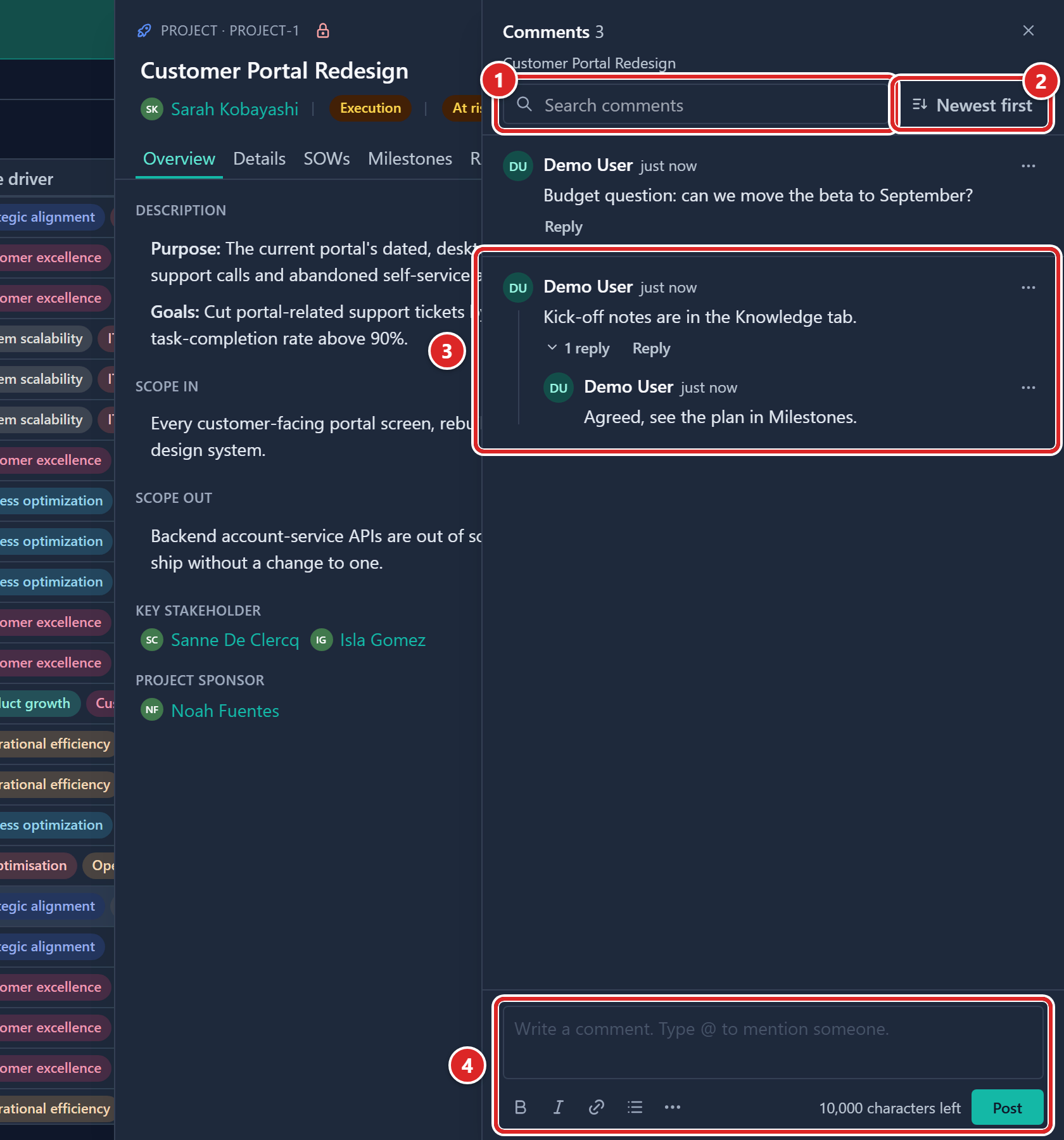
- Search comments.
- The sort button, Newest first or Oldest first.
- A comment, with its reply opened under it.
- The box for a new comment, with its formatting buttons and Post.
The sheet title shows the number of comments and replies. Comments show newest first. Click the sort button to switch to Oldest first. Replies always read oldest first.
A comment with replies shows 1 reply or a count such as 3 replies. Click it to open or close the replies. A long thread shows 50 comments at a time. Click Load followed by a count, such as Load 12 more, to see further comments, or scroll down. A long run of replies has Load followed by a count and replies in the same way.
A thread with no comments reads No comments yet and Start the thread with the first comment below. If you can only read, it reads Comments on this record will show here. If the thread cannot load, you see Couldn't load comments and a Retry button.
Post a comment
- Open the record and click Comments in the panel header.
- Click the box at the foot of the sheet. It reads Write a comment. Type @ to mention someone.
- Type your comment.
- Click Post, or press Ctrl + Enter (Cmd + Enter on a Mac).
Your comment appears in the thread. Enter on its own starts a new line.
A comment holds up to 10,000 characters. A counter next to Post shows how many characters left you have, and turns to characters over the limit if you go past it. You cannot add images or files. A draft you have not posted is kept if you close the sheet, but not if you reload the page.
If a comment is refused, the reason shows under the box:
| Message | What to do |
|---|---|
| Write a comment first. | The box is empty. Type something. |
| A comment holds at most 10,000 characters. Shorten it and post again. | Shorten the text. |
| A mentioned person is not an active member. Remove the mention and post again. | Delete that mention. |
If posting fails for another reason, a toast reads Couldn't post comment.
Format a comment
The buttons above the box are Bold, Italic, Link and Bullet list. More formatting opens a menu with Heading 1, Heading 2, Heading 3, Quote, Underline, Strikethrough, Numbered list and Clear formatting. Select text first, then choose a button.
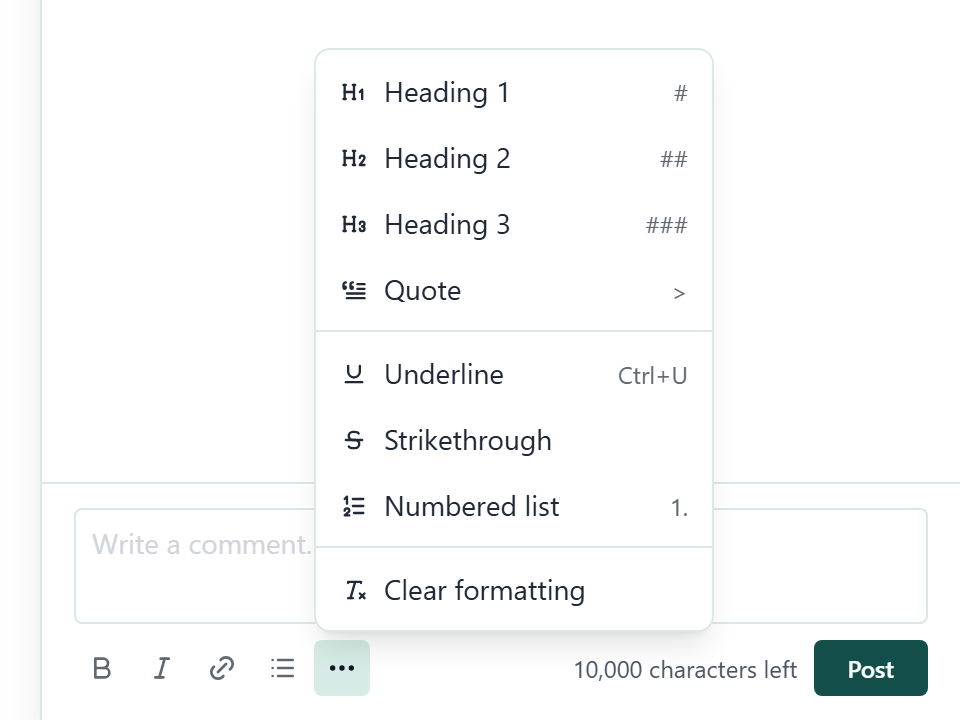
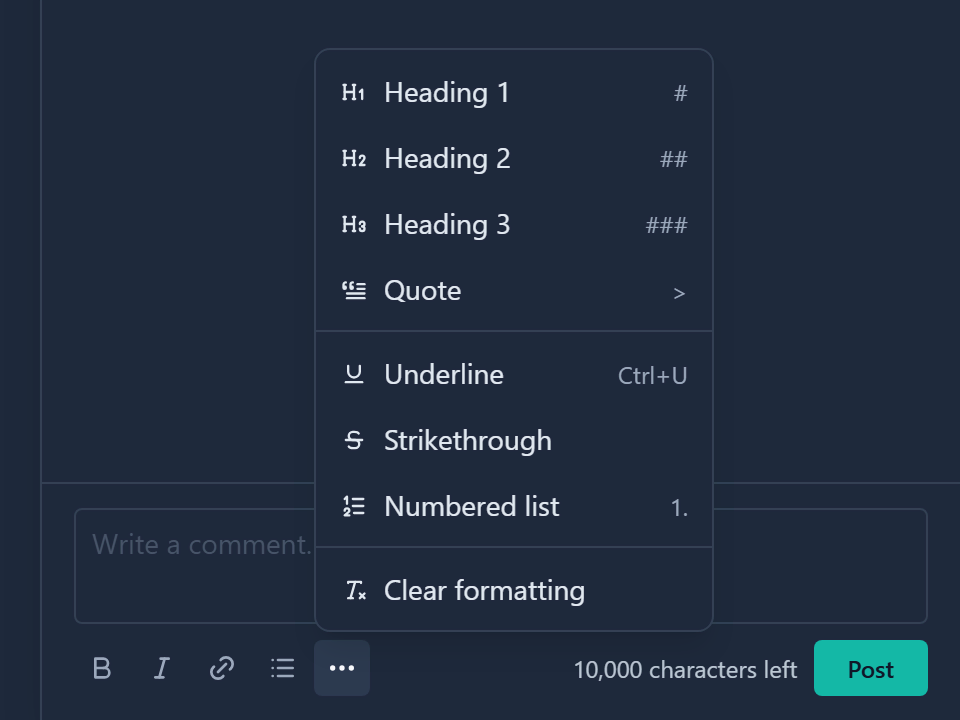
You can also type a shortcut:
| Type | You get |
|---|---|
# then a space, ## , ### at the start of a line | Heading 1, 2 or 3 |
> at the start of a line | Quote |
- or * at the start of a line | Bullet list |
1. at the start of a line | Numbered list |
| Ctrl + B, Ctrl + I, Ctrl + U | Bold, italic, underline |
On a Mac, use Cmd in place of Ctrl.
Mention someone
- In the comment box, type @ and the first letters of a name.
- Choose the person from the People list. It shows each person's picture, name and role, Admin or Member. Use ↑ and ↓ to move, then Enter or Tab to choose.
- Finish the comment and click Post.
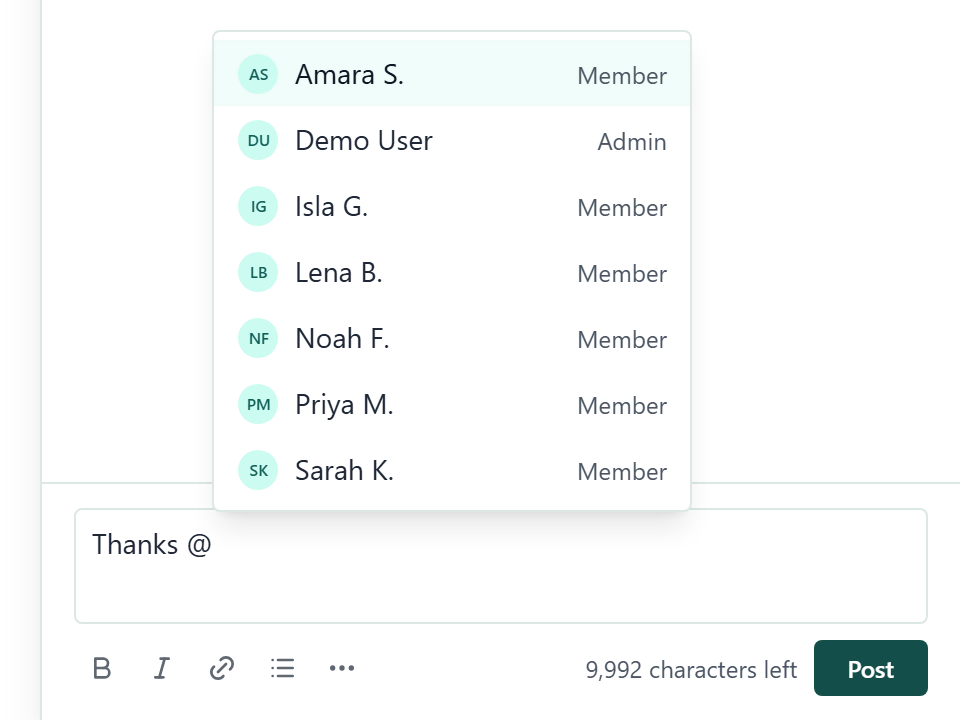
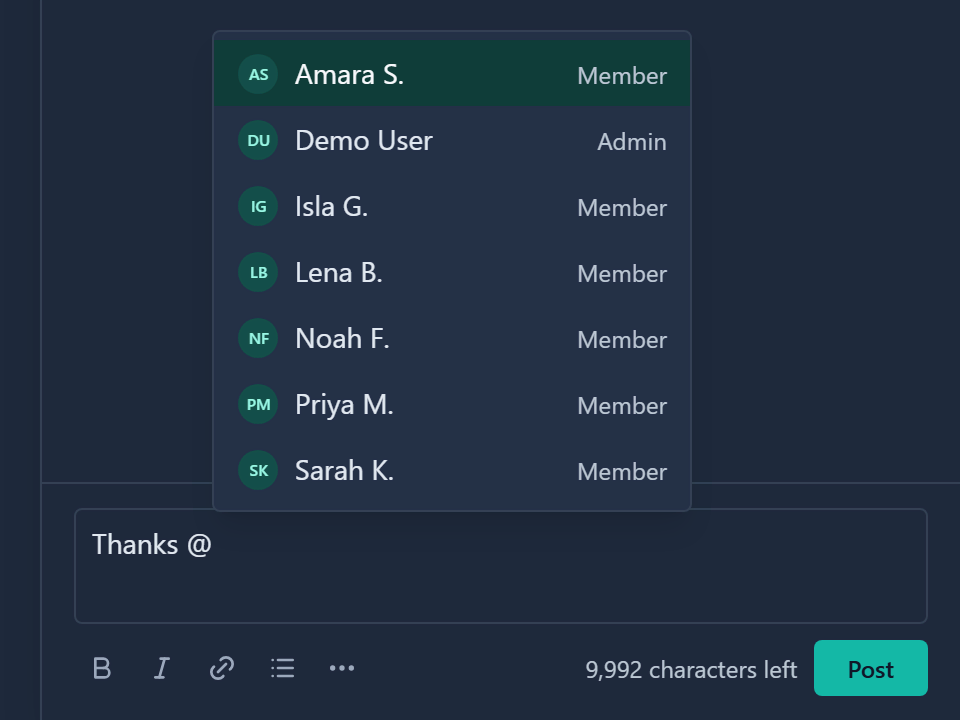
Press Esc to close the list without choosing. If nobody fits, the list reads No matching members. Only active members can be mentioned. A mention always shows the person's current name, even if they are renamed later.
Reply to a comment
- Click Reply under the comment.
- Check the banner above the box, which reads Replying to followed by the author's name. Click Cancel reply if you chose the wrong comment.
- Type your reply in the box, which reads Write a reply, and click Post.
Replies go one level deep. A reply cannot have replies of its own, so reply to the comment above it instead.
Edit or delete a comment
Point at your comment and open its Comment actions menu. It offers Edit and Delete.
- Open Comment actions on your comment and choose Edit.
- Change the text in the box that opens in place.
- Click Save, or Cancel to keep the original.
An edited comment shows edited and the time next to its author. Only the author can edit a comment. Admins cannot edit other people's.
To delete, choose Delete and confirm in the dialog, titled Delete comment or Delete reply. What happens depends on the comment:
- A comment that has replies stays in the thread as Comment deleted and the time, so its replies keep their place.
- A comment with no replies, or a reply, is removed.
- Deleting the last reply under a deleted comment removes both.
A deleted comment cannot be edited or replied to. If something goes wrong, a toast reads Couldn't edit comment or Couldn't delete comment.
With the Delete level, as Admins have, Comment actions also shows on other people's comments when you point at them or move focus to them, and offers Delete only.
Search a thread
Type in Search comments at the top of the sheet. The search looks at the text of comments and replies, never at author names. The sheet title then shows a count such as 3 matching. A reply that matches shows under its parent comment.
If nothing matches, the sheet reads No comments match followed by your search, and explains that search looks at the text, not at author names. Click Clear search or press Esc to bring the full thread back.
Good to know
- Posting, editing and deleting a comment are recorded in the Activity log as Comment posted, Comment edited and Comment deleted. The entries hold no comment text. See Activity history.
- Deleting a record deletes its comments and replies. Duplicate does not copy them.
- Risks, Assumptions, Issues, Dependencies, Decisions, Objectives, Key Results, Tasks, Sub-tasks, SOWs, Milestones and Knowledge entries take their comment level from the records they sit under, through the Comments on rows in Access control.
- Pulse has a Comment field. That is an ordinary field, not record comments.
- People you can mention come from the active members of your workspace. Anyone signed in can find them in the list, even though the Members page is for Admins only.