
Skills
- Purpose
- Record how strong each person is at each skill, and find people by skill.
- Who is this for
- Everyone
- Prerequisites
- At least one staff member. Skills must be added to the catalogue before anyone can be rated.
- Permissions
- View access to Skills to read. Manage access to Skills to add skills and change levels.
Skills answers one question: who knows what, and how well. You keep a catalogue of skills, rate each person from 0 to 5 on each one, and then read the result as a matrix, as a chart on a person's record, or as a filter on the Staff and Allocation pages.
How it works
A skill is a named capability, for example HTML, Stakeholder management or Kubernetes. Skills are records, so they have a record panel, tabs, filters and any custom fields your admin adds.
Every skill belongs to at least one category, such as Frontend or Communication. A skill can belong to several categories and counts in each of them.
A level is a whole number from 0 to 5 for one person on one skill. Each level has a name:
| Level | Default name |
|---|---|
| 0 | None |
| 1 | Novice |
| 2 | Advanced beginner |
| 3 | Competent |
| 4 | Proficient |
| 5 | Expert |
A level of 0 means the person does not have the skill. A skill nobody has rated is the same as 0, and a 0 shows as a grey Not filled. A level is only a number, with no panel, comments or history of its own.
A category score rolls a person's levels in one category into one number, shown to one decimal. It is the average of their levels for the skills in that category, counting zeros. Category scores are calculated, so you cannot edit them. Because a skill can sit in several categories, category columns overlap and do not add up to a grand total.
Open the page
Click Skills in the left menu. The page has tabs, a search box, Filter, Customise and Download, and works like other tables. See Customise your table view. It starts with three tabs:
- All skills is the skill catalogue.
- All roles lists job roles. See Roles.
- Staff's skills is a pinned tab that shows the skills matrix.
All skills and All roles cannot be renamed or deleted.
Switch list or matrix
Open Customise and set Visualisation to:
- List: the catalogue, one row per skill, with its name, description, categories and how many staff hold it.
- Skills matrix: staff down the side, skills across the top, each cell shaded by level. Stronger levels are darker. People with no ratings still appear, so you can rate them straight from the grid.
In the matrix, the Columns show setting switches the columns between individual skills and Categories. In category view each cell is the person's category score and is read-only.
Add a skill
- Open the Skills page on the All skills tab.
- Click Add Skill. The button is there in both the list and the matrix. The Add dialog opens.
- Enter a Name, an optional Description and one or more Categories.
- Click Add. The skill appears in the catalogue and a message reads "Added (name)".
Click the message to open the new skill.
A skill cannot be saved without a category. To add a new category, an admin edits the options of the Category field on the Skill entity. See Entities and custom fields. A category cannot be removed while a skill has no other category.
Rate a person
- In the Skills matrix, click the cell where the person and the skill meet.
- Pick a level. It saves straight away.
To rate from a person's record instead:
- Open the staff record and go to the Skills tab.
- Switch to Table view.
- Find the skill and pick its level. It saves straight away.
A level outside 0 to 5, or a blank one, is refused with the message "Level must be a whole number between 0 and 5", and the previous value stays.
Read the Skills tab
At the top of the tab, Current role and Target role sit side by side. Edit them in place. See Roles.
Below them are a search box and a Chart view and Table view toggle.
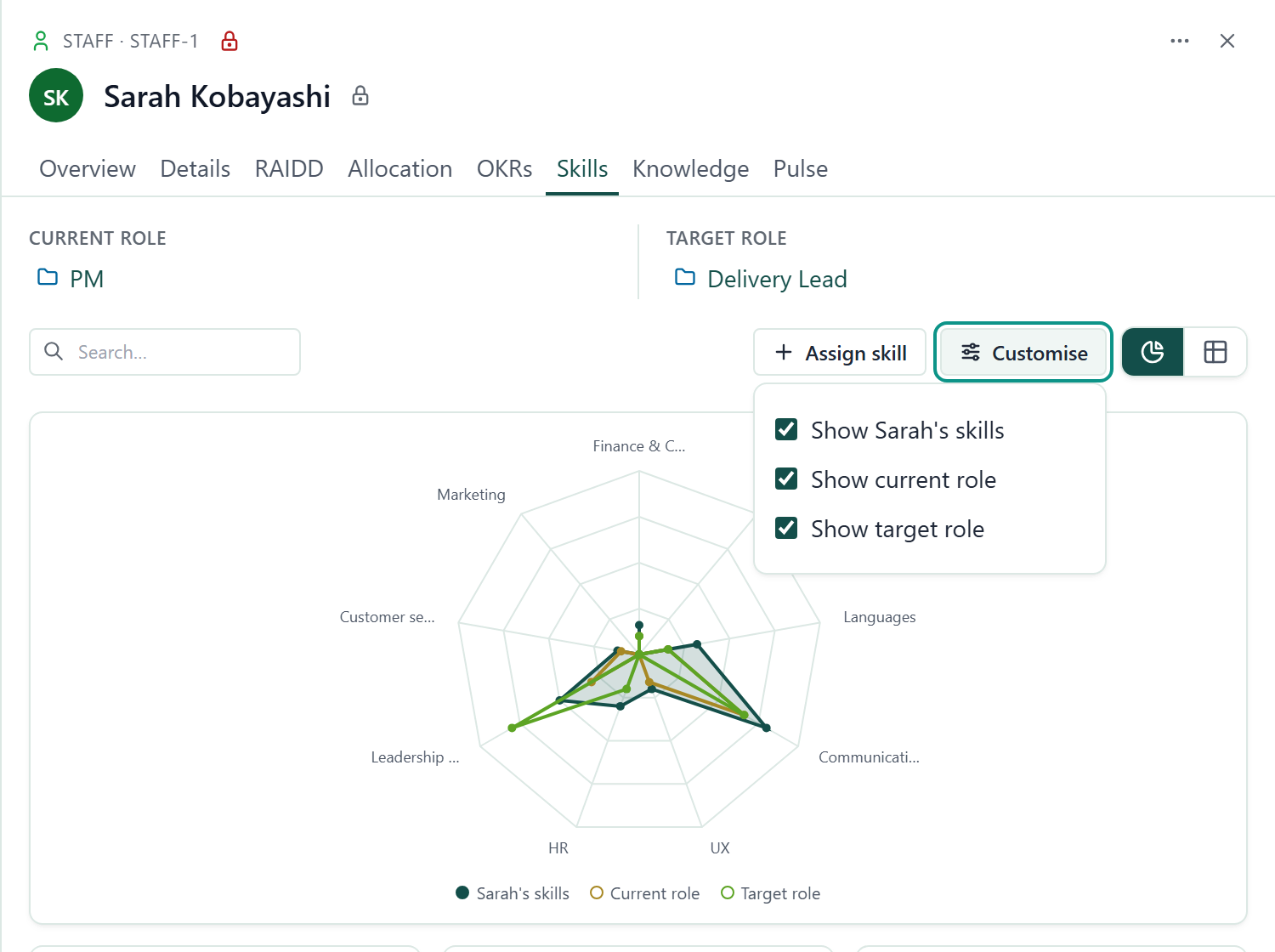
- Chart view draws one overall radar with an axis per category, then a radar for each category with an axis per skill. All charts use the same 0 to 5 scale, so shapes are comparable.
- Table view lists skills grouped by category. Each skill row has the level picker. Tick Hide empty skills and categories to leave out what is unrated.
A category with only one or two skills still gets a radar. It is padded to three axes with dashed spokes that carry no label.
The person's own line in a radar is named after their first name, for example "Sarah's skills". If the record has no name to use, it reads "My skills".
If the person has a current role or a target role, the table also shows the gap to that role, and its footer shows Avg for each column. See Roles.
Choose radar lines
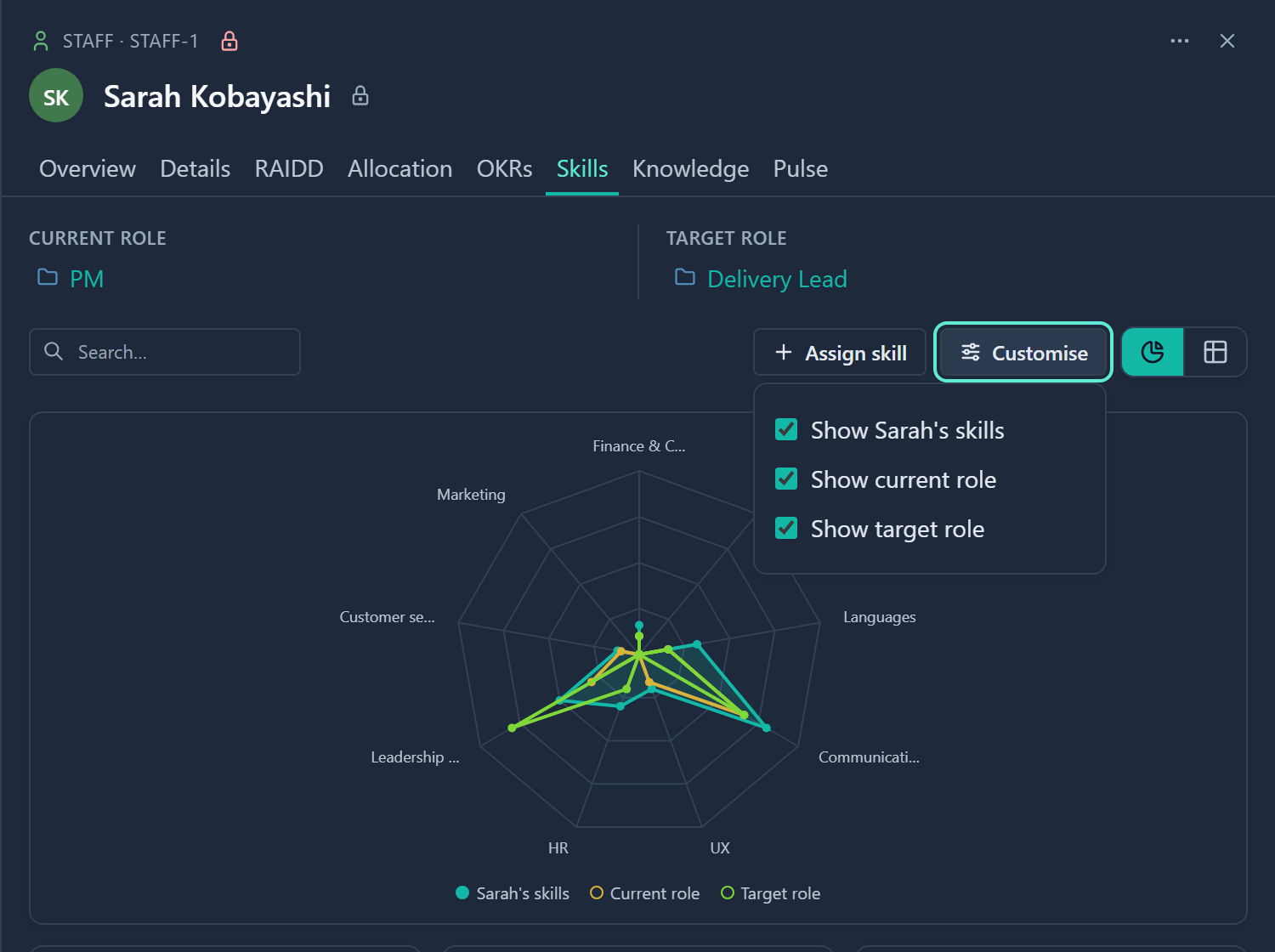
If the person has a current or target role, a Customise button appears in Chart view.
- Click Customise. A small panel opens.
- Tick or clear Show (first name)'s skills, Show current role and Show target role. The radars change at once.
Each radar has a legend below it that names its lines. The legend stays even when only one line is shown.
All three lines are on to start with. The choice applies to every radar on the tab and is remembered in your browser. It is not saved on the record.
Assign a skill to a person
- On the Skills tab, click Assign skill. The Assign skills to (first name) dialog opens.
- Choose a skill. A skill the person is already rated on shows a coloured Level N tag at the right of its row.
- Choose a Level. If the person already has a level for that skill, it is filled in for you.
- Click Assign skill, or Update skill when the person already has a level. The level is saved.
Find who has a skill
Start from a skill
- Click a skill name to open its record.
- Open its Staff tab. Who has this skill lists each person with their level, and you can change a level there.
- Optional: click Show all Staff to include people who do not have the skill yet.
A skill record also has a Links tab, which lists any typed links the skill has to other records. See Link records.
Start from a question
- Click Filter on the Skills, Staff or Allocation page.
- Open the Skills tab.
- Pick a skill or a category and a rule on its level, such as React is at least 4.
- Optional: add rules on other tabs, such as department, to combine them.
- Click Apply. On Skills and Staff, the rows narrow to matching people.
On Allocation, the staff shown narrow too, and so do the allocations that add up from them. Level rules mean:
| Rule | Meaning |
|---|---|
| At least 1 | The person has the skill at all. |
| Equals 0 | The person does not have it. |
| A category rule | It tests the category score. |
On the Skills page, Filter has a Skill fields tab as well. Rules there, such as Category contains Frontend, narrow the columns instead. The Staff fields tab narrows the rows by staff details.
Save as a tab
Each tab on the Skills page remembers its display, column setting, filters and sort. Create tabs as described in Create and manage tabs. Click Download to export the grid.
Good to know
- Comments are off for Skills by default. An admin can switch them on under Administration → Features. See Comment on a record.
- You only see people's skills on records you are allowed to view. When a skill filter is active, people whose skills you cannot see are left out.
- Changing a level saves immediately. If it fails, the old value returns and you are told.
- An admin can switch Skills off. Roles, the role fields on Staff and the Skills filter tabs are then hidden, and no data is deleted. See Turn features on or off.
- The names of the six levels, and the way category scores are worked out (an average), cannot be changed in the app.
- On a Skills tab in table view, a level for a skill you cannot read shows as a locked row named Restricted, under a Restricted category. It keeps the level but hides the skill. Chart view and the Skills matrix leave it out, and the gap columns ignore it.