
Terminology
- Purpose
- Rename any entity, such as Project or Task, to the words your organisation uses, in each supported language.
- Who is this for
- Admins
- Permissions
- Admin role.
Every table in Gembaa has a singular and a plural name, such as Project and Projects. You can change those names to match how your organisation talks, for example Epic and Epics. The new names appear in the left menu, buttons, page titles, counters, field labels and exports.
Other pages in this manual use the default names. If your workspace uses different names, read them as your own terms.
How it works
Terminology only changes what people read. Nothing is renamed underneath, so existing records, relations, formulas and imports keep working.
The original name stays on the Entity & fields page in brackets after the new name, as "(originally Task)" for example, and in the tab's hover text.
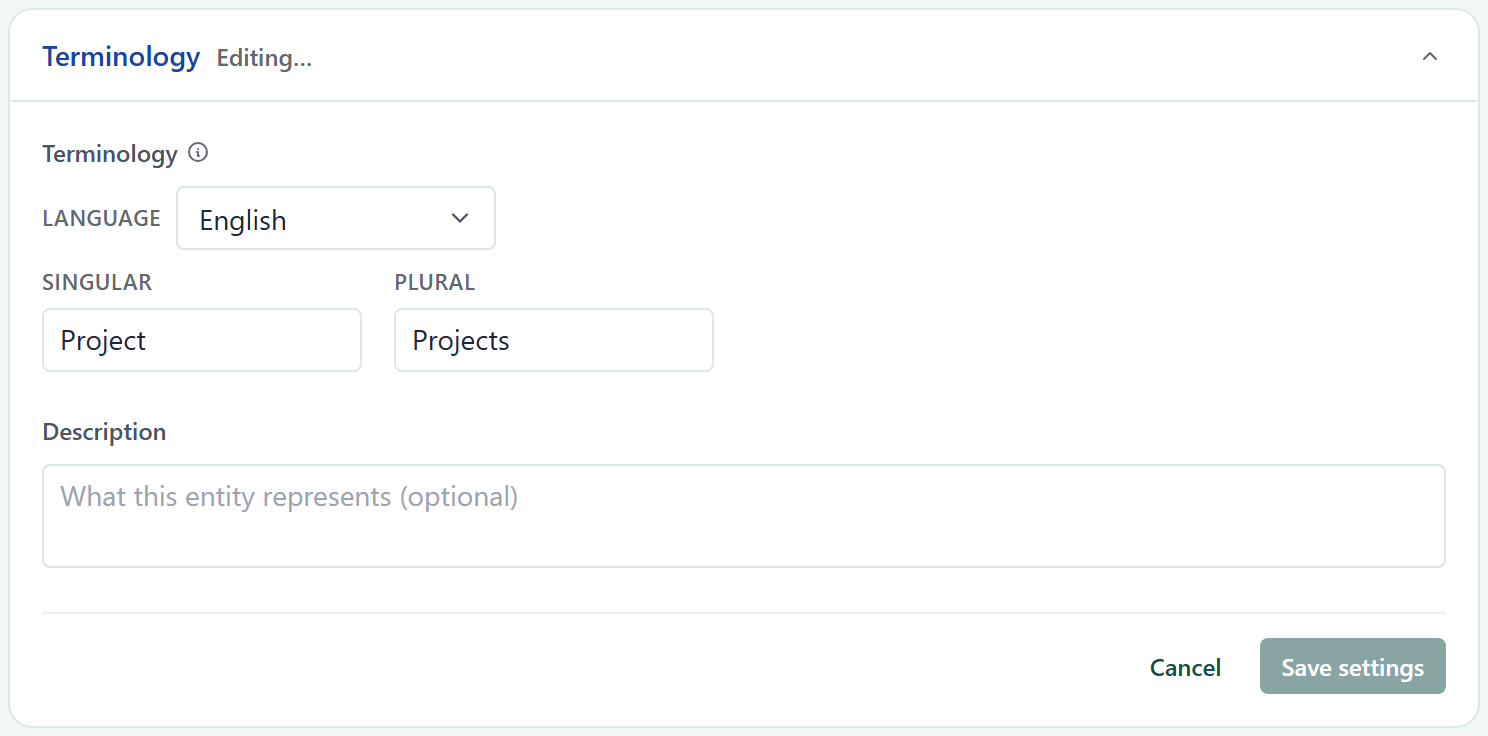
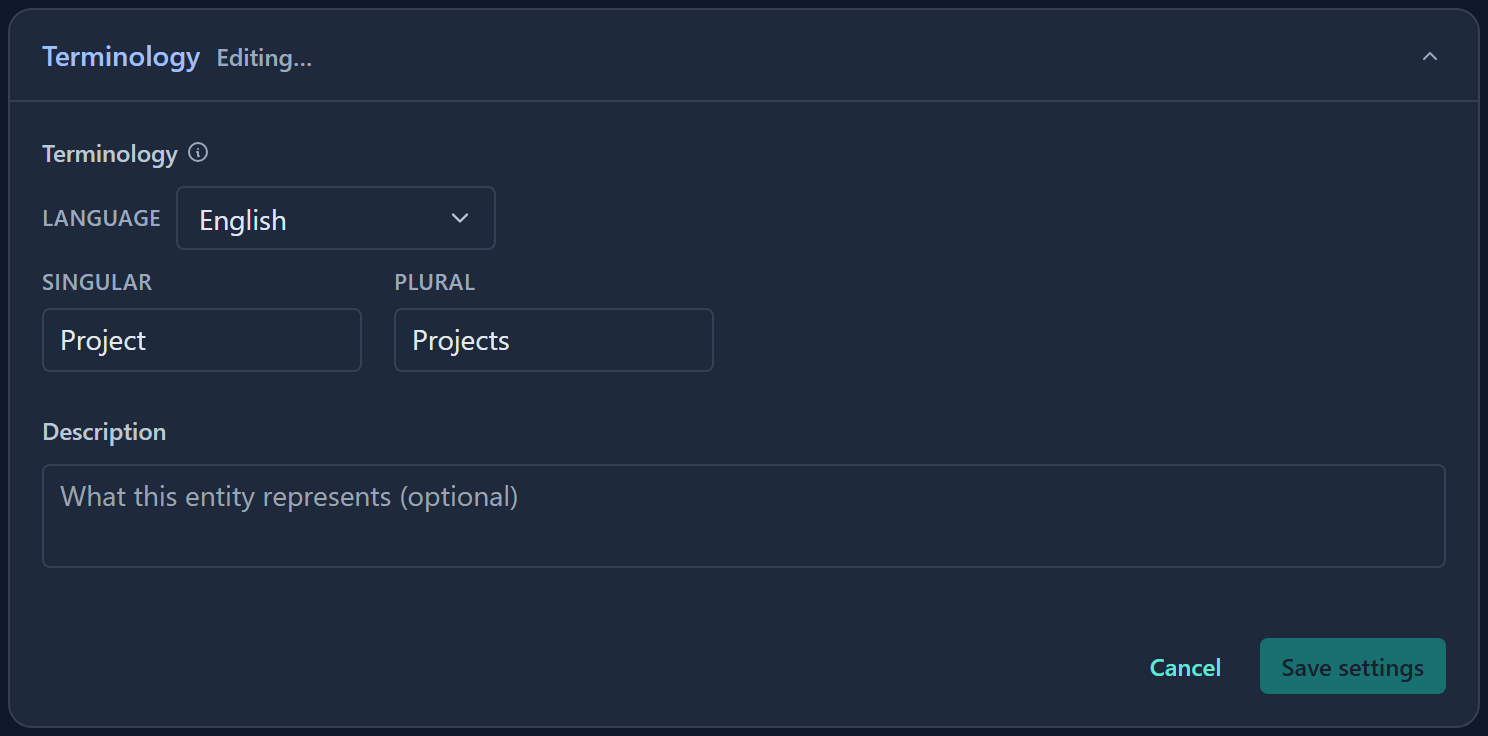
The Terminology card on each entity's tab holds these settings:
| Setting | What it does |
|---|---|
| Language | The language you are editing. English and French are supported. Names are stored per language. |
| Singular | The name for one record, such as Project. Required, up to 60 characters. |
| Plural | The name for several records, such as Projects. Required, up to 60 characters. |
| Description | Optional, up to 500 characters. Hover text for the entity's item in the left menu and for its tab on the Entity & fields page. |
A person sees the name for their own language. If that language has no name for an entity, they see the English name. Icons and colours do not change when you rename an entity.
Rename an entity
- Open Administration → Entity & fields.
- Select the entity's tab.
- Click the Terminology card header to open it. The card is collapsed until you do.
- Click Edit.
- If you are not editing English, pick the language in Language.
- Enter the Singular and Plural names.
- Optional: add a Description of what this entity represents.
- Click Save settings. A toast confirms Updated terminology and the new names show everywhere straight away, with no reload.
Click Cancel to discard your edits.
Change the ID prefix
The ID prefix is the short code at the start of every record's ID, such as RISK in RISK-12. It is not on the Terminology card. It lives on the entity's ID field, and it must be unique across entities. See Change the ID prefix.
Use terminology in field names
A field name can include another entity's name so that it follows renames.
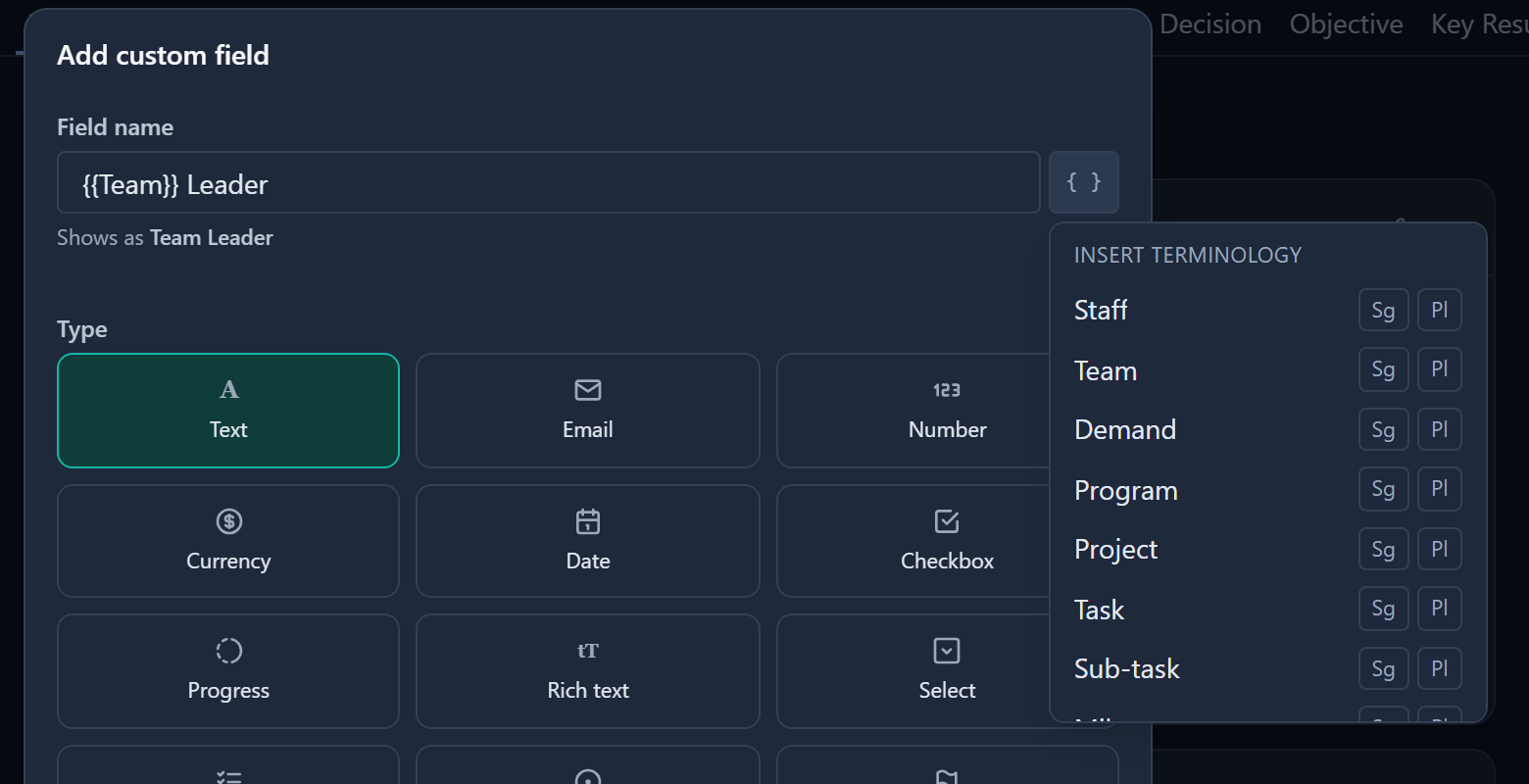
- In the Add custom field dialog or a field's settings, click the braces button beside the name.
- In the Insert terminology menu, find the entity and click Sg for its singular name or Pl for its plural name. A token such as
{{Team}}or{{Team:plural}}is added to the name. - Check the Shows as preview under the name, which displays the resolved label.
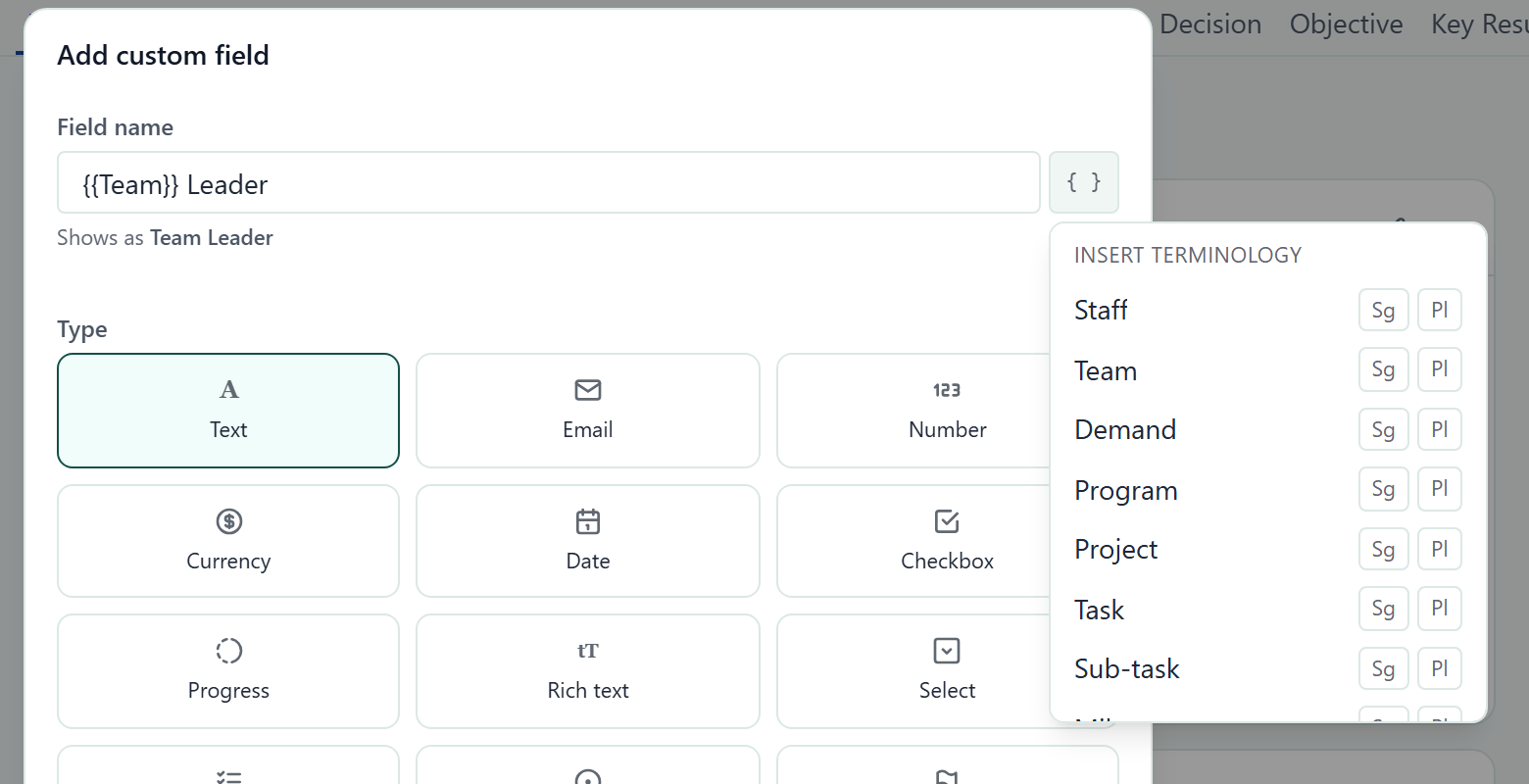
For example, a Staff field named {{Team}} Leader shows as "Squad Leader" once Team is renamed Squad. See Entities and custom fields for creating fields.
Good to know
- Entity pickers (for example when you choose what a relation field links to) show the new names.
- Export files use the new names for sheet names and entity-level column headers.
- Each person can also choose their own language, see Your settings. The workspace default language is set on Administration → General.
- Changes to terminology are recorded in the Admin activity log.
- The left menu rows follow terminology too, see Arrange the left menu.
- Switching the language while you have unsaved edits discards them without asking, so save first.