
Data and seed profiles
- Purpose
- See which data profile your workspace carries and, when you need to, replace everything with a sample or empty starting point.
- Who is this for
- Admins
- Permissions
- Admin role.
A seed profile is a ready-made set of workspace data. Applying one replaces the records, views and settings in your workspace with the profile's contents. You use it to start a trial from a clean slate, to load sample data for a demonstration, or to reset a test workspace.
Open Administration → Data to see it. This is the only place in Gembaa where data is deleted in bulk.
How it works
The page shows a Current profile card with the profile name and when it was applied. If nobody has applied a profile to your workspace yet, the card says Unknown.
Below it is one card for each profile available in your workspace. Each card shows a name, a short description and badges:
| Badge | Meaning |
|---|---|
| Current | This is the profile most recently applied. |
| Sample data | The profile loads example records. |
| No data | The profile loads nothing except the starting configuration. |
| Demo personas | The profile comes with demo user personas (used for demonstrations). |
Typical profiles are a demo profile with sample data and an empty profile, which is the starting point for a new customer. The exact list depends on your deployment. A profile only recreates the built-in entities and their fields. It never adds an entity of its own.
Apply a seed profile
Replaced and kept
Replaced with the profile's version:
- All records, including their links, relations, comments and attachments
- Entity setup: custom fields, layouts, Terminology and link types
- Saved views, tabs, preset tabs and dashboards
- Themes
- Allocations, finance, Pulse and skills data, with their settings
- Roles, grants, restrictions and role assignments
- The activity log (it starts again with an entry for the apply)
- Personal preferences, such as the first-run onboarding state
Kept:
- Every user account, with the same base role
- Access groups and their members
- Directory groups and the links between your users and your identity provider
- Workspace settings, such as General and Features, with one exception: the Comments setting for Skills goes back to off, and the default comments permission rows are recreated
After the switch, Gembaa creates a Staff record for each active user, matched by email address to the profile's Staff records where one exists, and links it to the user. Deactivated users get no Staff record.
If the profile has an access group with the same name as one you already have, both exist afterwards. Merge or delete one by hand.
- On the card for the profile you want, click Apply.
- Read the dialog titled Apply followed by the profile name (for example Apply Demo). It lists what is deleted and what is kept.
- In the box labelled Type Delete to confirm, type
Delete. The word must match exactly, with a capital D and no spaces. - Click Apply. If the text is wrong, the dialog stays open and shows Type Delete exactly.
- Wait while the Applying profile panel runs. You cannot navigate away while it runs.
- When it finishes, a message says Applied and the profile name followed by profile, and Gembaa reloads at the home page.
To reset the workspace to a clean copy of the profile it already has, click Apply on the current profile.
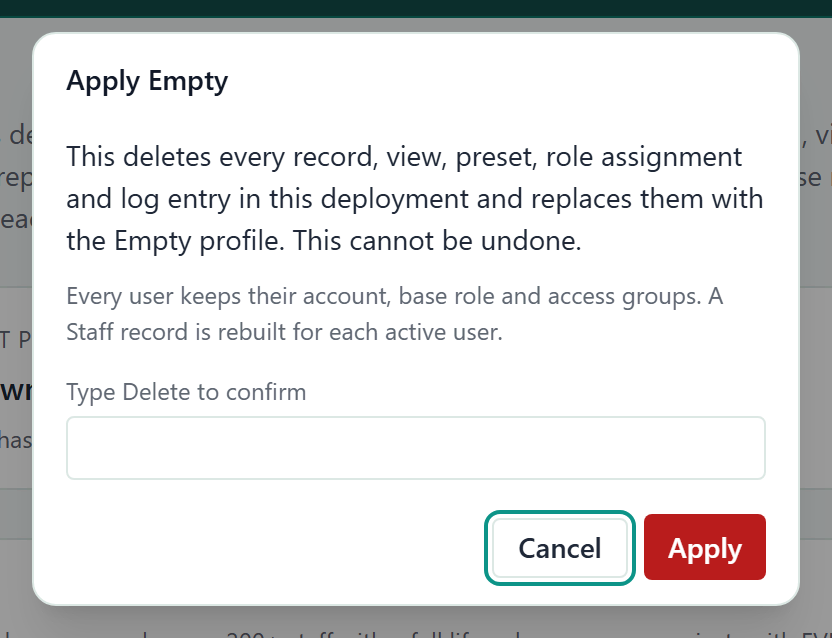
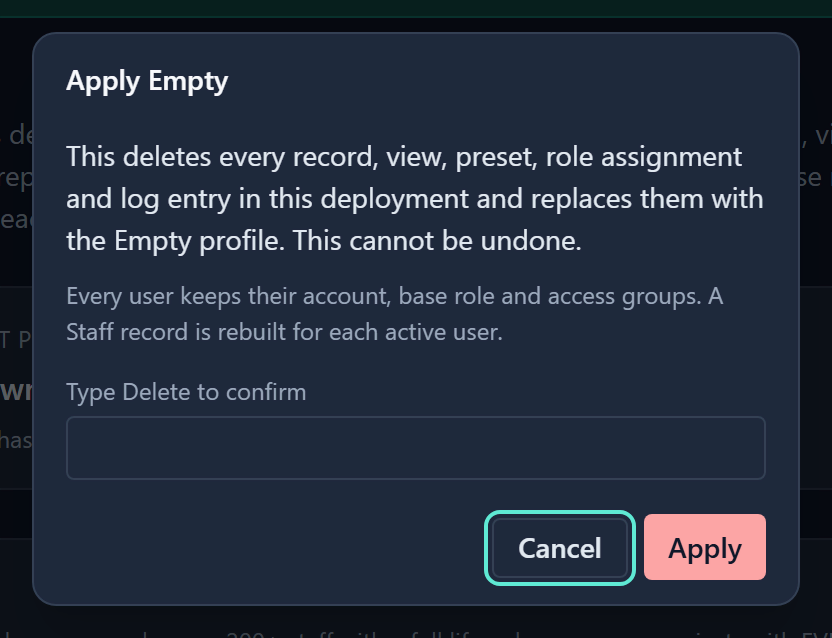
The Applying profile panel shows three phases in turn: Wiping workspace, Restoring the profile, then Finishing.
After you apply the empty profile, the first-time onboarding appears again, because personal preferences were cleared.
Fix an apply error
If the apply fails, the panel closes, a red banner explains why, and nothing changes. The switch is all or nothing.
| Message | What to do |
|---|---|
| Another apply is already running. Wait for it to finish, then reload. | Another admin started an apply. Wait, reload, then check the Current profile card. |
| A database migration is pending. Apply it first, then switch the profile. | Your deployment has an update waiting. Ask whoever runs your Gembaa deployment to finish it. |
| This profile would change the built-in entities (names). Nothing changed. | The profile defines an entity that Gembaa does not ship. Use a different profile. |
| The profile could not be applied. | Try once more. If it repeats, ask whoever runs your Gembaa deployment to check, and give them the time you tried. |
Good to know
- Other people can keep working while an apply runs. They see the old data until it finishes and the new data after it.
- The apply is recorded in the Admin activity log as Profile applied.
- Your users, their sign-in and their roles are untouched, so nobody needs to be invited again. See Members, SSO and provisioning.