
Delete a project
Delete a project to remove it from the platform permanently, ensuring your project list stays organized and only active projects are displayed.
📝Overview
Purpose
- Remove projects that are no longer relevant or needed in the platform
Who is this for
- PMOs or leads responsible for maintaining the project table list
Pre‑requisites
- Projects already existing in the platform
Permissions required
- Manage access to the Projects module
📹Demo walkthrough
💭How‑to guide
Step 1: Locate the Project
- Scroll through the Projects table to find the project you want to delete OR
- Use the Quick Search feature on the upper left to search for the project
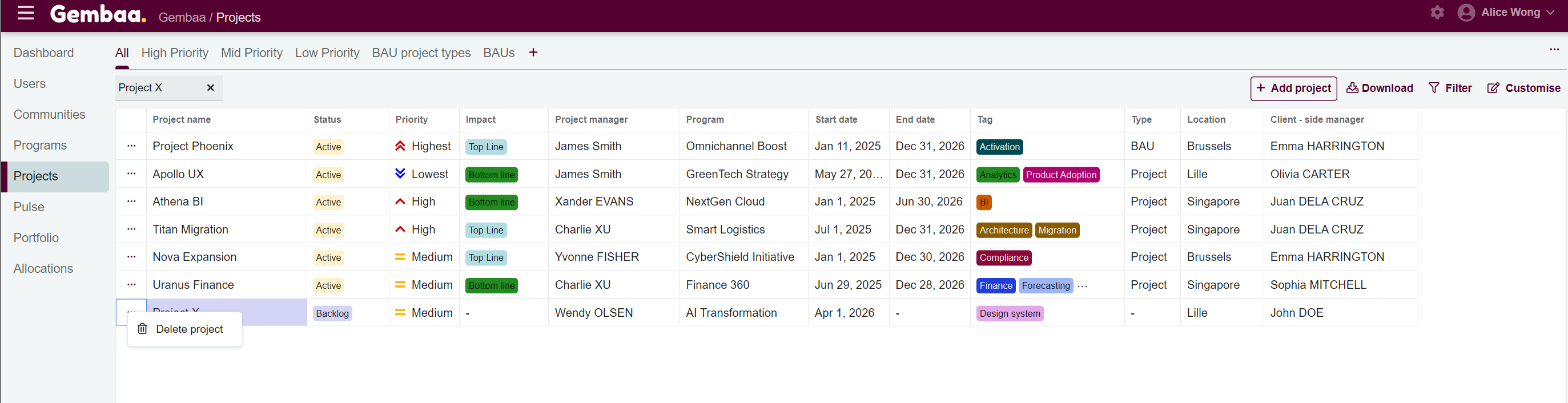
Step 2: Click the '...' on the left-most column of the table
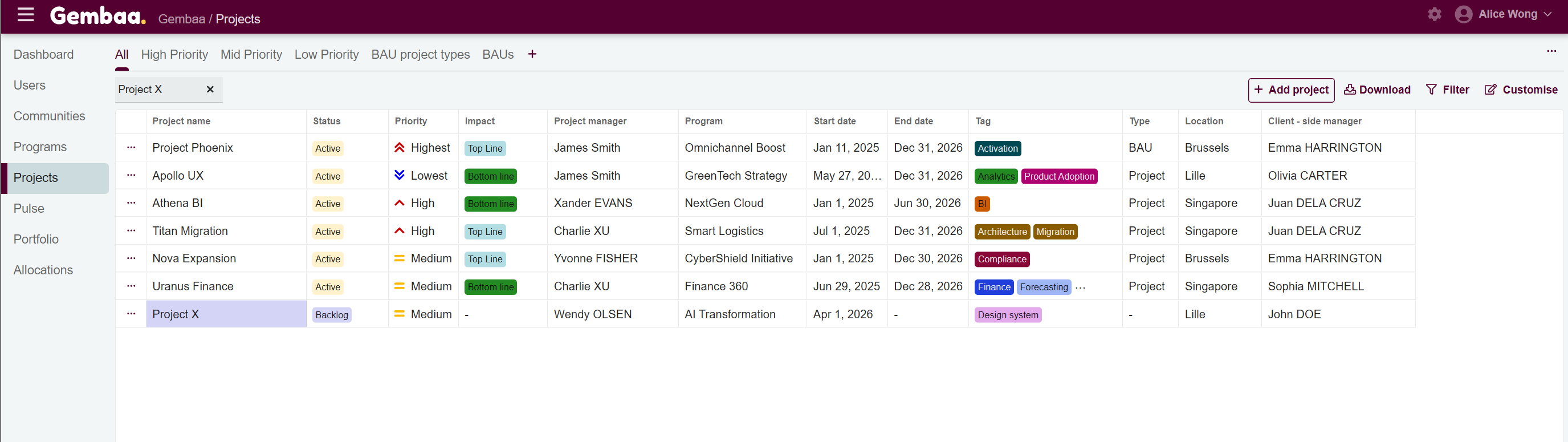
Click the three-dot '...' menu (ellipsis) next to the project name column on the left, select 'Delete project'
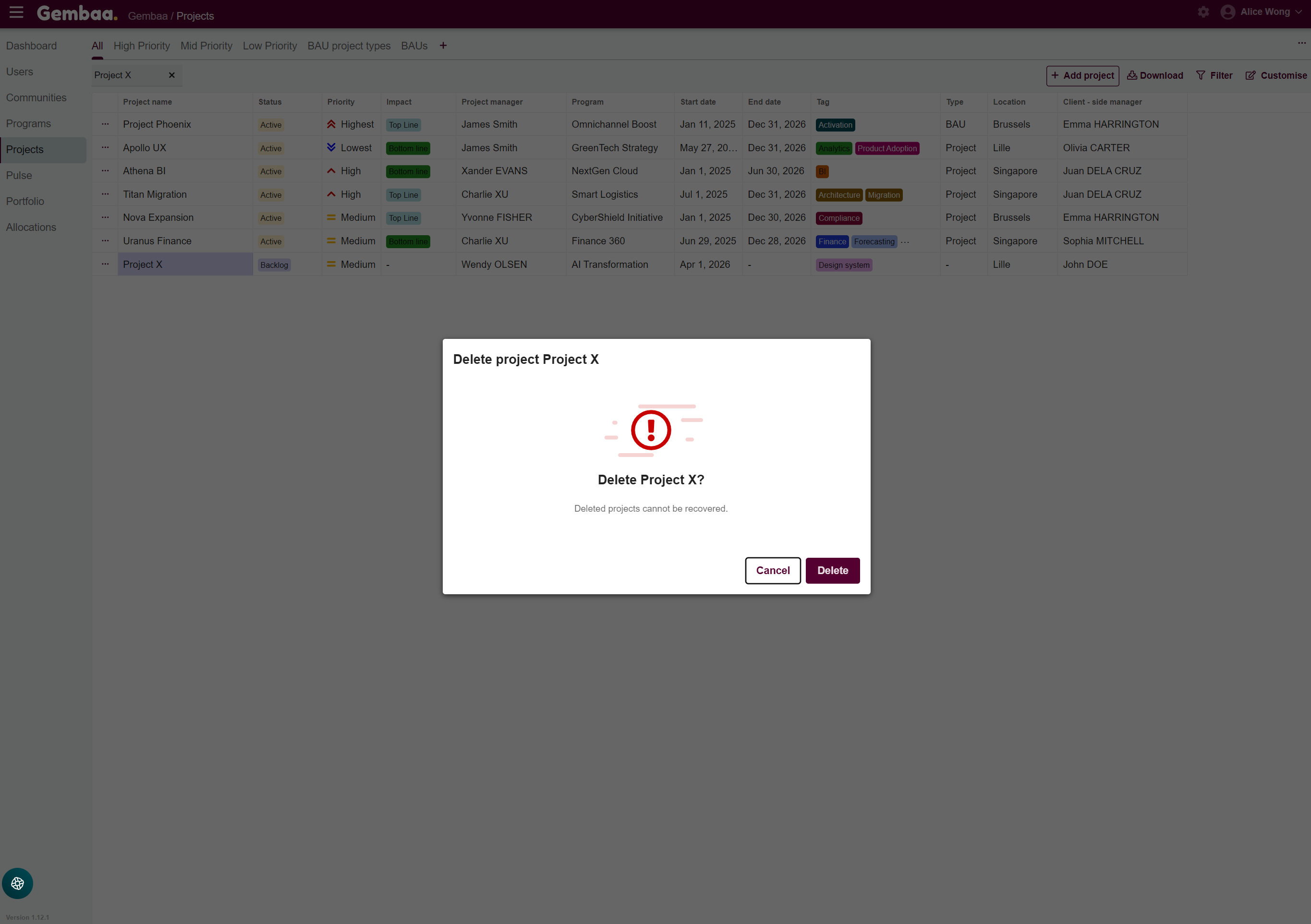
Step 3: Confirm and verify deletion
A confirmation dialog will appear to prevent accidental deletion, review the project name and click 'Delete' to permanently delete the project.
⚠️ Disclaimer:
Deleting a project is permanent. All related allocations, milestones, and activity logs may also be removed. Ensure you have exported or saved any necessary information before proceeding