
Configure platform theme & colors
📝Overview
Purpose
- Customize the platform's visual identity to match your organization's branding
- Enhance adoption and user experience with recognition through consistent theming
Who is this for
- System administrators responsible for platform configuration
- Organizations that have brand colors available
Pre‑requisites
- Admin access to the platform
- (Recommended) Defined brand color palette
Permissions required
- Admin access to the Admin panel
- Permission to manage Theming settings
📹Demo walkthrough
💭How‑to guide
Step 1: Open the Admin Panel
As an admin, click the gear icon beside your profile name, this opens the Admin panel.

Step 2: Navigate to Theming
From the Admin panel navigation menu on the right, select Theming. Upon clicking, you will see two tabs for Light theme and Dark theme configurations
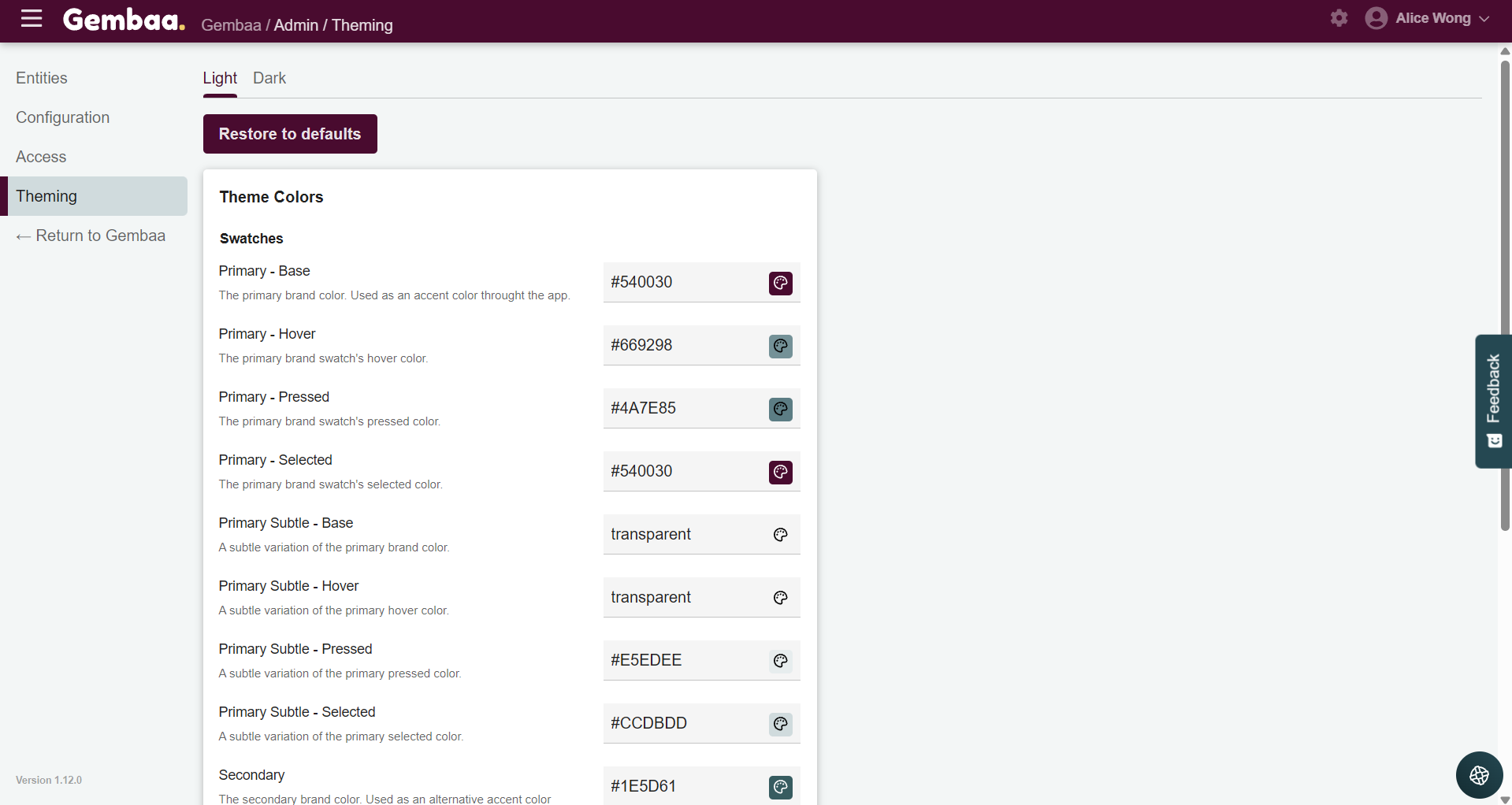
Step 3: Select the category you want to update
Choose the UI item you want to update under each category (Swatches, Surfaces, Functional).
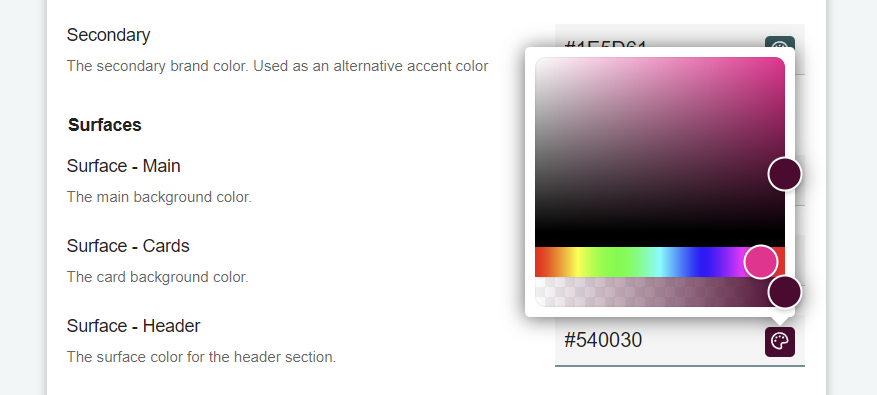
For this example, we will focus on light theme and updating the header color names Surface - Header.
You can update the colors in two ways:
- Color picker by hovering the paint icon
- OR directly pasting a HEX code
Step 4: Explore before publishing
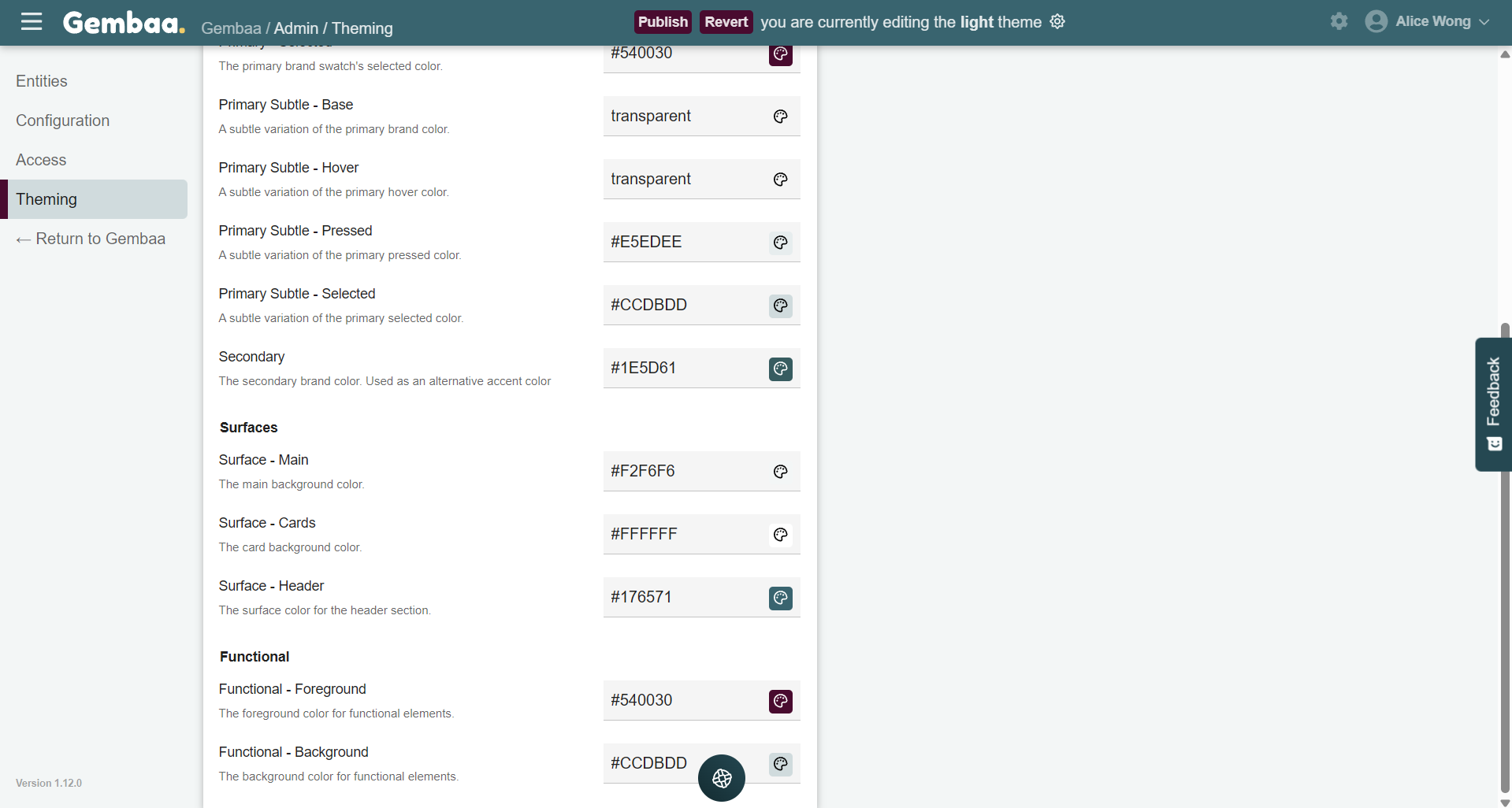
Any changes made are applied instantly across the interface for preview but changes are not yet published to all users, allowing you to experiment safely.
For this example, we're changing the header from #540030 ➡️ #176571
Step 5: Publish changes
Once you're ready with the changes made click Publish in the middle of the header menu to apply the changes to all users
