Delete an allocation
Remove a staff member’s allocation from a project when it is no longer required or relevant.
📝Overview
Purpose
- Remove existing staff allocations when project plans change
- Ensure allocation data stays accurate across projects, staff, and time periods
Who is this for
- PMOs managing allocations and resourcing changes
Pre‑requisites
- At least one existing allocation is already created
- Familiarity with navigating the Allocations data grid
Permissions required
- Access and permission to manage allocationsType your content here.
📹Demo walkthrough
💭How-to guide
Step 1: Locate the staff member
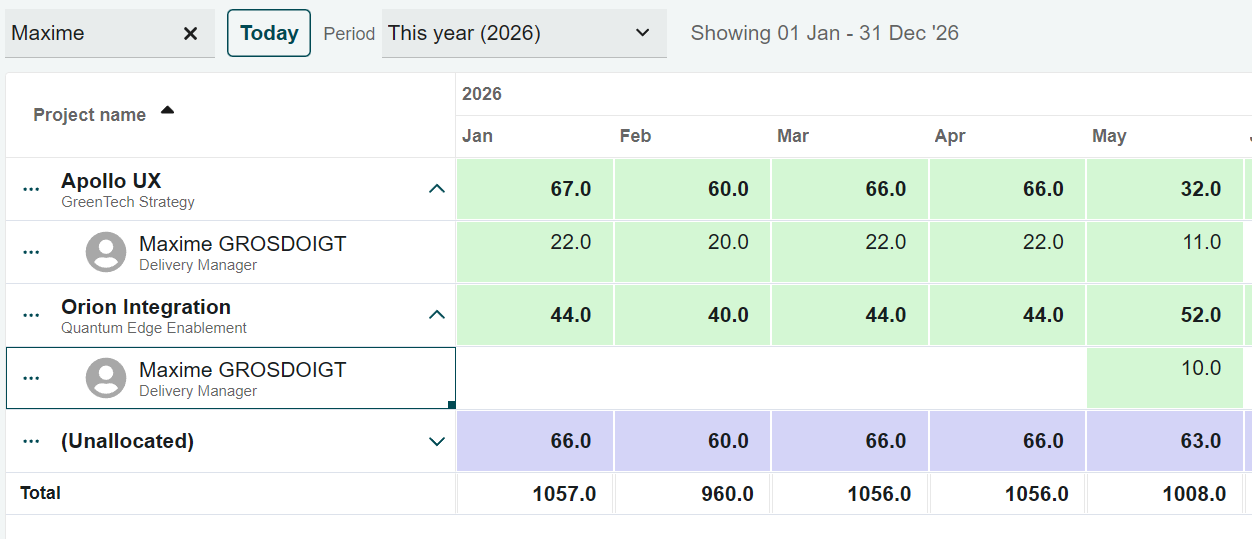
Find the staff member whose allocation you want to delete in the data grid
💡 Tip:
Use the quick search to find the project or staff faster.
Step 2: Select the allocation period
Similar to Excel, click and drag across the cells for the period you want to delete. A movable action bar appears once a valid selection is made.
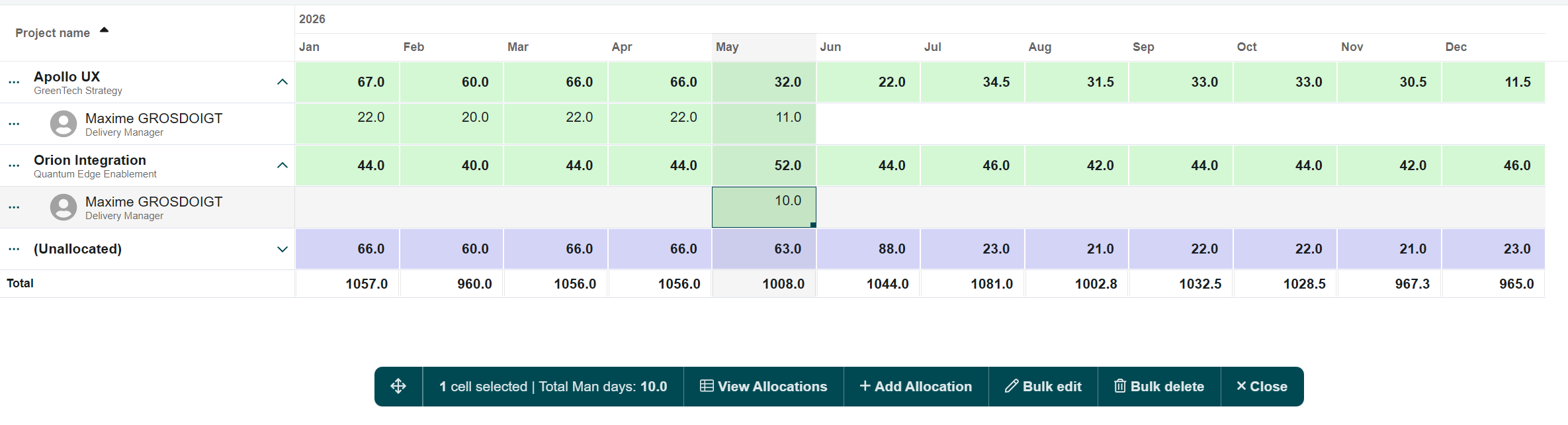
Step 3: Select Bulk delete
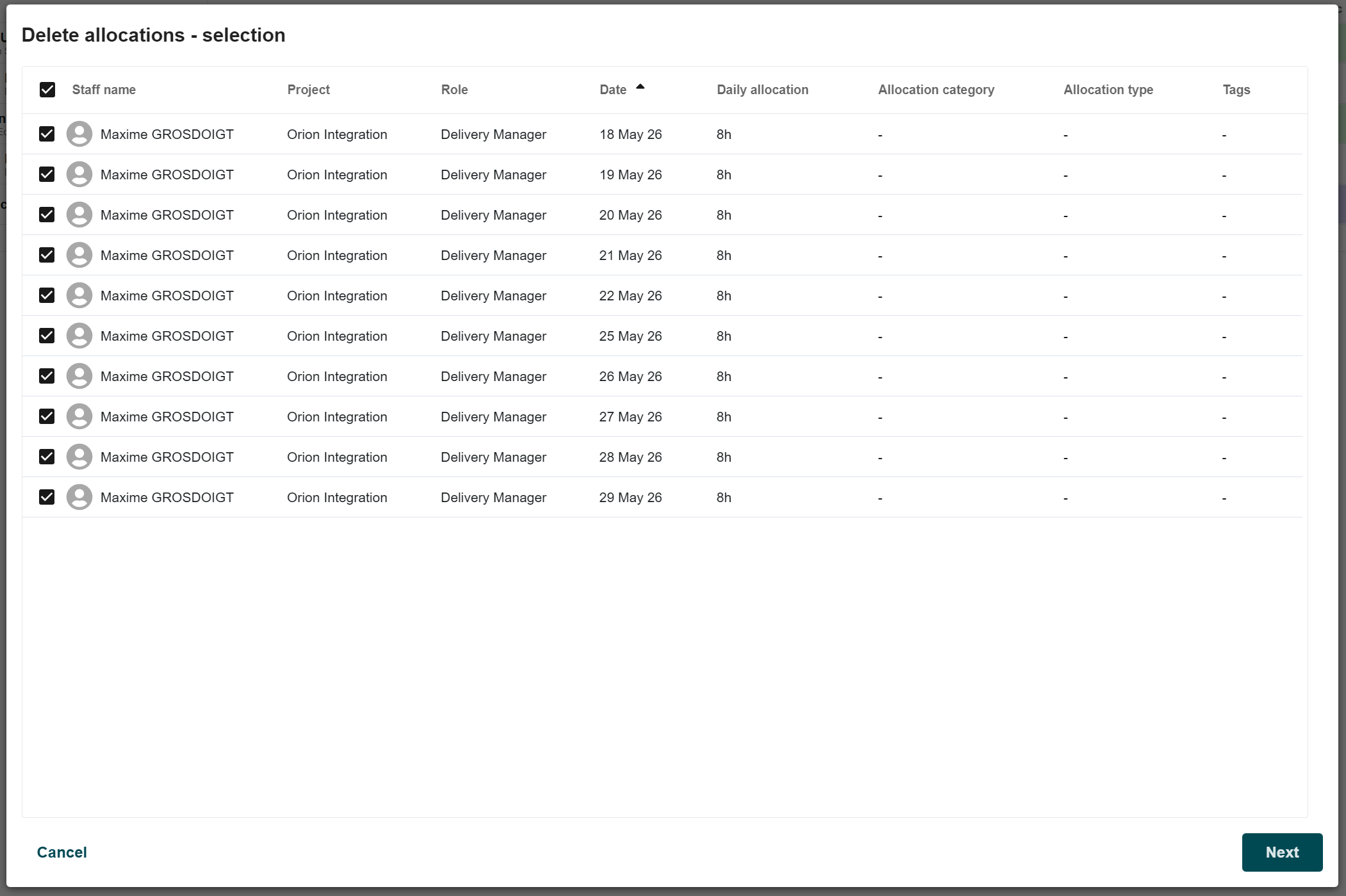
- From the movable action bar, click Bulk delete.
- In the selection screen, review the chosen period and djust which allocations to delete by selecting or unselecting rows as needed.
- Once the selection is correct, click Next.
ℹ️ In this example:
We want to delete all of this staff member’s allocations in May for the Orion Integration project
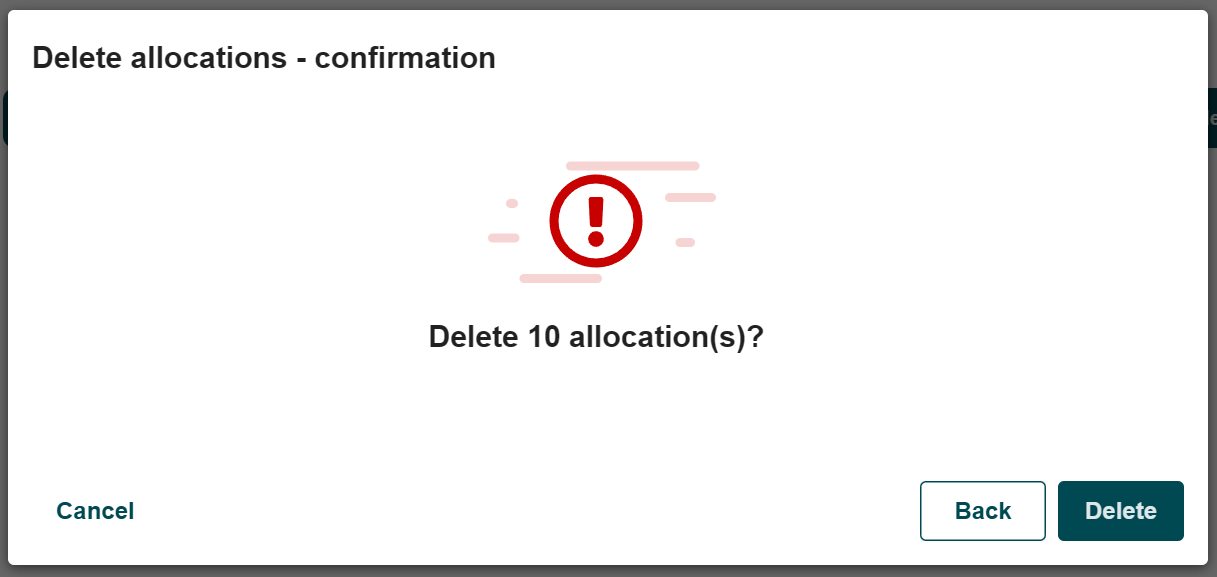
Step 4: Confirm deletion
Click Confirm to delete the selected allocations.
Step 5: Verify deletion
Locate the staff member or project in the data grid and confirm that the allocations have been successfully removed.
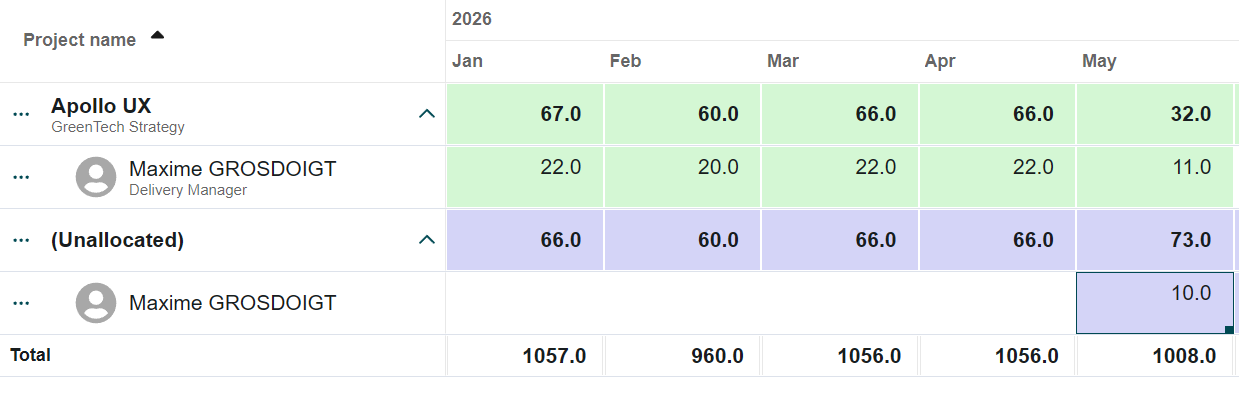
ℹ️ Result of this example:
The staff member no longer has allocations in the Orion Integration project for May.