Edit an allocation
Update existing staff allocations to reflect changes in project plans, roles, or schedules.
📝Overview
Purpose
- Update existing staff allocations when project plans change
- Ensure allocation data stays accurate across projects, staff, and time periods
Who is this for
- PMOs managing allocations and resourcing changes
Pre‑requisites
- At least one existing allocation is already created
- Familiarity with navigating the Allocations data grid
Permissions required
- Access and permission to manage allocations
📹Demo walkthrough
💭How‑to guide
Step 1: Locate the staff member
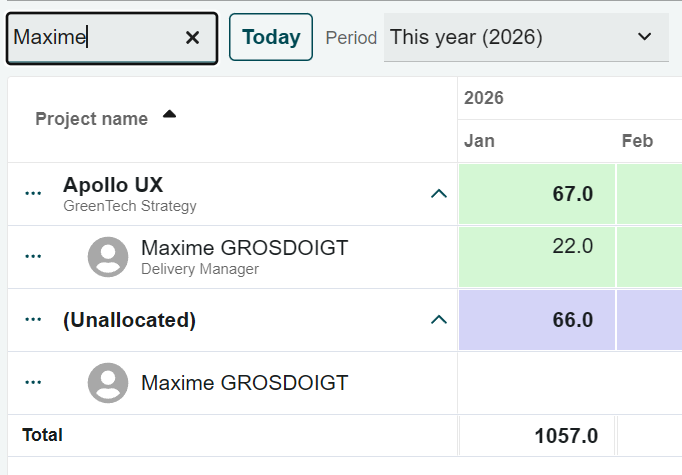
Find the staff member whose allocation you want to update in the data grid.
💡 Tip:
Use the quick search to find the project or staff faster.
Step 2: Select the allocation period
Similar to Excel, click and drag across the cells for the period you want to update. A movable action bar appears once a valid selection is made.
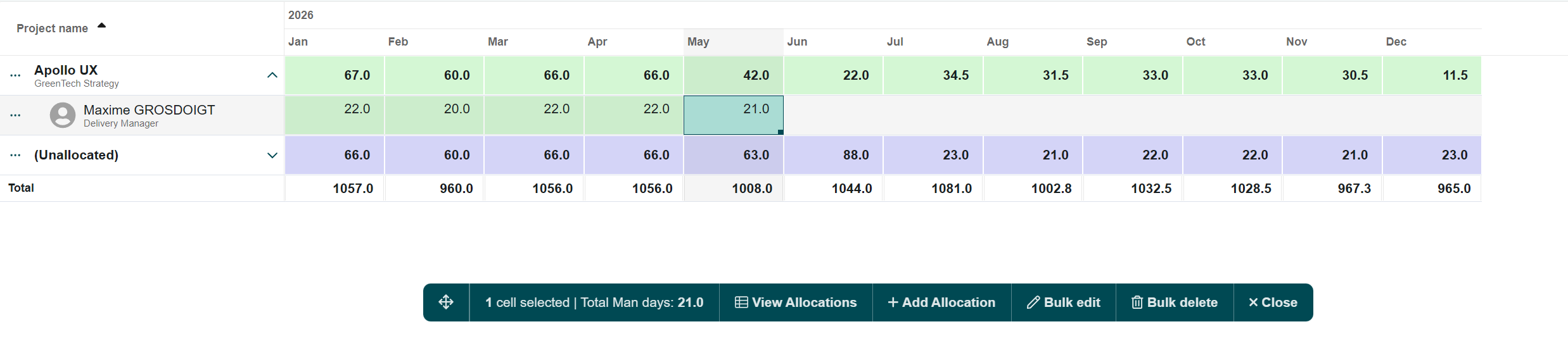
Step 3: Select Bulk Edit
- From the movable action bar, click Bulk edit.
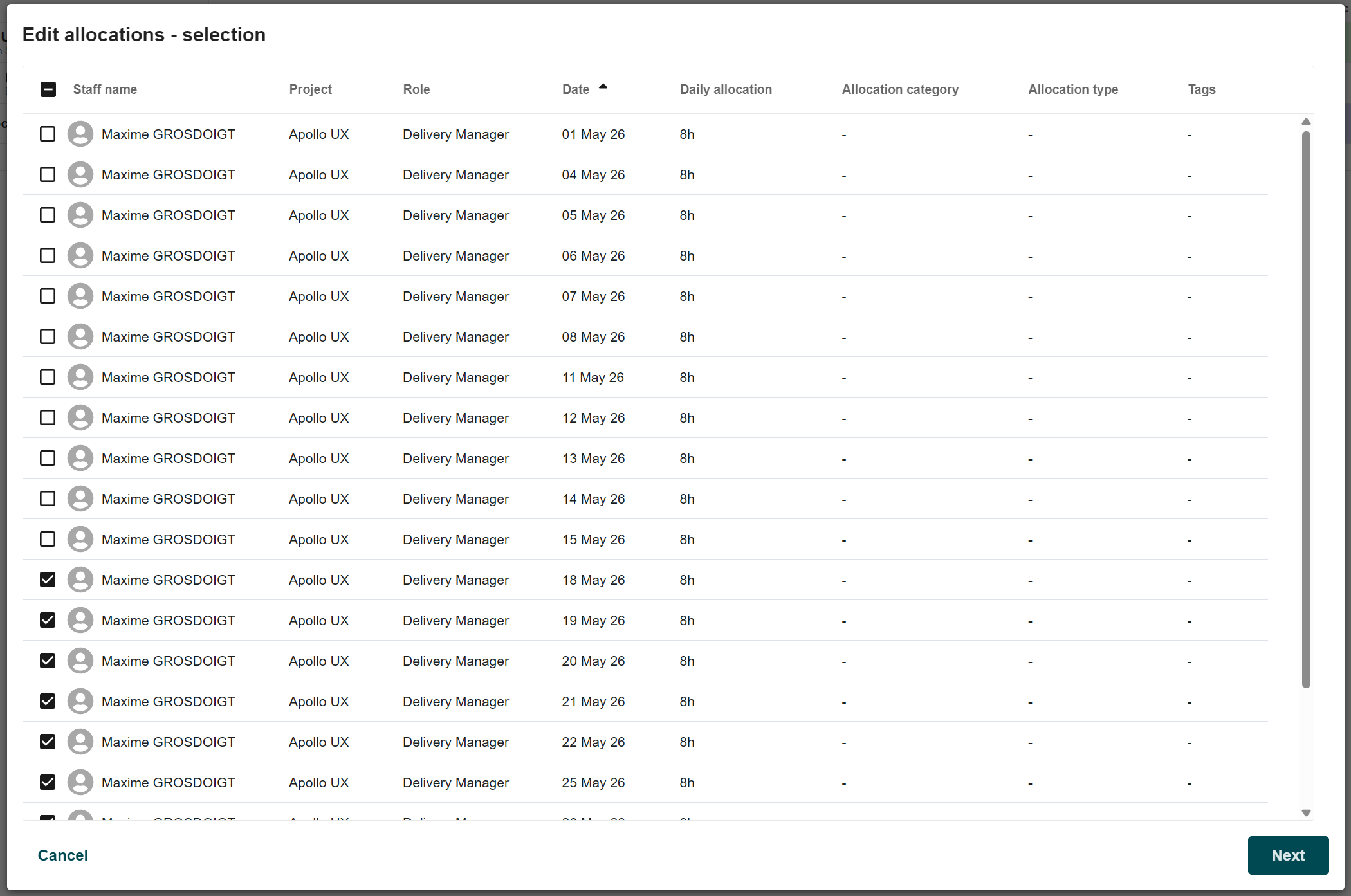
- In the selection screen, review the chosen period and adjust which allocations to edit by selecting or unselecting rows as needed.
- Once review is done, click on Next.
✍🏻 Note:
If the checkbox is not ticked, the field remains disabled and cannot be edited.
ℹ️ In this example:
We want to edit the staff member’s allocations for the second half of May, so we unselected any rows outside that range.
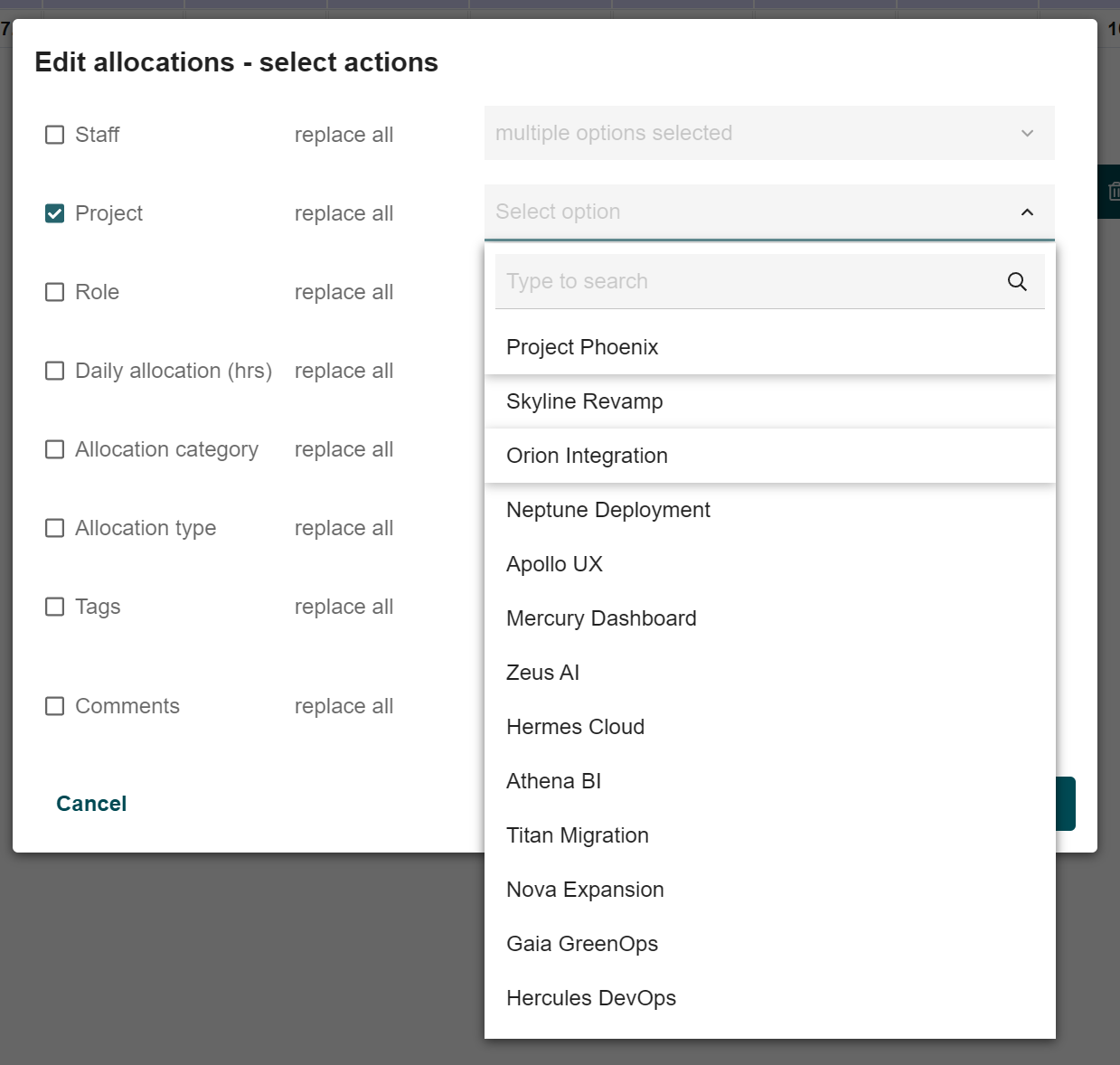
Step 4: Edit allocation details
Choose the allocation category you want to update by ticking the checkbox for the field you want to change to enable it and make the required updates.
✍🏻 Note:
If the checkbox is not ticked, the field remains disabled and cannot be edited.
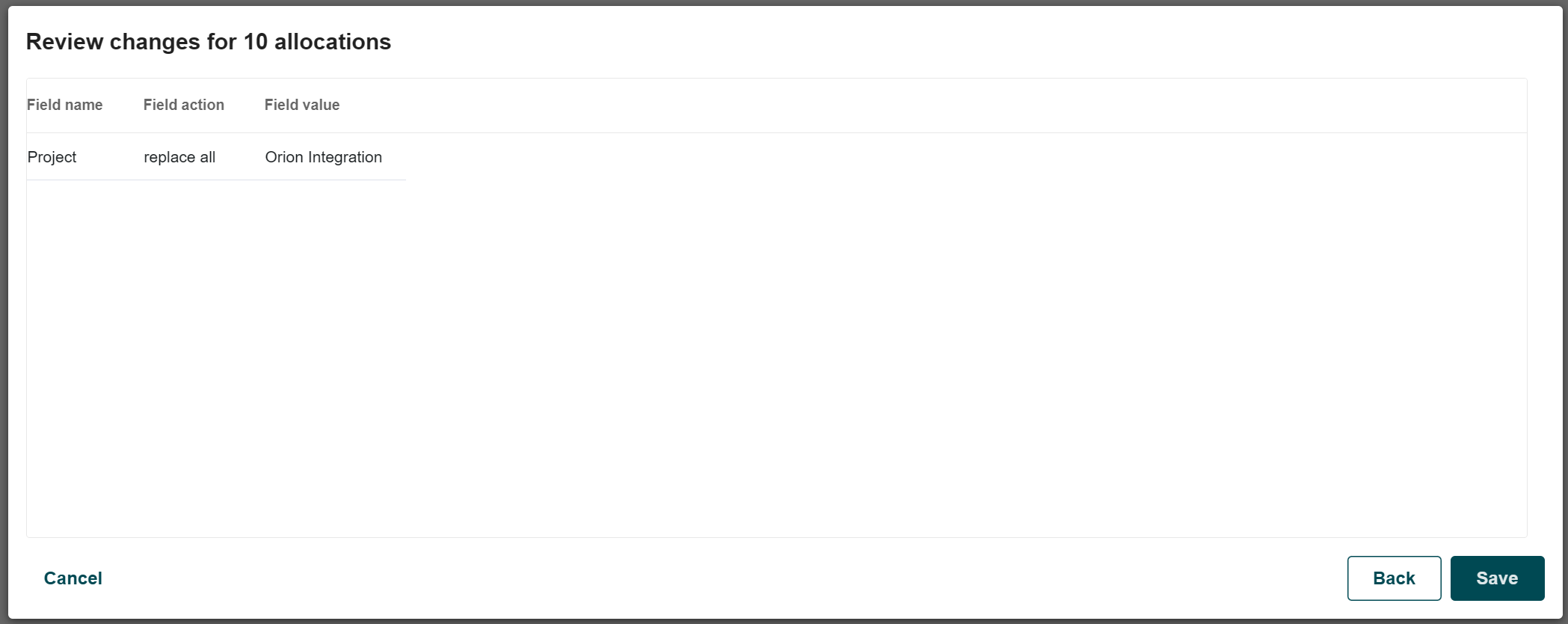
Step 5: Review and save changes
Review the summary of changes and click Save to apply the updates.
Step 6: View changes in the data grid
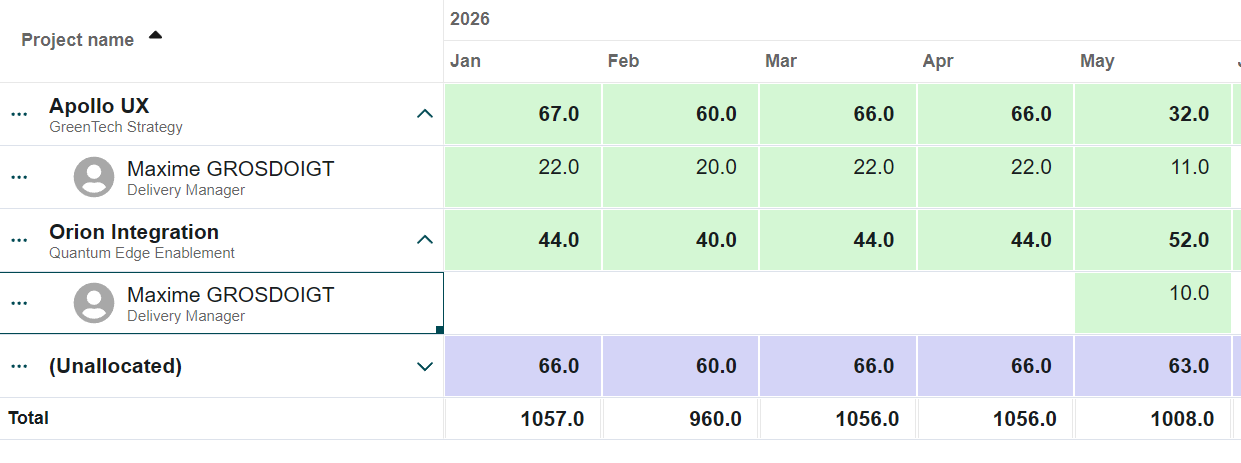
Locate the staff member or project and confirm the updated allocations are reflected correctly.
ℹ️ Result of this example:
The staff member’s allocation has been updated, they are now removed from the first half of May for the Apollo UX project, while remaining days in May allocated to the Orion Integration project.