
Create a new team & view its details
Create teams to organize staff into structured groups, making it easier to manage collaboration, assignments, and visibility across the platform.
📝Overview
Purpose
- Create new projects in the platform for a centralized view to track work and progress
Who is this for
- PMOs and Leads responsible for initiating projects
- Admins or users with permissions to manage projects
Pre‑requisites
- Knowledge of organization's project details
Permissions required
- Manage access to the Projects module
📹Demo walkthrough
💭How‑to guide
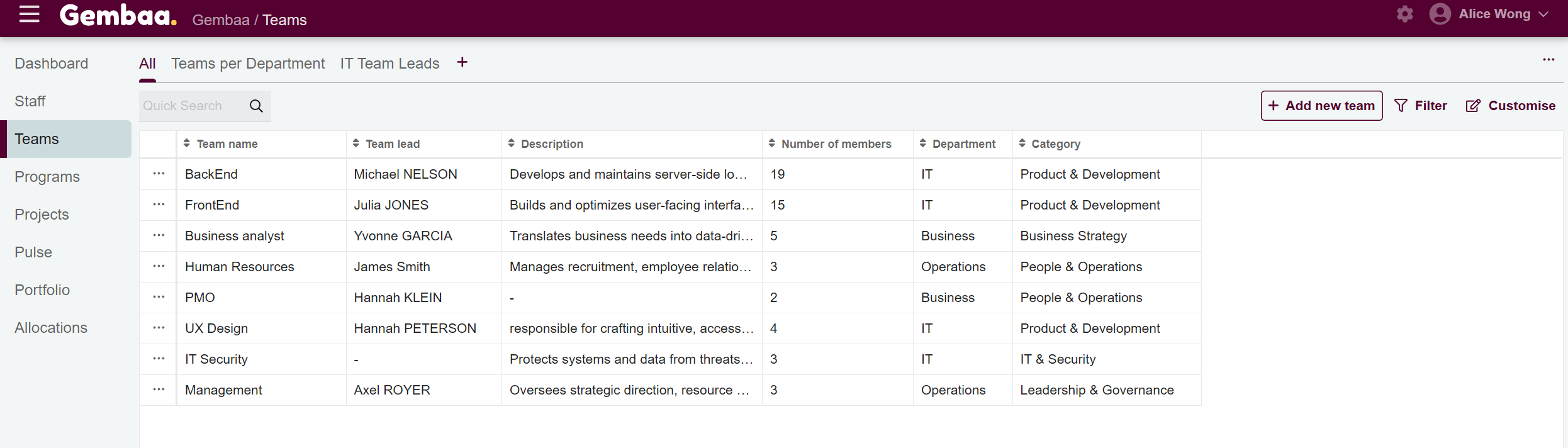
Step 1: Open the +Add new team window
- Click the '+ Add new team' button on the upper right corner of the screen
- This will open a dialog box to input all necessary team information
Step 2: Fill in your team information
Complete the required fields with '*' and/or any relevant optional fields and click 'Next' to proceed
✍️ Note:
Custom fields allow capturing extra team information. Creating and managing them is covered in a separate guide under Admin.

Step 3: Select team members and assign a team lead
Choose the staff members to include in the team, once done, click on 'Next' and from the selected staff, assign a Team Lead.
💡 Tip:
You can quickly locate the newly created project by using the Quick Search on the upper left or by scrolling through the project table list.


Step 4: Review team details and save
After selecting a Team Lead, click on 'Next' to review team details before saving.

Step 5: View team details
On the Teams table, click on the team name to open the detailed view. Here you can explore all relevant team information:
- Details - project overview and status
- Members - view all staff assigned to the team
- Allocations - view staff assigned to the project and their roles/dates
- Knowledge - relevant resources, documents, or notes attached to the project
- Pulse - performance indicators for the project
- Contributors - list of staff involved and their responsibilities
- Activity logs - chronological record of updates and actions on the project
✍️ Note:
Each tab is explained in more detail in separate guides in this Knowledge Base for easy reference.
